
AI CONNECTIONS (MCP)

Ask Your AI Assistant About Your Agency

Connect Claude, Cursor, Codex or any other MCP-compatible AI tool to your Clientish workspace through the Clientish MCP server. Ask questions in plain language and get answers from your real data. The connection can only ever read.
Included in every plan
7-day free trial
No credit card required
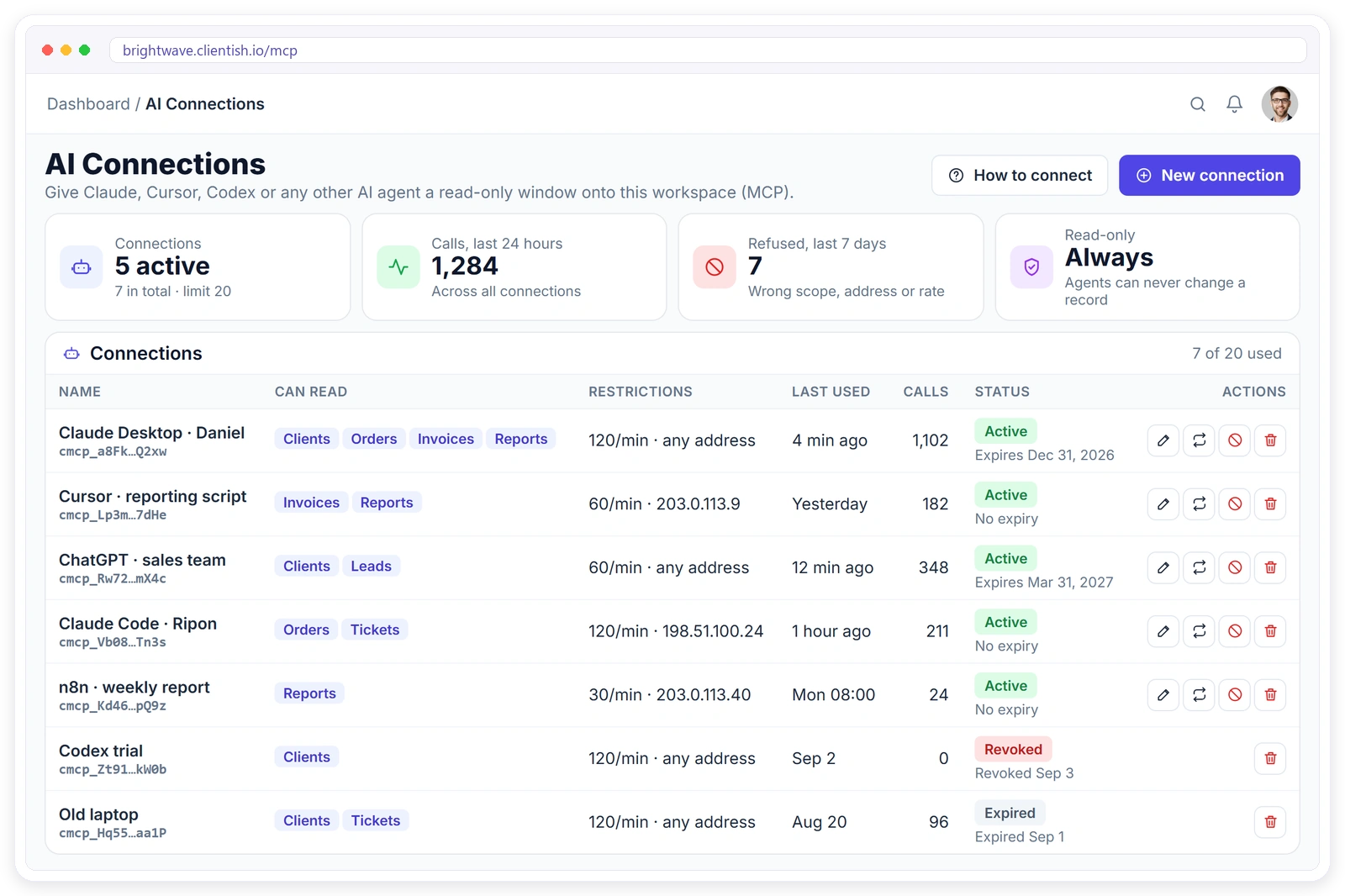
Clientish AI Connections page with MCP connections for Claude and Cursor, their permissions and the activity log

Plain Questions, Real Answers

Ask the way you’d ask a colleague. The AI looks up the answer in your workspace.
Overdue Invoices

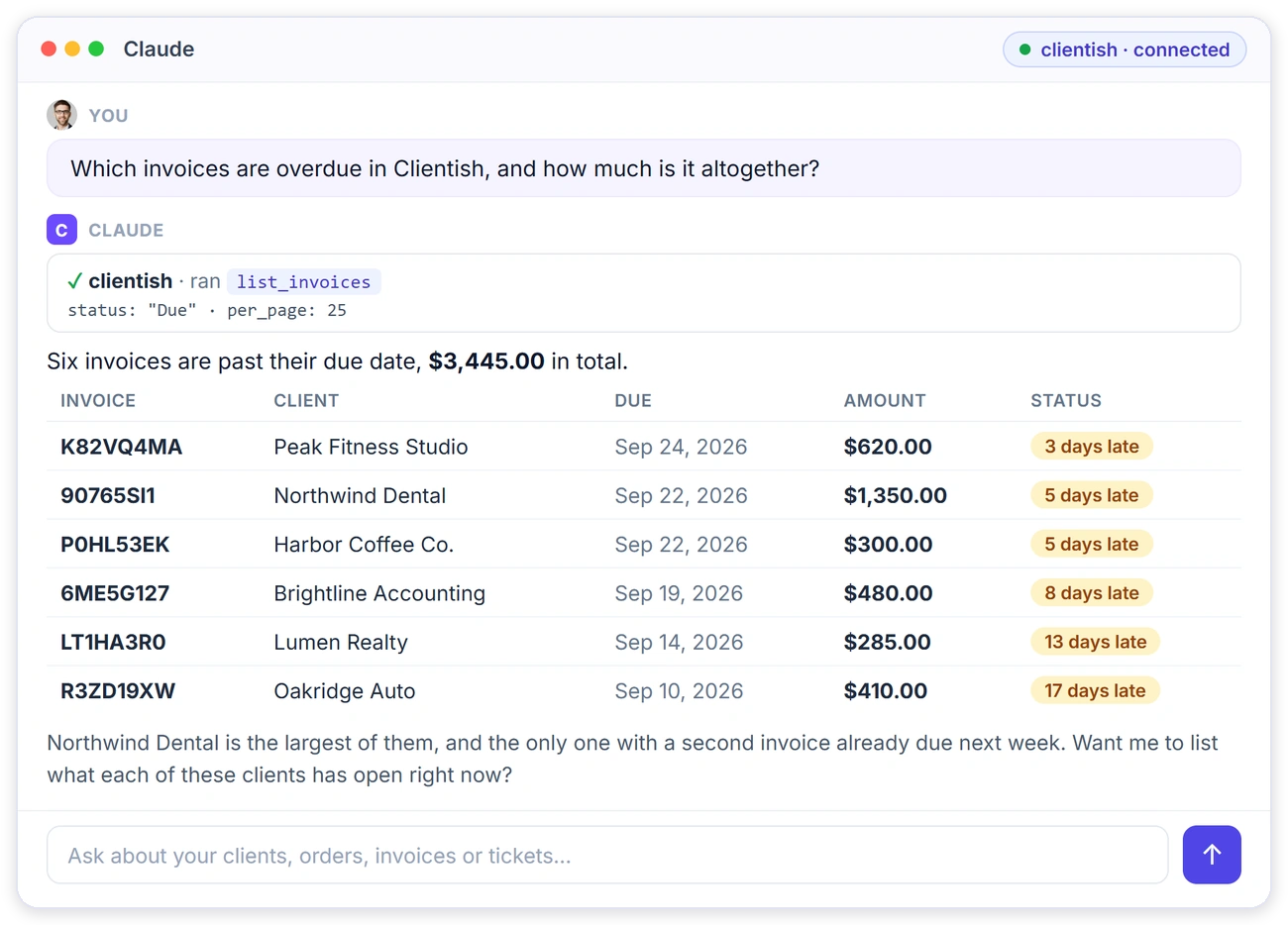
“Which invoices are overdue, and how much is it altogether?”

Revenue

“Show this month’s revenue.”

Client History

“What did this client last order?”

Open Tickets

“Which tickets are still open?”

Claude answering which invoices are overdue by reading the Clientish workspace over MCP

ASK IN PLAIN LANGUAGE

Your Numbers, Without Opening a Report

Ask a question in Claude and it runs the right Clientish lookup for you, then answers with the actual invoices, clients and totals.

It shows which lookup it ran and with what filters
Answers come from your live workspace data
Ask follow-up questions in the same chat
The same question works in Claude Code, Claude Desktop, Cursor or Codex

What the AI Can Read

Each connection has its own permissions. Tick only what that tool needs.

Clients

List and search clients, and open one client’s record.

Orders

Filter orders by status, client or date, and open any order.

Invoices

Filter invoices by status, client or date, and open any invoice.

Tickets

Filter by status or priority and read the latest messages.

Services

List the services you sell, with search.

Leads

List leads by status or date, with search.

Team

List your team members, with search.

Reports

Workspace overview and revenue by day or by month.

Connect Clientish MCP in Four Steps

Only the workspace owner can create a connection.

Create a Connection

Open AI Connections and click New connection.

Choose What It Reads

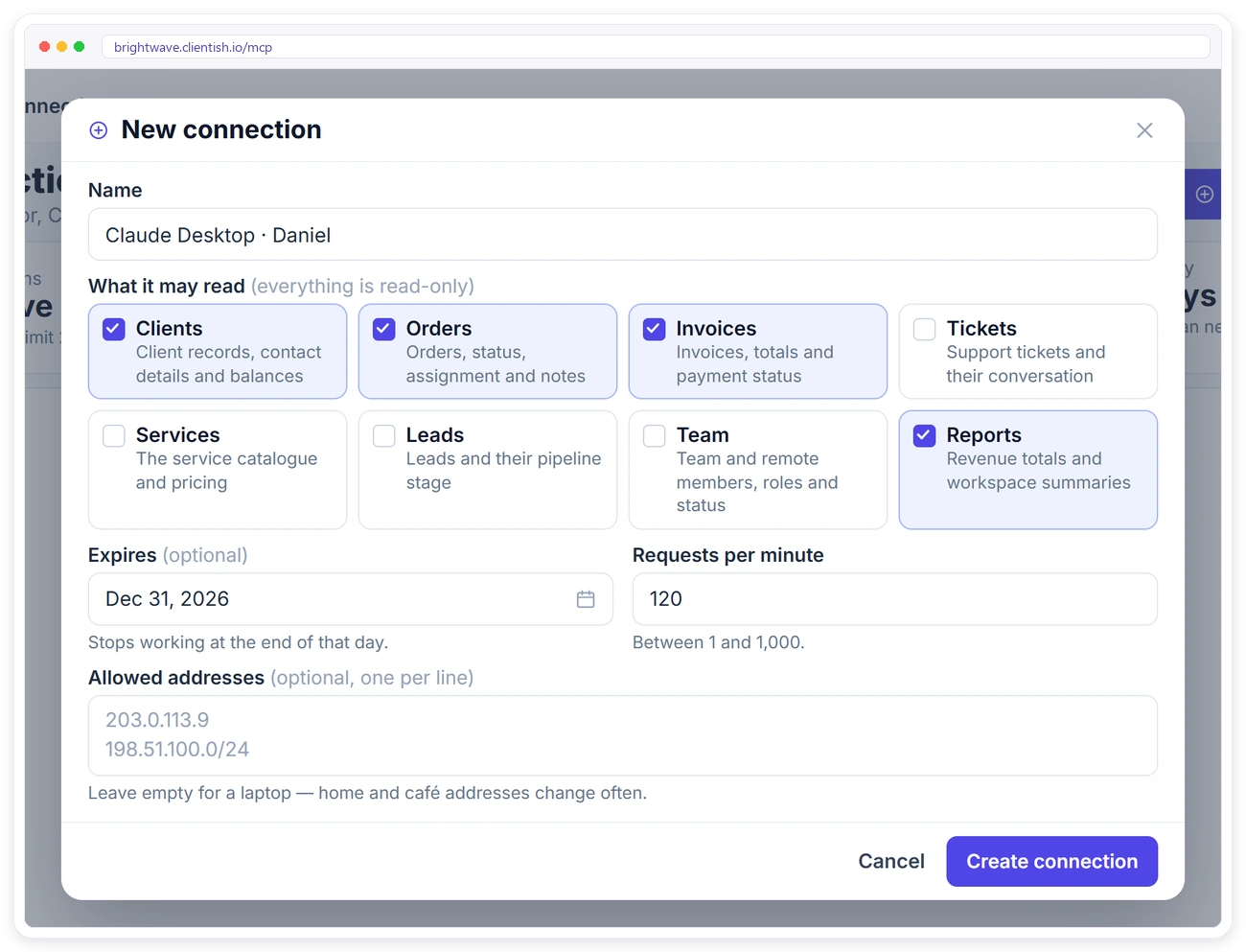
Name it, tick its permissions, and add limits if you want them.

Copy the URL

The connection URL is shown once, with a setup snippet for your tool.

Paste and Ask

Paste the snippet into your AI tool, restart it, and ask a question.

WORKS WITH YOUR TOOLS

Works With Claude, Cursor and Codex

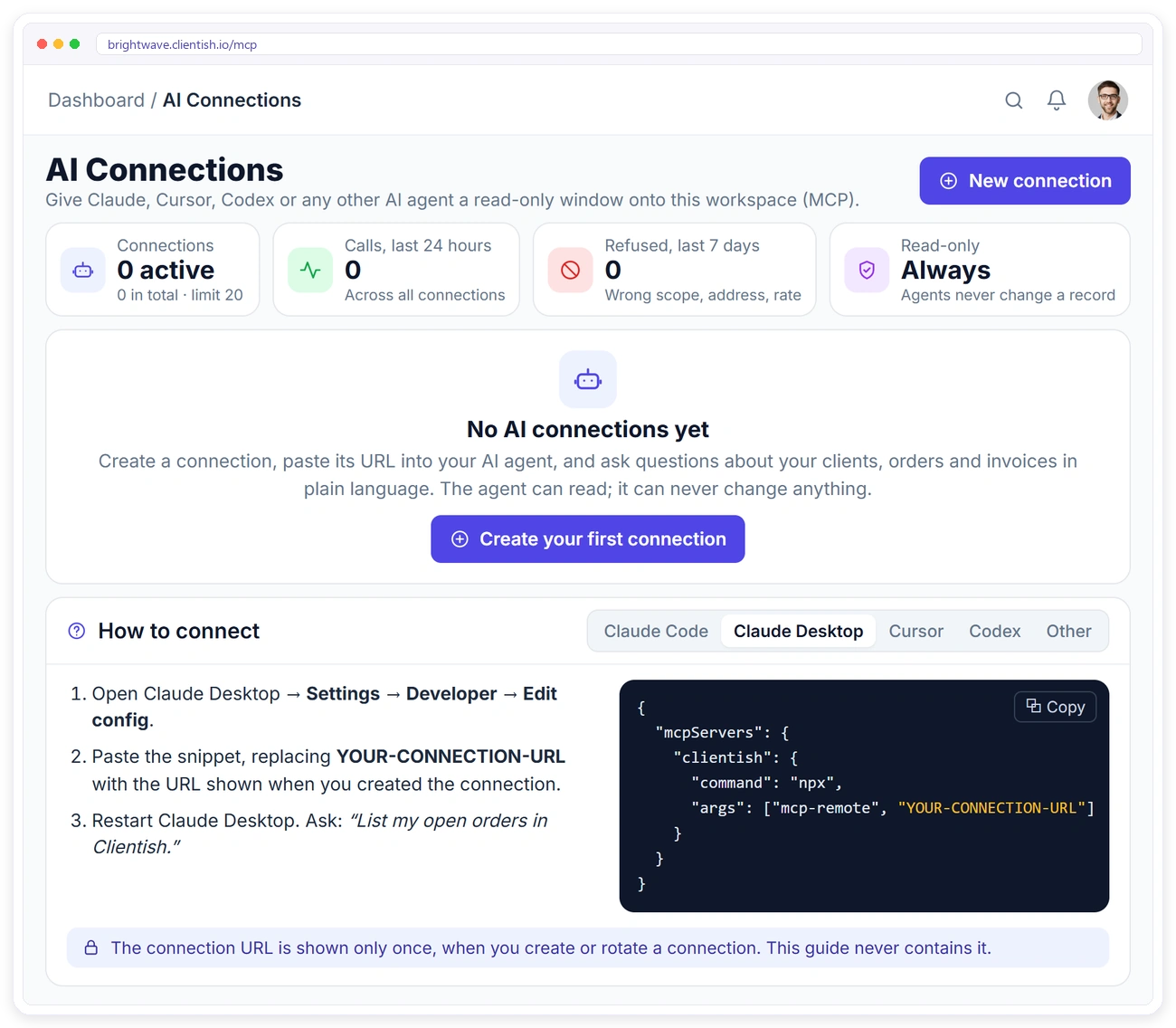
The AI Connections page gives you a ready-made setup snippet for each tool. Any AI client that supports MCP over HTTP can connect.
Claude Code: one command in the terminal
Claude Desktop: add it in the developer config
Cursor and Codex: add it to the config file
Other MCP clients can send the token as a Bearer header
How to connect Claude Code, Claude Desktop, Cursor or Codex to Clientish with a ready-made MCP setup snippet
New MCP connection in Clientish with read permissions, expiry date, request limit and allowed addresses

CONNECTIONS

Every Connection Has Its Own Rules

Give each person or machine a separate connection, so you can see and control each one on its own.

Permissions per connection: clients, orders, invoices and more
Optional expiry date and allowed IP addresses
Request limit per connection, 120 a minute by default
Rotate the URL, revoke, edit or delete at any time

ACTIVITY

See Exactly What Was Asked

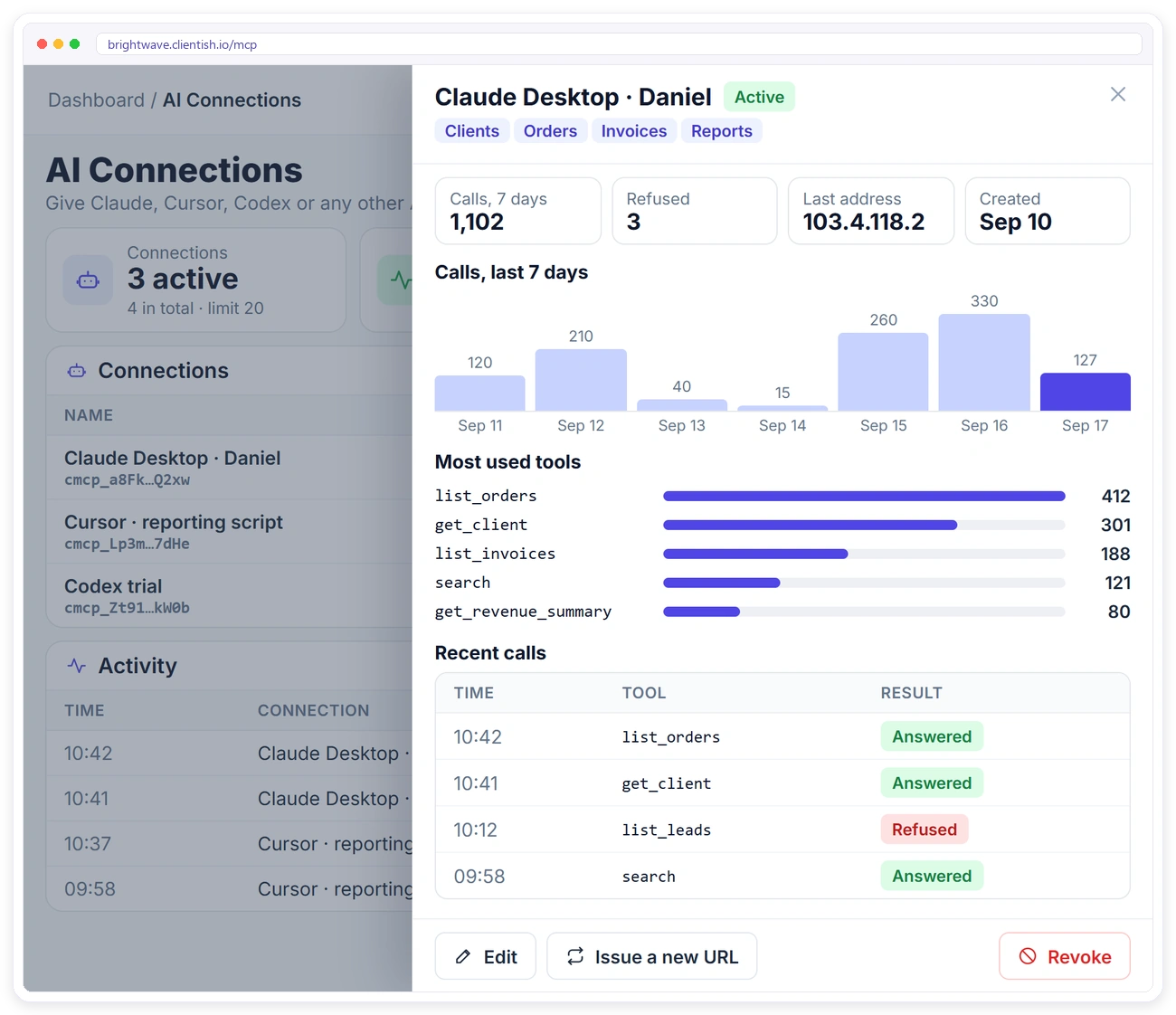
Every connection keeps an activity list: which lookup ran, when, from where, and whether it was answered or refused.
Filter by answered, refused or errors
You’re told when a connection is used from a new address
You’re told after 20 refusals in an hour
And 3 days before a connection expires
MCP connection details in Clientish with calls per day, most used tools and recent calls

Read-Only, By Design

An AI connection can look, never change. It stops working the moment you revoke it.

Never Changes Data

It can’t create invoices, change orders, reply to tickets or send email.

Your Workspace Only

Every lookup is limited to your own workspace and nothing else.

No Secrets Exposed

Passwords, 2FA codes, tokens and email settings are never read.

URL Shown Once

Only a digest of the connection URL is stored. Lost it? Rotate it.

AI Connections FAQ

Quick answers about connecting AI tools to Clientish.

What is MCP?

MCP (Model Context Protocol) is a standard way for AI tools to connect to other apps. Clientish runs an MCP server for your workspace, so an AI tool you connect can look up your clients, orders, invoices and more when you ask it a question.

Which AI tools can I connect?

Claude Code, Claude Desktop, Cursor, Codex and any other AI client that supports MCP over streamable HTTP.

Does it work with ChatGPT?

Not today. ChatGPT doesn’t accept a plain MCP HTTP server in this way. Any tool that can add an MCP server by URL works.

Can the AI change anything in my workspace?

No. Every tool is read-only. It can’t create an invoice, change an order, reply to a ticket or email anyone.

Who can create a connection?

Only the workspace owner. Co-admins and team members can’t.

What if the connection URL leaks?

Rotate it to get a new URL with the same settings, or revoke it. It stops working immediately.

Can I limit what one connection can see?

Yes. Each connection has its own permissions, and you can add an expiry date, allowed IP addresses and a request limit.

Put Your Agency Data One Question Away

Connect your AI assistant to Clientish in a few minutes. Read-only, controlled by the owner, and switched off the moment you revoke it.

Scroll to Top