
TEAM MESSENGER
Team Chat Built Into Your Workspace
Channels and direct messages for your in-house team and remote members, next to the orders, tasks and clients they talk about. No extra app, no extra subscription, no lost conversations.
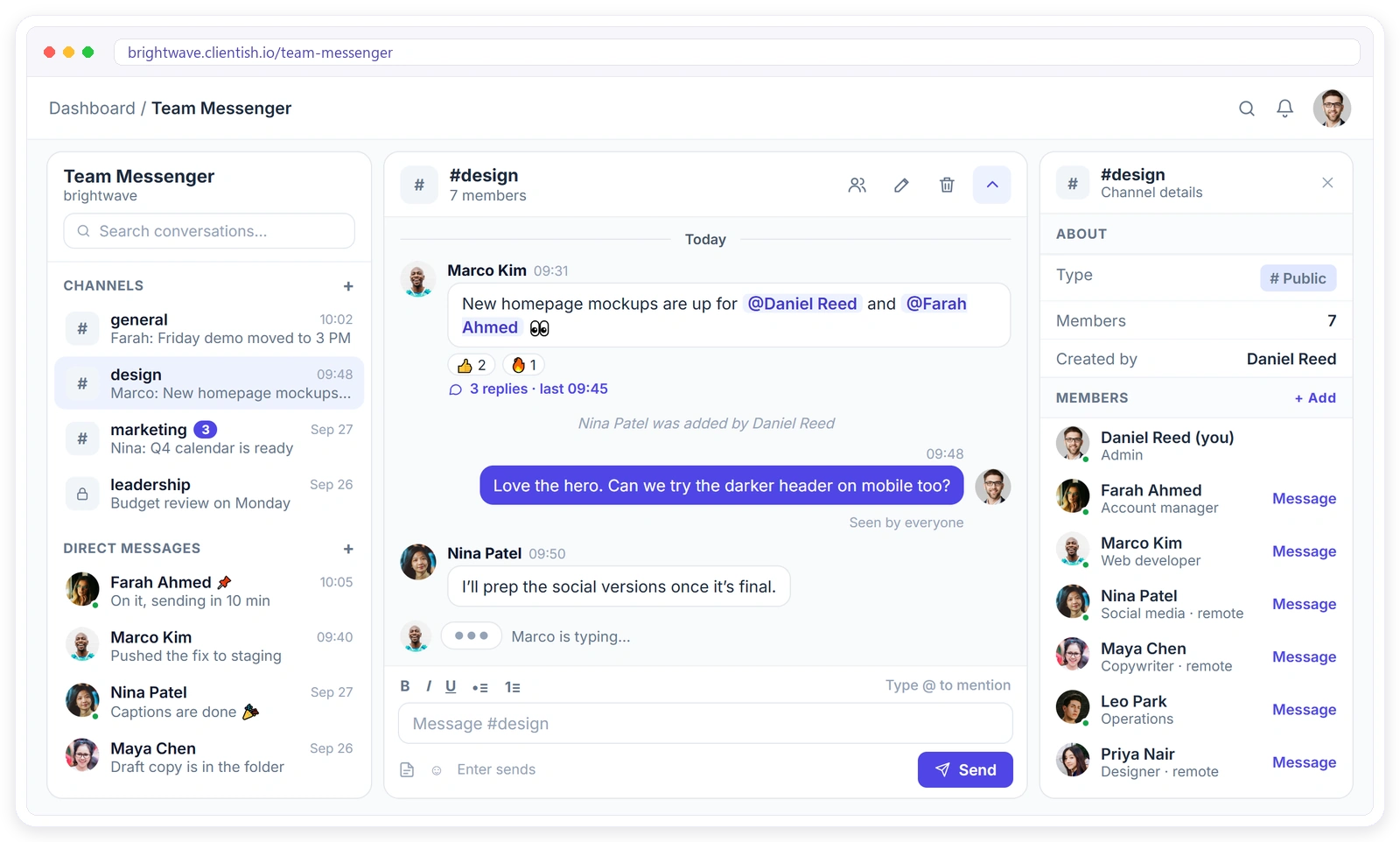
Everything Your Team Talks About, in One Place
The chat tools your team already knows, built into the workspace they already use.
Get Your Team Talking in Minutes
Team Messenger is ready in every workspace. There is nothing to install.
CHANNELS
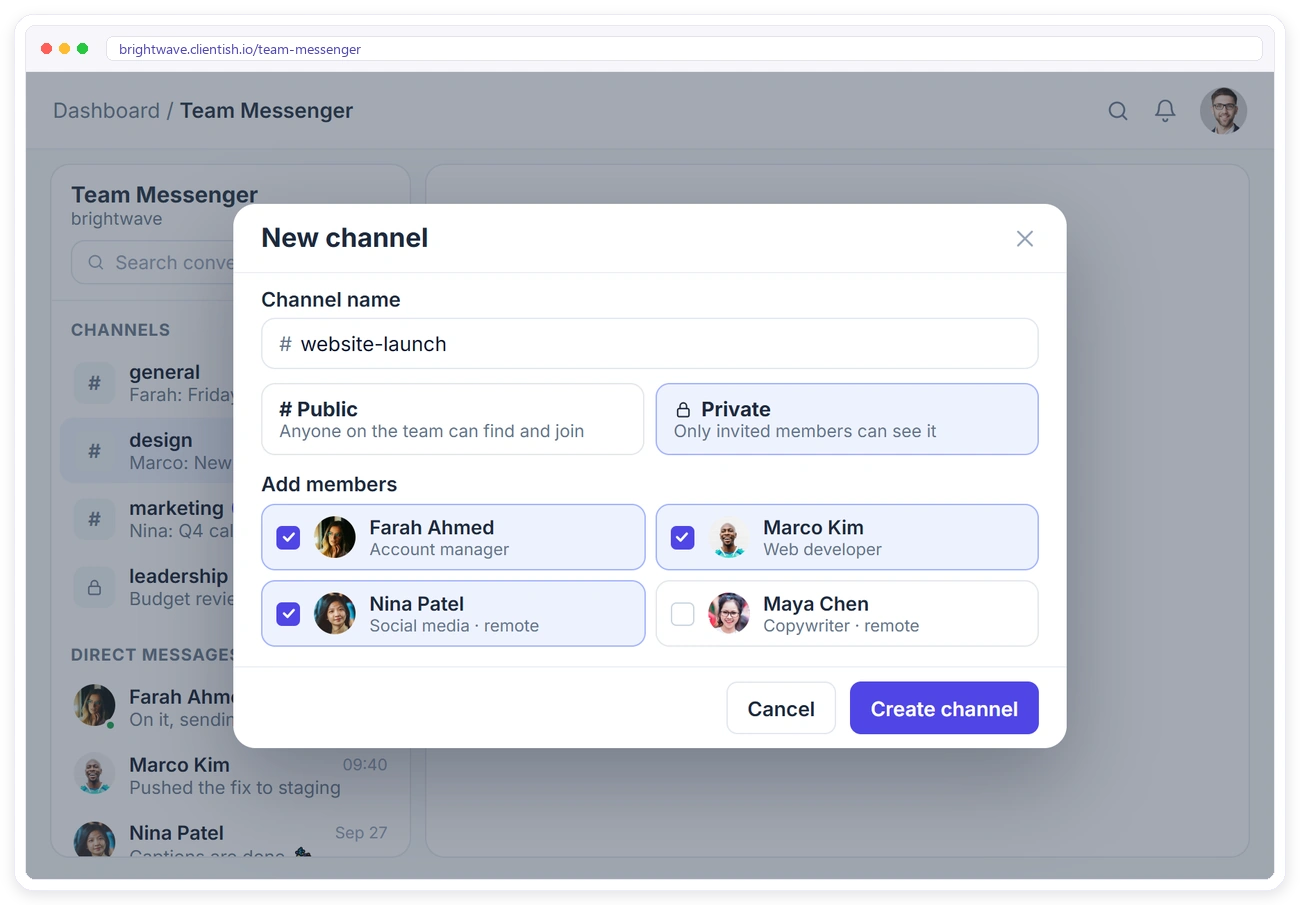
Public or Private, Your Call
Create a channel for a project, a client or a team. Public channels are open to everyone on the team, and private channels stay hidden from anyone who wasn’t invited. Add members when you create it or later.
REACT, REPLY, EDIT
Chat the Way Your Team Already Does
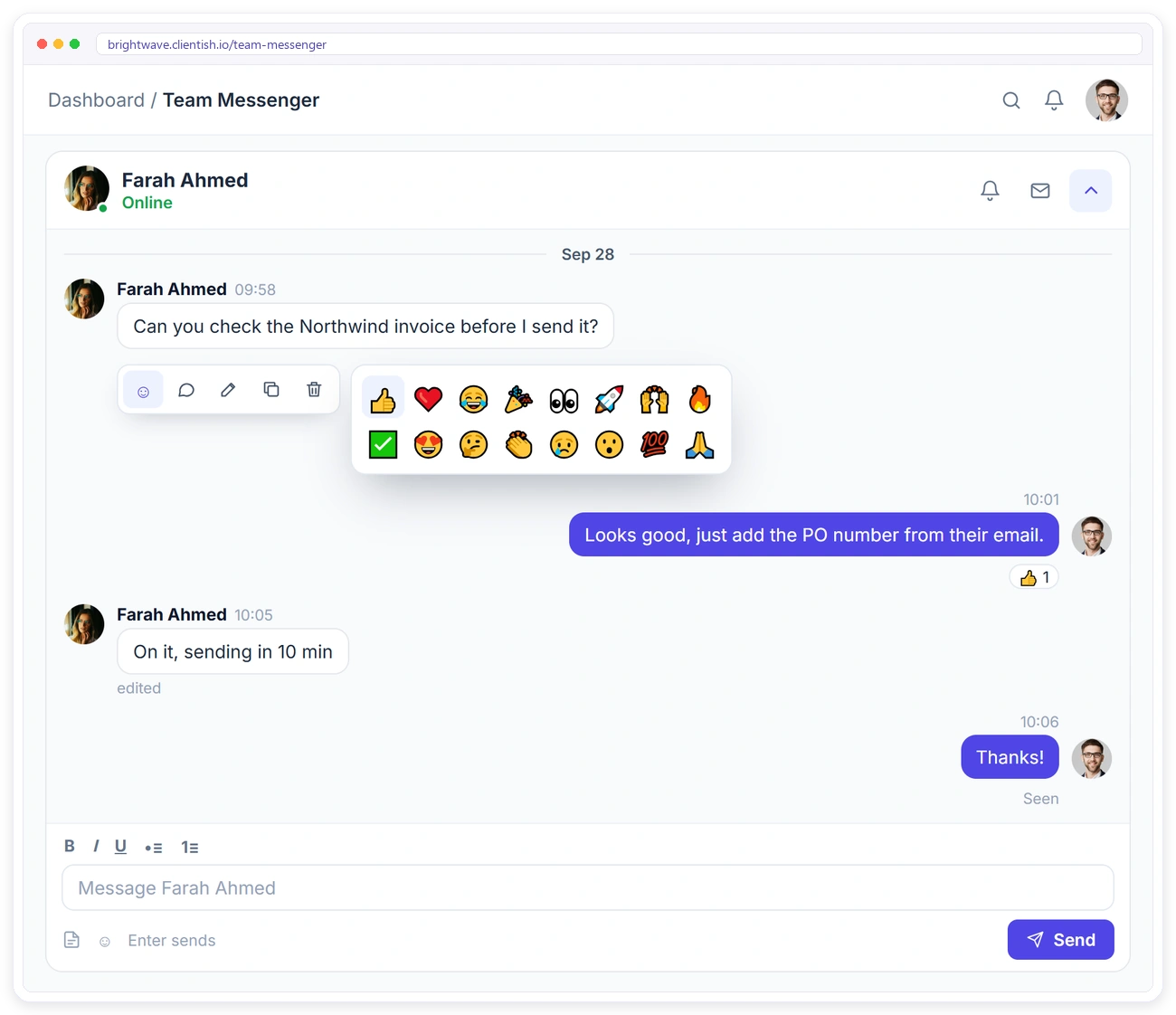
Hover over a message to react, reply, edit, copy or delete it. Replies keep side conversations tidy, reactions save a reply, and edited messages are marked as edited.
THREADS
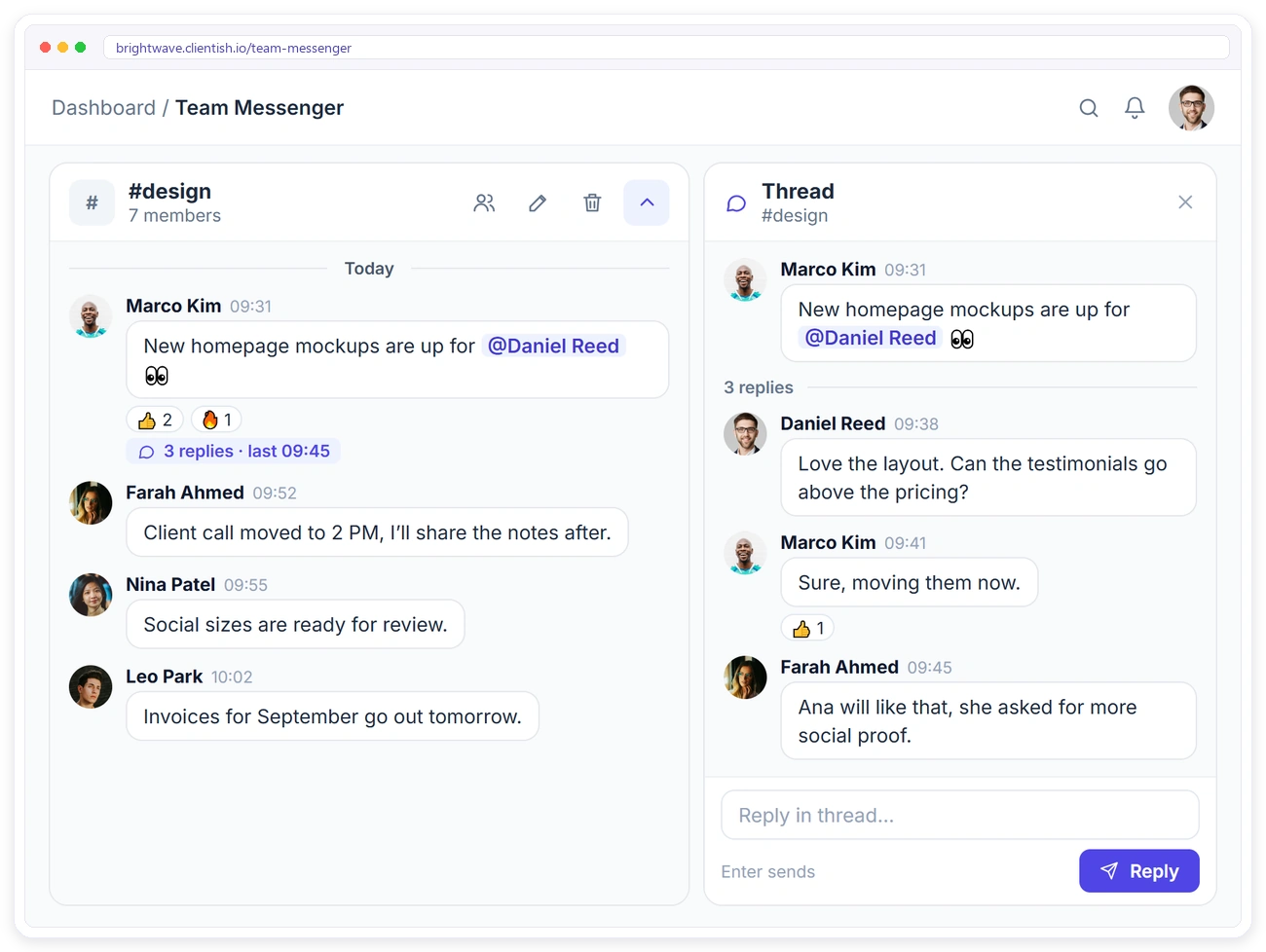
Keep Side Conversations Out of the Way
Reply to any message in a thread. The thread opens next to the channel, so a quick back-and-forth about one mockup or one task doesn’t bury everything else.
@MENTIONS
Get the Right Person’s Attention
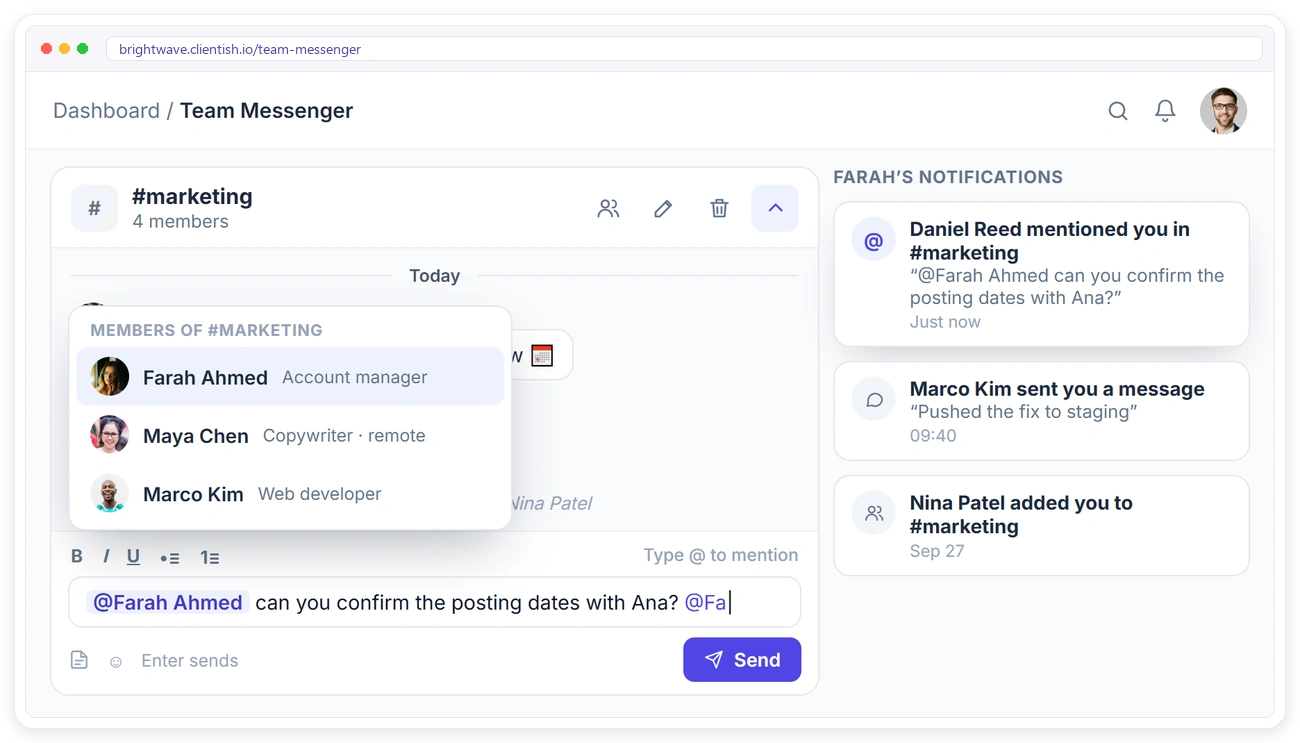
Type @ to mention a teammate. They get a notification straight away with the message, so nothing important gets buried in a busy channel.
PRIVATE CHANNELS
Keep Sensitive Talk Where It Belongs
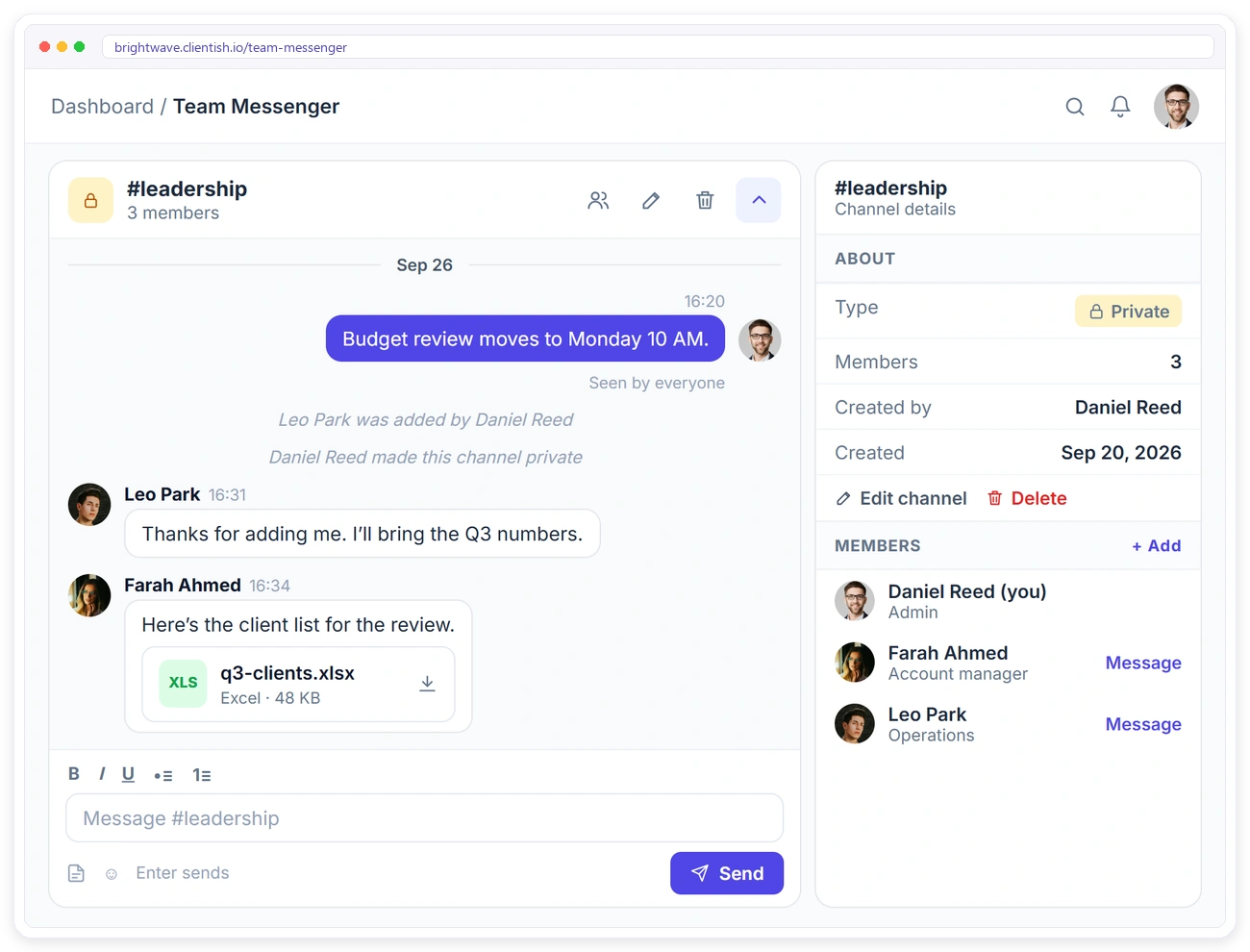
Use private channels for leadership, finance or a sensitive client. Only members can see the channel and its files, and every change is recorded, from new members to a channel going private.
REMOTE TEAM
Reach Teammates Even When They’re Away
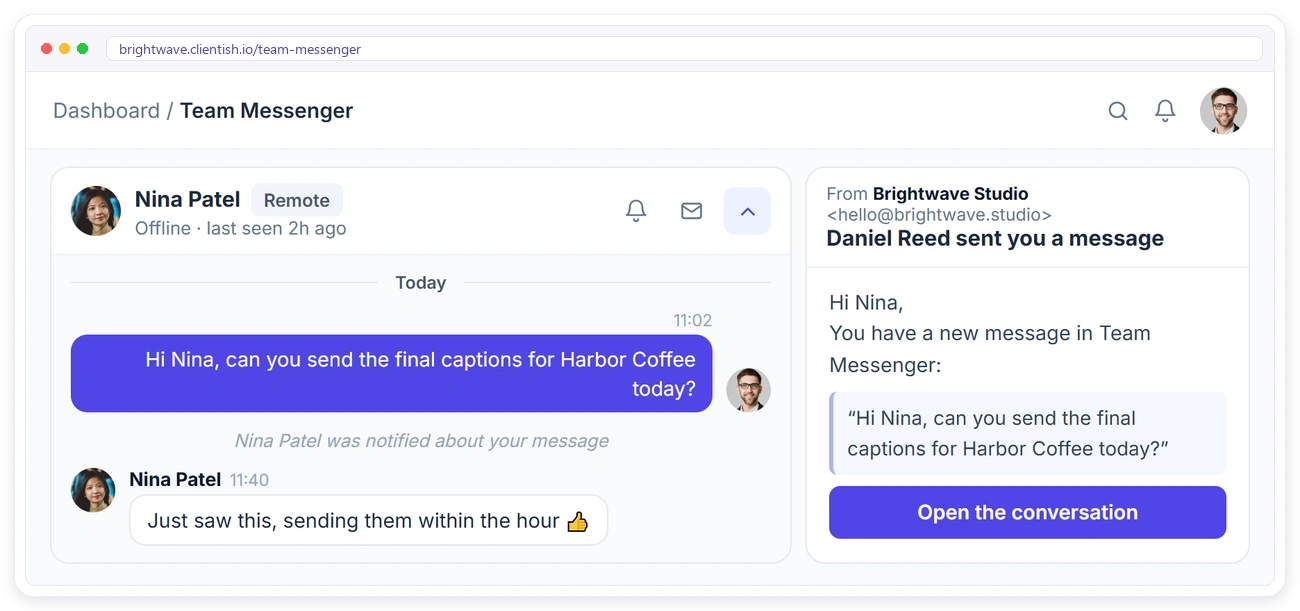
Remote members and freelancers are part of the same messenger. If someone is offline, they get a notification about your message, and you can email it to them with one click.
PERMISSIONS
Decide Who Can Do What
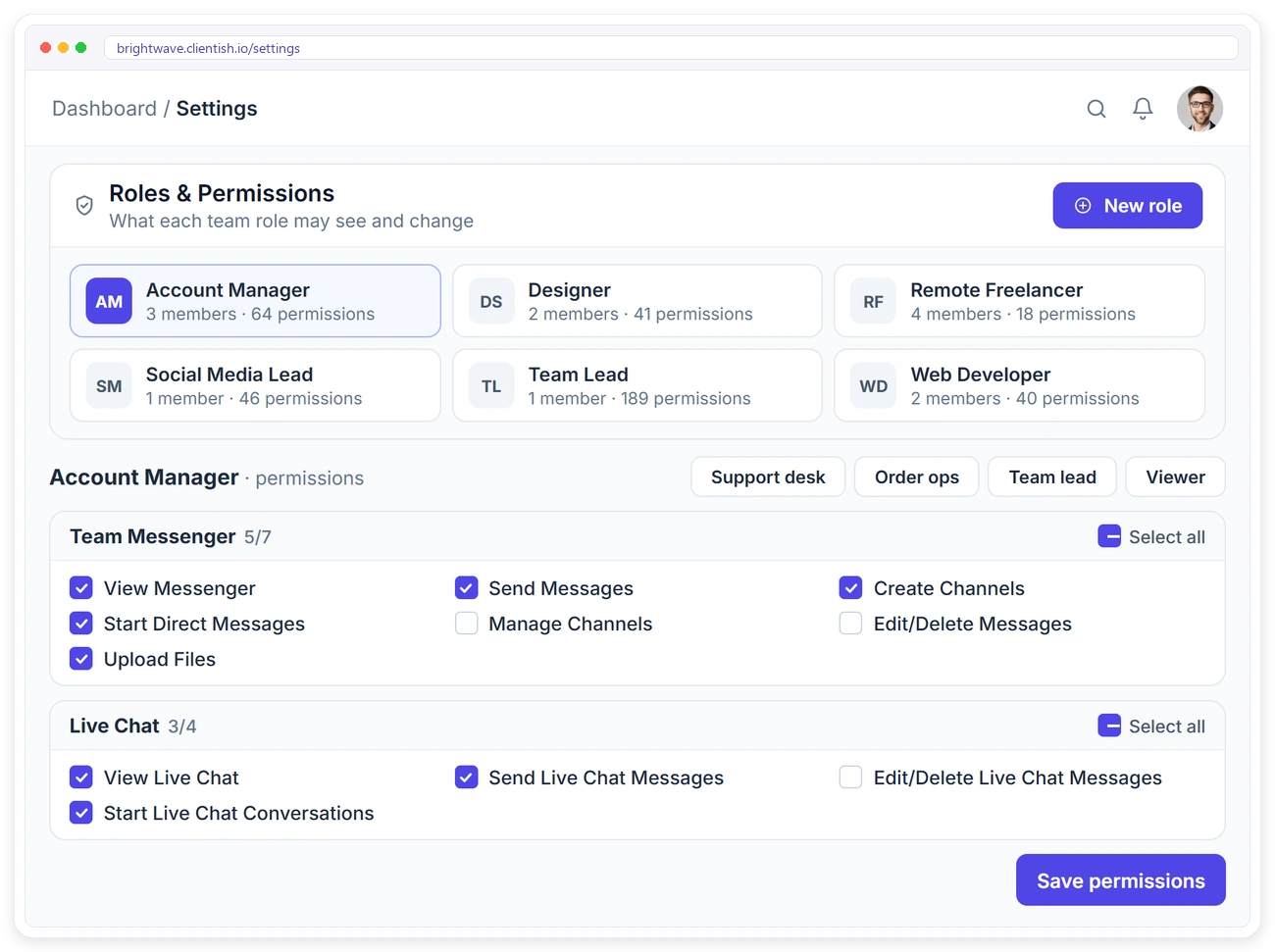
Every team role has its own Team Messenger permissions. Let account managers create channels and start direct messages, keep freelancers to sending messages, and give only leads the right to manage channels or edit other people’s messages.
Built for Agency Teams
Team Messenger lives next to the rest of your agency work, with the controls an agency needs.
Team Messenger FAQ
Quick answers about chatting with your team in Clientish.
Who can use Team Messenger?
You, your team members and your remote members. Clients don’t see it. They talk to you through Live Chat instead.
What is the difference between public and private channels?
Anyone on the team can find and join a public channel. A private channel is only visible to the people who were added to it.
Can I control who creates channels?
Yes. Role permissions decide who can send messages, start direct messages, create channels and manage channels or messages.
What happens when I @mention someone?
They get a notification straight away with a link to the message.
Will teammates see messages when they’re offline?
Yes. They get a notification about new messages, and you can also email a message to them with one click.
Can I share files?
Yes. Images, PDFs, Word, Excel, CSV, PowerPoint and text files. Shared files are also saved to Files.
Can I edit or delete a message?
Yes, your own messages. Edited messages are marked as edited.
Bring Your Team Chat Into Clientish
Start your free trial and talk to your team next to the work.