
AI CONNECTIONS (MCP)
Ask Your AI Assistant About Your Agency
Connect Claude, Cursor, Codex or any other MCP-compatible AI tool to your Clientish workspace through the Clientish MCP server. Ask questions in plain language and get answers from your real data. The connection can only ever read.
Plain Questions, Real Answers
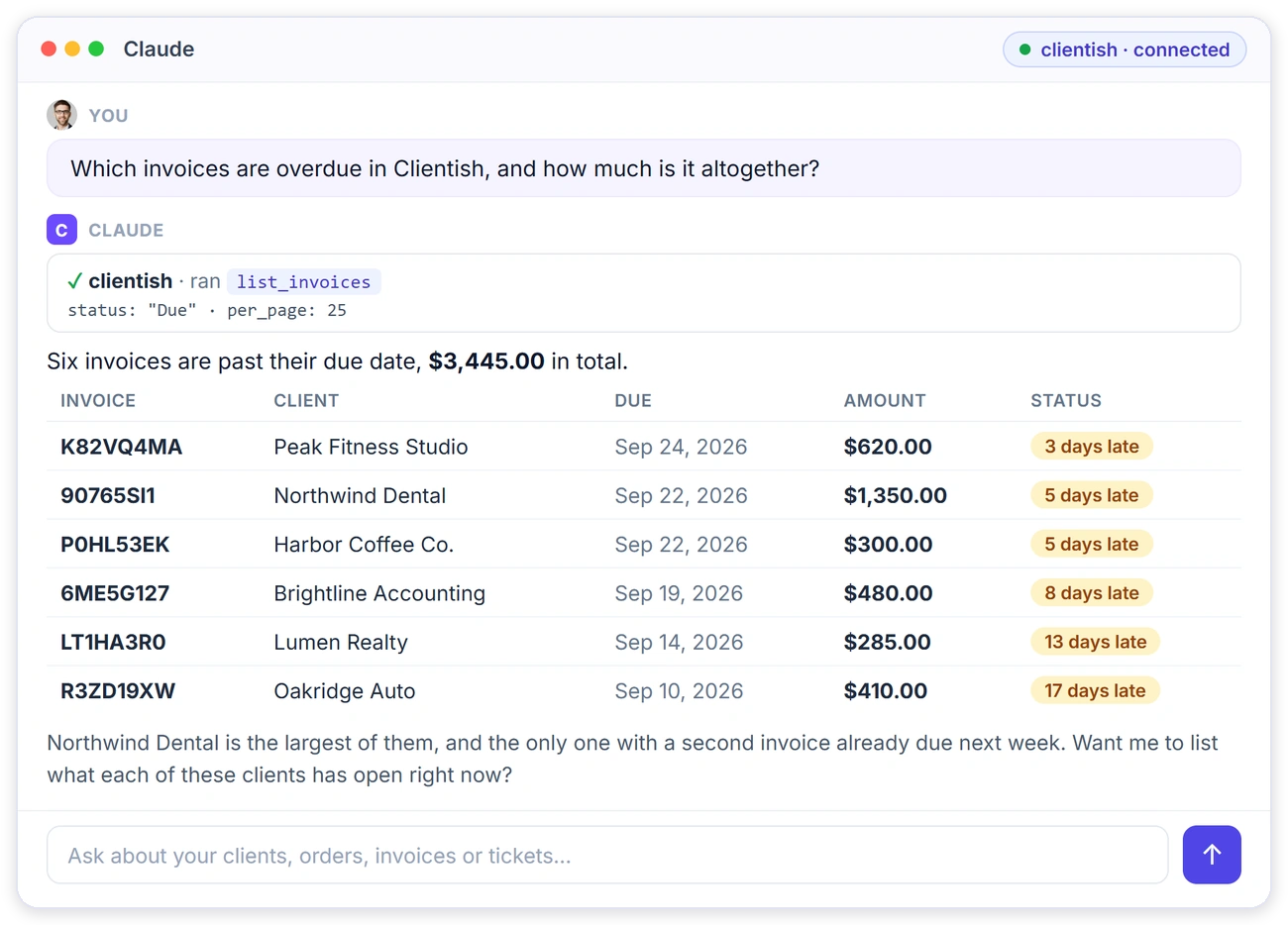
Ask the way you’d ask a colleague. The AI looks up the answer in your workspace.
ASK IN PLAIN LANGUAGE
Your Numbers, Without Opening a Report
Ask a question in Claude and it runs the right Clientish lookup for you, then answers with the actual invoices, clients and totals.
What the AI Can Read
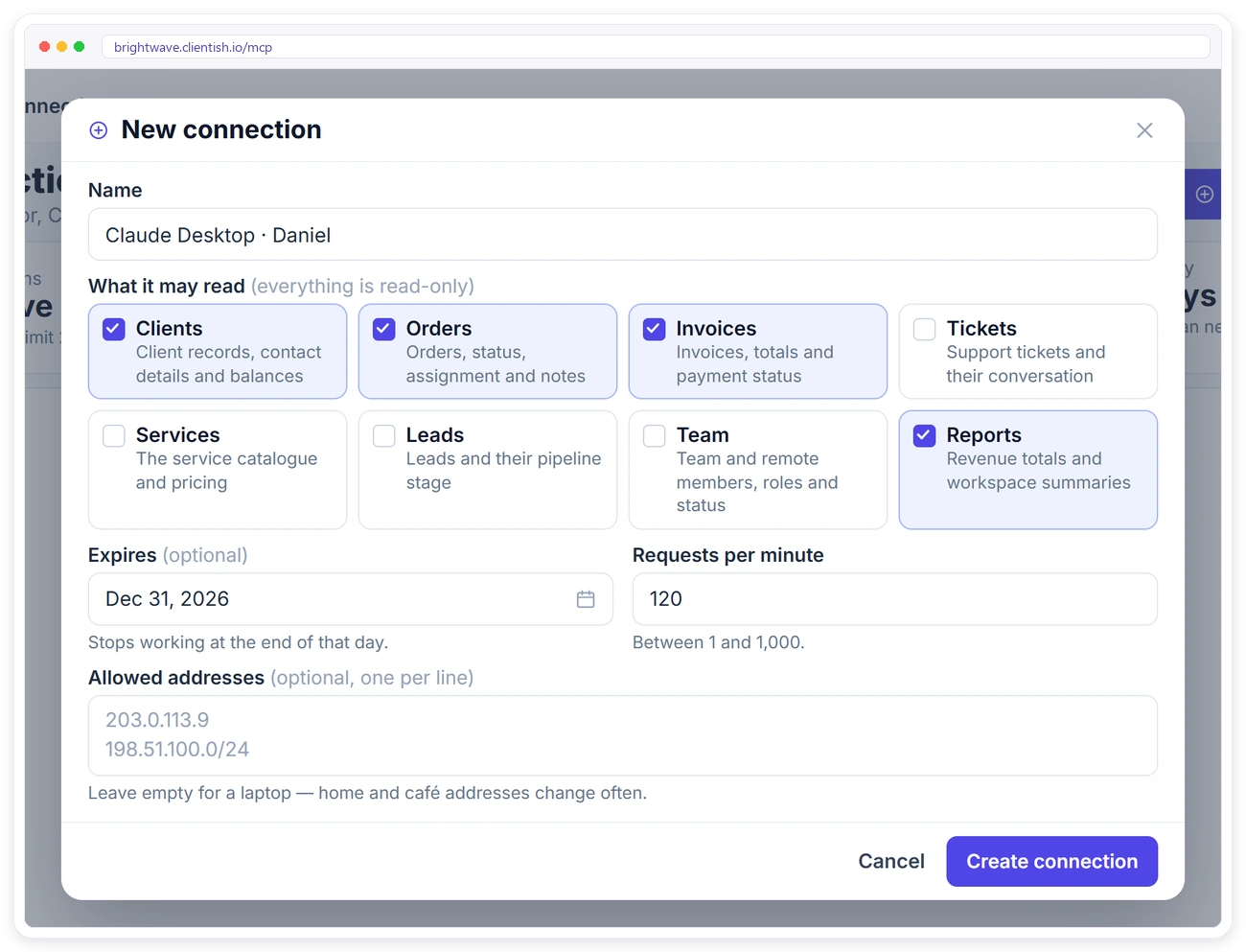
Each connection has its own permissions. Tick only what that tool needs.
Connect Clientish MCP in Four Steps
Only the workspace owner can create a connection.
WORKS WITH YOUR TOOLS
Works With Claude, Cursor and Codex
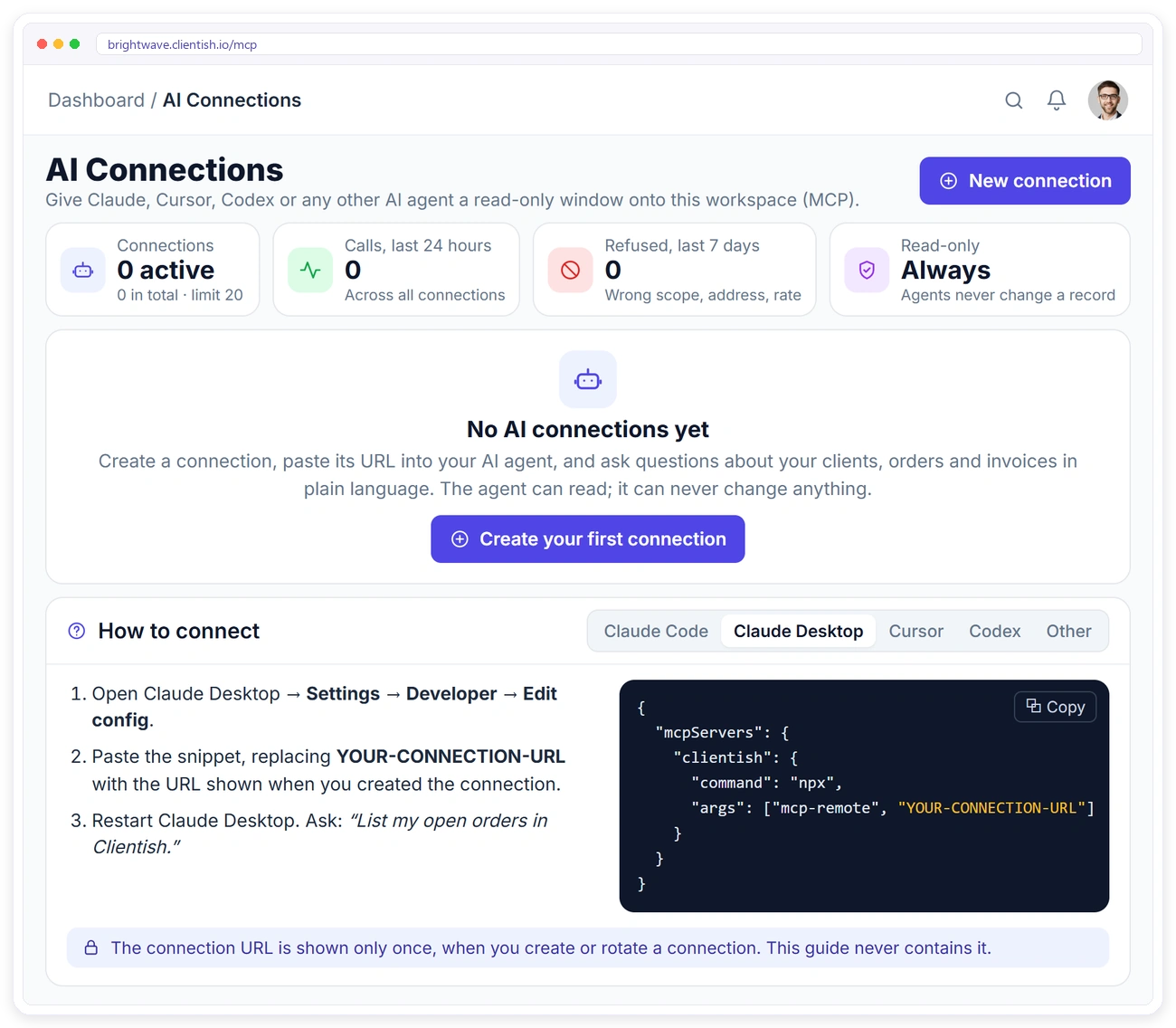
The AI Connections page gives you a ready-made setup snippet for each tool. Any AI client that supports MCP over HTTP can connect.
CONNECTIONS
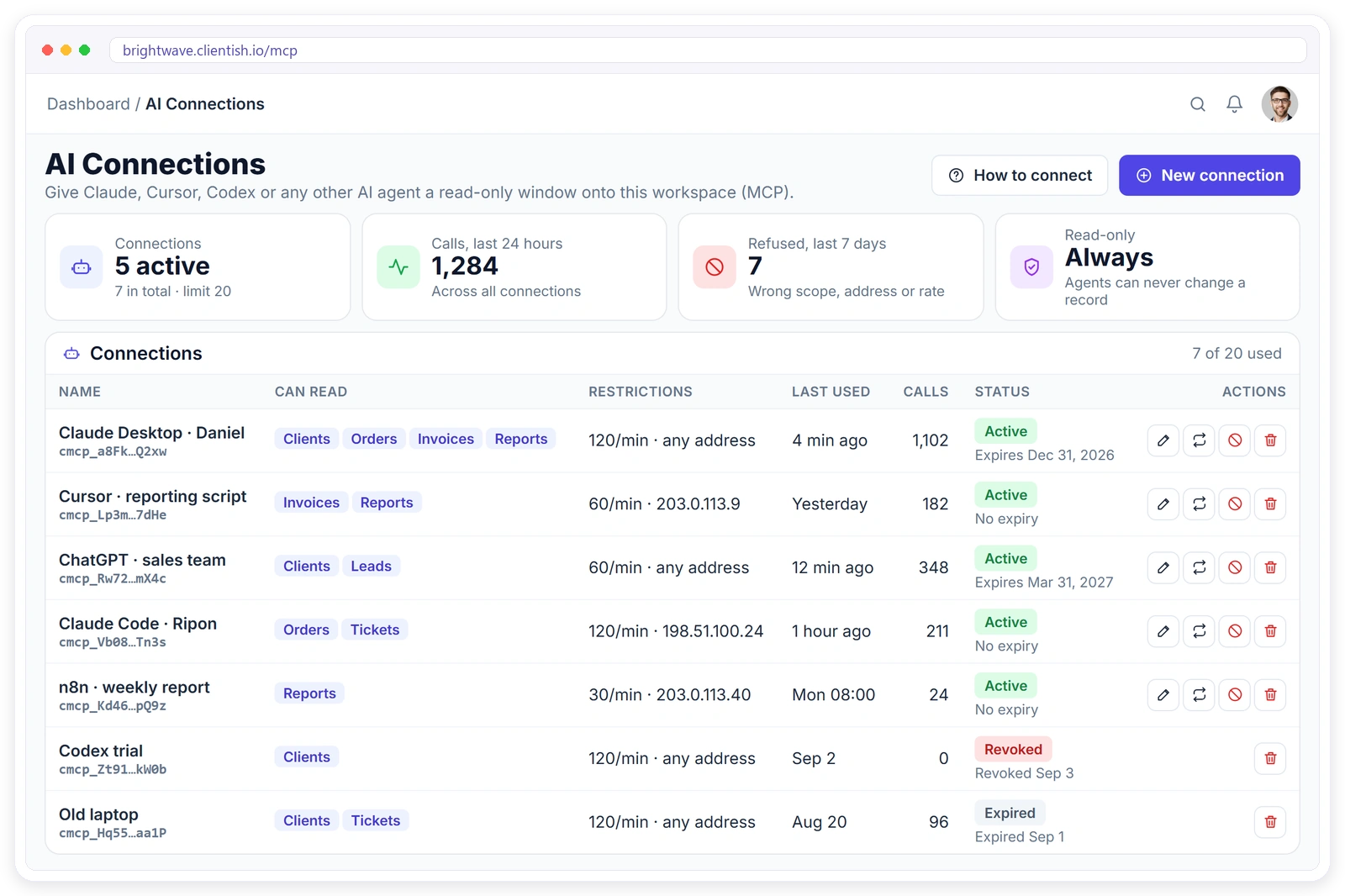
Every Connection Has Its Own Rules
Give each person or machine a separate connection, so you can see and control each one on its own.
ACTIVITY
See Exactly What Was Asked
Every connection keeps an activity list: which lookup ran, when, from where, and whether it was answered or refused.
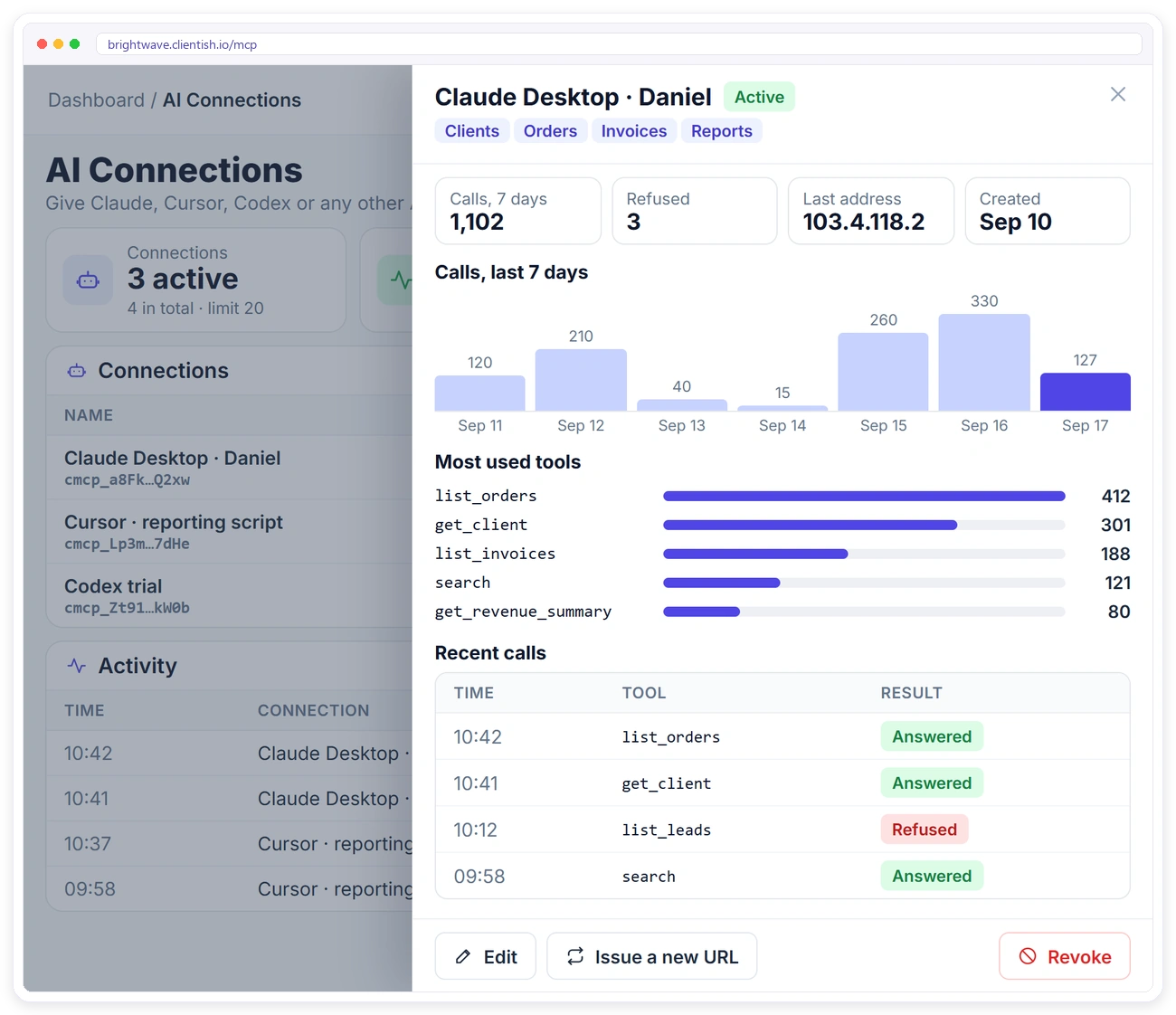
Read-Only, By Design
An AI connection can look, never change. It stops working the moment you revoke it.
AI Connections FAQ
Quick answers about connecting AI tools to Clientish.
What is MCP?
MCP (Model Context Protocol) is a standard way for AI tools to connect to other apps. Clientish runs an MCP server for your workspace, so an AI tool you connect can look up your clients, orders, invoices and more when you ask it a question.
Which AI tools can I connect?
Claude Code, Claude Desktop, Cursor, Codex and any other AI client that supports MCP over streamable HTTP.
Does it work with ChatGPT?
Not today. ChatGPT doesn’t accept a plain MCP HTTP server in this way. Any tool that can add an MCP server by URL works.
Can the AI change anything in my workspace?
No. Every tool is read-only. It can’t create an invoice, change an order, reply to a ticket or email anyone.
Who can create a connection?
Only the workspace owner. Co-admins and team members can’t.
What if the connection URL leaks?
Rotate it to get a new URL with the same settings, or revoke it. It stops working immediately.
Can I limit what one connection can see?
Yes. Each connection has its own permissions, and you can add an expiry date, allowed IP addresses and a request limit.
Put Your Agency Data One Question Away
Connect your AI assistant to Clientish in a few minutes. Read-only, controlled by the owner, and switched off the moment you revoke it.