
LIVE CHAT
Chat With Clients Right Inside Clientish
One shared inbox for every client conversation. Clients message you from their portal, your team replies in real time, and nothing gets lost in personal inboxes or WhatsApp threads.
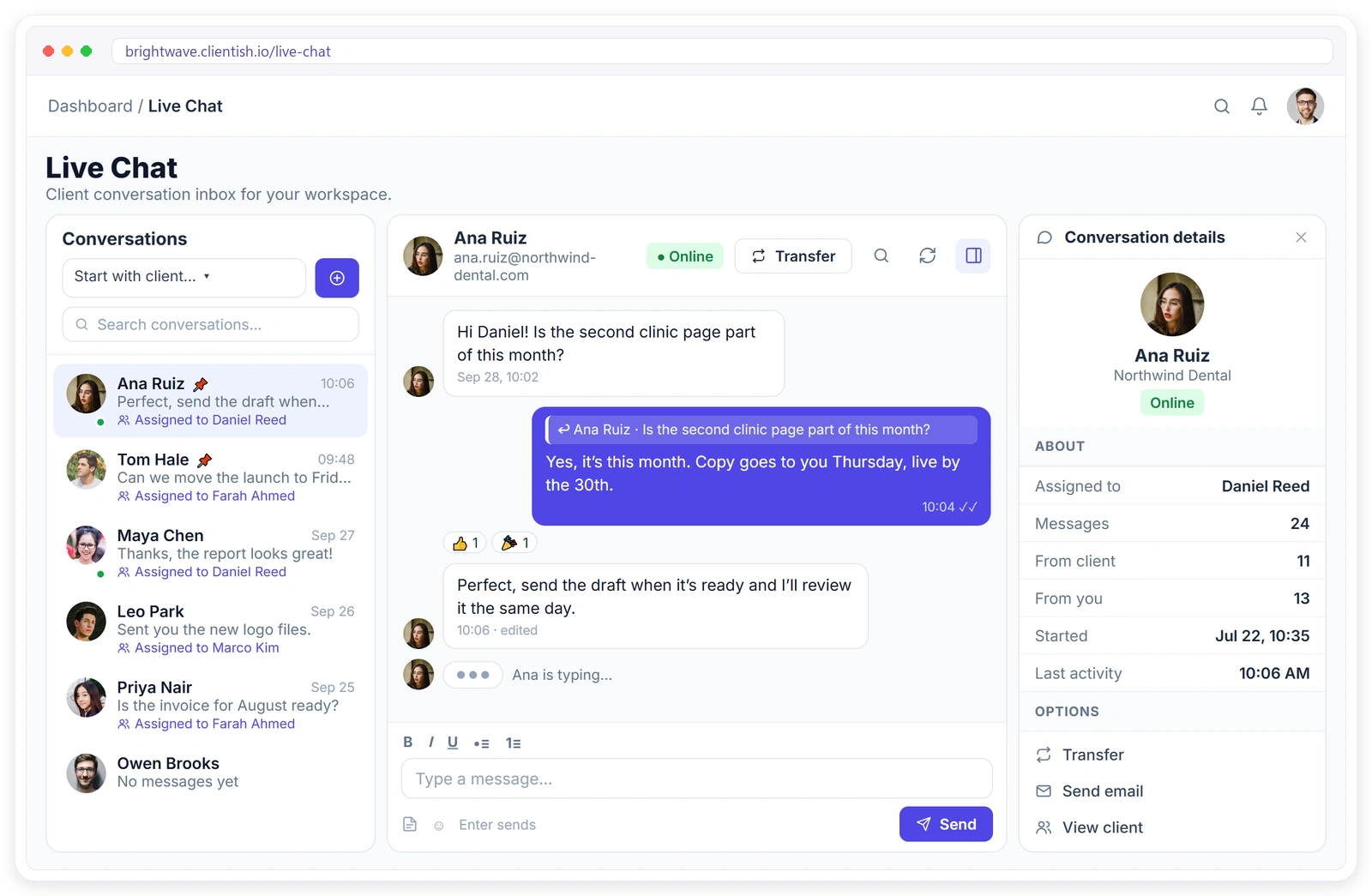
Everything a Client Chat Needs
The tools your team uses every day, built into the same place as orders, invoices and tickets.
Start Chatting in Minutes
Live Chat is ready in every client portal. There is nothing to install.
START A CHAT
Reach Any Client in One Click
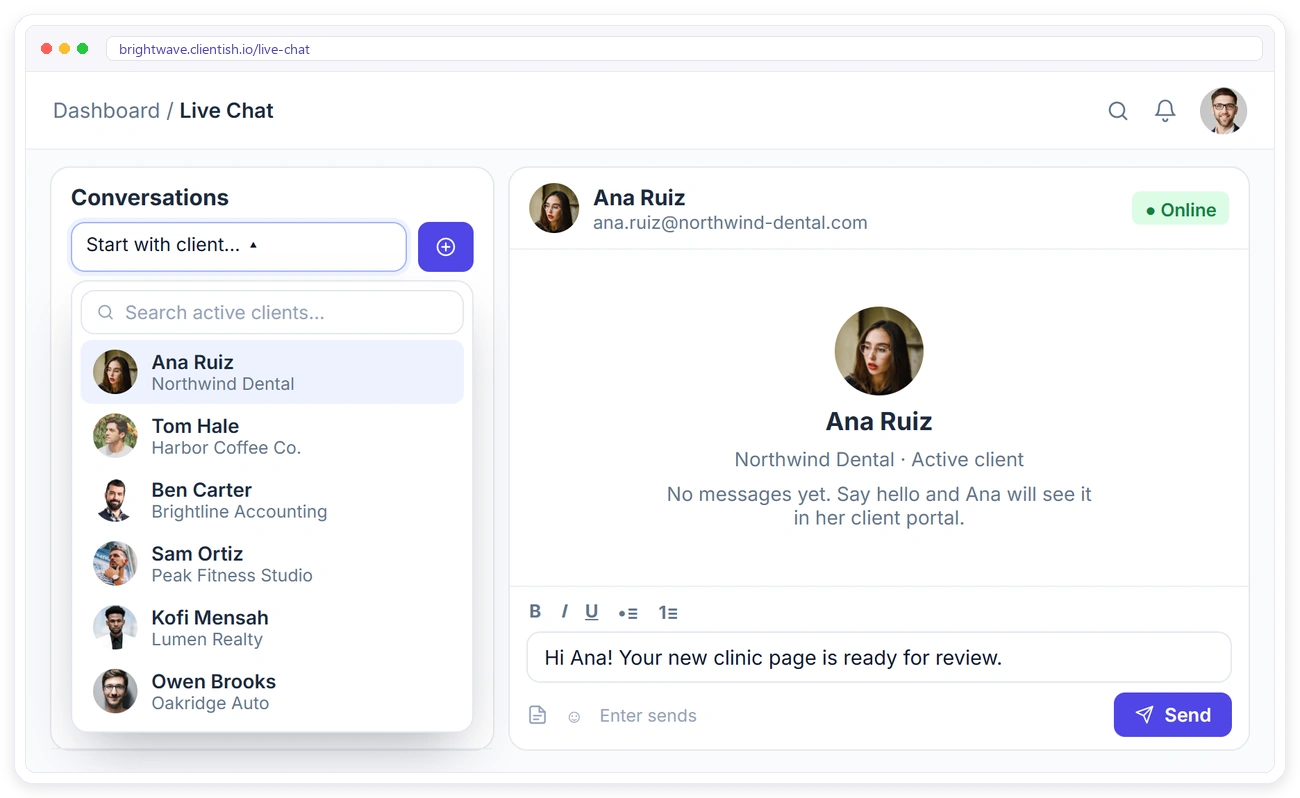
Pick any active client from the list and send the first message. It lands in their client portal straight away, so you can share an update or ask a quick question without writing an email.
REPLY, REACT, EDIT
Talk Like You Would in Any Chat App
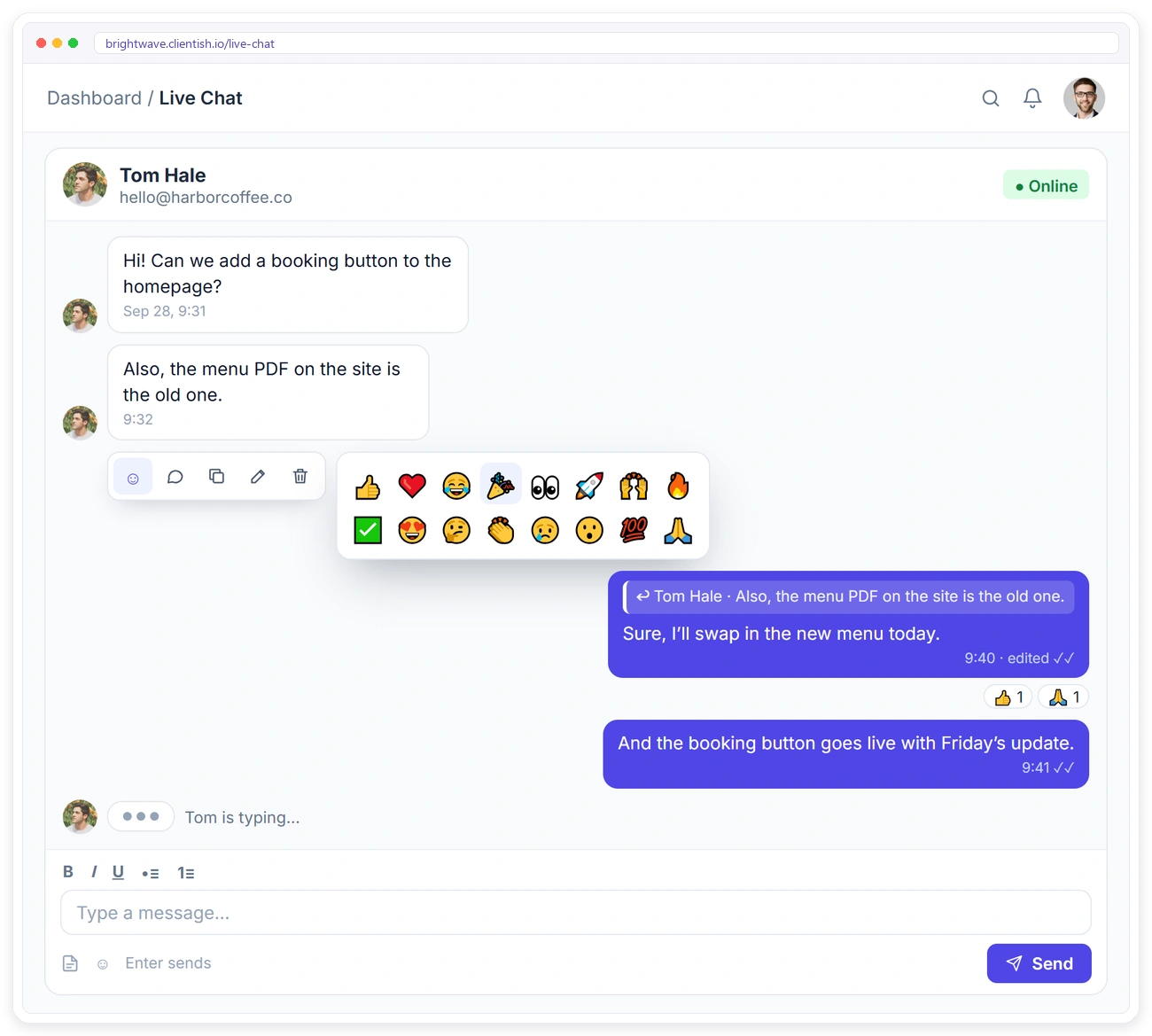
Hover over a message to react, reply, copy, edit or delete it. Replies quote the original message, reactions keep threads short, and the typing indicator shows when the client is writing back.
TEAM INBOX
Hand a Chat to the Right Person
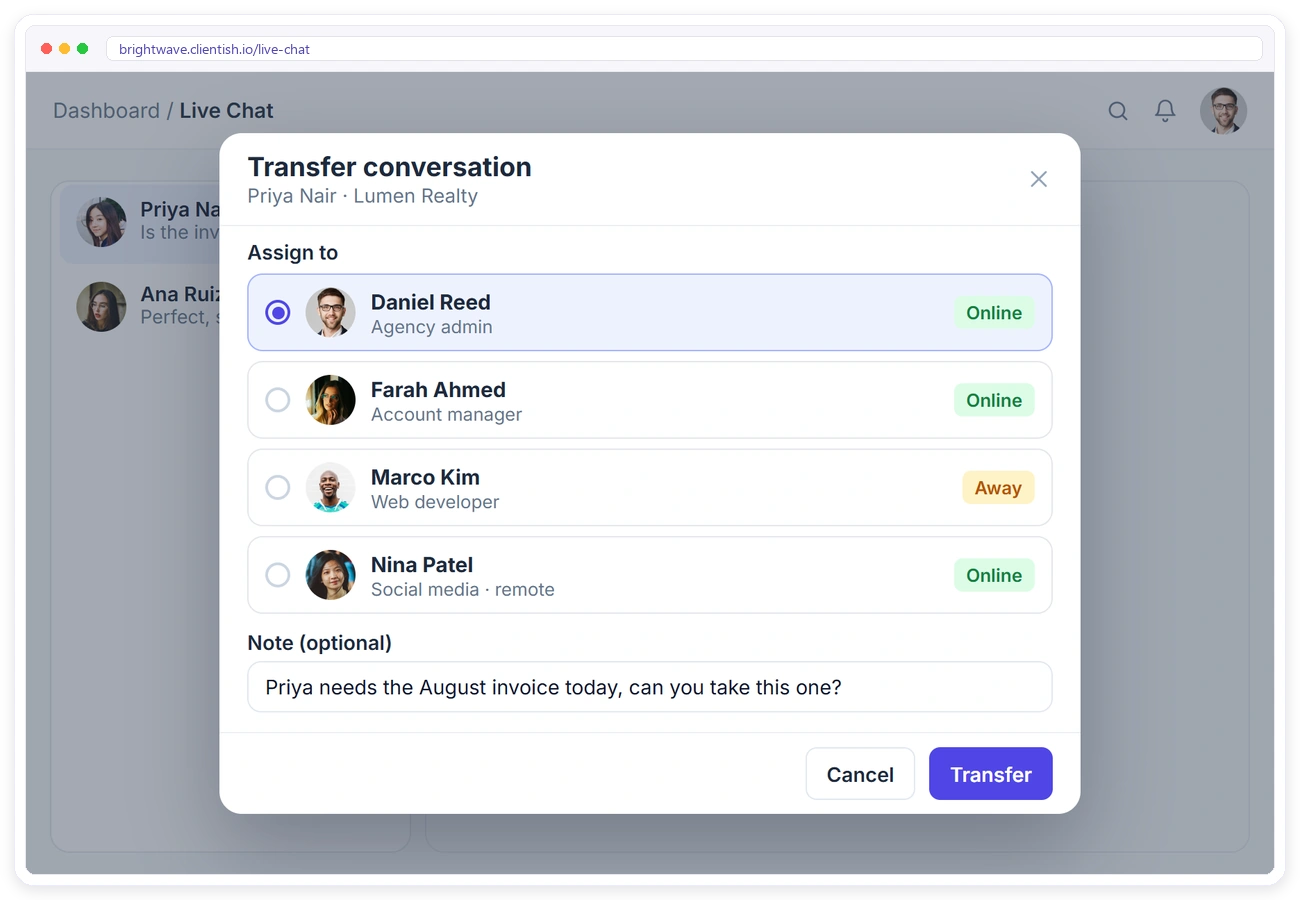
Every client conversation lives in one shared inbox. Assign a chat to yourself or transfer it to a teammate, and the new owner is notified straight away. Team and remote members only take part when you give them live chat access.
FILES & FORMATTING
Share Files Without Leaving the Chat
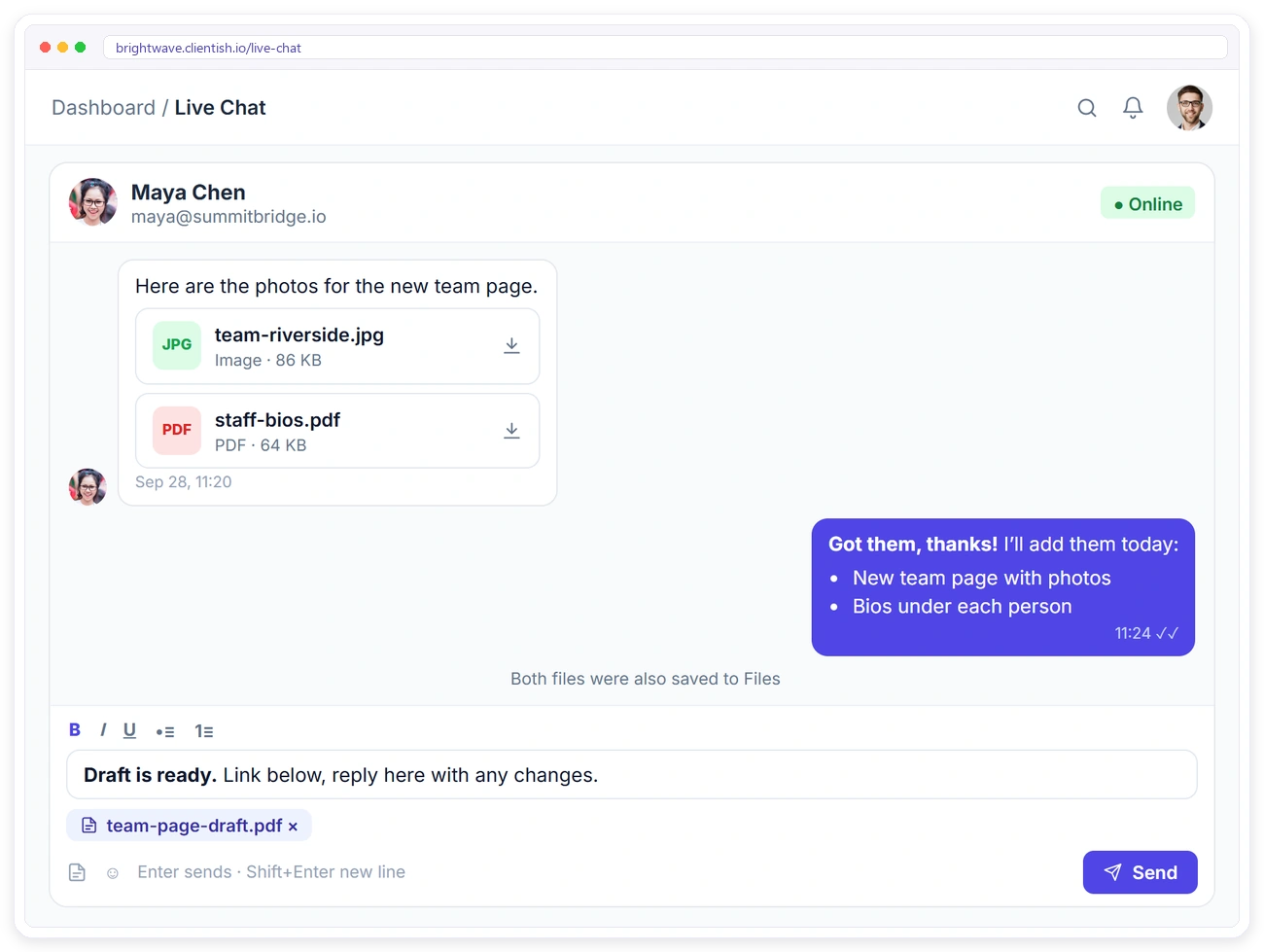
Clients and your team can send images, PDFs and office files right in the conversation. Every shared file is also saved to Files, so you can find it later. Format replies with bold, italic, underline and lists.
CLIENT PORTAL
Clients Chat From Their Portal
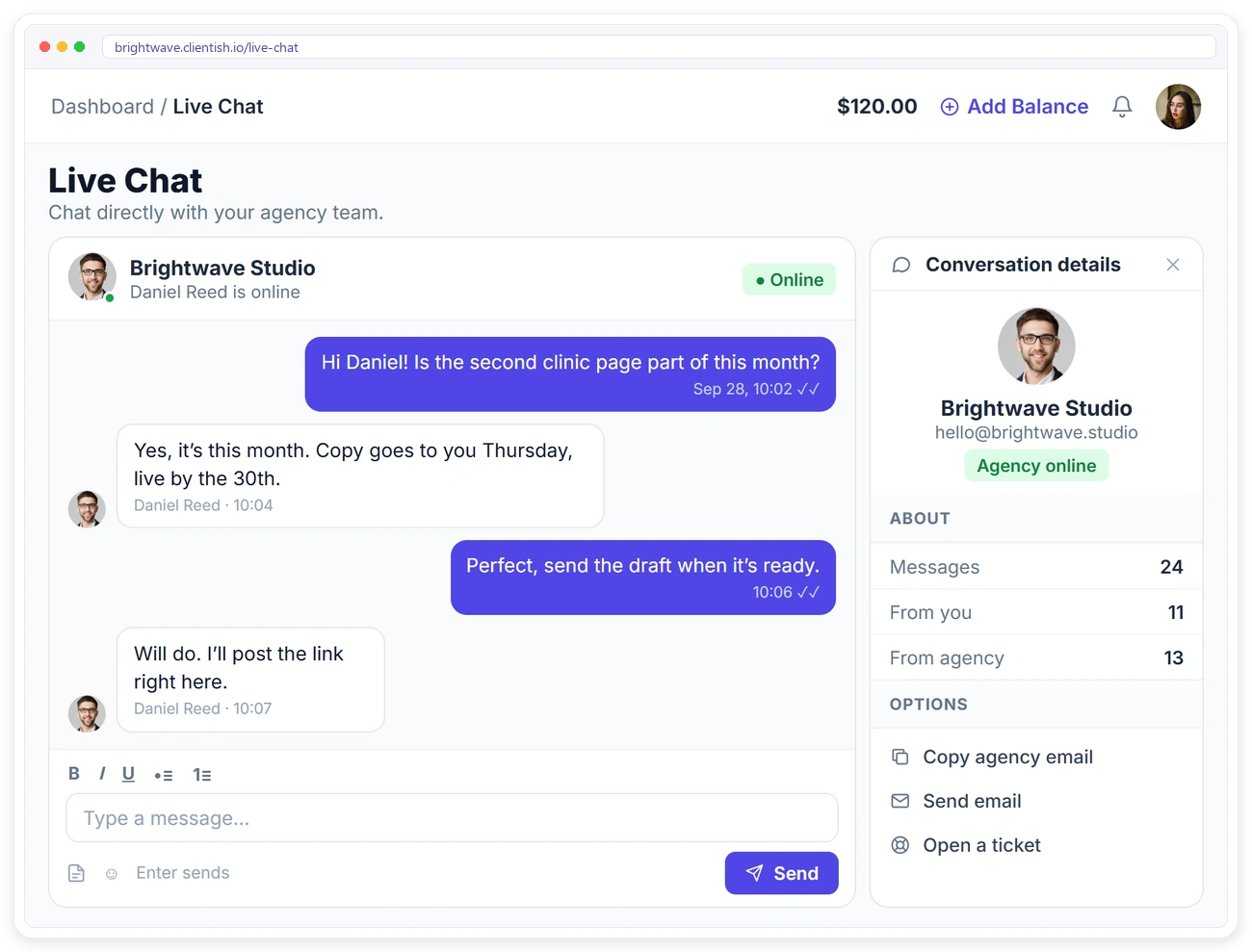
Clients open Live Chat in their portal and message your team directly. They can see when you’re online, copy your email or send one, and open a support ticket if the question needs one.
NEVER MISS A MESSAGE
Reply Even When Someone Is Offline
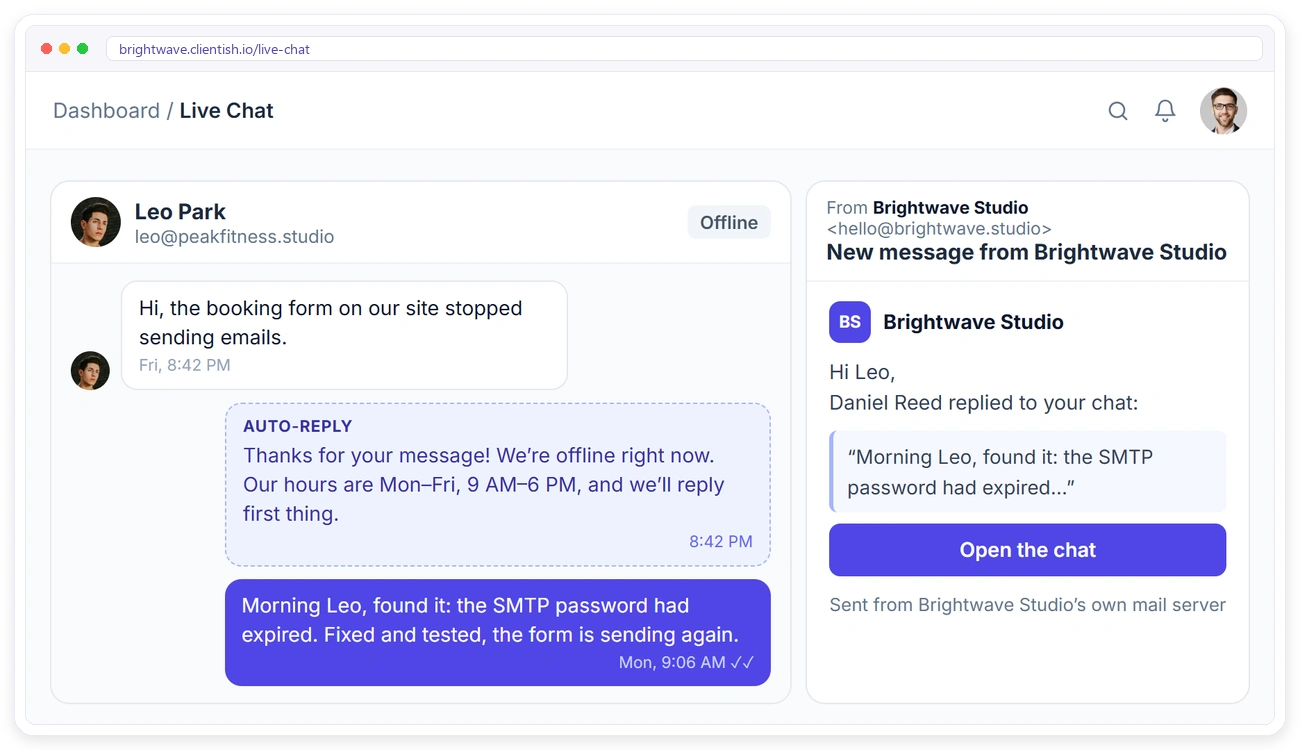
Set your business hours and an away message, and clients get an automatic reply outside those hours. When you answer while a client is offline, they get an email from your own address with a link back to the chat.
PERMISSIONS
Choose Who Talks to Clients
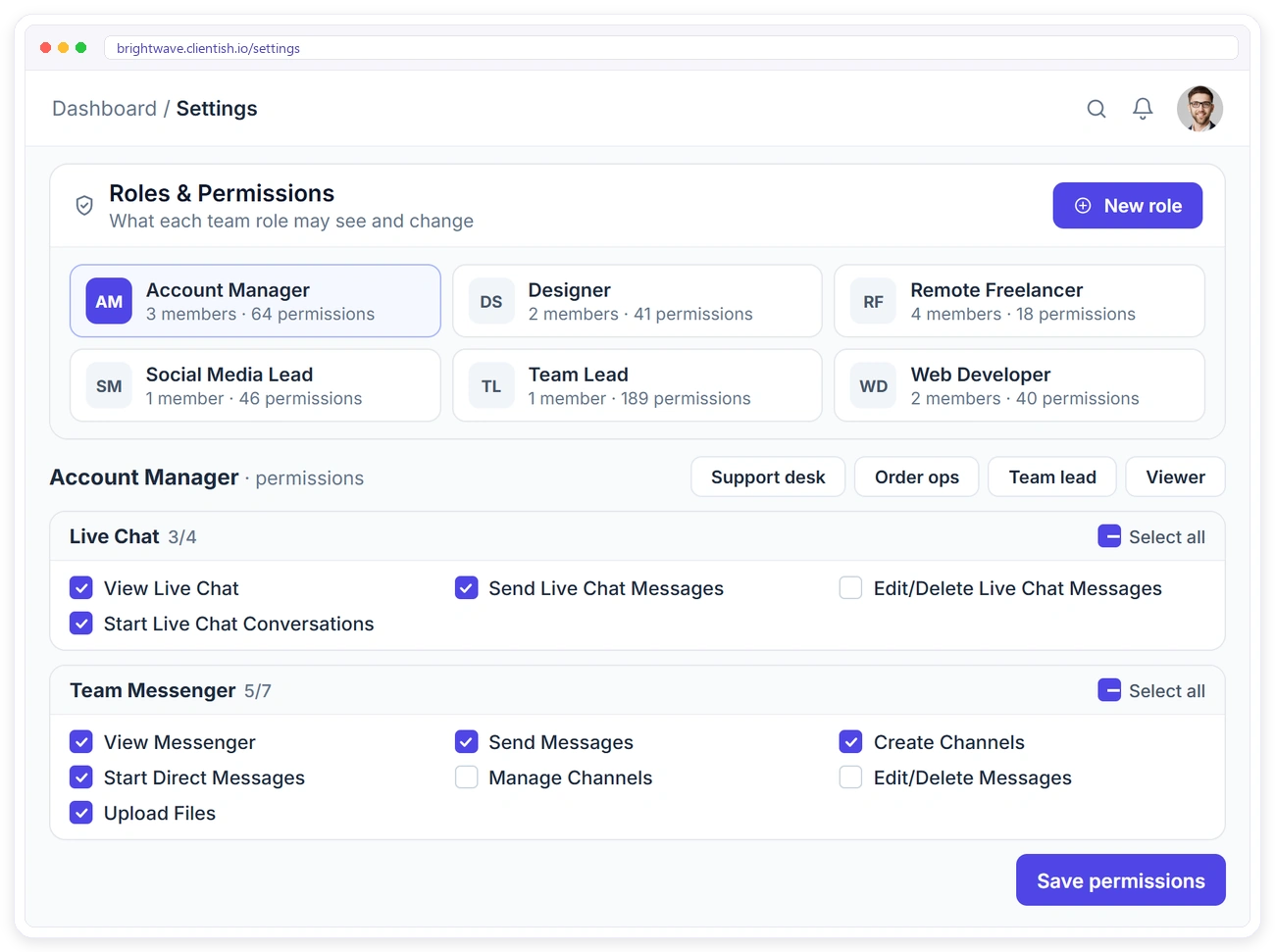
Live Chat has its own permissions for every team role. Decide who can see client chats, who can reply, who can start new conversations and who can edit or delete messages.
Built for Agency Teams
Live Chat works with the rest of Clientish, so every conversation has the context around it.
Live Chat FAQ
Quick answers about chatting with clients in Clientish.
Who can clients chat with?
Your agency team. Clients message you from the Live Chat page in their portal, and any team member with live chat access can reply.
Can I start a chat with a client?
Yes. Pick any active client from the list and send the first message. Clients can also start a chat from their portal.
Can I pass a chat to a teammate?
Yes. Transfer the conversation to the workspace admin or a team member with live chat access. They get a notification straight away.
What happens if the client is offline?
They get an email from your own address with a link back to the chat, so your reply doesn’t go unseen.
Can I reply outside business hours?
Set your business hours and an away message, and clients get an automatic reply when they write outside those hours.
Which files can be shared?
Images (JPG, PNG, GIF, WebP), PDF, Word, Excel, CSV, PowerPoint and text files. Shared files also appear in Files.
Can I edit or delete a message?
Yes, your own messages. Edited messages are marked as edited so everyone knows they changed.
Talk to Clients Where the Work Happens
Start your free trial and chat with your clients from one shared inbox.