
TIME TRACKING

Track Hours, Bill Clients and Pay Your Team

A timer for your remote members that keeps two things apart: what each member is paid, and what each client is billed. Clients approve their hours before any invoice is created.
Included in every plan
7-day free trial
No credit card required
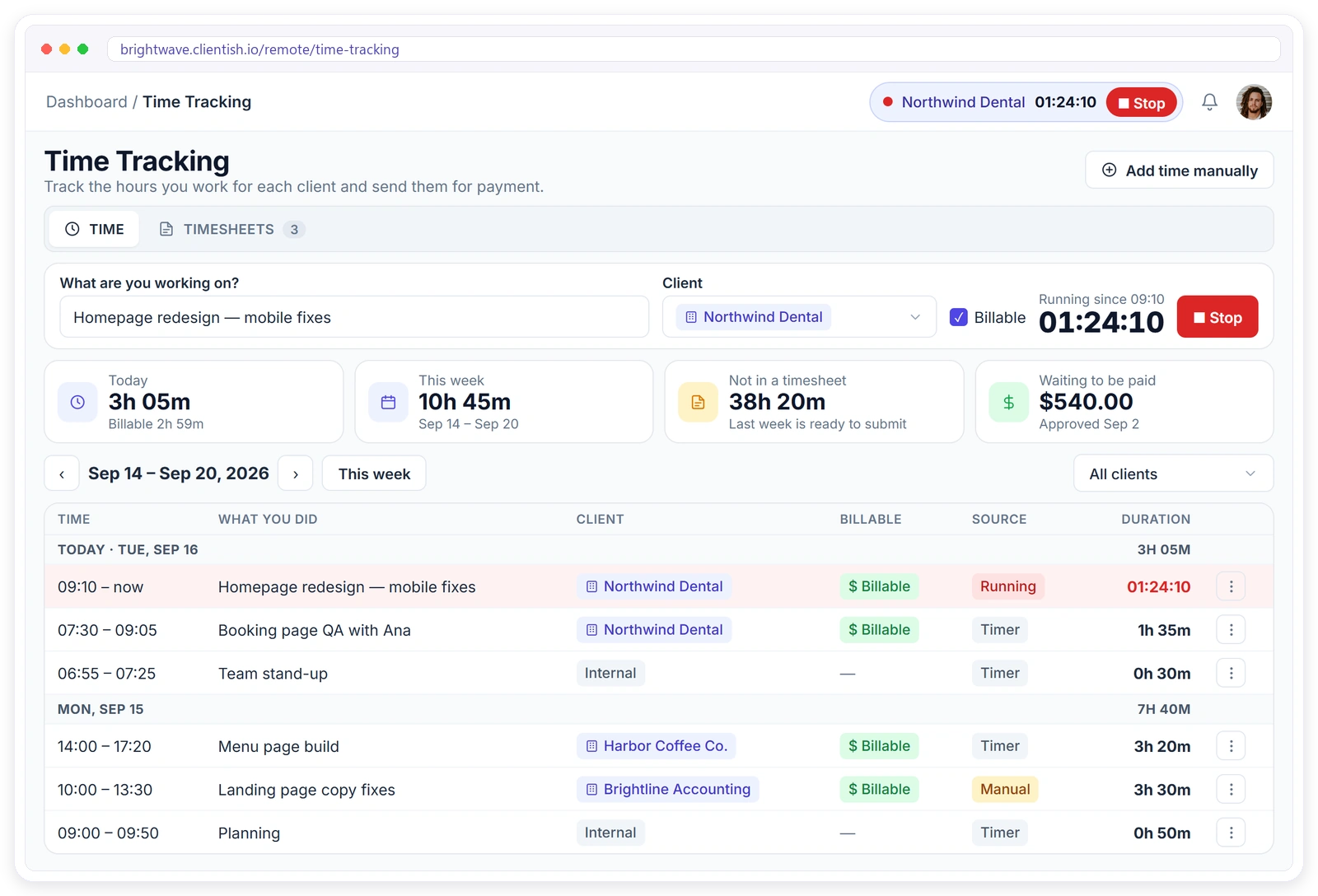
Clientish time tracking with a running timer, weekly totals and time entries for each client

Time Tracking Built for Remote Teams

Switch it on for the members who need it. Time is logged against a client or internal work, with a short description.

One-Click Timer

Start a timer for a client or internal work and stop it when you’re done.

Add Time by Hand

Type in an entry with a start and end, up to 24 hours, with no overlaps.

Client or Internal

Log time for a client, or as internal work that’s never billed.

Assigned Clients

You choose which clients each member can log time for.

Timesheets

Members submit timesheets. You approve, send back or mark them paid.

Pay Rates

Set each member’s pay rate, with the date it starts.

Client Approval

Clients approve an hours report in their portal before it’s invoiced.

Time Report

Hours, billing, pay and margin, by member, client and week.

How Time Tracking Works

Two separate tracks: getting your members paid, and getting your clients billed.
Switch It On

Turn on tracking for a member and assign the clients they work for.

Track the Time

The member starts a timer or adds time by hand from their own sidebar.

Pay the Member

They submit a timesheet. You approve it, then mark it paid.

Bill the Client

Send an hours report. The invoice is created when the client approves.

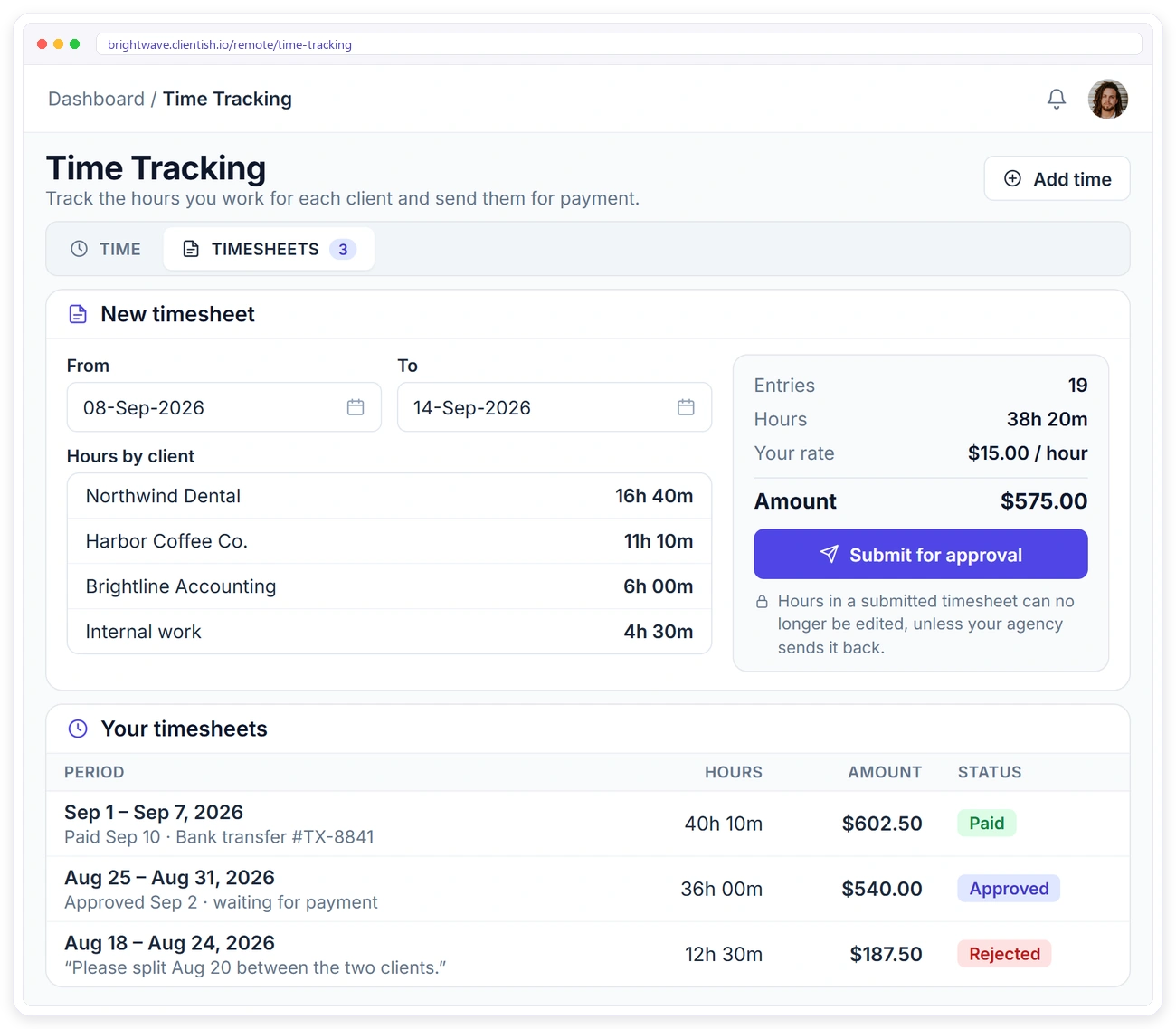
Remote member submitting a timesheet with hours by client in Clientish time tracking

FOR YOUR MEMBERS

A Simple Timer in Their Own Sidebar

Members you switch on get a Time Tracking item in their sidebar with two tabs, Time and Timesheets. Nothing else in their dashboard changes.

Today, this week, billable and this month at a glance
The running timer shows in the top bar
Every entry shows the client, whether it’s billable, and its source
Entries can be edited until they’re submitted

CLIENT BILLING

Clients Approve Hours Before You Invoice

Send an hours report from the client’s profile. The client reviews it in their portal, then approves it, asks a question or unticks hours. The invoice is created only when they approve.
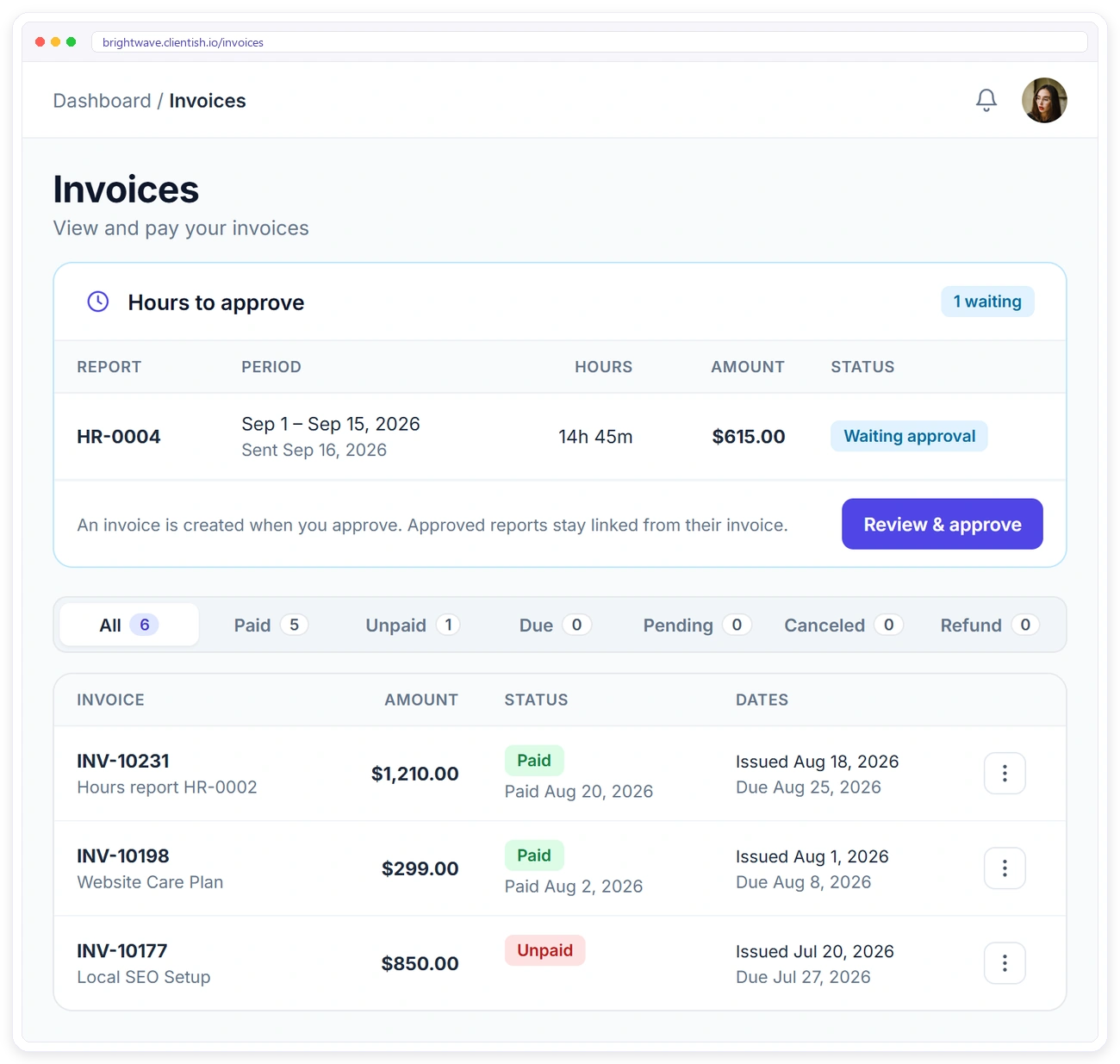
Clients see an “Hours to approve” box on their Invoices page
One invoice line per member and rate
Paid the normal way, like any other invoice
Internal time is never billed
Hours to approve report waiting for client approval on the Clientish client portal invoices page
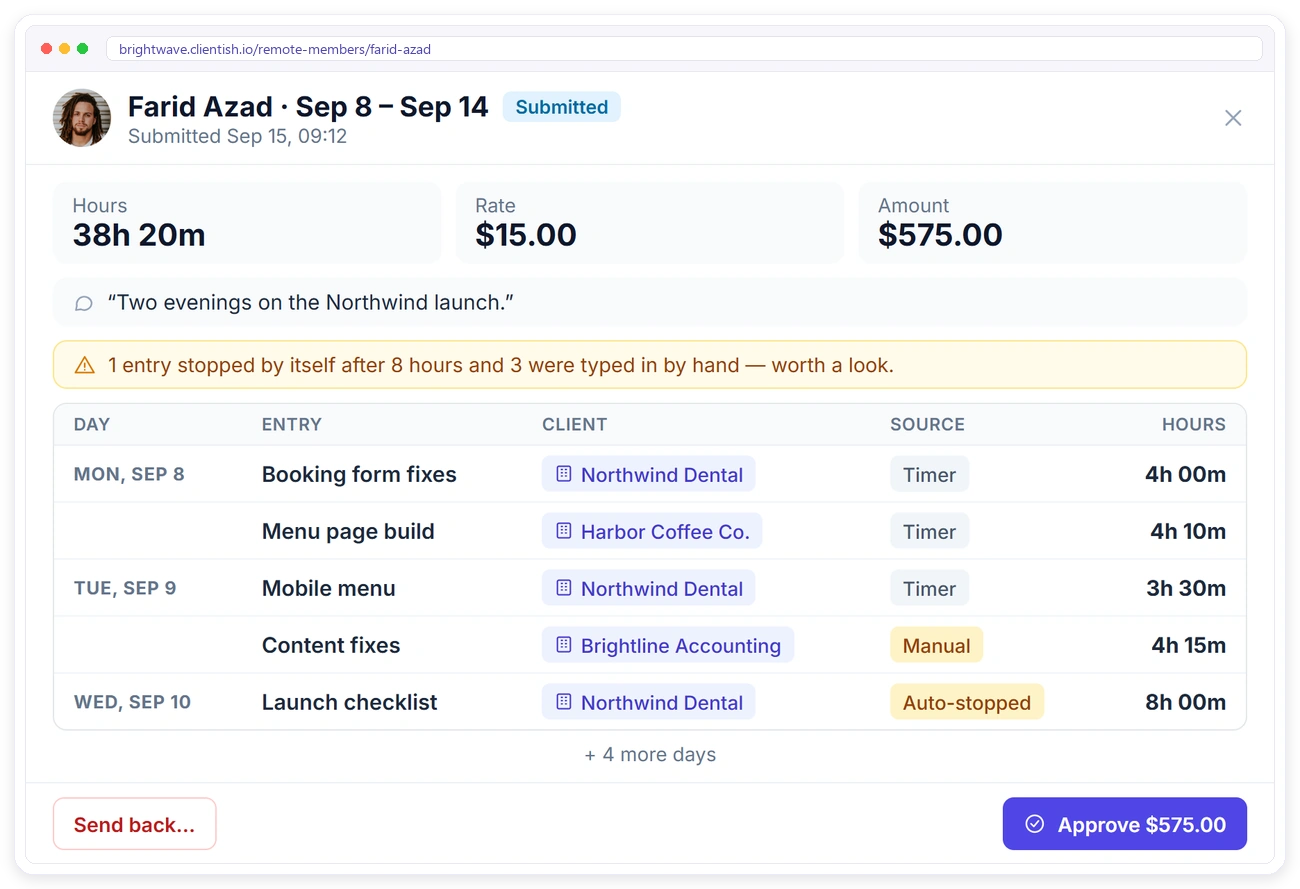
Agency reviewing a remote member's submitted timesheet with daily entries before approving it in Clientish

TIMESHEETS

Pay Members From Approved Timesheets

Members submit their logged time as a timesheet. You approve it, send it back, or the member withdraws it while it’s waiting. Once approved, you mark it paid.

Approval is blocked while any hour has no pay rate
A sent-back timesheet unlocks, and the history stays
Approved timesheets freeze their totals
Members only see pay if you allow “See own pay”

RATES

Separate Rates for Billing and Pay

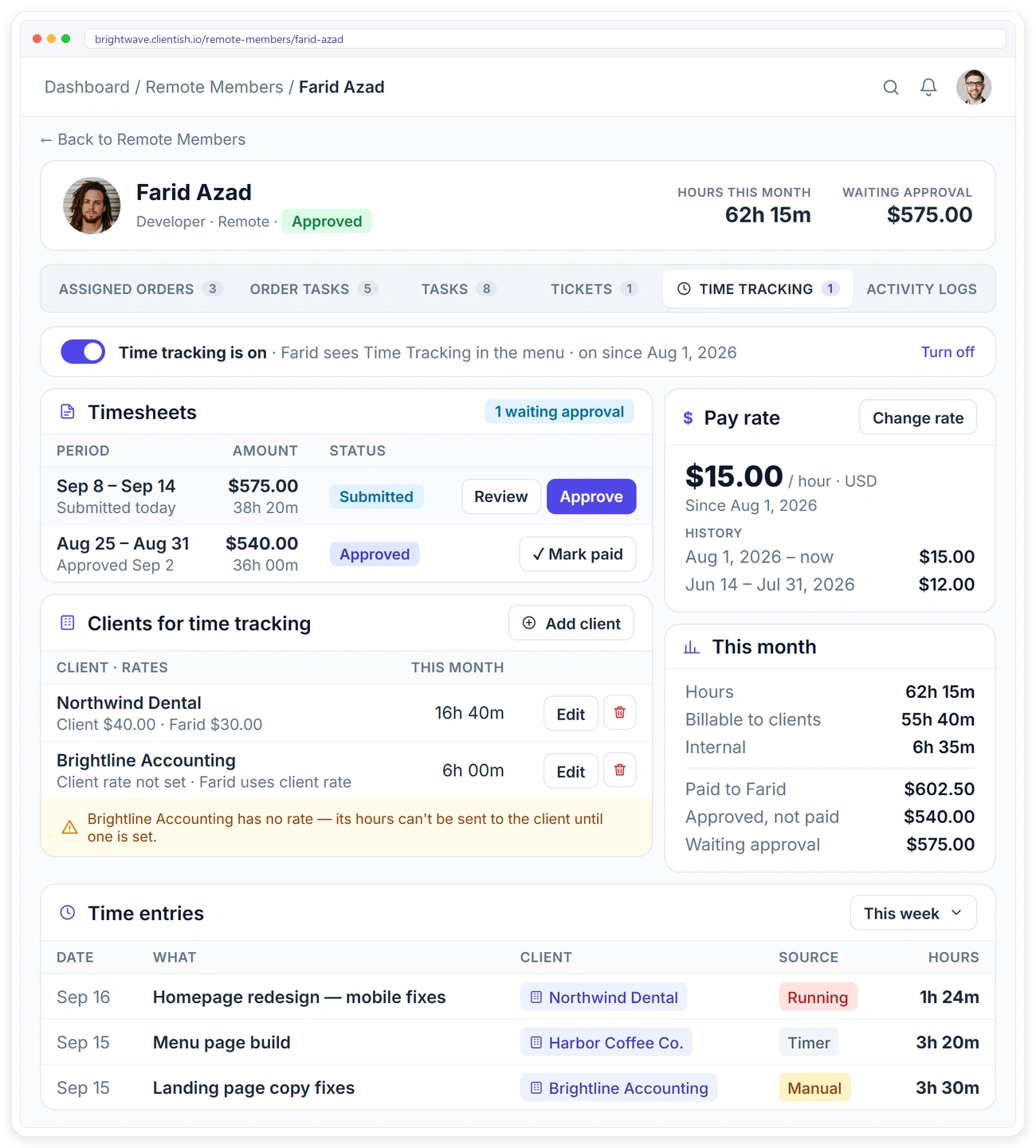
Give each client an hourly rate, override it for a particular member if you need to, and set each member’s own pay rate. Every rate has a start date.
Hourly rate per client
Optional per-member rate for that client
The member’s own pay rate
Locked entries keep the rates they had
Remote member profile in Clientish with pay rate, client rates, timesheets and time entries
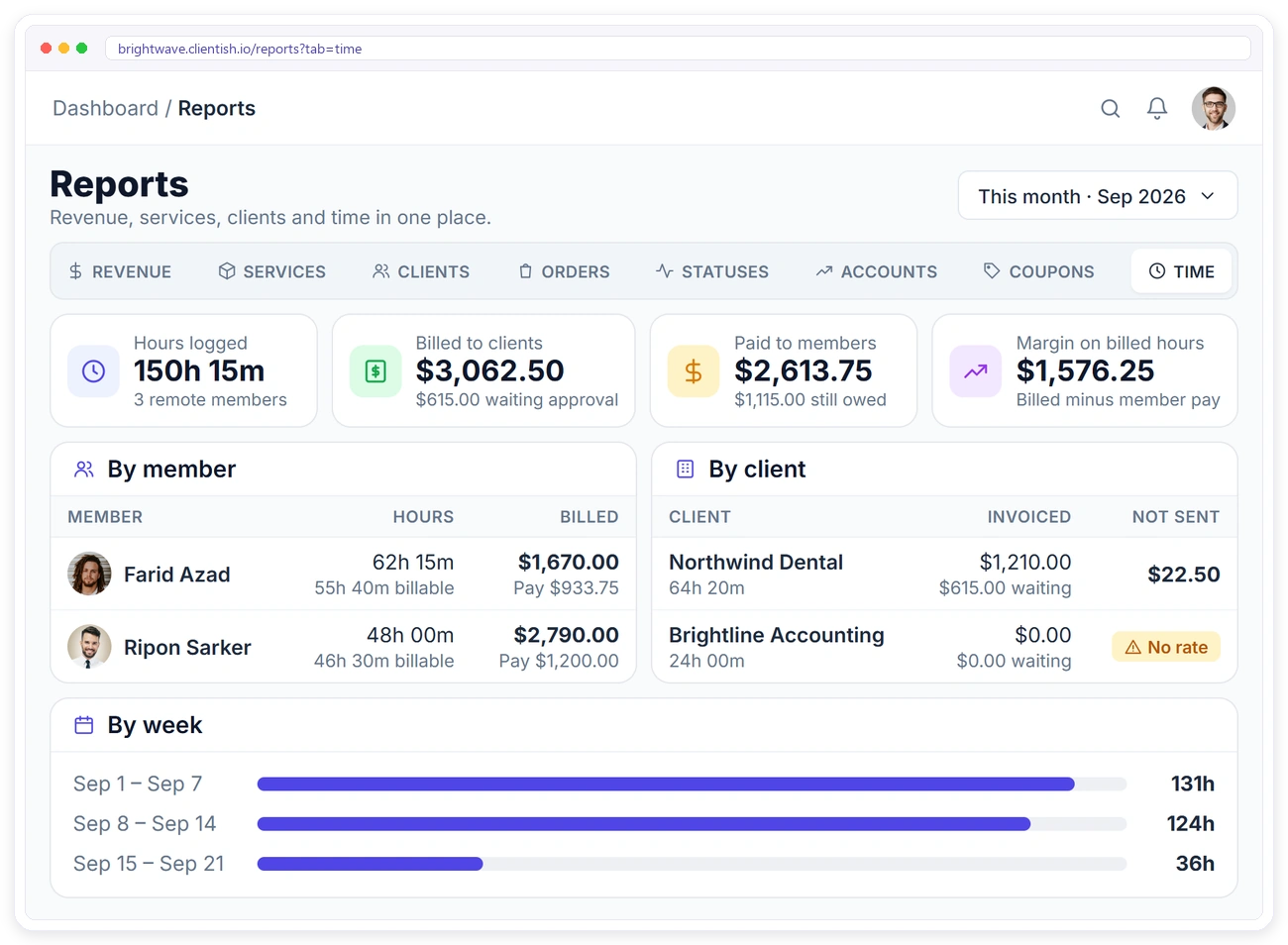
Clientish time report showing hours logged, billed to clients, paid to members and margin by member, client and week

REPORTS

See Hours, Billing and Margin Together

The Time report shows hours logged, what was billed to clients, what was paid to members, and the margin between them.

Breakdowns by member, by client and by week
An Hours tab on every client profile
Weekly hours per member in the Remote Members list
Members never see client billing rates

Rules That Keep Timesheets Accurate

Simple rules, built in, so the hours you bill and pay are the hours that were worked.

One Timer at a Time

Starting a new timer stops the one that is already running.

Auto-Stop at 8 Hours

A timer left running stops itself after 8 hours and is marked.

Locked When Submitted

Entries lock once sent for approval, so totals can’t change.

Manual Entries Marked

Hand-typed time is labelled, so you can see what wasn’t timed.

Time Tracking FAQ

Quick answers about tracking, paying and billing hours in Clientish.

Who can use the timer?

Remote members you switch it on for. Each member gets a Time Tracking item in their own sidebar.

Is time tracked against orders or tasks?

No. Time is logged against a client or as internal work, with a short description.

Can members add time by hand?

Yes. A manual entry can be up to 24 hours, can’t overlap another entry, and is marked as manual so you can see it wasn’t timed.

What if someone forgets to stop the timer?

A timer that’s left running stops itself after 8 hours and the entry is marked as auto-stopped.

When is the client invoiced?

Only when the client approves the hours report in their portal. The invoice then has one line per member and rate.

Can members see what clients are billed?

No. Members never see billing rates, and without the “See own pay” permission they don’t see pay amounts either.

Bill the Hours Your Team Actually Works

Track remote hours, send clients an hours report, and invoice only what they approve.

Scroll to Top