

Most agencies and freelancers know the feeling: a client sends a follow-up email asking where their project stands, another one needs a copy of an invoice from three months ago, and a third has a question about renewing their subscription — all landing in the same inbox where actual work is supposed to happen. It’s a slow drain on time that compounds across every client relationship, and it usually has nothing to do with the quality of the work itself.
A client portal fixes that by giving clients a dedicated, branded place to log in and take care of those things on their own. Instead of emailing back and forth, a client can check their order status, download an invoice, submit project details, request a revision, or open a support ticket — without the agency lifting a finger. For agencies, freelancers, consultants, studios, and other service businesses, that shift from inbox chaos to self-service is significant. It means fewer interruptions, fewer repeated messages, and a client experience that looks and feels professional from the first login.
Quick answer: A client portal is a private, branded web space where a service business’s clients log in to view their orders, pay invoices, manage subscriptions, get support, and communicate with the team. The Clientish client portal is the built-in version of that for Clientish users — accessible on the agency’s own subdomain, branded with the agency’s logo and colours, and connected directly to orders, billing, and support on the agency side.
This article explains what a client portal is in plain terms, then walks through exactly how the Clientish client portal works from the client’s point of view — what they see when they log in, what they can do, and how that connects back to the agency side of the platform.
What Is a Client Portal?
A client portal is a private, login-based area where a business’s clients sign in to manage everything related to their work together. It’s not a public-facing website or a storefront anyone can browse. Access requires credentials, and what each client sees is scoped entirely to their own account.
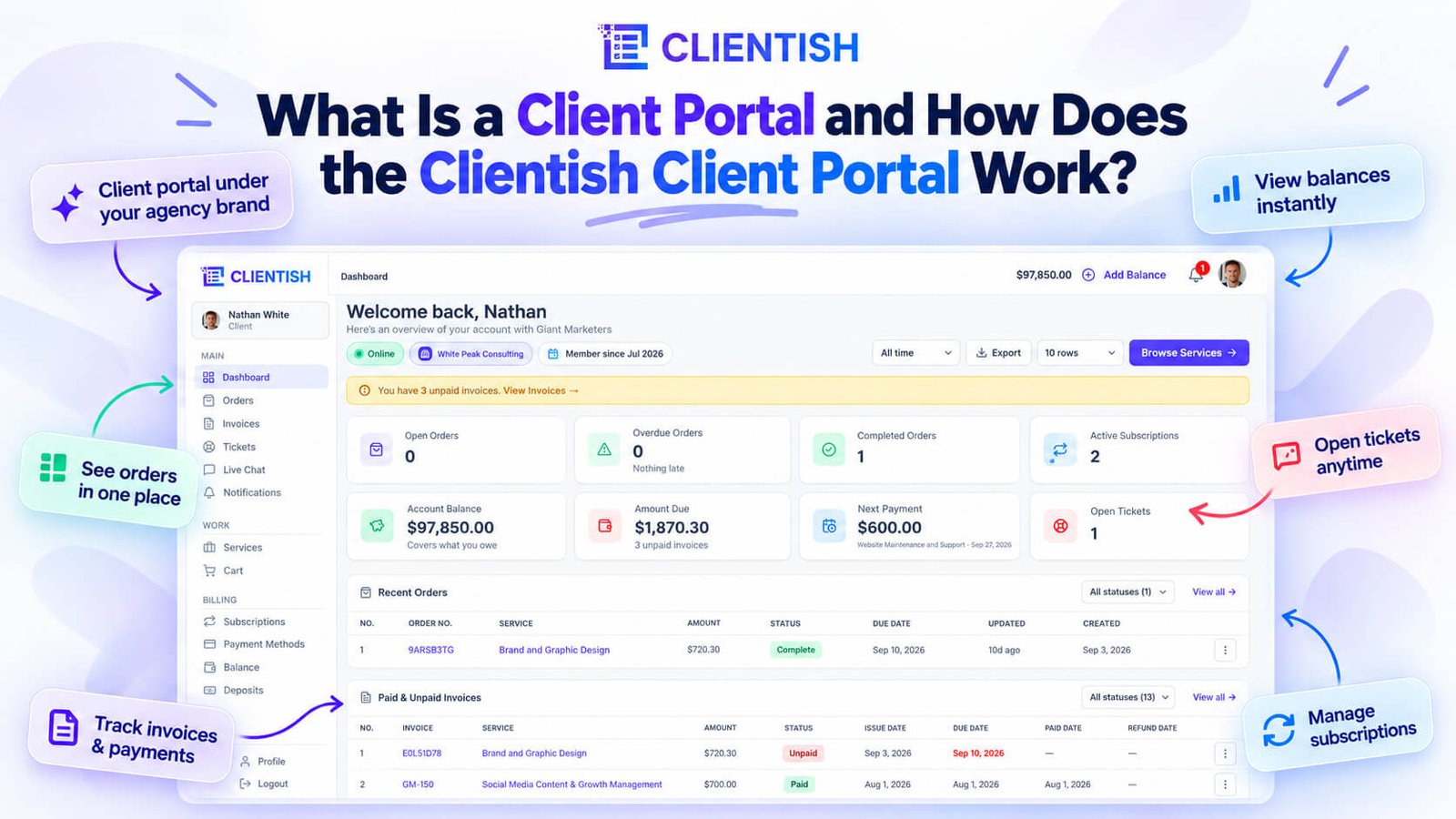
For a service business — an agency, a freelancer, a studio — that typically means one place where a client can check the status of their order, download an invoice, submit project details, or raise a support request without needing to email anyone. Instead of that information living across a chain of emails, a shared Google Drive folder, and a separate accounting tool, it’s consolidated under one login.
The “branded” part matters more than it might seem. A portal that carries your agency’s logo and colours reads as part of your service. A client logging into a generic third-party dashboard is a constant reminder that you’re using someone else’s tool; a portal that looks like yours reinforces that the whole experience belongs to your business.
A client portal is built for service businesses of any size. There’s no threshold you have to cross before it makes sense — a solo consultant with ten clients benefits from the same clarity as an agency with fifty. The core value is the same in either case: clients get a single, reliable place to go, and you stop fielding status-check messages that pull you away from actual work.
How the Clientish Client Portal Works
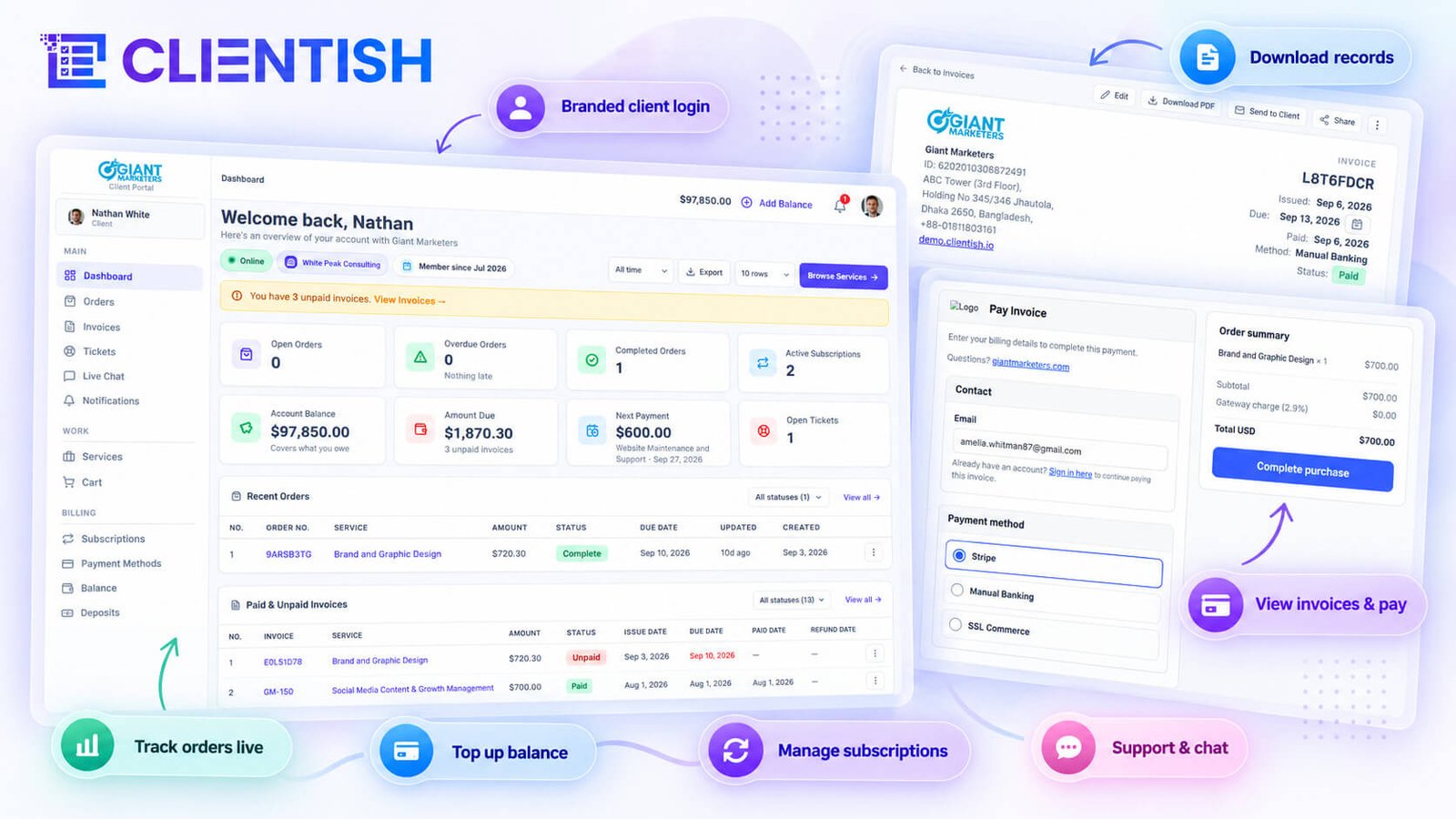
The client portal lives on your agency’s own subdomain — not a generic third-party URL. Every screen a client sees carries your logo and brand colours, so the experience looks like yours from the first login.
Signing In to a Branded Space
When a client receives their invitation, they land on your agency’s subdomain and create or confirm their password. From that point on, they sign in at your address. Two-factor authentication adds a layer of security (2FA) for clients who want the extra security layer.
The Client Dashboard
After signing in, clients land on a dashboard that gives them a quick read on where things stand — open orders, outstanding invoices, and current account balance. Each of those figures is a live count, not a static summary. Clients can also export their data from the dashboard as a spreadsheet if they need records on their end.
Browsing Services and Checking Out
The portal includes a services catalogue where clients can browse what your agency offers, add services to a cart, and adjust quantities before checking out. If you’ve given a client a coupon code, they enter it at checkout and the discount applies immediately. The checkout flow is self-contained — no back-and-forth email required.
Completing Your Intake Form at Checkout
Most service orders need project information before work can start. When a service has an intake form attached, the client fills it out as part of the checkout process. Fields can include text, file uploads, date pickers, dropdown selects, and checkboxes — and because the form supports conditional logic on the agency side, clients only see the fields relevant to their choices.
If a client needs to revisit their answers later, they can — the intake form is accessible from inside the order view after purchase.
Placing and Tracking Orders
Once an order is placed, it appears in the client’s order list with its current status. As the agency moves it through the pipeline — from intake to in-progress to delivered — the status updates are visible to the client in real time. Clients can also download their intake answers as a PDF directly from the order, which is useful when a client wants a record of exactly what they submitted.
Messaging the Agency With File Attachments
Inside each order is a message thread shared between the client and the agency. Clients can type messages and attach files — design assets, documents, reference images, whatever the project needs. This thread is separate from any internal team conversation happening on the agency side, so clients only ever see what’s meant for them.
Requesting Revisions on an Order
When a delivered order needs changes, the client doesn’t need to email or open a ticket. There’s a revision request option built into the order view. Using it advances the order into a revision round, which the agency sees on their side and can act on without anything getting lost in an inbox.
Rating a Completed Order
Once an order is marked complete, the client can leave a rating. It’s a straightforward step — the agency collects feedback on the work itself, and those ratings are exportable from the agency side for review.
Viewing and Paying Invoices
Clients have a full invoice list in their portal. Each invoice shows the line items, any tax or discount applied, and the amount due. From the invoice detail, a client can:
- Pay online via card or a connected payment gateway (Stripe, PayPal, or Paddle)
- Pay by manual bank transfer, where the portal provides a payment reference to include with the transfer
- Download the invoice as a PDF for their own records
Partial payments are supported where the agency has set that up, and the client’s payment history is visible alongside each invoice.
Managing Subscriptions, Payments and Balance
Clients with active recurring services can see their subscriptions in a dedicated area and cancel if needed. The payments section shows saved payment methods — clients can set a default method or remove one. Payment history is available here too, separate from individual invoice views.
The balance area shows the client’s current credit with the agency. If the agency accepts balance top-ups, clients can deposit funds directly from the portal without waiting for a specific invoice.
Topping Up Your Balance
Topping up works as a standalone action. A client chooses an amount, completes the payment, and the credit lands in their account balance. From there it can be applied toward future invoices — useful for retainer clients or anyone who prefers to pre-pay.
Getting Support: Tickets
For formal support requests, clients can open a ticket from the portal. They can write their question, wait for a reply, and respond back within the same ticket thread. Replies are editable and deletable, and once the issue is resolved, the client can rate the support interaction.
Live Chat With the Agency
Separate from tickets, the portal includes a live chat window. Clients can send messages, attach files, add reactions, and see when someone on the agency side is typing. If nobody is available when the client sends a message, the conversation falls back to email so the client still gets a reply — the chat doesn’t just go silent.
Notifications and Profile
Clients receive notifications for updates relevant to their orders, invoices, and support interactions. In their profile settings, they can upload an avatar, change their password, and update their email address — though an email change requires confirmation from the current address as a basic verification step.
Downloading Order Intake Answers as a PDF
This one is worth calling out on its own because it comes up more than you’d expect. A client who filled out a detailed intake form at checkout — technical specs, brand guidelines, creative direction — may want a copy for their own files or to share internally. The portal lets them download that intake data as a PDF straight from the order view, without contacting the agency at all.
Taken together, these features mean a client can handle most of their agency relationship without sending a single email: buy a service, submit their project details, track the work, review and pay invoices, manage their subscription, and get support — all from one login.
Why a Branded Client Portal Matters for Service Businesses
A portal your clients log into through your own subdomain reads differently than one that sends them to a generic third-party URL. The subdomain is a small thing technically, but clients notice it. It signals that you’re running a real operation, and it keeps your brand in the frame throughout the relationship.
Running on Your Own Subdomain
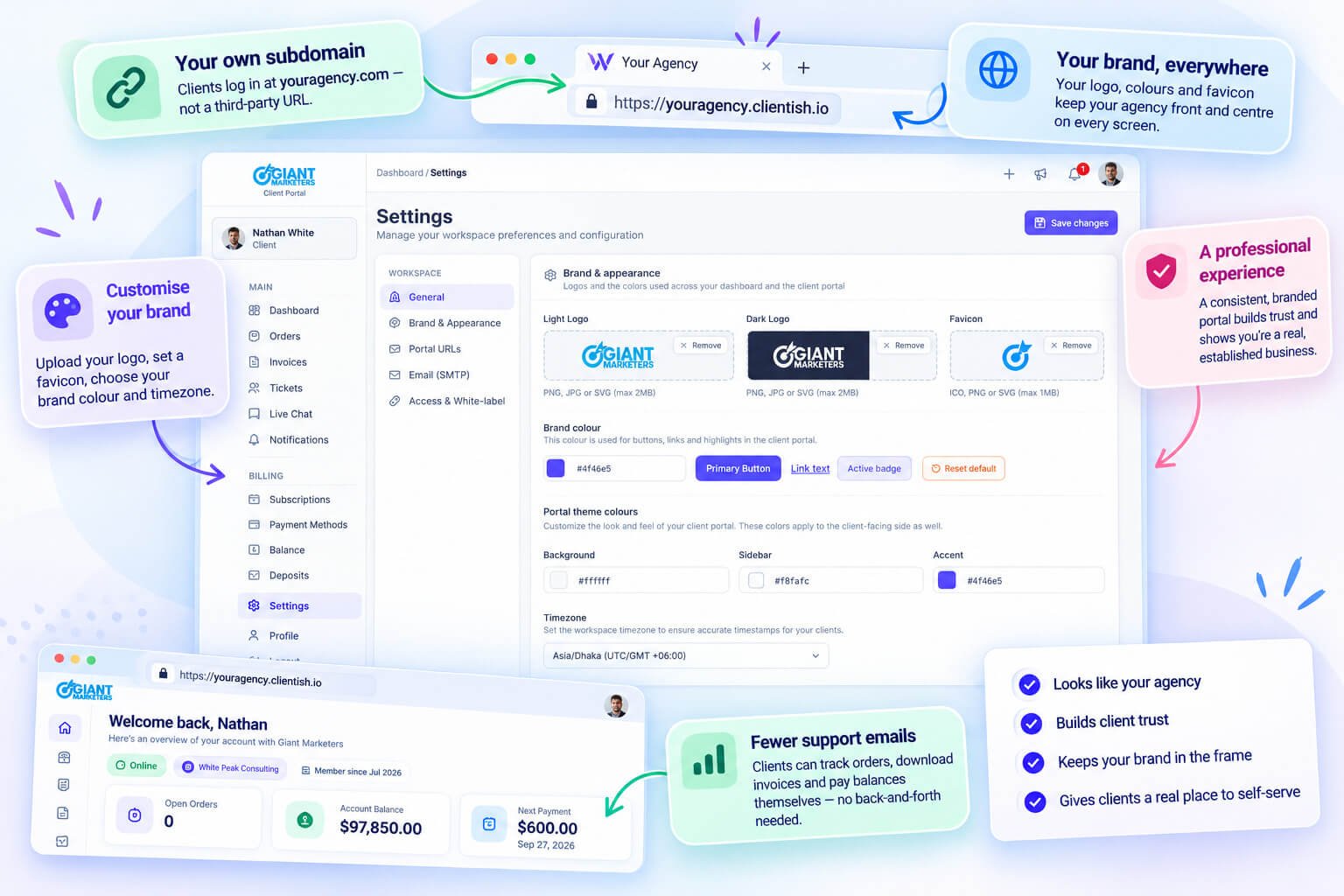
Every Clientish workspace gets a portal on a subdomain tied to your agency. Clients never see a Clientish-branded login screen or a URL that reads like a SaaS trial account. From the moment they click the link to the moment they check out a service or download an invoice, they’re inside something that looks like yours.
That consistency matters more than it might seem. Each time a client sees a generic tool’s branding during a transaction with you, it erodes the sense that you’re a polished, established business. A portal on your own subdomain closes that gap without requiring any custom development.
youragency.com rather than a subdomain on Clientish’s infrastructure. Clients who’ve never heard of Clientish stay in the dark about what you’re running — which is exactly how it should be.
Setting a Favicon, Brand Colour and Timezone
Branding in the portal goes beyond just the URL. You can set:
- Your agency logo
- A favicon (so browser tabs show your mark, not a default icon)
- A brand colour applied across the portal’s interface
- A workspace timezone that aligns client-facing timestamps with your location
These details don’t shout. They just make the whole experience feel intentional rather than cobbled together. A client checking their order status sees your colour scheme and your logo, not the out-of-the-box look of someone else’s software.
The practical payoff is straightforward: fewer “where’s my order?” emails because clients have a real place to look, and fewer “can you resend the invoice?” messages because they can pull it themselves. When clients can self-serve — checking status, downloading PDFs, paying outstanding balances — they don’t need to interrupt your team. Everything they do in the portal stays connected to their record on the agency side, so your team always has the full picture without chasing anyone down.
How the Client Portal Connects to the Agency Side
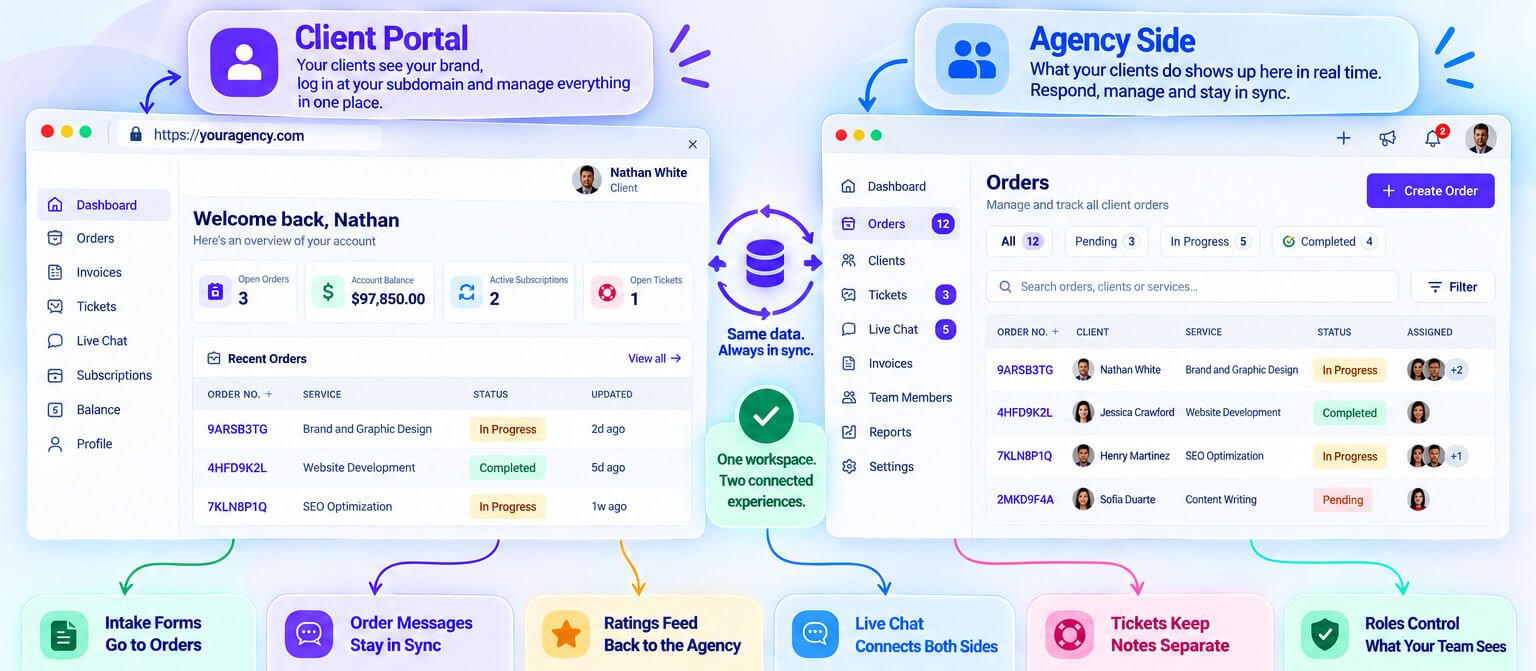
The portal is one side of a shared workspace. What a client does — placing an order, sending a message, opening a ticket, paying an invoice — appears on the agency dashboard tied to that client’s record. What the agency does in response — updating a status, issuing an invoice, replying to a support thread — shows up on the client’s end. The two sides run off the same data, so neither party is ever looking at a stale copy.
How Intake Answers Flow Into Orders
When a client checks out through the portal, they fill in the intake form attached to that service. The moment they submit, those answers land directly inside the order on the agency side — no copy-paste, no email to chase down. The agency team can read the project brief, download it as a PDF or a file bundle, and edit individual fields if something needs correcting before work begins.
How Order Messages Sync Between Client and Team
Every order carries two separate message threads. The client-facing thread is shared: both sides post there, attach files, and see each other’s replies in real time. The internal thread is visible only to the agency team and keeps discussion about the work — handoff notes, concerns, internal context — out of the client’s view entirely.
- Client posts a message → team sees it immediately on the order page
- Team replies in the shared thread → client sees it in their portal
- Internal team thread stays hidden from the client at all times
How Client Ratings Feed Back to the Agency
Once an order is complete, clients can rate it from inside the portal. That rating attaches to the order record on the agency side and is exportable, so you can pull a full list of client feedback across all completed orders without hunting through individual records.
Live Chat Handoff and Conversation Transfer
The portal’s live chat connects directly to the agency dashboard. When a client starts a chat, it appears on the agency side for whoever is handling it. The chat supports attachments and reactions on both ends, and if no one responds immediately, Clientish falls back to email so the client isn’t left waiting without acknowledgement.
How Ticket Replies and Internal Notes Stay Separated
Support tickets follow the same separation logic as order messages. The client sees the reply thread — what the agency writes and sends publicly. Internal notes written by the agency team on a ticket stay on the agency side only. The client never sees working notes or team commentary that wasn’t meant for them.
How Role and Permission Controls Shape the Agency View
On the agency side, what a team member can see and do is controlled by role and per-role visibility settings. The client record acts as the anchor: a team member assigned to a client can access that client’s orders, invoices, tickets, and activity log — but only to the extent their role allows. This means a junior account manager can handle day-to-day order updates without touching billing or sensitive account history.
How the Agency Monitors the Client Portal Experience
Running a client portal well means knowing what your clients actually see and encounter, not just assuming the setup is correct. Clientish gives you several concrete ways to check, audit, and export what’s happening on the client side without asking the client to describe it.
Signing In as a Client to See Their Exact View
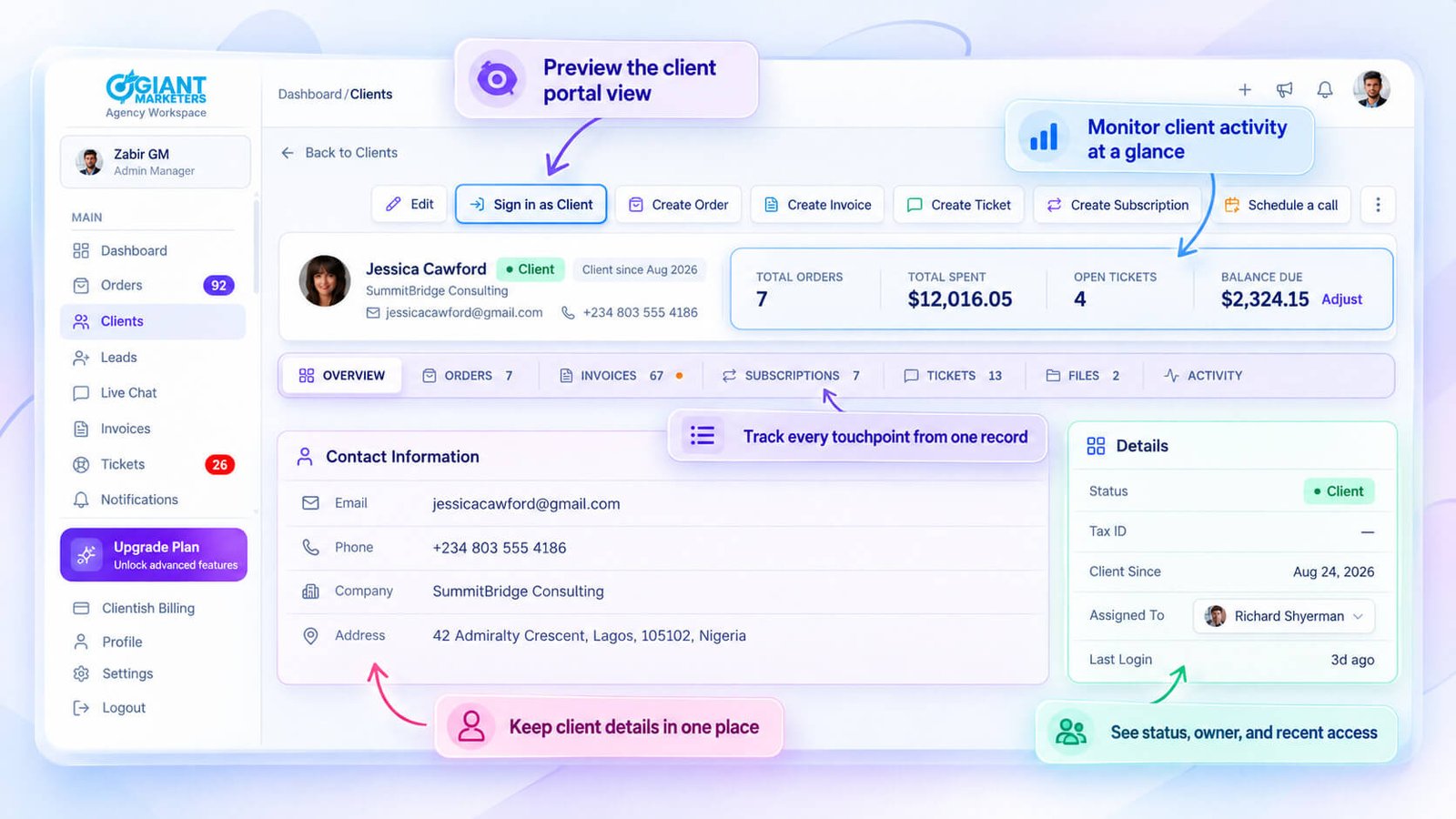
From any client’s profile in the Clients feature, you can hit “sign in as client” and Clientish will load their portal session exactly as they would see it. Same dashboard figures, same order statuses, same invoice list. You’re not looking at an approximation or a preview mode — you’re in their account.
This matters more than it sounds. When a client says their invoice isn’t showing a payment or they can’t find where to request a revision, you can reproduce the problem in about ten seconds rather than talking them through a screen you can’t see. It also helps before onboarding a new client — you can verify that their portal looks right, their services are visible, and their intake form flows correctly before they ever log in.
Viewing a Client’s Orders, Invoices and Activity From Their Profile
Each client profile in Clientish has its own set of tabs: orders, invoices, tickets, and activity log. You don’t need to cross-reference separate lists to understand where a client stands — everything tied to that client is in one place.
The activity log is particularly useful for support conversations. If a client contacts you saying something “didn’t go through,” you can pull up their activity tab and see exactly what happened and when, without relying on their description of it. The orders tab shows every order and its current status. The invoices tab shows payment state. Together, those three tabs give you a complete picture of the relationship at that point in time.
- Orders tab: all orders linked to this client, with current status visible
- Invoices tab: invoice status (paid, unpaid, partial) and any recorded payments
- Tickets tab: support history from the client’s side
- Activity log: a timestamped record of what’s happened across the account
Exporting Client Payment History and Transactions
From the client portal dashboard, clients can export their own order and payment data as a spreadsheet. On the agency side, the invoices feature also supports export, so you can pull payment records without building a report from memory.
This is useful in a few practical situations: a client asks for a year-end summary of what they’ve paid, you need to reconcile billing for an account, or you’re offboarding a client and want to hand over clean records. The export covers the transaction history tied to their account without you needing to manually compile invoice by invoice.
Checking What a Client Can See by Role
Clientish includes per-role visibility controls on the client record, which means not every client account exposes the same information. Before assuming a client can see something in their portal, it’s worth checking what their role actually allows.
If you’ve restricted certain data at the role level, that restriction will be visible when you sign in as that client. You won’t see the restricted content either, because you’re inside their session. That consistency makes the impersonation feature genuinely reliable for diagnosing access issues.
Tracking Order Ratings Left by Clients
Clients can rate a completed order from inside their portal. Those ratings are visible from the agency side and are exportable, so you have a record of client satisfaction tied to specific deliverables rather than just informal feedback.
For agencies with multiple team members handling orders, this creates a lightweight accountability trail. A low rating on a specific order points you directly to that order’s detail, its assigned team member, and the message thread — so you can understand the context rather than chasing it through email.
How Clients Are Notified Inside the Portal
Clients don’t need to log in constantly to know something has changed. Clientish keeps them informed through a combination of in-portal alerts and email notifications, and gives both sides — client and agency — control over what they actually want to hear about.
In-Portal Notification Bell and Unread Count
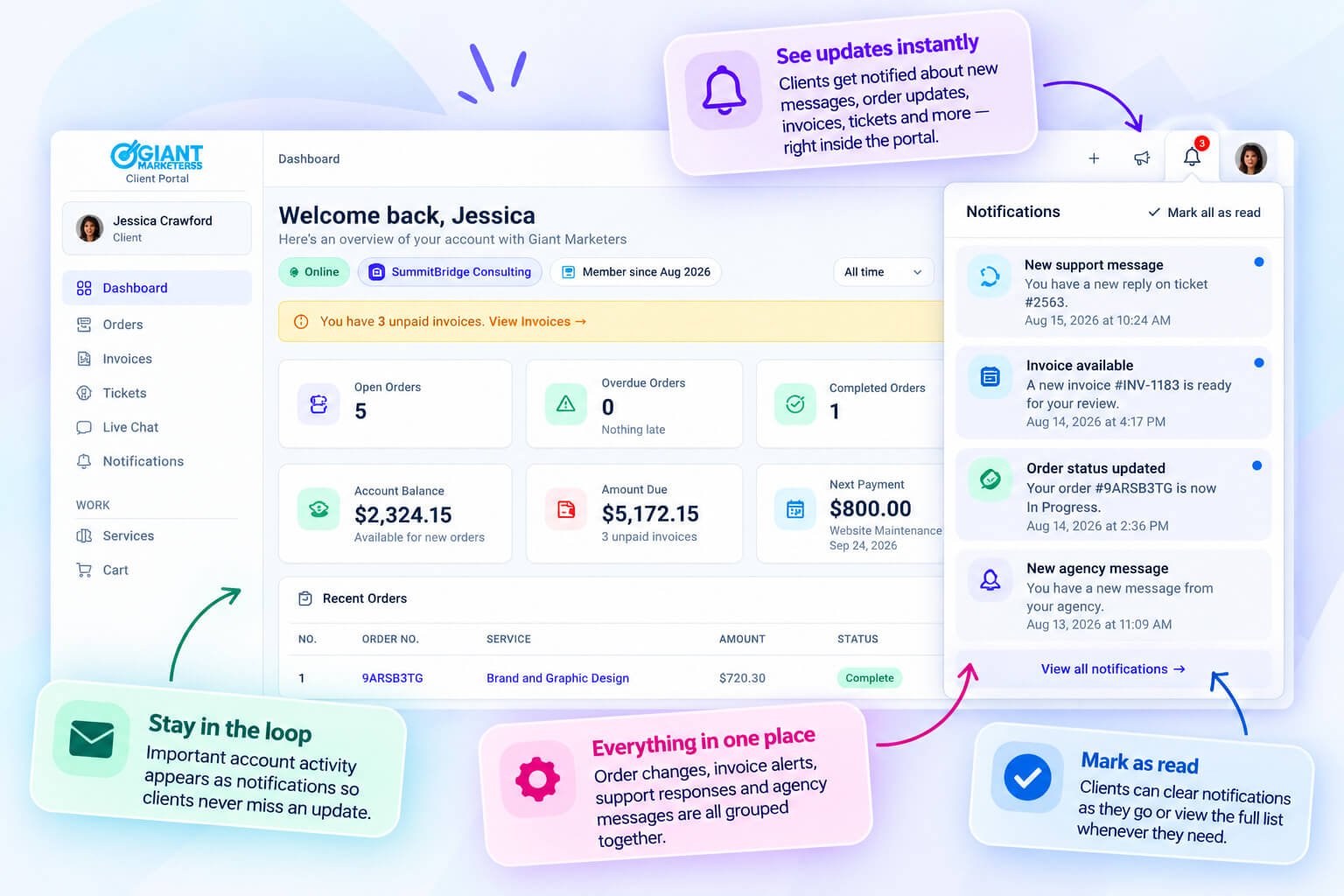
When a client logs into the portal, a notification bell in the interface shows a running count of unread events. That count updates as things happen: a new message on an order, a status change, an invoice issued, a ticket reply. The client doesn’t have to navigate to each section hunting for updates — the bell surfaces what needs attention.
Clicking through from a notification takes the client directly to the relevant record, whether that’s a specific order thread, an invoice ready to pay, or a support ticket with a new reply. No digging through menus required.
Choosing Which Events Trigger an Email
Not every client wants an email every time something moves. Clientish lets clients configure which events send them an email notification, so they can filter down to what’s genuinely useful for how they work with your agency.
This matters more than it might seem. A client managing five active orders might want email alerts only for invoice activity and completed deliveries, not every internal status nudge. Giving them that control means fewer notifications get ignored, and the ones that do land carry more weight.
The kinds of events a client can toggle include things like:
- New messages on an order
- Invoice issued or payment confirmed
- Order status changes
- Ticket replies from the agency
Muting a Specific Notification Thread
Beyond the global email preferences, clients can mute notifications on individual threads. If a client is involved in a long-running order with frequent back-and-forth, but doesn’t need an email ping for every message in that thread, they can silence it without turning off notifications for everything else.
This is a practical distinction. A blanket “turn off all emails” option would mean missing important updates elsewhere. Thread-level muting lets clients stay informed on new projects and invoices while cutting out the noise from an order they’re actively watching through the portal itself.
What the Agency Gets Out of This Setup
The notification configuration lives on the client’s side, which means your agency doesn’t have to manage individual client preferences or field requests to “please stop emailing me about X.” Clients self-manage it.
The email fallback in live chat is a good example of how this carries through in practice. If a client sends a chat message and no one on the agency side responds immediately, Clientish sends an email fallback so the message doesn’t get buried. That fallback behaviour exists regardless of how the client has tuned their own notification preferences — it’s a separate layer that covers the agency’s responsiveness rather than the client’s inbox preferences.
The result is a notification system that doesn’t require the agency to babysit. Clients adjust what they want, and the portal handles the rest.
Access, Security and Privacy in the Portal
Giving clients their own login means access and security matter. The Clientish Client Portal keeps each client to their own data, secured by standard sign-in protections, so people only ever see what belongs to them.
Changing Email and Password From the Portal
Clients manage their own credentials directly inside the portal without needing to contact your agency. From their profile, they can update their email address or change their password at any time. Email changes go through a confirmation step — the client receives a verification link to their current address before the change takes effect, which prevents accidental or unauthorised updates.
Password changes follow the same self-service flow, keeping your support queue clear of the routine “can you reset my login?” requests.
What Clients Can and Cannot See
Each Clientish workspace is tenant-isolated. A client logging into your portal sees only their own orders, invoices, tickets, and subscription history — never another client’s data, and never anything from a different agency’s workspace. The scoping happens at the workspace level, so there’s no configuration required on your part to enforce it.
On the agency side, per-role visibility controls let you decide which team members can see sensitive client fields. Clients themselves have no visibility into the agency side: no team threads, no internal notes, no billing settings.
Two-Factor Authentication and Sign-In Security
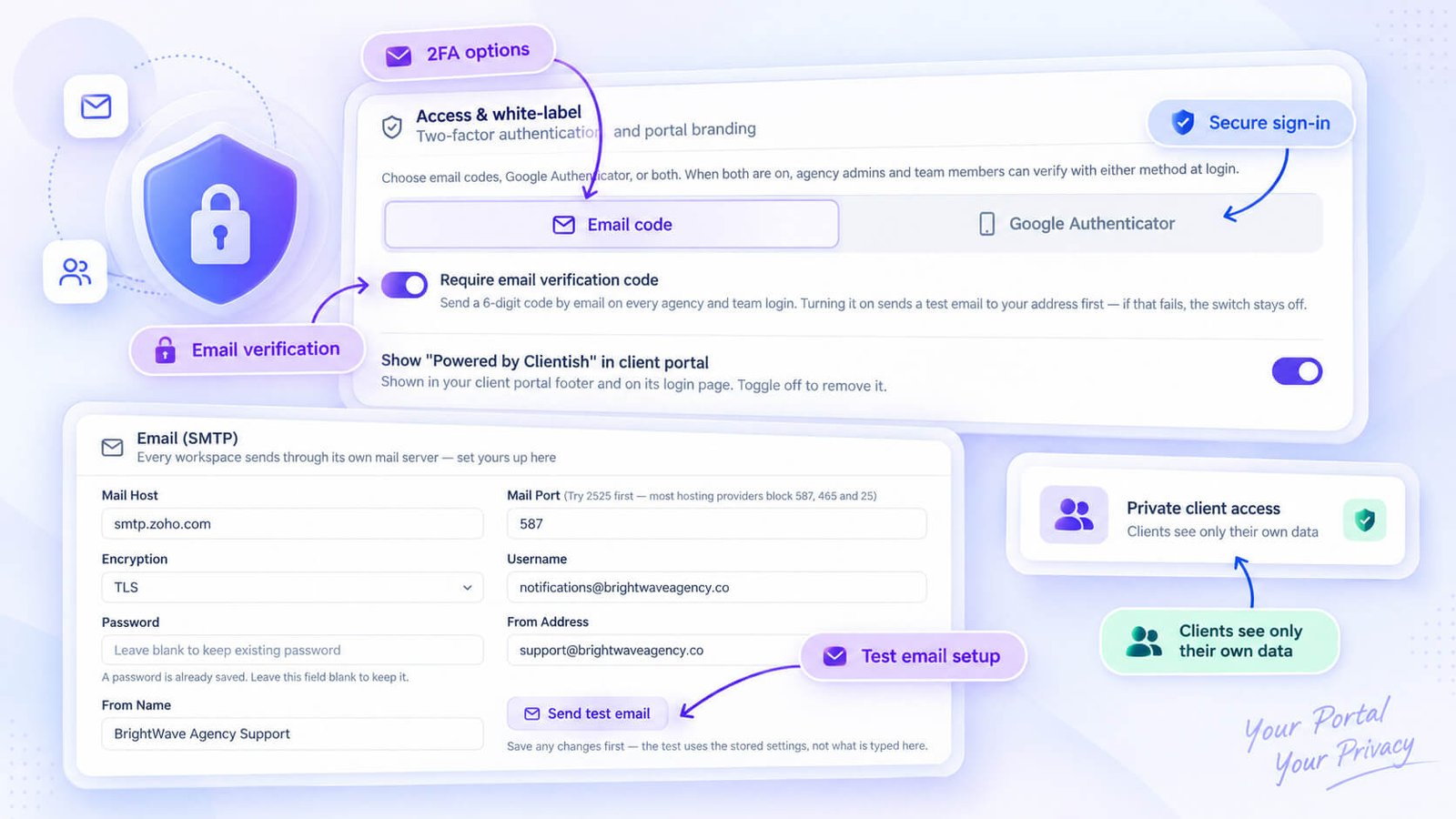
Clients can enable two-factor authentication on their account using either an authenticator app or email-based verification. Beyond 2FA, the sign-in page is protected by Google reCAPTCHA, which blocks automated login attempts before they reach an account.
Failed login attempts trigger a lockout, adding another layer against brute-force access.
- Two-factor options: authenticator app or email code
- Google reCAPTCHA on the sign-in page
- Automatic lockout after repeated failed attempts
Managing Active Sessions and Signing Out Other Devices
If a client suspects their account has been accessed from somewhere unexpected, they can review and end active sessions from their profile settings — signing out other devices without affecting the session they’re currently using.
This is a practical safeguard for clients who share a computer or occasionally log in from a public machine.
Practical Client Portal Scenarios
These examples are hypothetical, but each one maps to real actions inside the Clientish client portal. The point is to show what the flow actually looks like from a client’s seat, step by step.
A Design Client Reviewing Deliverables
A client hired an agency to rebrand their business. They get a notification that their order status has changed, log into the portal on the agency’s subdomain, and land on their orders list. They open the order and scroll to the message thread, where the agency has uploaded the first round of files.
If they want changes, they don’t need to email anyone. They can reply directly in the order’s message thread with feedback and request a revision. The agency sees it on their side and advances the order through the next revision round.
Once the work is approved and marked complete, the client can rate the order before they leave.
A Retainer Client Paying a Monthly Invoice
A client on a monthly SEO retainer gets their invoice notification. They sign in, go to the Invoices section, and open the current invoice. They can download it as a PDF for their records, then pay online using a saved card or a bank transfer.
- Pay by card through the connected gateway (Stripe, PayPal, or Paddle)
- Pay by manual bank transfer with a reference number shown on-screen
- Download the invoice as a PDF before or after paying
- View their payment history in one place
If their card details have changed, they can update their saved payment methods under the Payments section of their profile without touching any other part of the portal.
A New Client Placing a First Order
A new client has been sent a link to the agency’s services catalogue. They sign in, browse the catalogue, and add a service to their cart. If the service has add-ons, they can select them during checkout. A coupon code field is available at checkout if the agency has issued one.
After paying, the intake form for that service appears immediately. The client fills in the project details — which might include text fields, file uploads, a date, or conditional questions depending on how the agency built the form. Once submitted, the order lands in the agency’s pipeline ready to be assigned and started.
The client can return to that order at any time to review their submitted answers.
A Client Getting Support
A client has a question mid-project. They open the portal’s live chat and type a message. They can attach a file if they’re referencing something specific, and they can see when the agency is typing. If no one responds immediately, Clientish sends the message through as an email notification so nothing gets missed.
For something more formal, they can raise a support ticket instead. From the Tickets section they submit the issue, reply to responses, and rate the resolution when it’s closed. They can also edit or delete their own replies if they need to correct something.
Both routes keep the conversation inside the portal rather than scattering it across email threads.
Is a Client Portal Right for Your Business?
A client portal works best when there’s ongoing work to manage. If you’re regularly delivering orders, sending invoices, handling support questions, and managing recurring services for the same clients, having one place where they can track all of that saves a noticeable amount of back-and-forth for both sides.
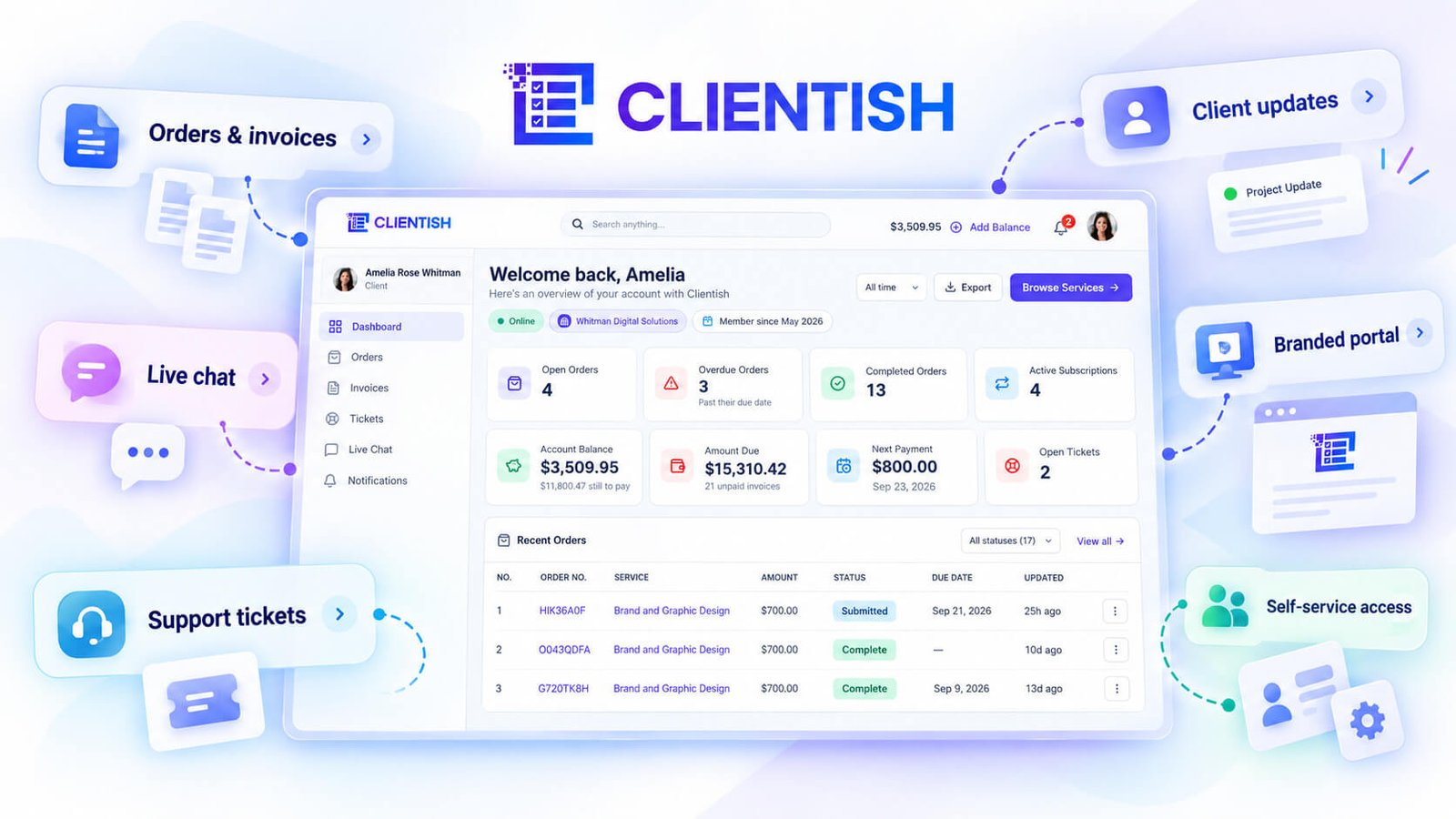
The branded element matters too, particularly if client experience is part of how you differentiate your agency. Clients logging into a portal on your subdomain, with your logo and colours, signals that you’ve built something deliberate around their experience rather than stitching together a handful of disconnected tools.
That said, a full client portal isn’t necessary for every situation. If you’re completing a single project for a one-off client with no repeat work planned, the overhead of setting up a portal and inviting that client probably isn’t worth it. A shared folder and an invoice link will do fine.
Clientish is also built specifically for service businesses. It’s not designed as a public-facing storefront for physical products or e-commerce. If your business sells goods rather than services, the order and invoicing workflow won’t map cleanly to how you operate.
A straightforward way to check fit:
- You have repeat clients with multiple orders or subscriptions running at once
- Clients regularly ask for status updates, need to pay invoices, or raise support tickets
- You want clients to experience a branded, professional self-service area rather than ad-hoc emails
- You sell services, not physical products
If most of those apply, the portal will earn its place quickly. If only one does, it’s still worth a look — Clientish offers a 7-day free trial, which is enough to set up your branded portal and invite a test client to see the experience firsthand, so the easiest test is to set it up and see whether it reflects how your client relationships actually work.
Getting Started With the Clientish Client Portal
Getting the portal live for a client is a shorter process than most agencies expect. The setup wizard walks you through the core decisions in order, saves progress at each step, and you can pick up where you left off if something interrupts you.
Setting Up Your Brand Colours and Logo
During the onboarding wizard, you upload your agency logo and pick a brand colour. Those two things control how the portal looks to every client who logs in — the subdomain, the header, and the overall colour scheme all pull from what you set here. You also configure your currency and timezone at this stage, which flow through to invoices and order timestamps across the whole workspace.
Seeding the Workspace With Demo Data First
Before inviting a real client, it’s worth running through the portal in demo mode. Clientish lets you preview the client-side experience directly from a client’s profile using the “sign in as client” feature, which loads their exact view without sending any notifications. Seeding demo data gives you a chance to check that statuses, services, and invoice layouts look right before a real client encounters them.
Building Out the Services and Payment Setup
Your services catalogue is what clients browse and buy from inside the portal. Before you invite anyone, set up at least one service with its pricing, any add-ons, and the intake form questions clients will answer at checkout. You’ll also want to configure how you accept payment at this point.
Supported payment options include:
- Stripe, PayPal, or Paddle for online card payments
- SSLCommerz for regional card processing
- Manual bank transfer with a reference code clients see at checkout
Inviting Your First Clients by Email
Once the workspace is ready, you can invite clients directly from the Clients feature by email. They receive an invitation, set their own credentials, and land in the portal on your subdomain. Clientish also generates a shareable payment link per service, so you can send a direct checkout URL to a client without them needing to browse the catalogue first.
Starting the Trial
You can try the portal on a 7-day free trial with everything unlocked, so you can complete the entire setup, test the portal as a client, and run a real order through the pipeline before committing to a paid plan. Check the Clientish site for current plan pricing once the trial ends.
Frequently Asked Questions
A few questions come up again and again when businesses first look at client portals. Here are the short answers.
What is a client portal in simple terms?
A client portal is a private, login-based area where your clients sign in to manage everything related to their work with you — orders, invoices, messages, and support — without having to email you every time they need an update.
Is the Clientish client portal branded to my business?
Yes. The portal runs on your agency’s own subdomain and displays your logo and colours. Clients never see a generic Clientish URL.
Can clients pay invoices inside the portal?
Clients can view invoices, download them as PDFs, and pay online through the portal. Payment options include card, a connected gateway, or manual bank transfer with a reference number.
Can clients manage subscriptions themselves?
Clients can view their active subscriptions and cancel them directly from the portal. Creating or modifying a subscription is handled on the agency side.
Do clients need an account to use the portal?
Yes, clients log in with their own credentials. They manage their password, email address, and profile avatar from inside the portal without contacting your team.
Can clients talk to my team through the portal?
Two ways: a message thread tied to each specific order, and a live chat for general conversation. Both support file attachments. If no one is available to reply immediately, Clientish sends an email fallback so the client isn’t left waiting.
Is the portal secure?
The portal includes two-factor authentication (authenticator app or email code), Google reCAPTCHA on the sign-in page, and automatic lockout after repeated failed attempts. Each workspace is tenant-isolated, so one agency’s client data is not accessible from another workspace.
Can clients browse and purchase services through the portal?
Yes. The portal includes a services catalogue where clients can browse what your agency offers, add services to a cart, apply coupon codes, adjust quantities, and check out — all without leaving the portal.
Can clients rate their experience?
Once an order is complete, clients can leave a rating directly inside the portal. Ratings are exportable from the agency side, which makes them useful for tracking service quality across the team.
Final Thoughts
A client portal cuts out the back-and-forth that quietly eats up agency time — status emails, repeated invoice questions, chasing approvals. Giving clients one branded place to check orders, pay invoices, and reach your team changes the dynamic of the relationship, not just the workflow.
Clientish builds that portal into the same workspace your team already uses for orders, billing, and support. Clients log in through your subdomain, see your branding, and manage everything on their end without pulling your team into conversations that don’t need to happen.
If you want to see what your clients would actually experience, Clientish’s 7-day free trial gives you full access to set up the portal, run through it as a client, and judge for yourself whether it fits the way your agency works. Visit clientish.io to get started.

