
AGENCY WORKFLOW AUTOMATION

Agency Workflow Automation for Clients & Orders

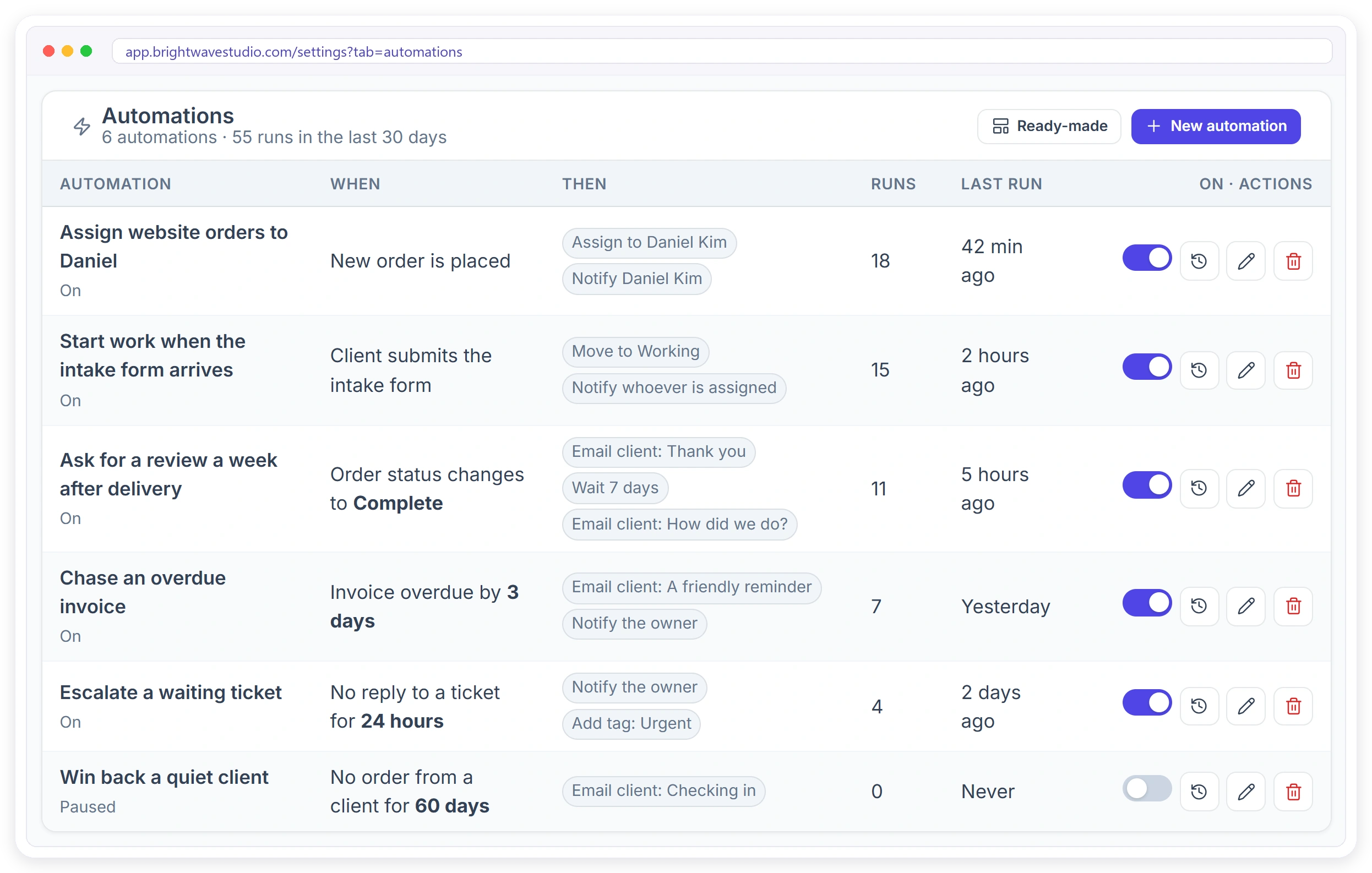
Clientish automates the routine work around your clients and orders: pick one of 26 triggers, add up to 5 checks and up to 8 steps, such as assigning the order, emailing the client or waiting up to 90 days, and you can open the history of every run.
Included in every plan
14-day free trial
No credit card required
Clientish Automations list for an agency: six automations with their trigger, steps, runs in the last 30 days and an on or off switch
26Triggers Across Your Agency
8Steps per Automation
90Days an Automation Can Wait
12Ready-Made Automations

Why Agencies Automate

Most of the follow-up work in an agency is the same small task, done by hand, on time, every time. Until someone forgets.

Follow-Ups Slip

The overdue invoice reminder, the review request, the check-in with a quiet client. They matter, and they are the first to be forgotten.

Someone Has to Assign It

Every new order waits in a list until a person reads it and passes it on. Nights and weekends, it just waits.

Zapier for Your Own Data

Paying per task to move things around inside your own client tool adds a bill and one more thing that can break.

26 Triggers Across Your Whole Agency

An automation starts when something happens to an order, invoice, ticket, client, lead, proposal or subscription, or on a schedule you set.

Orders

New order, status changes, intake form submitted, delivery approved, order late or coming due, stuck in one status, task overdue.

Invoices

New invoice, invoice paid, invoice overdue, invoice coming due.

Tickets

New ticket, the client replies, or a ticket waits too long for your reply.

Clients

New client added, or a client has not ordered for a while.

Leads

New lead, lead not contacted, and a call booked, cancelled or missed.

Proposals

A client accepts a proposal, or a proposal gets no answer.

Subscriptions

A subscription renews soon, a set number of days before the date.

On a Schedule

Every day, week or month at the hour you pick, for every active client.

Build an Automation in Four Steps

Everything is set in Settings, then Automations. No code and no outside tool.
Pick a Trigger

Choose what starts it, such as an order moving to Complete.

Add Checks

Optional. Run it only for a service, client, amount or status.

Add Steps

Up to 8 steps that run in order, with waits in between.

Turn It On

Save it paused to review first, or save and turn it on.

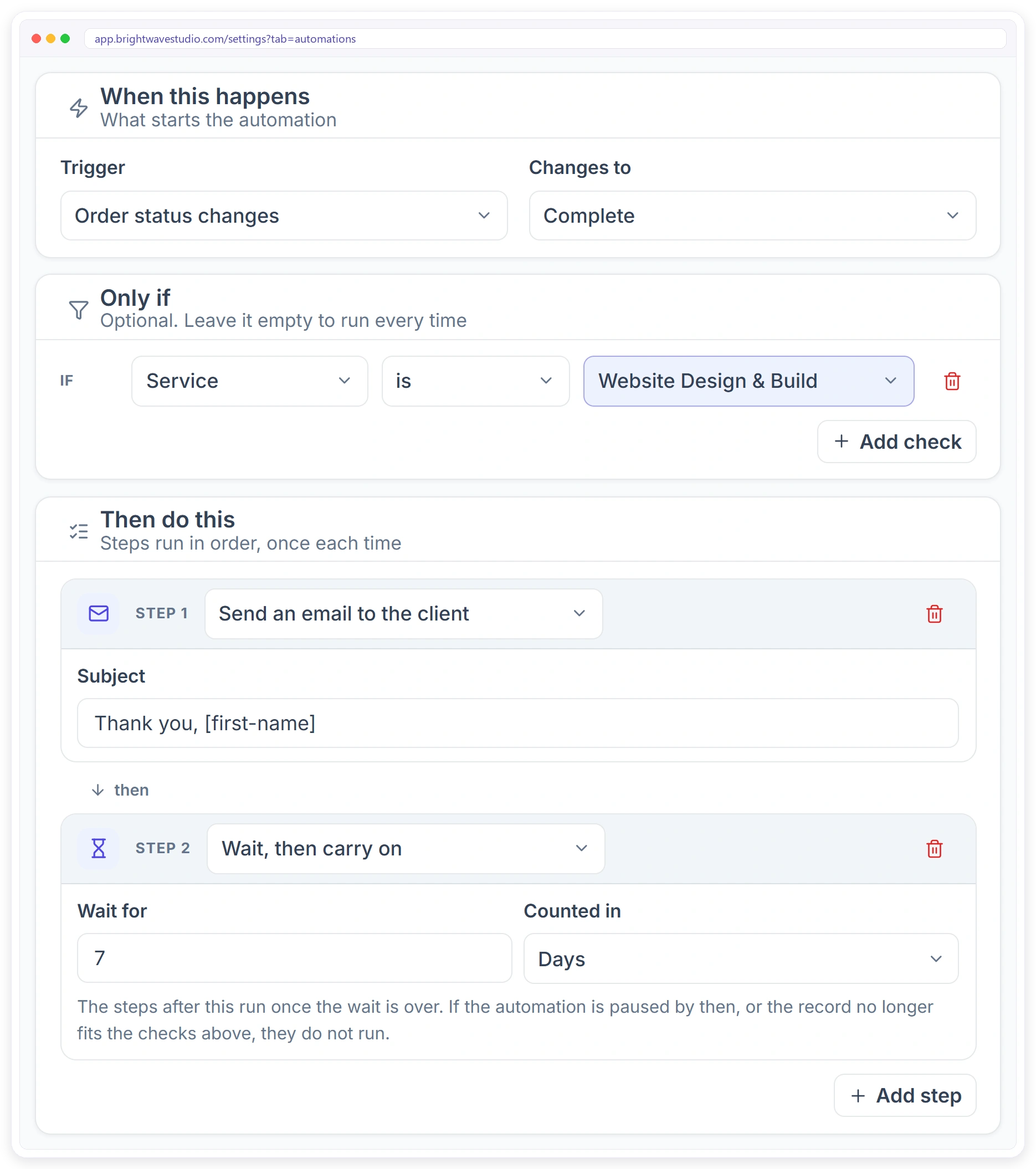
Automation builder: when an order status changes to Complete, only if the service is Website Design and Build, email the client, wait 7 days, then email again

WHEN, ONLY IF, THEN

One Screen From Trigger to Last Step

Each automation reads like a sentence: when this happens, only if these checks pass, then do these steps. Add a wait between steps, and the later steps run only when the record still fits.

Up to 5 checks on the order, client, amount, ticket or lead
Up to 8 steps, run in order, once each time
Wait in hours or days, up to 90 days
15 shortcodes for names, numbers, links and your booking link

What an Automation Can Do for You

Eleven kinds of steps cover the follow-ups your team does by hand today. Need emails only? See client email automation.

Email the Client

Send an email with shortcodes, through your own mail server.

Email or Notify the Team

Email a team member, or ping them in the bell notifications.

Assign the Work

Assign to a person, whoever is assigned, or the owner.

Change the Order Status

Move the order to Working, Delivered or any status you use.

Create Tasks and To-dos

Add a task on the order or a to-do for your team.

Add a Tag

Tag the record, such as Urgent or VIP, so it stands out.

Post to Your Team Chat

Post to Slack, Microsoft Teams, Discord or Telegram.

Text the Client

Send an SMS or WhatsApp message to the client.

What Changes for Your Agency

Automations take the routine out of your team’s day without changing how your clients work with you.

Orders Start Moving at Once

New orders are assigned and the right person is told, any time of day.

Invoices Get Paid Sooner

Reminders go out on the day you choose, without anyone remembering.

No Ticket Waits Too Long

Unanswered tickets are flagged to the owner before the client chases.

More Reviews

Every finished order gets a thank-you and a review request a week later.

Quiet Clients Hear From You

A friendly check-in goes out after the number of quiet days you choose.

Leads Get a Fast Reply

New leads are assigned to sales and followed up when nobody has called.

Your Team Sees It in Chat

New orders, payments and alerts appear where your team already talks.

Nothing Runs Blind

Each run leaves a record of what it did and for whom.

READY-MADE

Start From 12 Ready-Made Automations

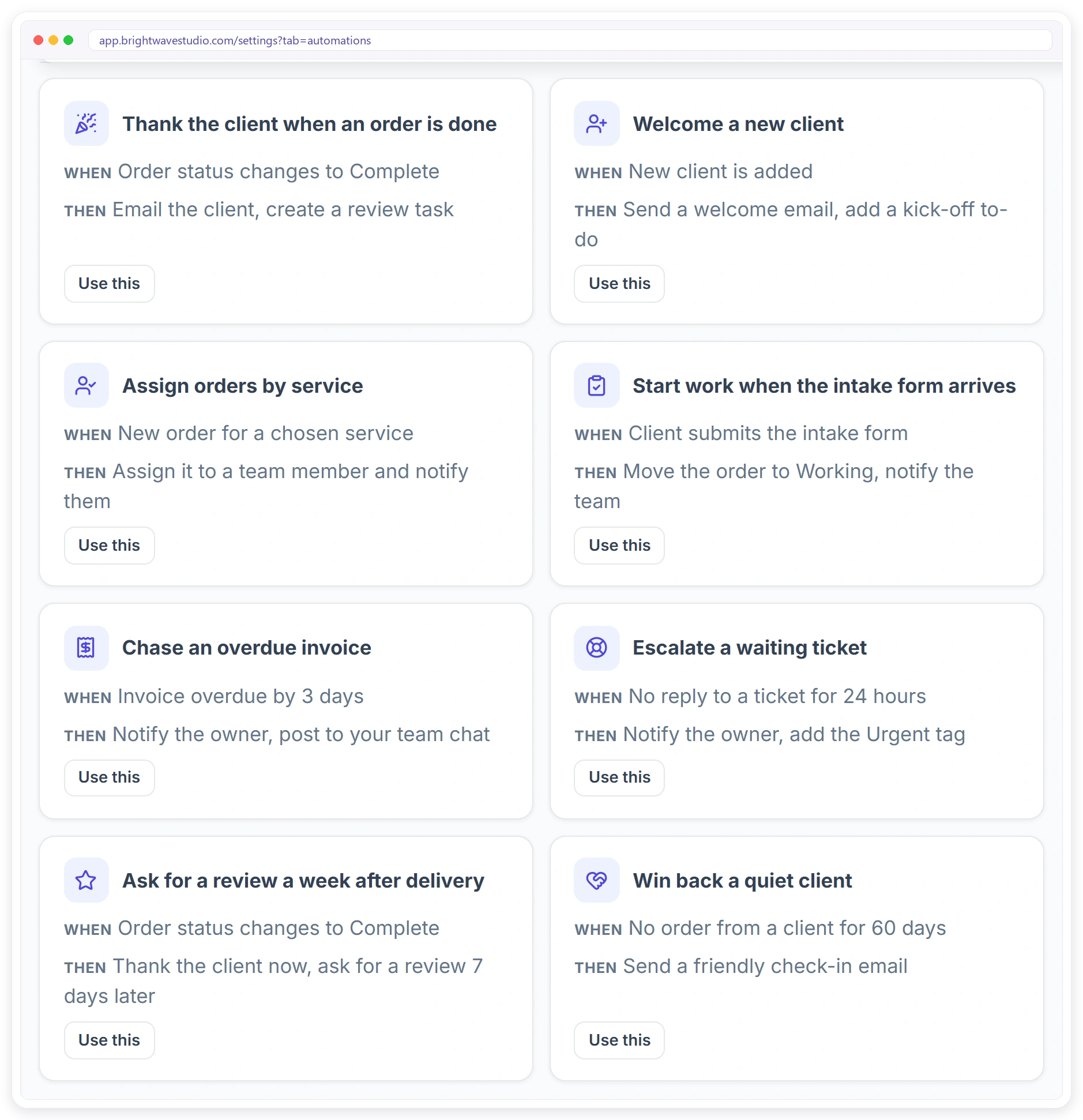
Open Ready-made, pick the one closest to what you need and change anything before you turn it on. They cover the follow-ups most agencies forget, from thanking a client to chasing an invoice.
Thank the client when an order is done, or ask for a review a week later
Welcome new clients and assign orders by service
Chase overdue invoices and escalate waiting tickets
Win back quiet clients and warn before a subscription renews
Ready-made agency automations: thank the client when an order is done, welcome a new client, assign orders by service, chase an overdue invoice
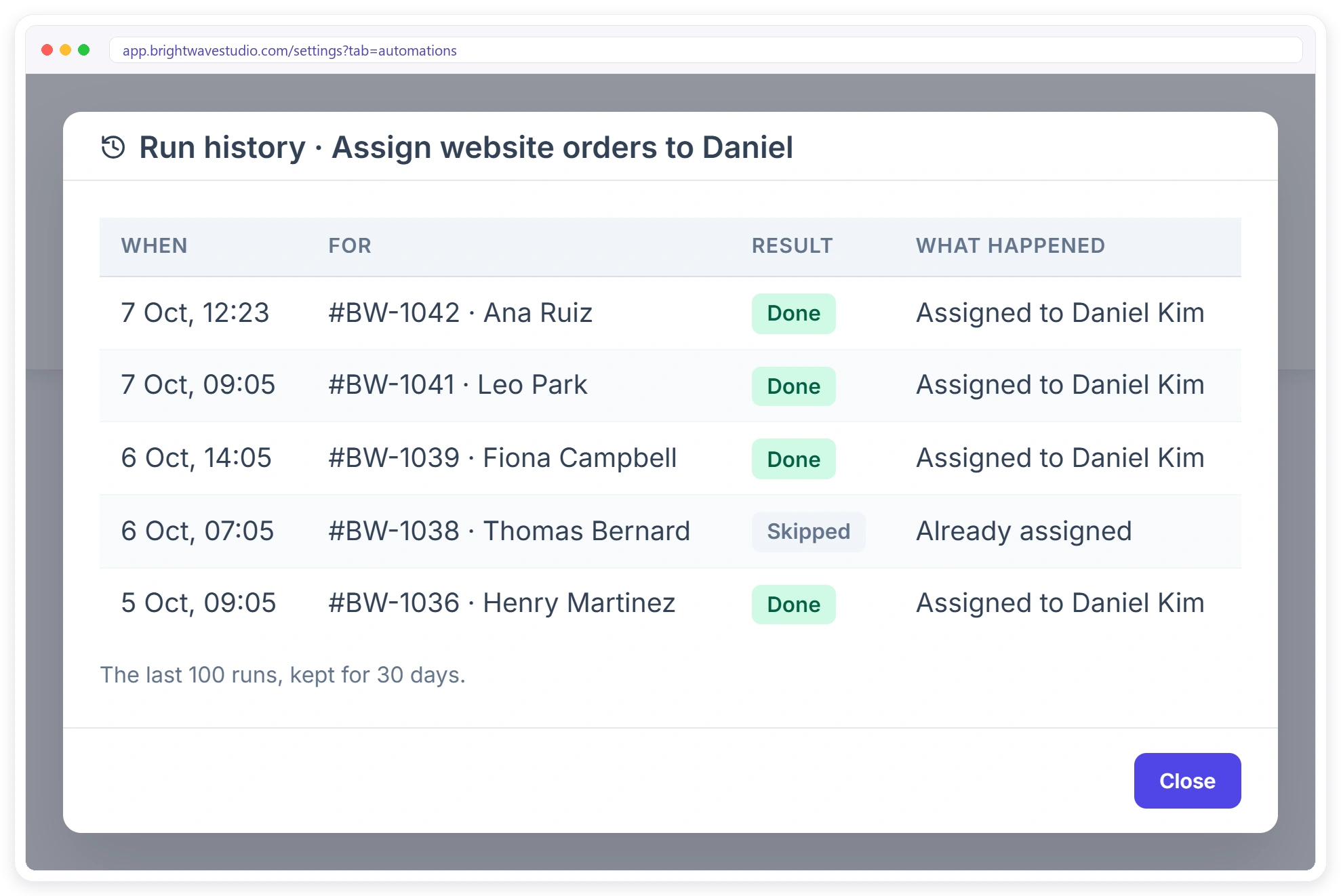
Automation run history showing when each run happened, for which order, the result and what the automation did

RUN HISTORY

See Exactly What Ran

Every automation keeps a run history: when it ran, for which order, invoice or client, the result and what each step did. Pause any automation with one switch and it stops at once.

Each run marked Done, Part failed, Failed or Skipped
What each step did, in plain words
The last 100 runs, kept for 30 days
Runs in the last 30 days shown on the list

Safe by Design

Automations do routine work without surprising your clients or your team.

Save It Paused

Review a new automation before it runs on a single record.

Checks Before Every Step

After a wait, steps run only if the record still fits.

No Endless Loops

An automation cannot keep setting itself off again and again.

Your Workspace Clock

Times and schedules follow your workspace time zone.

Your Own Email

Client emails go out through your SMTP, with your name.

Your Workspace Only

Each agency’s automations see only its own data.

Up to 200 Automations

Plenty of room for every service and every team.

Every Plan

Automations come with Starter, Growth, Pro and Enterprise.

Built-In Automations or Zapier

Zapier and Make are great for connecting many apps. For the routine work inside your client portal, built-in automations are simpler. See also webhooks and the API for the cases where you do want Zapier.

For work inside Clientish
Zapier or MakeA separate tool
Built inClientish AutomationsInside your workspace
No extra account or login
—
✓
Knows your order statuses, services and team
Mapped by hand
✓
Waits up to 90 days between steps
Depends on plan
✓
Checks the record again after a wait
Extra steps
✓
Run history next to the automation
In another tool
✓
Ready-made automations for agencies
—
✓
Charged per task
Yes
No

Automations for Your Kind of Agency

A few starting points. Each one is a single automation with a trigger, a check and two or three steps. Pair them with order management and your team only touches the work itself.

SEO Agencies

When an SEO Audit order is placed, assign it to your SEO lead, create the kick-off task and email the client what you need.

Web Design Studios

When the intake form arrives, move the order to Working, notify the designer and add a to-do to book the kick-off call.

Marketing Agencies

When a monthly retainer renews in 7 days, tell the client the date and remind the account manager to send results.

Content Agencies

When a blog post order is complete, thank the client, then ask for a review a week later.

Bookkeepers

On the first of every month, add a to-do for each active client to send this month’s documents.

Every Agency

When an invoice is 3 days overdue, email a friendly reminder and notify the owner.

Agency Automation FAQ

Quick answers about automating client and order work in Clientish.

How do I stop forgetting client follow-ups at my agency?

Turn each follow-up into an automation: an overdue invoice, a finished order, a ticket waiting for a reply or a client who has gone quiet. Clientish runs it on time and keeps a history, so nothing depends on someone remembering.

How do I automatically assign new orders to the right team member?

Create an automation with the New order is placed trigger, add a check for the service, and add an Assign to a team member step. Each new order for that service is assigned and the person can be notified straight away.

Can I email a client automatically when their order status changes?

Yes. Use the Order status changes trigger, pick the status, such as Complete, and add a Send an email to the client step. Shortcodes fill in the client’s name, order number and a link to the order.

How do I remind a client about an unpaid invoice?

Use the Invoice is overdue trigger and set how many days late, such as 3 days. Add an email to the client, and a notification to the owner if you want to follow up yourself.

Can an automation wait a few days before the next step?

Yes. Add a Wait step in hours or days, up to 90 days. The steps after it only run if the automation is still on and the record still fits your checks.

Can I run an automation only for some services or clients?

Yes. Add up to 5 checks on the service, order status, amount, client, ticket priority or lead source. Leave them empty and it runs every time.

How do I see what an automation did?

Open its run history from the list. Each run shows when it ran, which record it was for, whether it was done, part failed, failed or skipped, and what each step did.

Do I need Zapier to automate my agency’s client work?

No. Triggers, checks and steps run inside Clientish. If you also use other tools, Clientish has webhooks and an API as well.

Can an automation post to Slack or send WhatsApp messages?

Yes. Steps can post to Slack, Microsoft Teams, Discord or Telegram, and send an SMS or WhatsApp to the client, once that channel is connected in Integrations.

Which Clientish plans include automations?

Every plan. Starter, Growth, Pro and Enterprise all include automations, up to 200 per workspace.

Will an automation email my clients from Clientish?

No. Client emails go out through your own mail server, with your from address and sender name.

Let the Routine Work Run by Itself

Start your free trial and turn on your first ready-made automation in a minute.

Scroll to Top