
AI ASSISTANT · UPDATED OCTOBER 2026
AI Assistant for Agency Owners, Bring Your Own Key
Bring your own key means the AI runs on your own Claude or ChatGPT account, so you pay your AI provider directly and Clientish never resells it. The assistant is built into your workspace, on every plan from $29 a month. Ask it about your orders, invoices, tickets and clients in plain words, let it draft replies, and approve every change before it happens, with Undo if you change your mind.
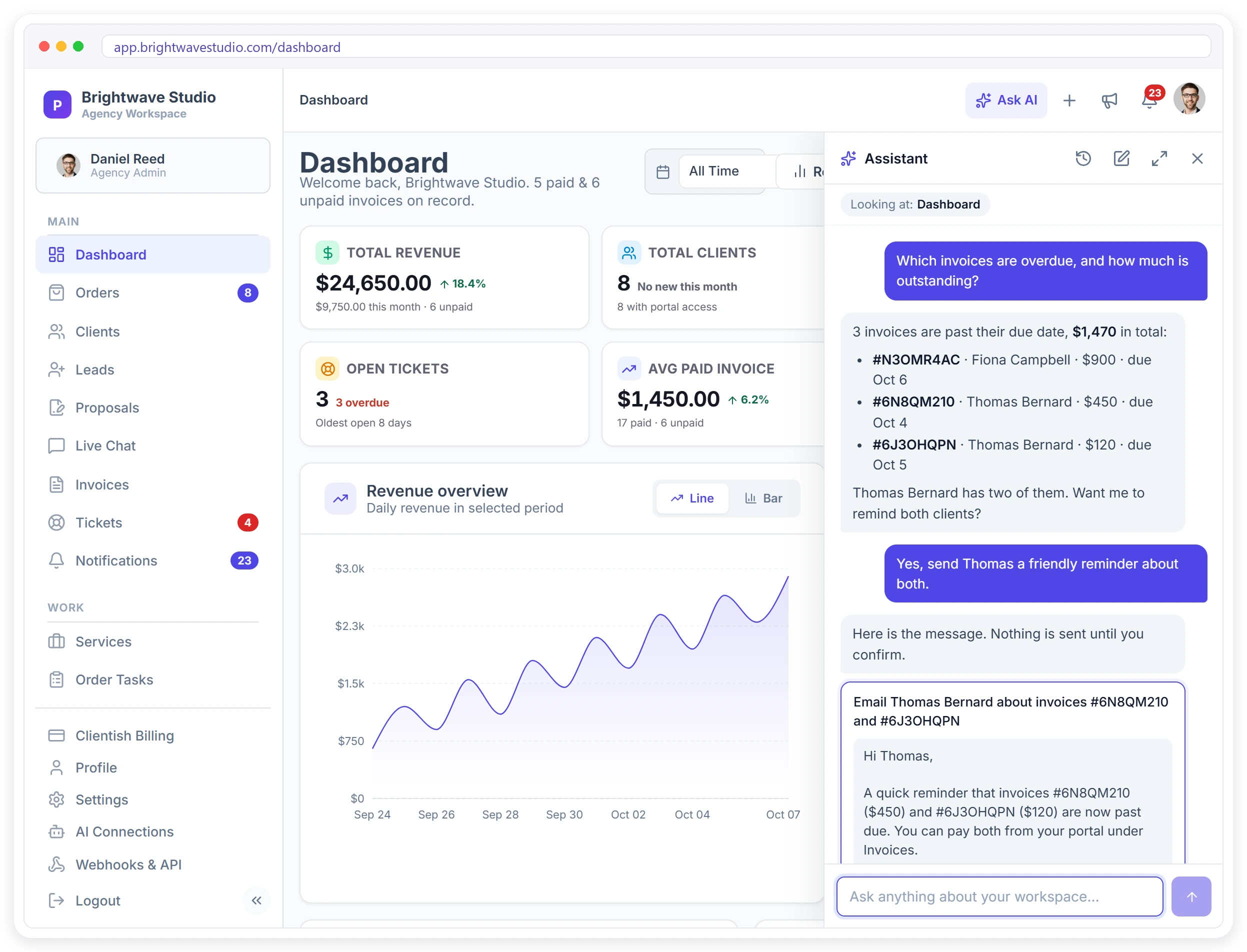
Why Agencies Want an Assistant
The answers are already in your workspace. Getting to them takes clicks, filters and spreadsheets, time an agency owner and the team rarely have between client calls and deadlines.
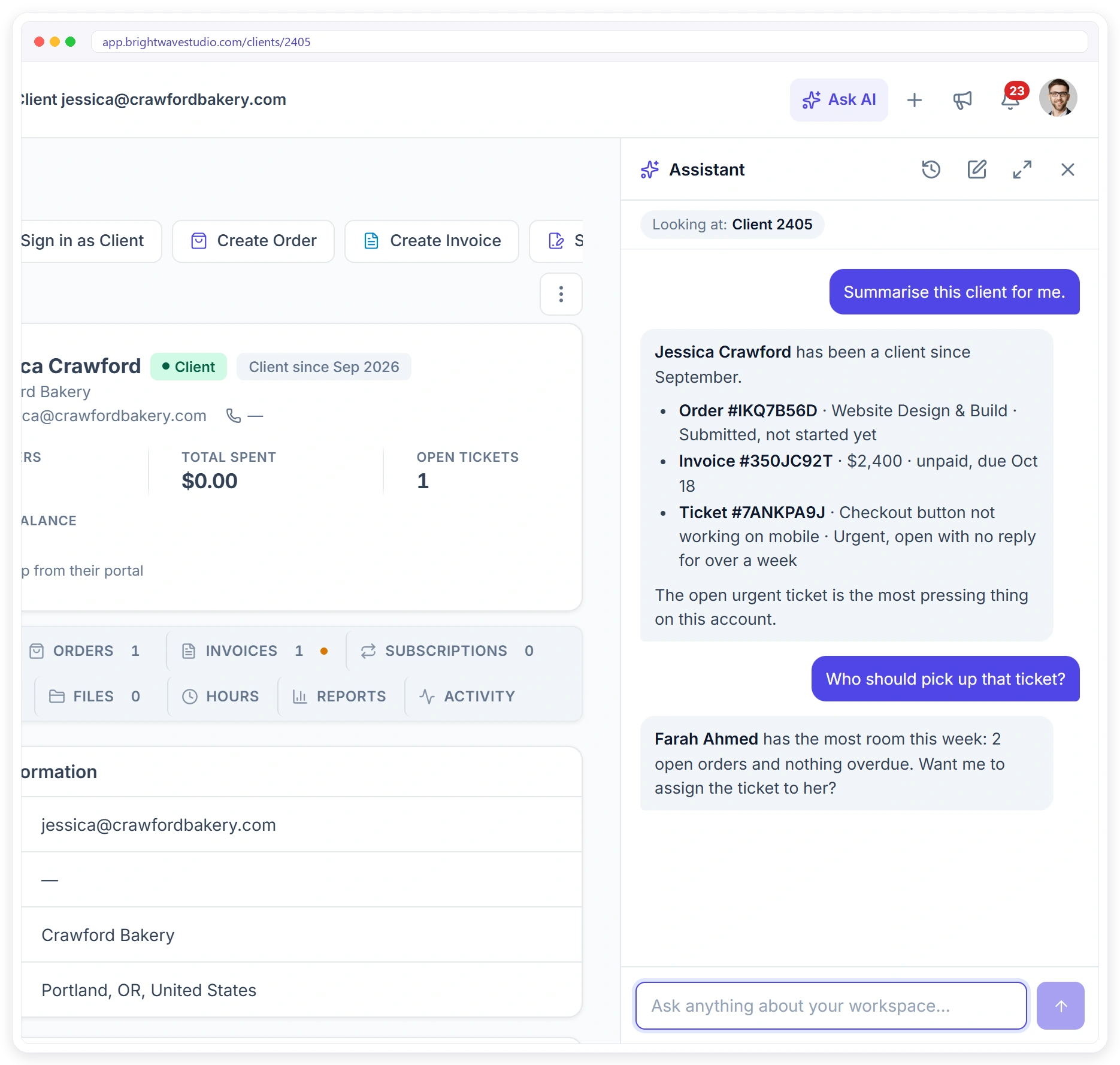
ASK ANYTHING
Answers From Your Real Data
Press Ask AI in the top bar, or Ctrl+J on Windows and Cmd+J on a Mac, from any page. Ask in plain words and the assistant reads your live orders, invoices, tickets, leads and clients to answer. It knows the page you are on, so “this order” or “this client” just works.
What Changes for Your Agency
An assistant that knows your orders, invoices and clients turns everyday questions and small updates into seconds of work, without pasting data into another chat window. For AI tools outside Clientish, see AI Connections.
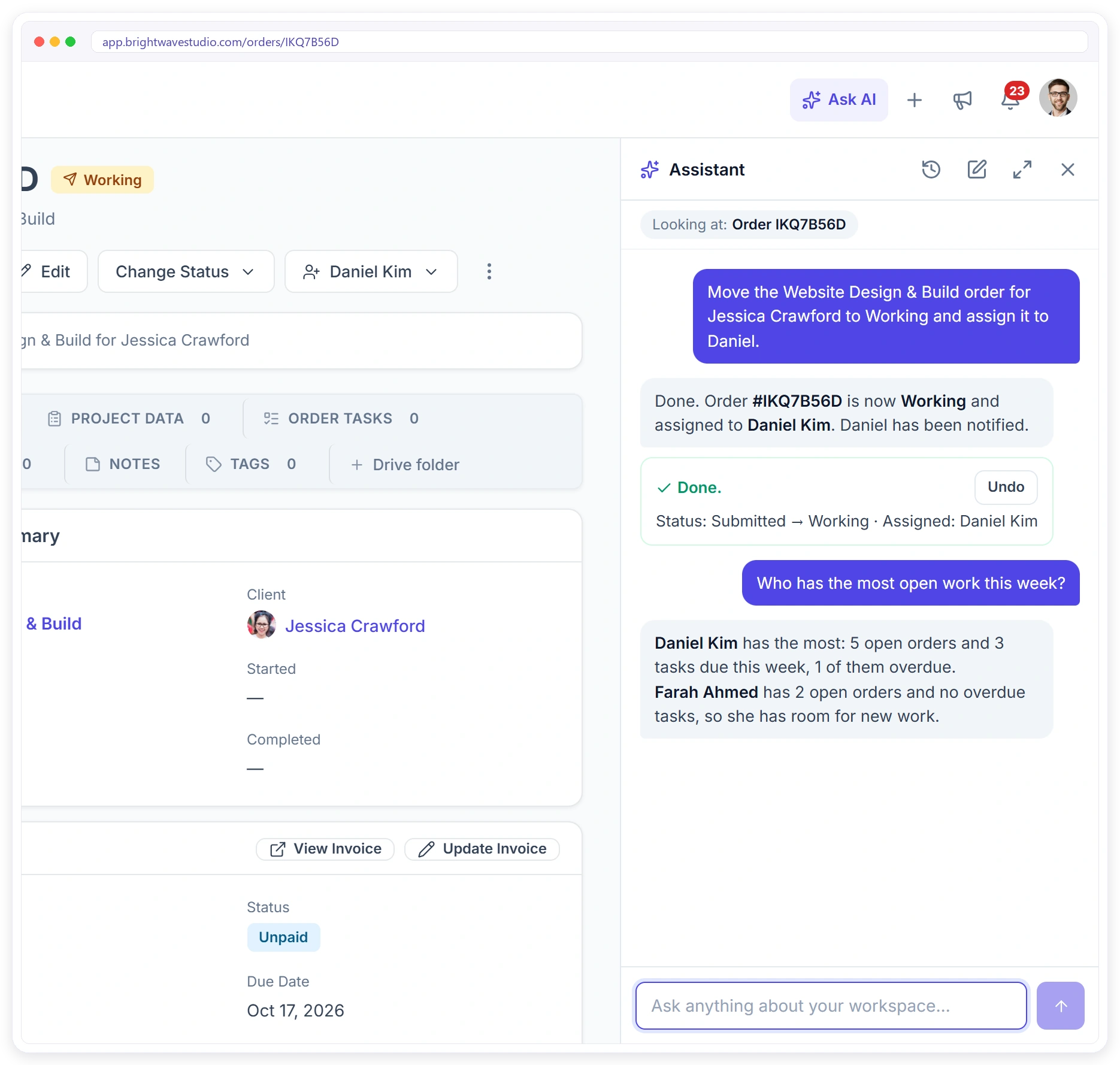
MAKE CHANGES
It Asks Before Every Change
Turn on Also make changes and the assistant can update orders, tickets, leads, clients and invoices. It shows exactly what it is about to do and waits for Confirm. Messages to clients can be edited first, and finished changes come with an Undo button.
Questions Agencies Ask It
A few things owners, account managers and support teams ask every week. Pair it with automations for the follow-ups that should run on their own.
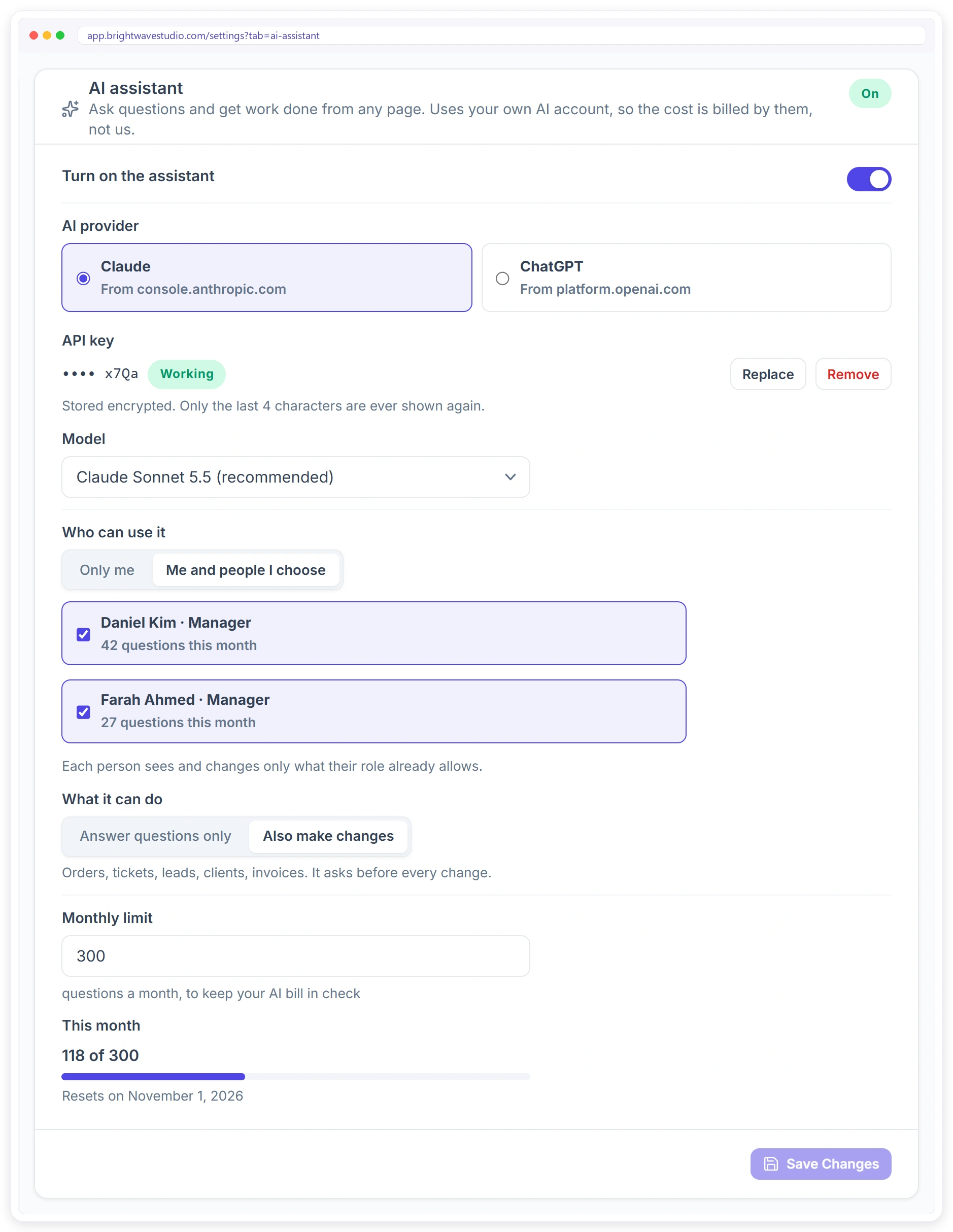
SETTINGS
Your AI Account, Your Rules
Open Settings, then Communication, then AI assistant. Pick Claude or ChatGPT, paste your API key and choose the model. Decide who can use it, whether it only answers or can also make changes, and how many questions a month it may use, so your AI bill stays where you want it.
Built-In Assistant or a Separate AI Chat
Many agencies already pay for ChatGPT or Claude. Here is what changes when the AI works inside your workspace instead of a separate chat window.
Set It Up in Four Steps
About five minutes, once: get a key from your AI provider, paste it in and choose the rules. After that the assistant is one keystroke away on every page of your workspace.
Safe by Design
Built so an agency owner can hand it real work without worrying about what it might do: nothing changes without Confirm, and nothing reaches your clients. Answers also follow your client help center articles.
AI Assistant FAQ
Straight answers for agency owners about the AI assistant: bring your own key, cost, changes, undo, your team and your clients.
What does bring your own key mean?
You connect your own Claude or ChatGPT account with an API key you create there. The AI provider bills you for what you use, at their price, and you can switch provider or model or remove the key at any time.
What is the best AI assistant for running an agency’s client work?
One that can see your real orders, invoices, tickets and clients. The Clientish AI assistant works inside your workspace on your own Claude or ChatGPT account, answers from live data and makes changes only after you confirm.
Can I use my own ChatGPT or Claude API key?
Yes. In Settings, then Communication, then AI assistant, choose Claude or ChatGPT and paste your own API key. It is stored encrypted and only the last 4 characters are shown again.
Who pays for the AI usage?
You pay your AI provider directly through your own account. Clientish does not charge for the assistant, and you can set a monthly question limit to keep the bill in check.
Can the AI assistant change my orders and tickets?
Only if you turn on Also make changes. It can then update orders, tickets, leads, clients and invoices, and it shows each change and waits for you to confirm.
Can I undo something the assistant did?
Yes. Status and assignment changes can be undone for 7 days from the chat.
Can it draft replies to my clients’ support tickets?
Yes. It writes the reply, you can edit the message, and nothing is sent until you press Confirm.
Can my team use the assistant?
Yes, if you choose Me and people I choose and tick the team members. Each person sees and changes only what their own role allows.
Can it delete data or take payments?
No. The assistant cannot delete records or move money.
Is my client data used to train the AI?
The assistant runs through your own Claude or ChatGPT API account, under that provider’s API terms, not a shared Clientish account. Passwords, keys and tokens are stripped out before it reads anything, and chats are kept for 30 days.
Can the AI get things wrong?
It can misread a question, which is why it answers from your live records rather than memory and never changes anything until someone presses Confirm. Status and assignment changes can be undone for 7 days.
Do my clients see the AI assistant?
No. It is only for your agency and team, never in the client portal.
How is this different from AI Connections?
The AI assistant lives inside Clientish and opens with Ctrl or Cmd+J. AI Connections let outside tools such as Claude Desktop, ChatGPT or Cursor read and update your workspace.
Ask your workspace instead of searching it.
Add your own Claude or ChatGPT key, choose who can use it and whether it may make changes, then press Ctrl or Cmd+J on any page. Every change waits for your Confirm. Try it with example data first.
- Your own Claude or ChatGPT key
- The page you are looking at
- Your team’s role limits
- Confirm before every change
- Undo for 7 days
- No access for clients