
CRM With Appointment Scheduling for Agencies & Freelancers
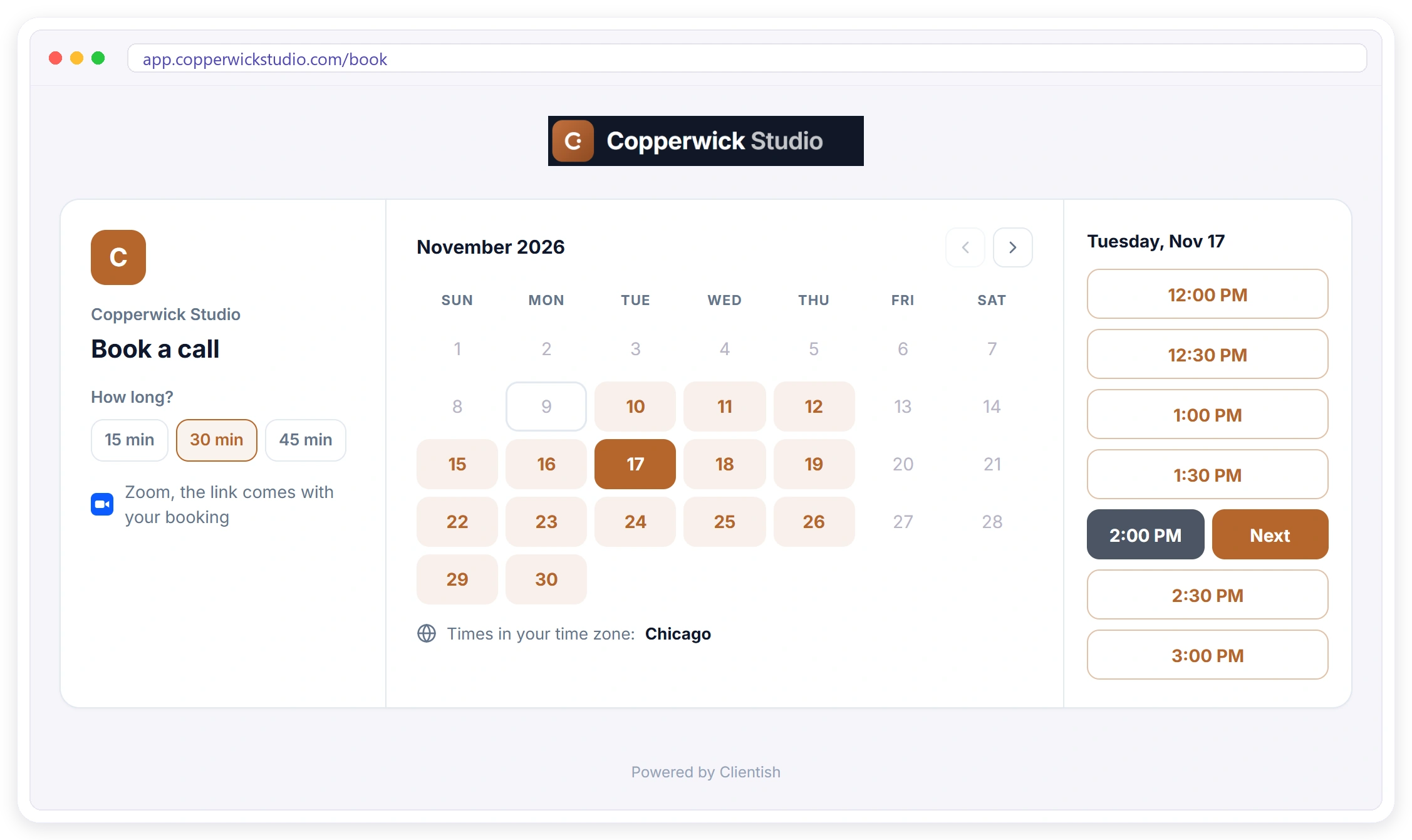
Your agency’s own appointment booking system, built into your CRM. It runs on your own link, with your logo and your brand colors, so leads book a discovery call and clients book a call with your agency, not with another app. Every booking lands on the right lead or client with the meeting link, the reminders and the notes, on every plan from $9.99 a month.
Why a Scheduler and a CRM Should Not Be Two Tools
When appointment scheduling and your CRM are two tools, every booked call has to travel from one to the other. A scheduler such as Calendly books the call, but the lead, the client history and the follow-up live in your CRM, so you pay for a second subscription, keep a Zapier connection running and still fix duplicates by hand. For an agency, the discovery call is often the first step to a new project, so that gap costs real work.
Five Emails to Find a Time
“Does Tuesday work? What about Thursday?” Every call costs a day of back-and-forth before anyone talks.
One More Tool to Pay For
A scheduling app is another monthly bill and another login, just to show the hours you are free.
Bookings Never Reach the CRM
The call is in the scheduler, the lead is in your CRM, and the two only meet through Zapier or copy and paste. Duplicates pile up and follow-ups get missed.
Appointment Scheduling With Only Your Free Times
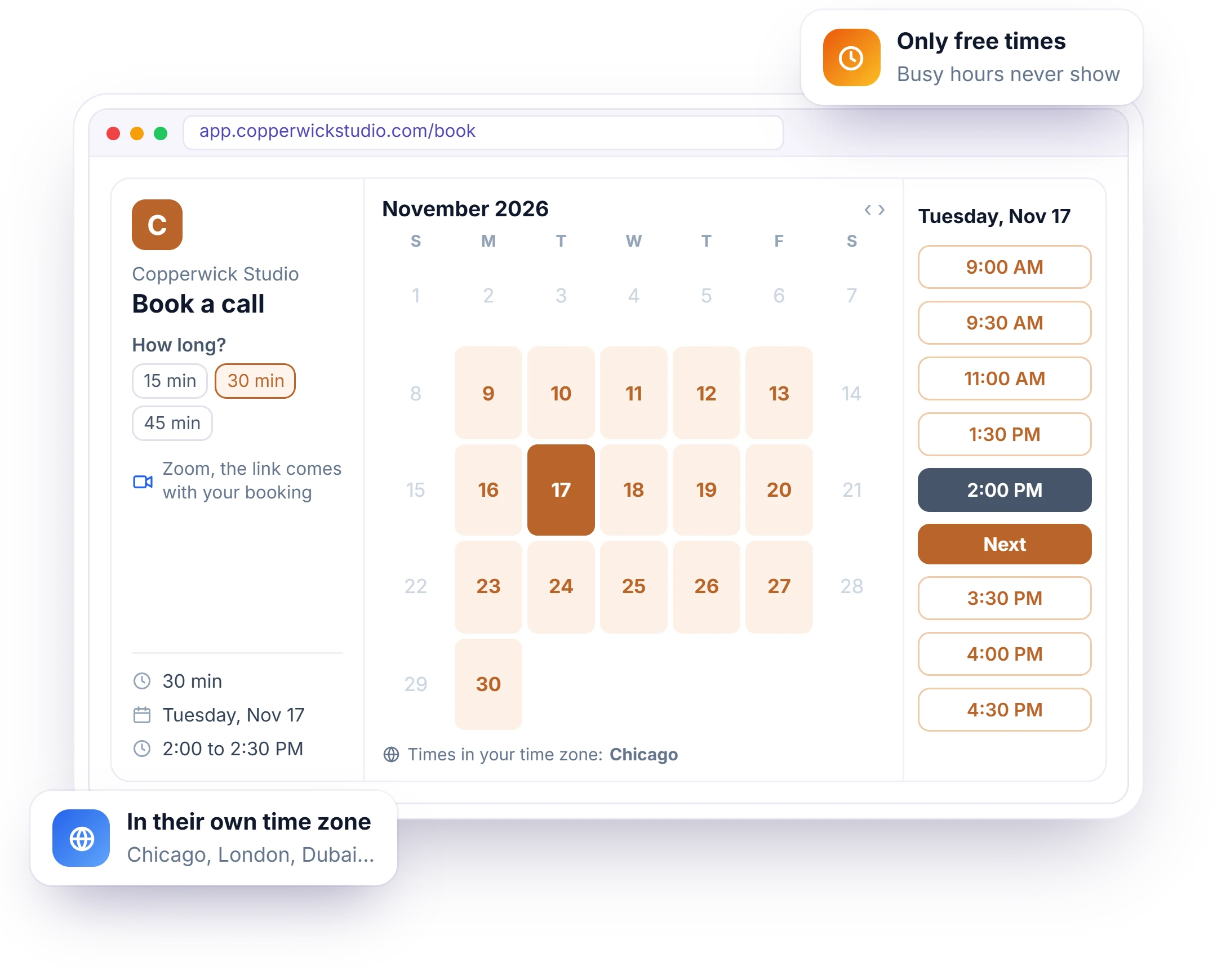
A booking link is risky when it offers a time you are already busy, and every double booking means another round of apologies. Clientish shows people only the times you are really free: inside your days and hours, after your notice time, clear of your other calls and of busy events in your Google Calendar. Each person picks how long they need, a day and a time, shown in their own time zone. See how to set it up.
- 15, 30, 45 or 60 minute calls
- Times shown in the visitor’s own time zone
- Gap between calls and minimum notice
- Busy Google Calendar events left out
What Changes for Your Agency
With appointment scheduling inside your CRM, a booked call is no longer something you copy across. Each booking already knows whether the person is a new lead or an existing client, carries your logo, brand color and email address, and keeps the time, the meeting link, the brief and the notes on one record your team can see.
No More Scheduling Emails
Send one link. People book in a minute, at a time that suits them.
Every Booking Becomes a Lead
Someone new lands in your pipeline with the source Booking page and the status Meeting.
Clients Book From the Portal
Your clients are already signed in, so they only pick a time and confirm.
No Time Zone Mix-Ups
Each visitor sees your free times in their own zone, named on the page.
Your Brand, Not Ours
Your logo and color on the page, and your own email address on the confirmation.
One Call History
Every call sits on the lead or client it belongs to, with what was booked and why.
A Brief Before Each Call
About an hour before, a short brief arrives in your bell and your team chat.
No-Shows Handled
Mark They didn’t show and send a “Sorry we missed you” email with your booking link.
Set Your Days, Hours and Call Lengths Once
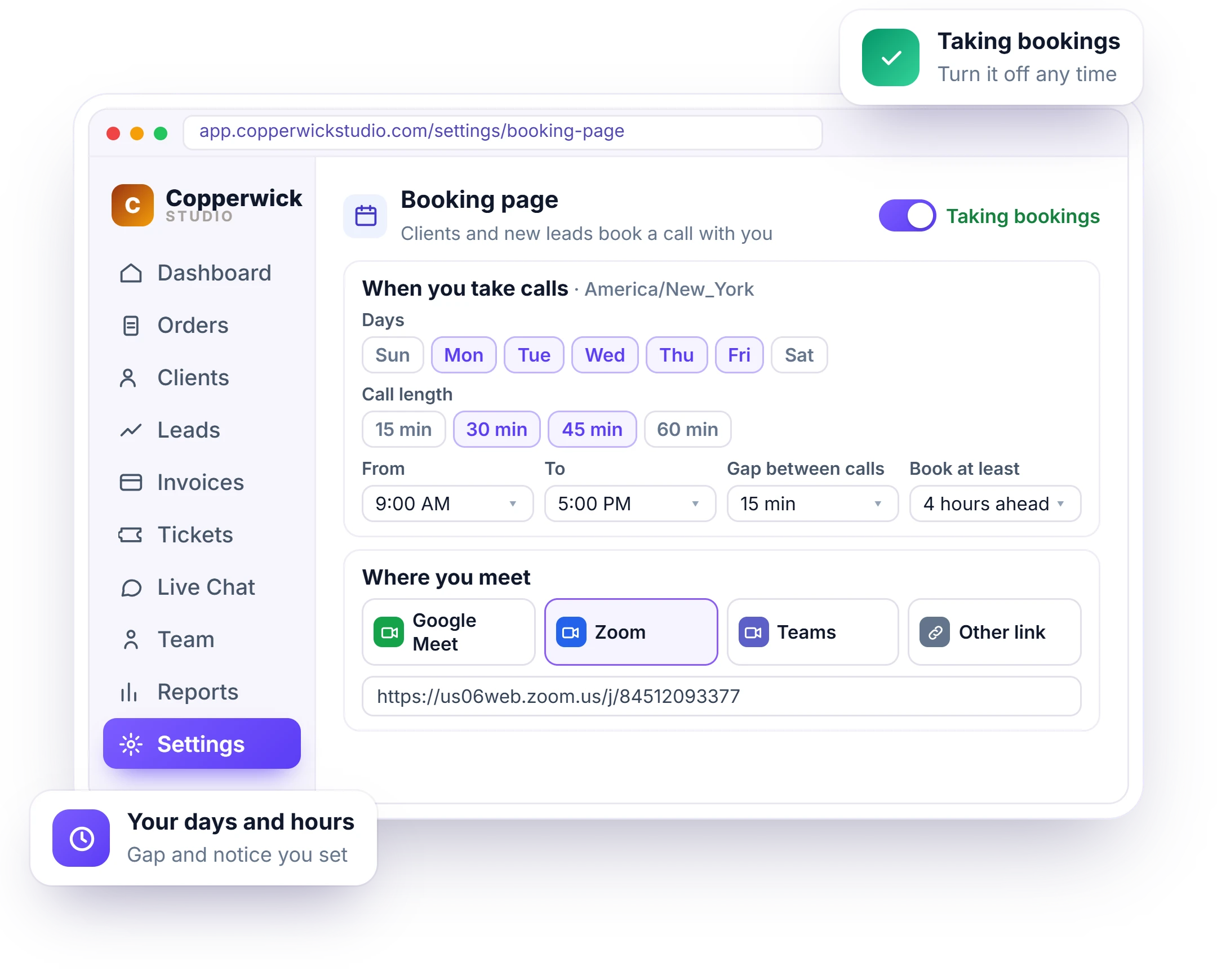
Without rules, calls land back to back, at the last minute or months away. Set them once: the days of the week, the hours and the call lengths you offer, a gap between calls, how much notice you need and how far ahead people may book, from 7 to 90 days. When you are busy or away, turn the page off and it tells people you are not taking calls, instead of leaving them on a broken link.
- Days, hours and call lengths
- Gap of up to 30 minutes between calls
- Notice from any time to 2 days ahead
- Google Meet, Zoom, Teams or any other link
Every Booked Call Becomes a Lead in Your CRM
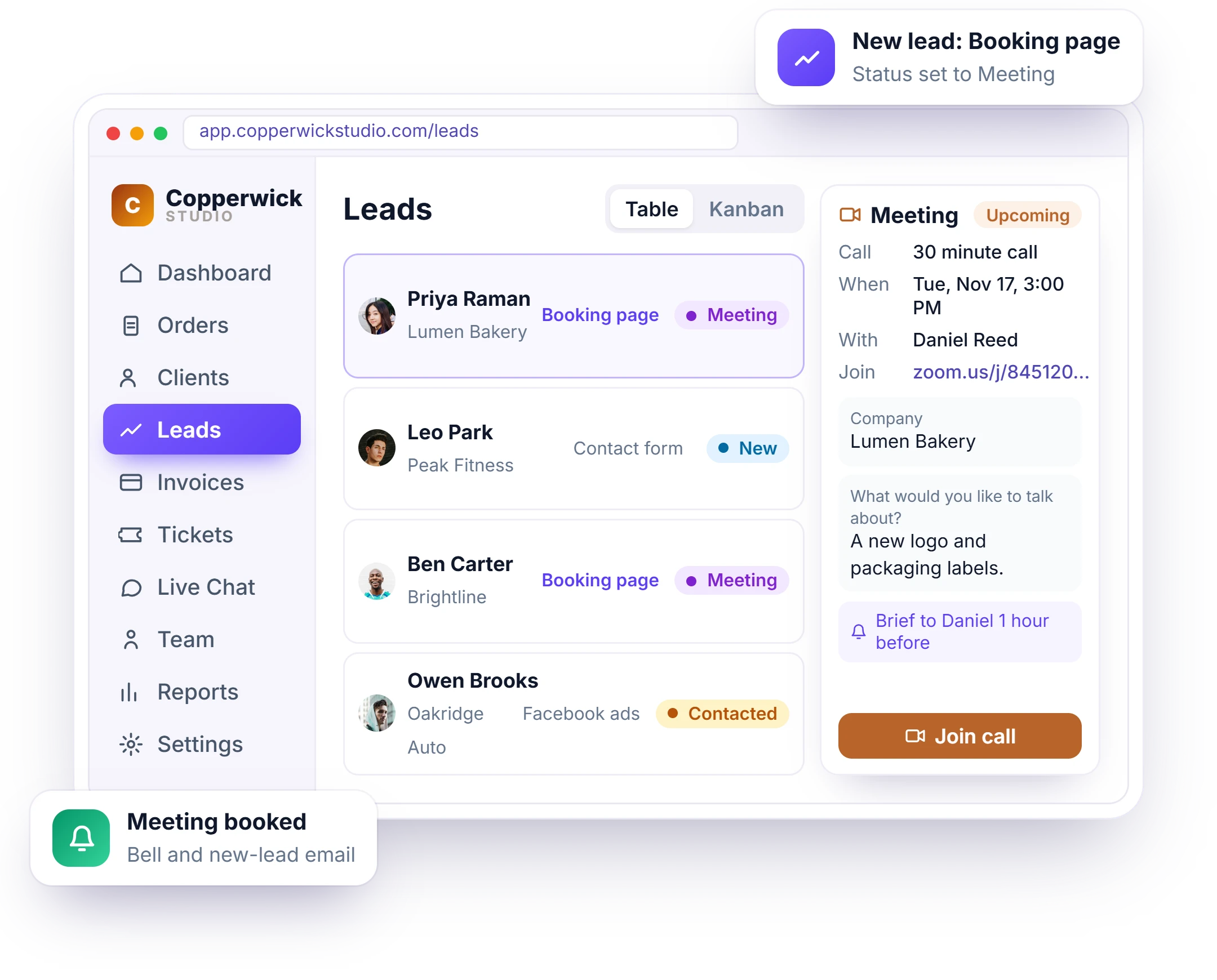
A booked call is wasted if nobody follows it up, and with a separate scheduler someone has to copy each person into the CRM first. In Clientish, someone new who books becomes a lead right away, with the source Booking page, the status Meeting and their answers, assigned to the workspace owner. An open lead with the same email gets the call instead of a duplicate, and an existing client’s call goes straight to their client page. More on lead management.
- Source Booking page, status Meeting
- Matched to an existing client by email
- “Meeting booked” bell and new-lead email
- Join call right from the lead
Confirmation Emails From Your Own Address
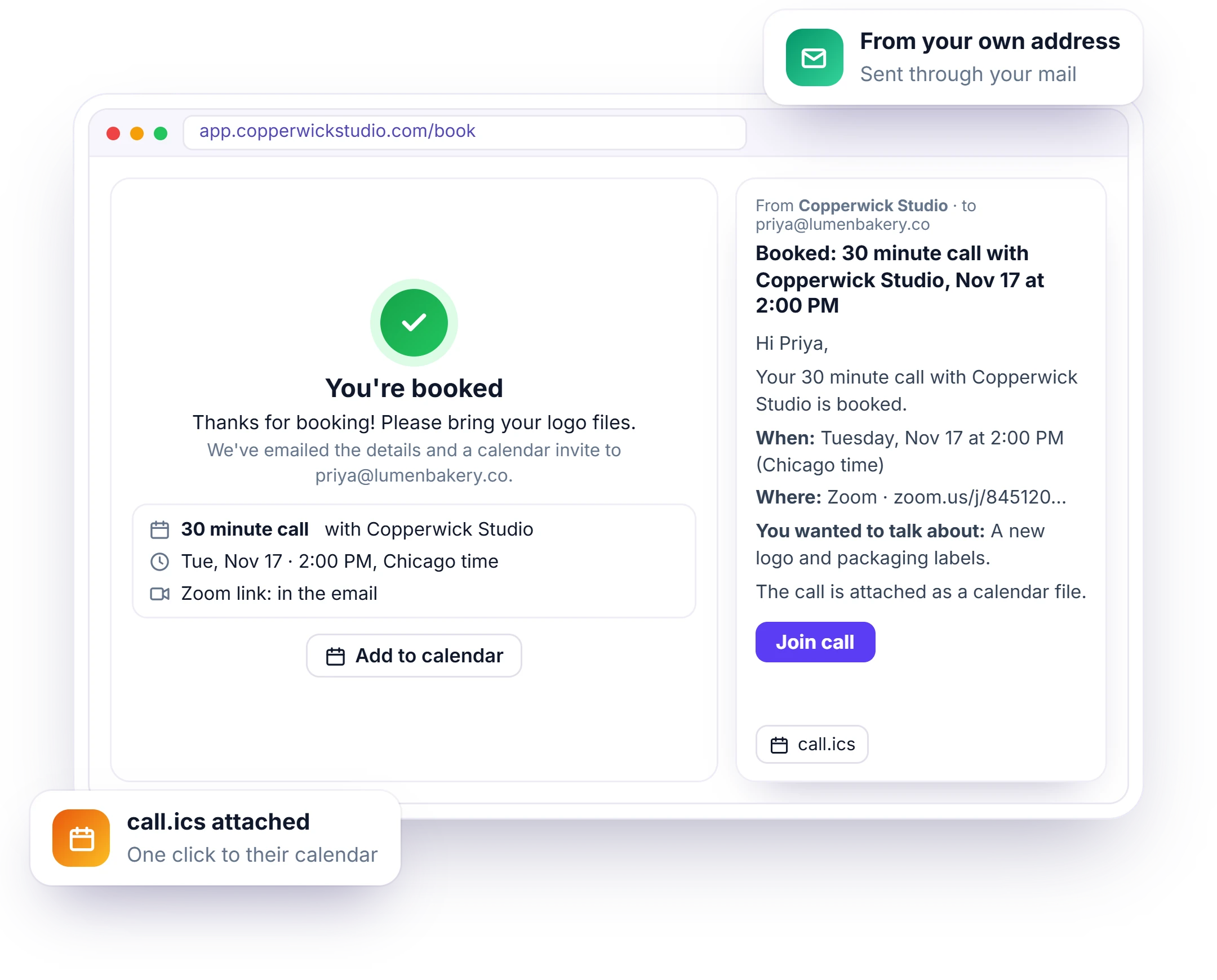
A confirmation from a scheduling app people have never heard of looks like spam and gets missed. Clientish sends it from your own email address, with the time in their zone, the meeting link, what they wanted to talk about and a calendar file, so the call lands in their calendar in one click. The booked screen shows your own message, such as what to prepare for the call.
- Your message after booking, up to 1,000 characters
- Meeting link in the email
- call.ics calendar file attached
- Added to your Google Calendar when connected
Existing Clients Book a Call From Their Portal
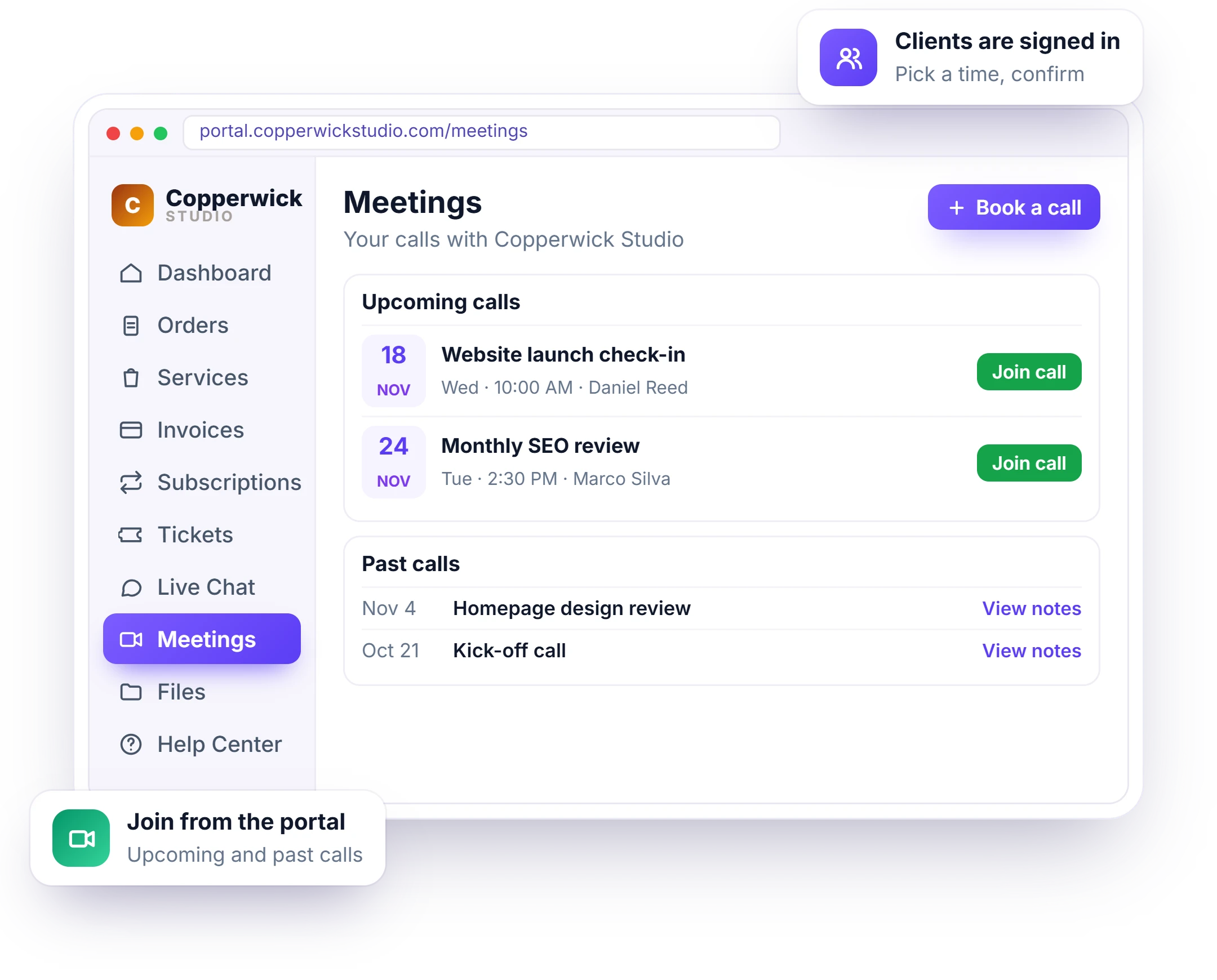
Existing clients should not have to dig up a link in an old email or type their details again to talk to you. Turn on the Book a call button and they book from the Meetings page of the client portal they already use: they are signed in, so they only pick a time and confirm. No lead is made; the call goes on their client page, and in the portal they see upcoming calls with Join call and past calls with the notes you chose to share. See the client portal.
- Book a call button in the portal
- Upcoming calls with Join call
- Past calls and shared notes
- The call goes on their client page
Your Branded Booking Page, on Your Own Link or Domain
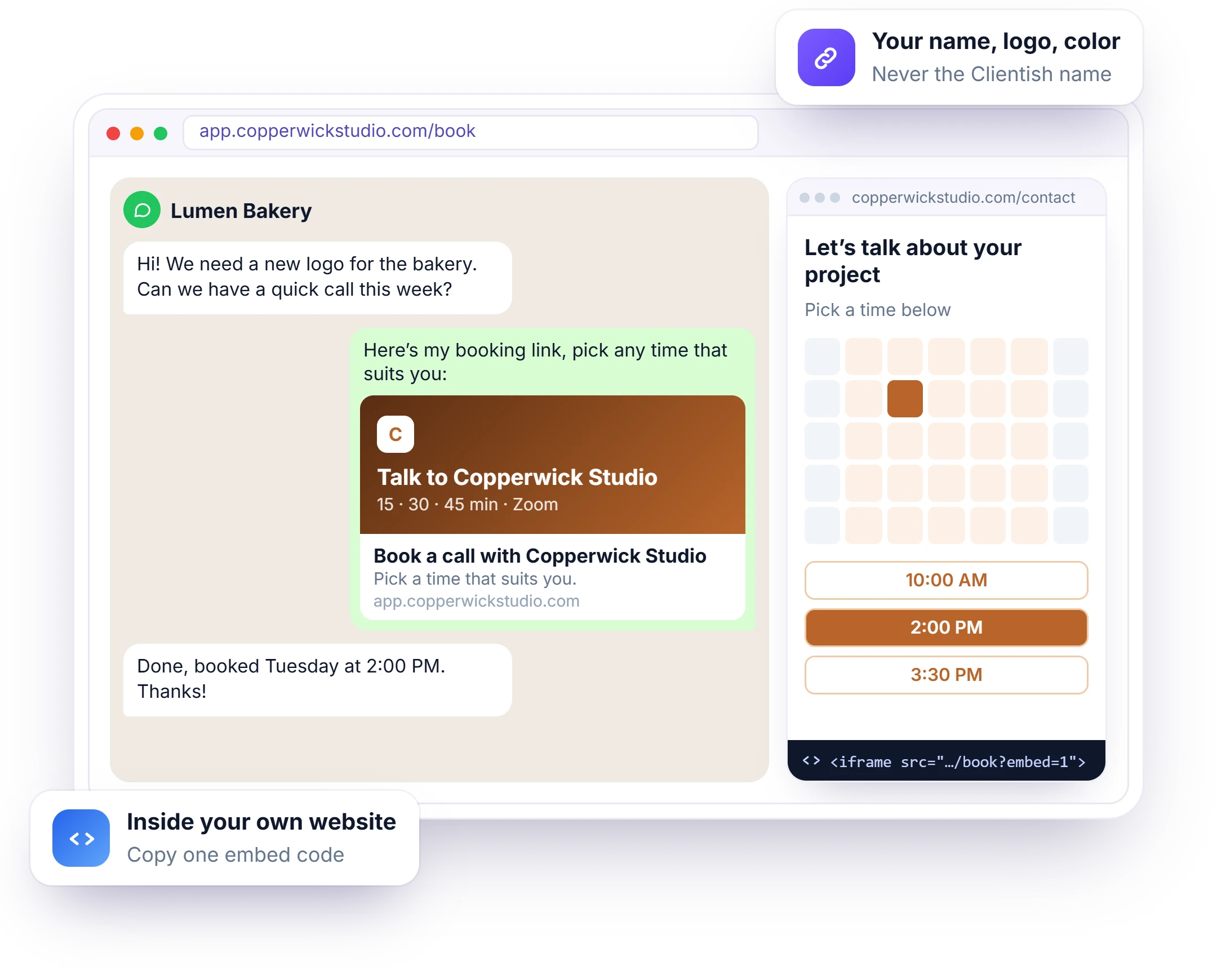
A booking page with another company’s name on it sends your clients to someone else’s brand. Share your own link and people book a call on a page with your logo and your brand color, not ours. Use it as the discovery call page of your agency: put the link on your website, in your email signature or in a message. Shared in WhatsApp, Facebook, LinkedIn or Slack, it shows a preview card with your name, logo and color. Or copy one embed code to show the booking page inside your own website.
- Your logo and brand color on the page
- On your workspace address, or your own domain from Growth
- Link preview card with your branding
- Embed code for your website
- reCAPTCHA when you switch it on
After the Call: Follow Up, Notes and AI Summaries
After the call, the follow-up stays in the same CRM as the booking. You can change the time or cancel a client’s call, record how a lead’s call went and the next step, send a no-show a link to book again, and let your connected AI write the meeting notes, decisions and next steps from the call transcript, then share them in the client portal.
Reschedule or Cancel
On a client’s Meetings tab, change the time or cancel a booked call. They get an email from your address, and your Google Calendar event moves with it.
How Did It Go?
After a lead’s call, mark It happened and pick the next step, Send proposal or Mark qualified, so the lead keeps moving.
No-Show Follow Up
Mark They didn’t show and send a “Sorry we missed you” email with your booking link, so they can book again.
Meeting Notes With AI
Upload the call transcript from Zoom or Meet and your own connected AI writes the summary, the decisions and the next steps. You read them before you save.
Next Steps With Owners
Each next step says who does it, your agency or the client, with a due date when one was said on the call.
Notes in the Client Portal
Show the notes in the client’s portal under Meetings, with the recording link, or keep them for your team only.
CRM With Built-In Scheduling or Calendly Plus a CRM
Many agencies book calls with Calendly or another scheduling app and keep leads and clients in a separate CRM, joined by an integration. Below are the same jobs done both ways: with a separate scheduling app, and with appointment booking built into Clientish, where the booking page, the pipeline, the client portal and the meeting notes share one workspace. If you prefer to keep Calendly or Cal.com, Clientish connects to them too.
How Agencies and Freelancers Use the Booking System
Appointment scheduling in Clientish works for any kind of client work: new leads book a discovery call on your booking page, existing clients book from their portal, and every call is saved on the right lead or client. Here is how design studios, SEO and web design agencies, marketing agencies, bookkeeping firms and freelancers can use it for discovery calls, audit reviews, kick-offs and monthly check-ins.
Design Studios
Discovery calls for new logo and branding projects, booked from the website contact page.
SEO Agencies
Audit review calls with new prospects, who land in the pipeline as leads.
Web Design Agencies
Kick-off and launch check-in calls that clients book from their portal.
Marketing Agencies
Monthly review calls for retainer clients, with notes shared after each one.
Bookkeeping Firms
Month-end calls at times that suit each client, in their own time zone.
Freelancers on Solo
One link in the email signature, and every inquiry tracked from the first call.
How to Set Up Appointment Scheduling in Four Steps
You set up appointment scheduling once, in Settings under Booking page. Choose your days, hours and call lengths, pick Google Meet, Zoom, Teams or another meeting link, then turn on Let people book a call and share your booking link or embed code. From then on, people only see your free times, and every booking lands on the right lead or client with the meeting link in the email.
Open the Settings
Go to Settings, then Booking page, in the Communication group.
Set Your Hours
Pick days, hours and call lengths, a gap and your notice time.
Choose Where You Meet
Google Meet with a new link per booking, or one Zoom, Teams or other link.
Turn It On and Share
Switch on Let people book a call, save, and copy your link or embed code.
Appointment Scheduling FAQ
Straight answers for agencies and freelancers about appointment scheduling in Clientish: the booking page, leads, the client portal, meeting notes and plans.
What is a CRM with appointment scheduling?
It is a CRM that has its own booking system, so people book a call on your booking page and the call is saved on their lead or client record right away. In Clientish, there is no scheduling app to connect and nothing to copy across.
Can I use Clientish instead of Calendly?
Yes. The booking page is built into Clientish, with your hours, call lengths, Google Calendar busy times and Meet, Zoom or Teams links. If your team prefers to keep Calendly or Cal.com, you can connect them too, and their bookings also become leads.
What happens when someone new books a discovery call?
They become a lead with the source Booking page and the status Meeting, assigned to the workspace owner. You get a “Meeting booked” notification and your usual new-lead email. If they already have an open lead, the call goes on that lead instead of making a duplicate.
Can existing clients book a call from the client portal?
Yes. Turn on the Book a call button and clients book from the Meetings page of their portal. No lead is made: the call goes on their client page, and they see it under Upcoming calls with Join call.
Can I reschedule or cancel a booked call?
Yes, for a client’s call: on their Meetings tab, use Change time or Cancel call. They get an email from your own address, and the event in your Google Calendar is moved or removed.
Can AI write the notes after a booked call?
Yes. Upload the call transcript from your meeting tool, as a .vtt, .srt, .txt or .docx file, and the AI you connected under Integrations writes the summary, the decisions and the next steps. Clientish does not record the call itself, and nothing is saved until you read the notes and save them.
Which video tools can I use?
Google Meet, with a new Meet link for every booking once Google Calendar is connected, or one fixed link for Zoom, Microsoft Teams or any other tool.
Can I put the booking page on my website?
Yes. Copy the embed code from the booking page settings and paste it into your site, or link to the page from a Book a call button.
Is appointment scheduling on every plan?
Yes, from Solo at $9.99 a month. Each new person who books becomes a lead, so they count toward your monthly leads: 1,000 on Solo, 3,000 on Starter, 5,000 on Growth and unlimited on Pro and Enterprise.
Book calls inside your CRM, without the email back-and-forth.
Set your hours once, share one link, and every booking lands on the right lead or client with the meeting link already in the email. Try it with example data first.
- Your days, hours and call lengths
- Only free times, in their zone
- Google Meet, Zoom or Teams
- New leads in your pipeline
- Book a call in the client portal
- Meeting notes written by AI
Every feature unlocked in the trial. Pick a plan only when you are ready.