
Agency Team Management With Roles & Permissions
Clientish gives your agency a team portal where every member signs in with their own role, sees only their department’s or their own clients and orders, and you control 200+ permissions, from $29 a month with 5 team members included. Giving everyone admin access is easy until a junior sees every client’s invoices. In Clientish each team member gets a role, a department and their own dashboard, so people see the work they need, and you see who is doing what.

Sound Familiar?
Four access and workload problems agencies hit as the team grows, and how roles, departments and the workload view answer each one. Each one costs time or trust long before anyone notices.
“Everyone has admin access.”
Give each person a role with only the boxes they need, and nobody can hand out more than they have.
“The new hire is still waiting.”
Add them, pick a role and department, and they get a welcome email to set their own password.
“Who has too much on their plate?”
Every member’s orders, tasks and tickets are counted on their profile and the team status tabs.
“Why can they see every client?”
Limit orders, invoices, services and reports to their department, or to work assigned to them.
From New Hire to Work Delivered
Every step of running an agency team, from adding a member and choosing their role to assigning work, watching workload and checking activity, in one place.
Add
Invite a team member
Role
Pick what they can do
Department
Limit what they see
Assign
Orders, tickets, clients
Track
Workload per person
Review
Activity for every member
Add Team Members in Minutes
Onboarding a new person shouldn’t take a week of sharing passwords. Fill in the basics, pick a department, designation and permission role, and Clientish sends a confirmation email and a welcome email with a link to set their own password. Keep personal details such as address, education and bank account on their profile for when you need them.
- Name, email, department and designation
- A permission role chosen when you add them
- Welcome email with a link to set their own password
- Pending, Approved and Hold statuses
- Personal details, education and bank account on the profile
- Team seats used, shown as you add people

Team Roles and Permissions That Fit Your Agency
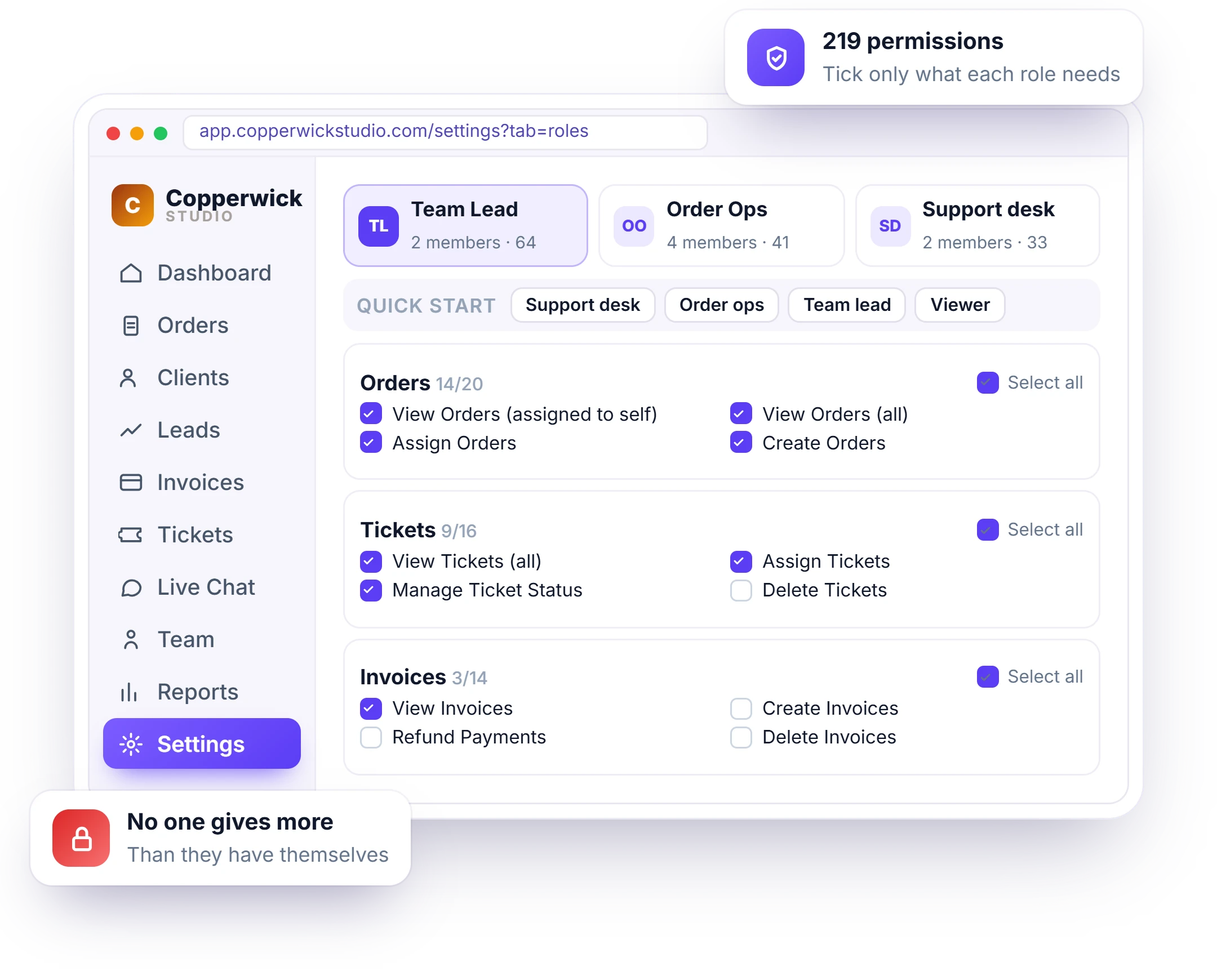
Every agency splits work differently, so build your own roles. Start from a preset such as Support desk or Team lead, check the boxes for orders, tickets, clients, invoices, leads and settings, and give one person their own permissions when they need something different. Nobody can give a permission they don’t have themselves. It’s least-privilege access in three layers: the role decides what a person can do, the department or assigned-work scope decides which records they see, and separate boxes keep sensitive areas such as invoices and personal details out of view. The owner can also require two-factor sign-in, by email code or Google Authenticator, for the whole team.
- Custom roles you name and edit
- Presets: Support desk, Order ops, Team lead and Viewer
- Over 200 permissions across orders, tickets, clients, invoices and more
- Personal permissions for one member, with a way back to the shared role
- Nobody can give more than they have
- A separate box to see team members’ personal details
Client Portal With Team Roles and Departments
Who sees what when the owner, co-admins, your team, freelancers and clients all work in one branded portal. Everyone signs in to the same portal but sees only the work their role allows, nothing more.
Owner
Sees and changes everything, including billing, and is the only one who adds or removes co-admins.
Co-Admins
Run the agency with you and can view billing, but only the owner can change it.
Team Members
See only what their role allows, limited to their department or the work assigned to them.
Remote Members
Freelancers sign in to their own remote portal with their own roles.
Clients
See their own orders, invoices, tickets and files, never internal notes or team chat.
Team Management for Every Kind of Agency
How support desks, small studios, growing agencies and agencies with sensitive clients set up roles, departments and assignment. Pick the setup closest to yours and adjust it as the team grows.
Support-Heavy Agencies
Support desk members answer tickets assigned to them, without seeing invoices or settings.
Small Studios
Three or four people share the work, with the owner keeping billing to themselves.
Growing Agencies
Departments and team leads keep work organized as you add people every month.
Agencies With Sensitive Clients
Limit each person to their department or their own work, and keep personal details private.
Show Each Person Only Their Part of the Work
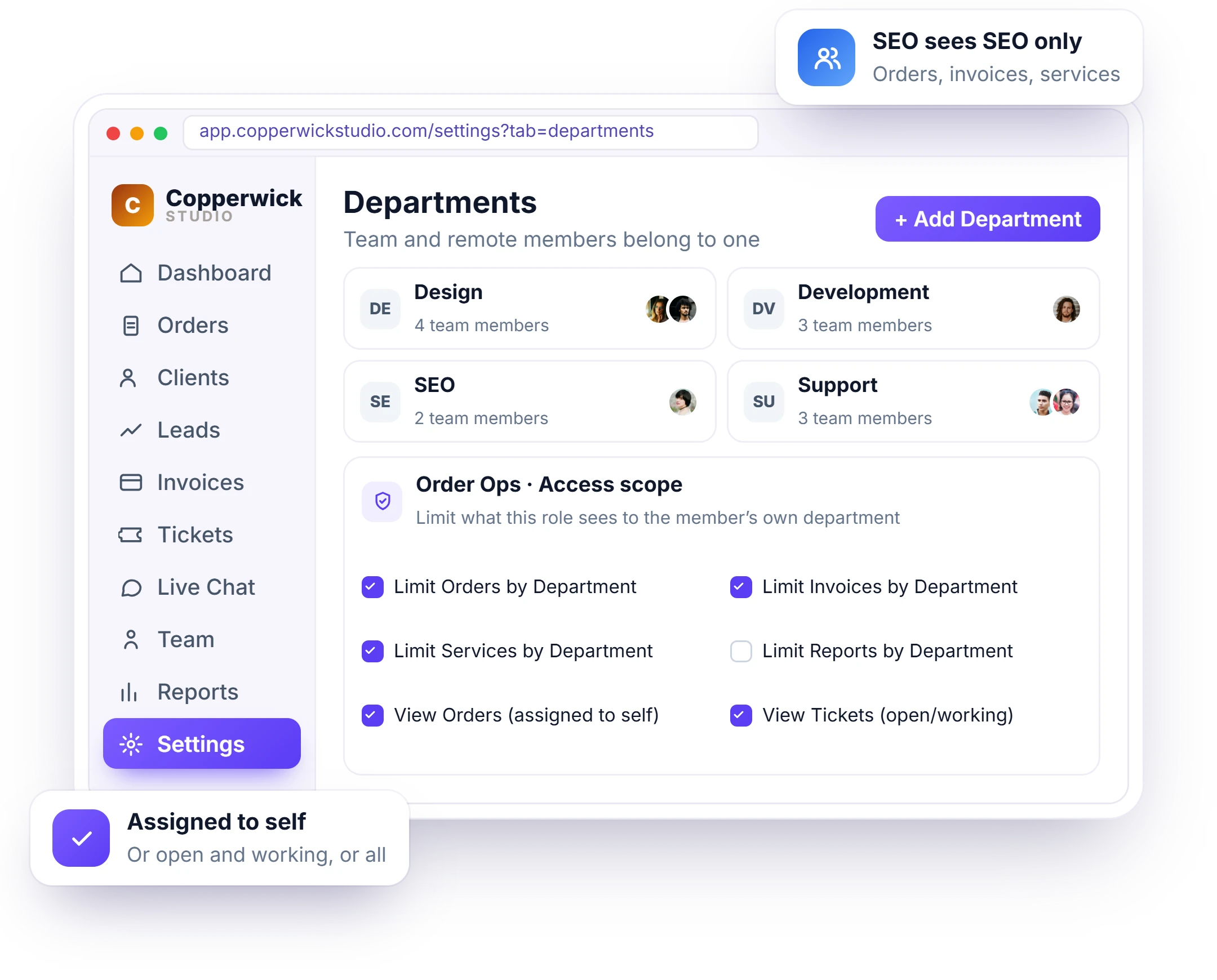
A designer doesn’t need the SEO team’s invoices. Group people into departments and limit orders, invoices, services, reports and team lists to their department. For orders and tickets, choose whether someone sees only work assigned to them, open and working items, or everything.
- Departments such as Design, Development, SEO and Support
- Limit orders, invoices and services by department
- Limit reports and team lists by department
- One switch to limit every area at once
- Orders: assigned to self, open and working, or all
- Tickets: assigned to self, open and working, or all
Assign Work and Let New Orders Assign Themselves
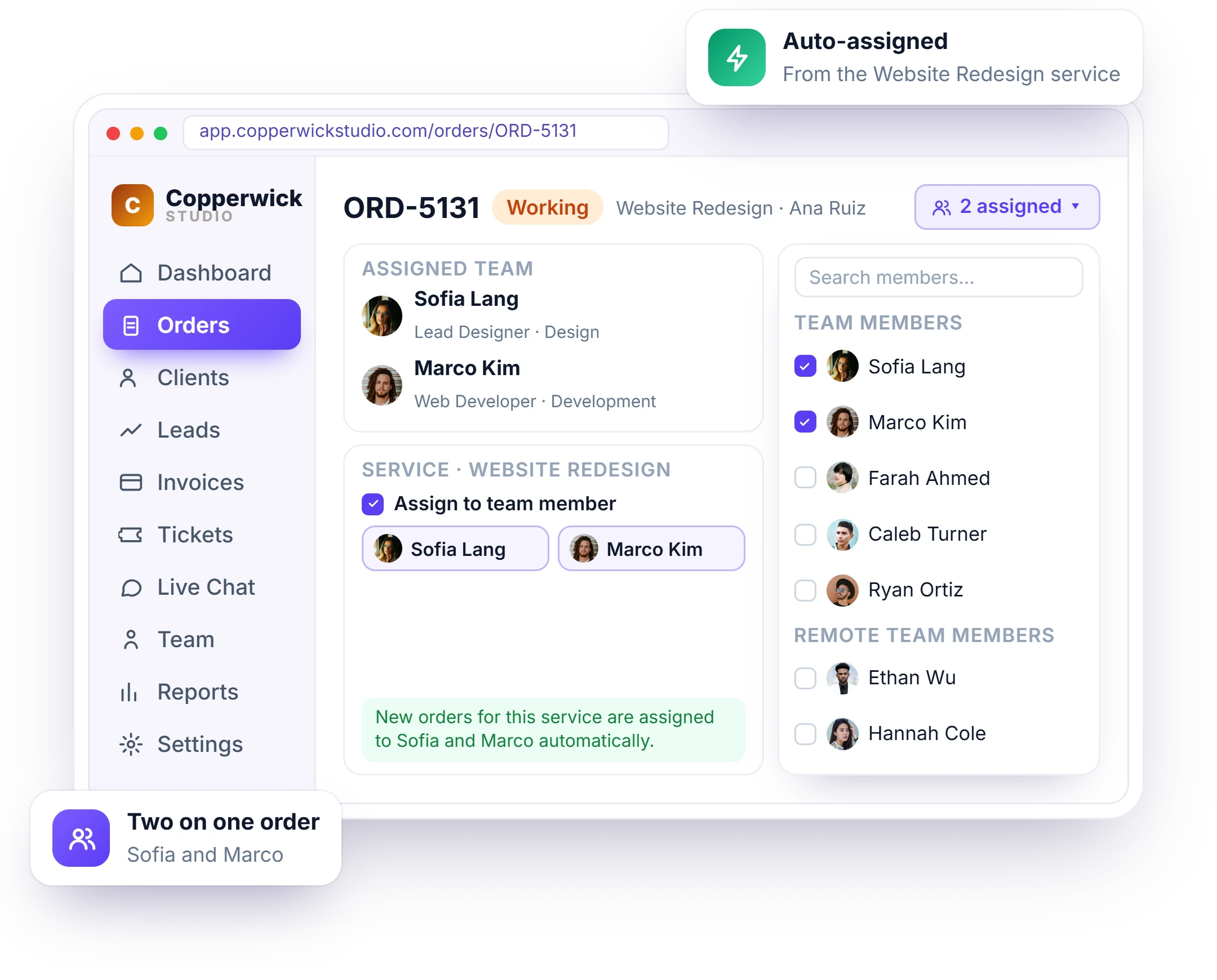
Handing out every new job manually slows the whole team down. Assign one or more people to each order, give tickets, clients, leads and to-dos an owner, and set a team member on each service so new orders for it go straight to them.
- Several team members on one order
- Owners for tickets, clients, leads and to-dos
- Auto-assign new orders from the service
- Works for orders from forms, the portal, leads and proposals
- An Assign Task board from Assigned to Completed
- Only approved members can be given work
Team Seats on Every Plan
Every plan includes team members. Co-admins and remote members don’t use team seats, and Starter already includes 5 team members, enough for most small agencies to start. See pricing for everything in each plan.
Starter: 5 Seats.
5 team members, for a small studio getting its first people into one place.
Growth: 15 Seats.
15 team members, plus 1 co-admin to share the admin work.
Pro: 30 Seats.
30 team members, plus 3 co-admins for agencies with several leads.
Enterprise: 50 Seats.
50 team members, plus 5 co-admins for larger teams and departments.
See Every Team Member’s Workload and Activity
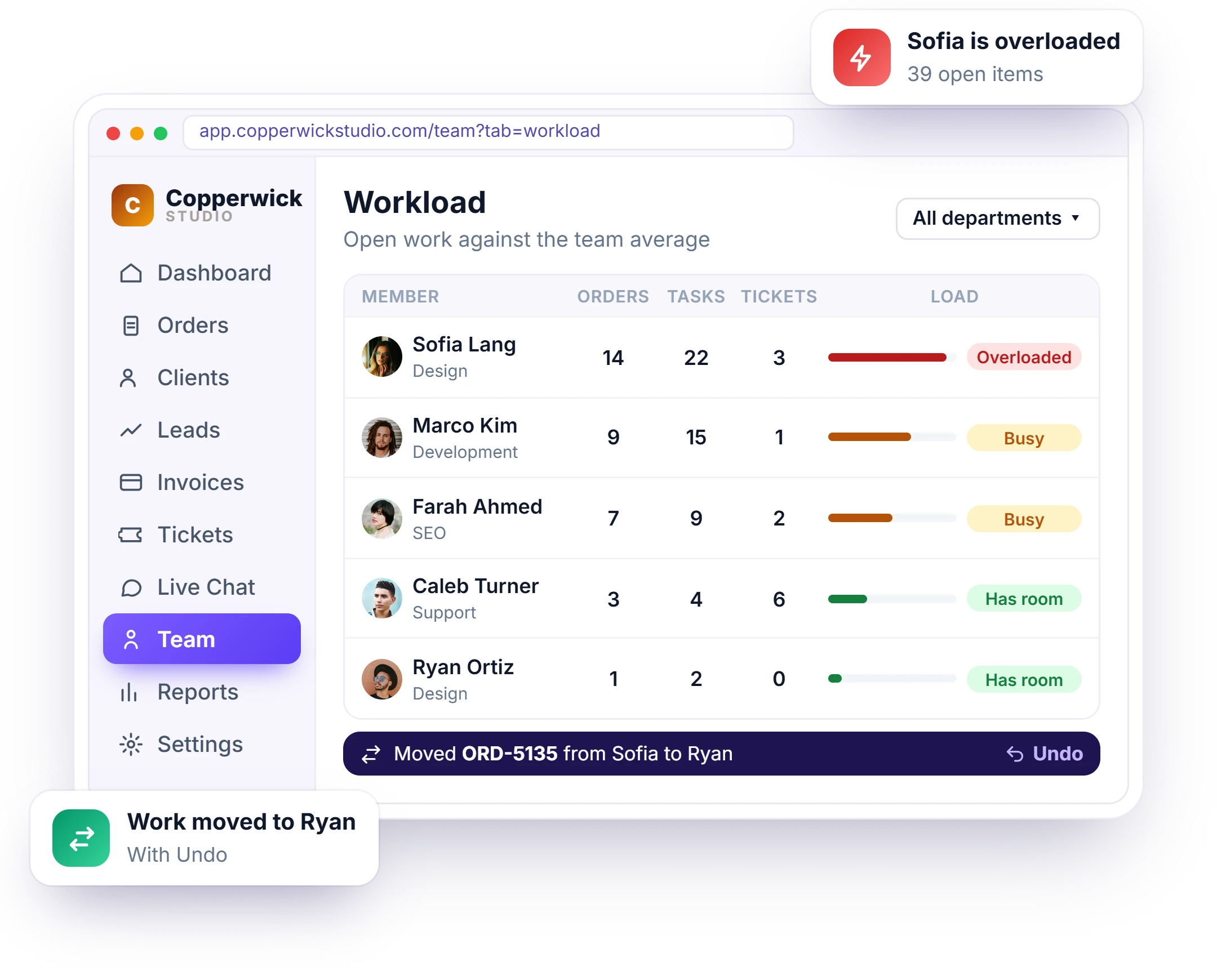
You can’t balance work you can’t see. The Workload tab ranks everyone by their open orders, tasks, tickets and to-dos, marks who is Overloaded, Busy or Has room against the team average, filters by department, and lets you move items to someone with less on their plate, with Undo. Each member’s profile still counts their assigned clients, orders, tasks and tickets, with a full activity log.
- Assigned clients, orders, tasks and tickets per person
- A Workload tab: Overloaded, Busy or Has room
- Tabs for each member’s orders, tasks and tickets
- Activity logs with search, type and date filters
- Team-wide order, task, ticket and to-do status tabs
- Move work to someone with room, with Undo
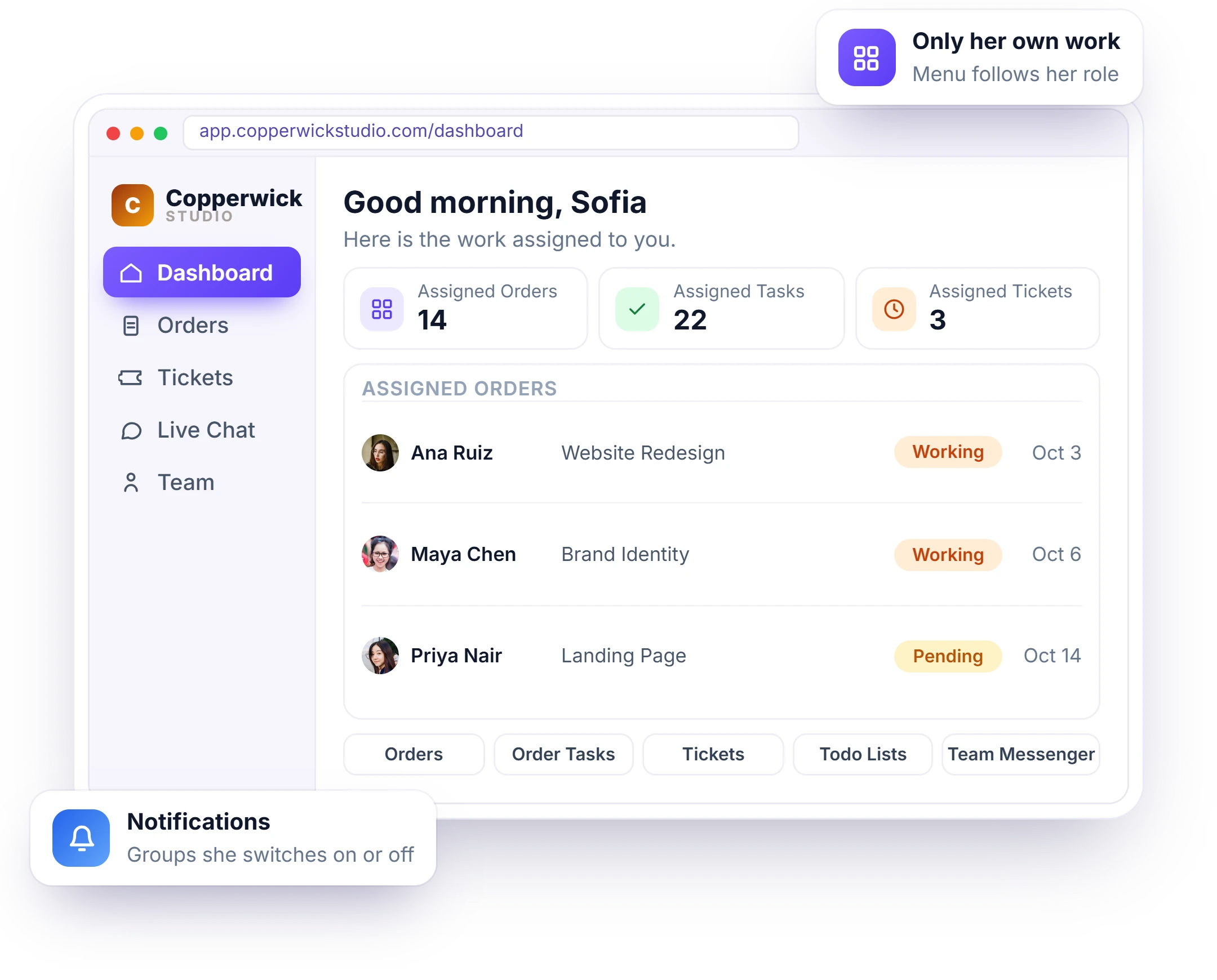
Give Each Team Member Their Own Dashboard
People work faster when they open the app to their own list, not the whole agency. Team members sign in to a dashboard with their assigned orders, tasks and tickets, quick links to their work, and a menu that only shows what their role allows. They chat with the rest of the team in Team Messenger.
- A dashboard with their own assigned work
- Assigned orders, tasks and tickets
- Quick links to the lists they use most
- A menu that follows their role
- Notification groups they can turn on or off
- Team Messenger for team chat
Working With Freelancers Too?
Remote members have their own roster, roles, statuses and sign-in, so they never mix with your in-house team’s access. Freelancers see only what their role allows. See remote team management.
Their Own Roster.
Remote members are listed apart from your team.
Their Own Roles.
Remote Roles decide what freelancers can do.
Their Own Portal.
Freelancers sign in to a separate remote portal.
Their Own Seats.
Remote members don’t use your team seats.
Share the Admin Work, Keep Control
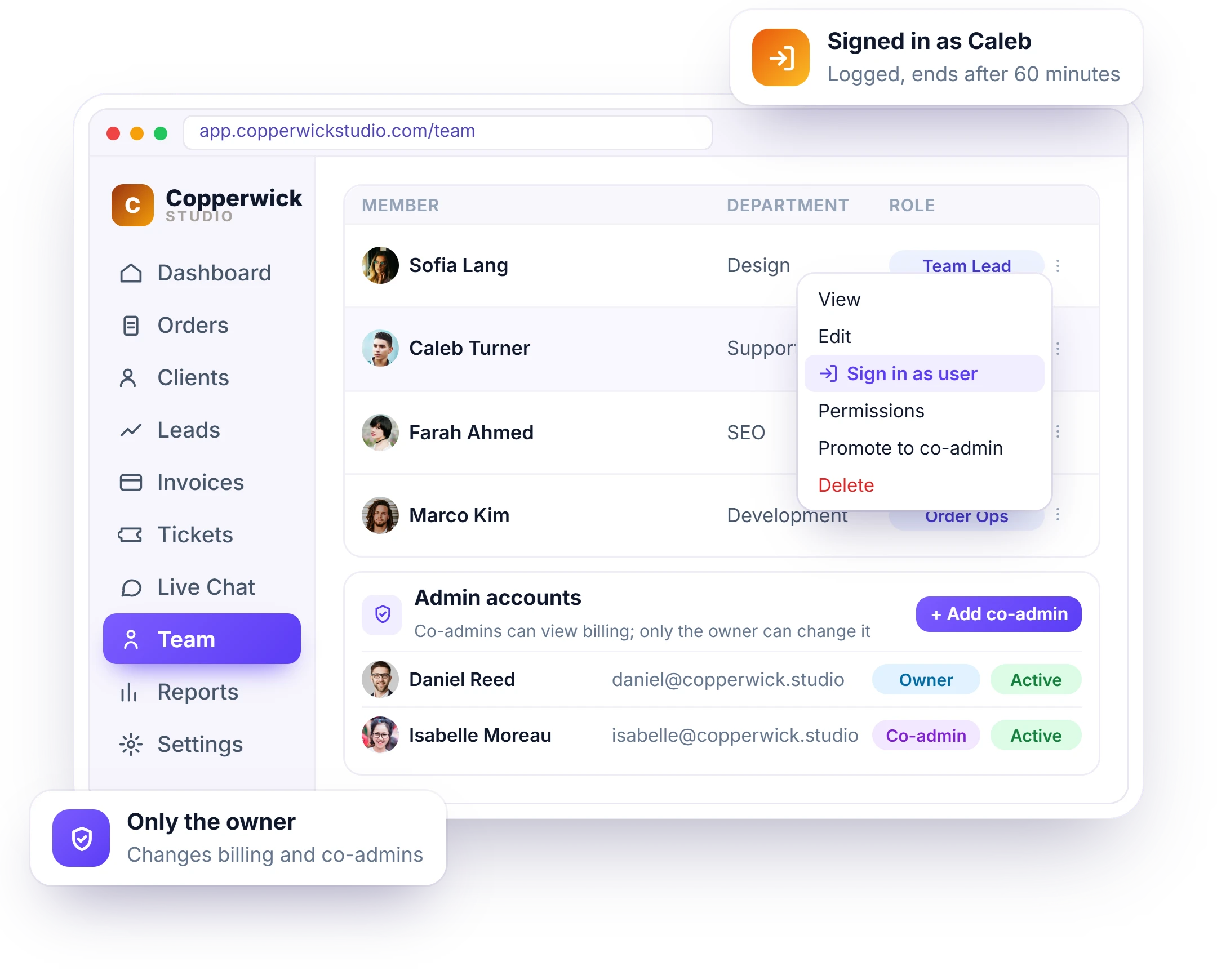
Running an agency alone doesn’t scale, but handing over the owner login is risky. Add co-admins who can manage the agency with you, while only the owner can change billing, and use Sign in as user to see exactly what a team member sees when they report a problem. Email changes wait for confirmation from the old inbox.
- Co-admins who can manage the agency
- Co-admins can view billing, only the owner can change it
- Only the owner adds or removes co-admins
- Sign in as a team member to see their view
- Every sign-in-as is logged and ends after 60 minutes
- Promote a member to co-admin, or back again
Set Up Your Team in 4 Steps
Create roles and departments, add your people and set service owners once; most agencies have the whole team signed in within a day. Nothing needs a developer.
Create Your Roles
Start from a preset and check the boxes each role needs.
Add Departments
Group people the way your agency works.
Add Team Members
Pick a role and department, and they get a welcome email.
Auto-Assign Services
Set an owner on each service so new orders find the right person.
Everything Else in Team Management
Job titles, notes, filters, password resets and exports that keep a growing agency team organized. These are the small tools that save an owner from chasing details across spreadsheets and inboxes.
Designations
Give each person a job title, such as Lead Designer.
Profile Photos
Faces on every list, so people know who they’re working with.
Internal Notes
Keep a private note on each member’s profile.
Search and Filters
Find people by name, email or role, and filter by role and status.
Unverified Badge
See who hasn’t confirmed their email yet.
Reset Password
Send a new password link from the member’s profile.
Team Status Export
Export each member’s work to CSV.
Remote Members
Freelancers get their own roster, roles and portal.
Team Management FAQ
Straight answers on roles, permissions, departments, seats, two-factor sign-in and whether you still need a project tool.
What is agency team management software?
Software that gives each person in an agency their own login, a role that decides what they can do, and a view limited to the clients and work that are theirs, so the team can grow without handing out admin access. Clientish does this inside the same portal your clients use, from $29 a month.
How much does agency team management cost?
Seats come with the plan rather than per person: Starter at $29 a month includes 5 team members, Growth 15, Pro 30 and Enterprise 50, and co-admins and remote members don’t use those seats. The pricing page lists the other plan prices.
Do I still need ClickUp or Asana?
It depends on the work. If it runs as client orders, each order already has tasks, owners, due dates and a place in the workload view, so a separate tool may not be needed for it. Teams that plan large internal projects with timelines often keep one alongside.
Can I make my team use two-factor login?
Yes. Under Settings, General, the owner can require a code sent by email, Google Authenticator, or both, before any team member or remote member gets in.
Can clients and the team have separate roles in one portal?
Yes. Clients only reach their own orders, invoices, tickets and files; each team member sees what their role and department allow; freelancers use their own remote portal; and the owner and co-admins see the whole agency.
How do I add a team member?
Open Team, click Add Member, fill in their name and email, and pick a department, designation and permission role. They get a confirmation email, and a welcome email with a link to set their own password.
How do I stop team members from seeing everything?
Give them a role with only the permission boxes they need, choose whether they see orders and tickets assigned to them, open and working ones, or all, and limit areas such as invoices and services to their department.
Can I create my own roles?
Yes. Create roles under Settings, Roles & Permissions, start from a preset such as Support desk or Team lead, and check the boxes you want. You can also give one member their own permissions.
Can a team lead give someone admin access?
No. Nobody can give a permission they don’t have themselves, so a team lead can only share the access they already hold.
What does a team member see when they sign in?
Their own dashboard with the orders, tasks and tickets assigned to them, quick links, and a menu that only shows what their role allows.
What is a co-admin?
A co-admin can manage the agency with you. Co-admins can view billing, but only the owner can change it, and only the owner can add or remove co-admins. Growth includes 1, Pro 3 and Enterprise 5.
How many team members can I add?
Starter includes 5 team members, Growth 15, Pro 30 and Enterprise 50. Co-admins and remote members don’t use team seats.
How is this different from remote team management?
Team members are your in-house staff. Remote members are freelancers with their own roster, roles, statuses and portal, so the two never share access.
Give your team the right access from day one
Set your roles once, add your people with a department each, let new orders find their owner and keep an eye on who has room. Try it with example data first.
- Their own login and dashboard
- A role with only the access they need
- Only their department’s or their own work
- New orders assigned by service
- A workload view so nobody is buried
- Two-factor sign-in when you require it
Every feature unlocked in the trial. Pick a plan only when you’re ready.