
Client Approval Workflow for Agencies & Freelancers
Feedback scattered across email, WhatsApp and calls slows every project and leaves no record of what the client agreed to. Clientish gives your agency a client approval workflow inside your own client portal: send files for review, let clients pin comments and approve or ask for changes, keep every version, and get a clear sign-off on the delivery, with auto-approve when the client goes quiet.
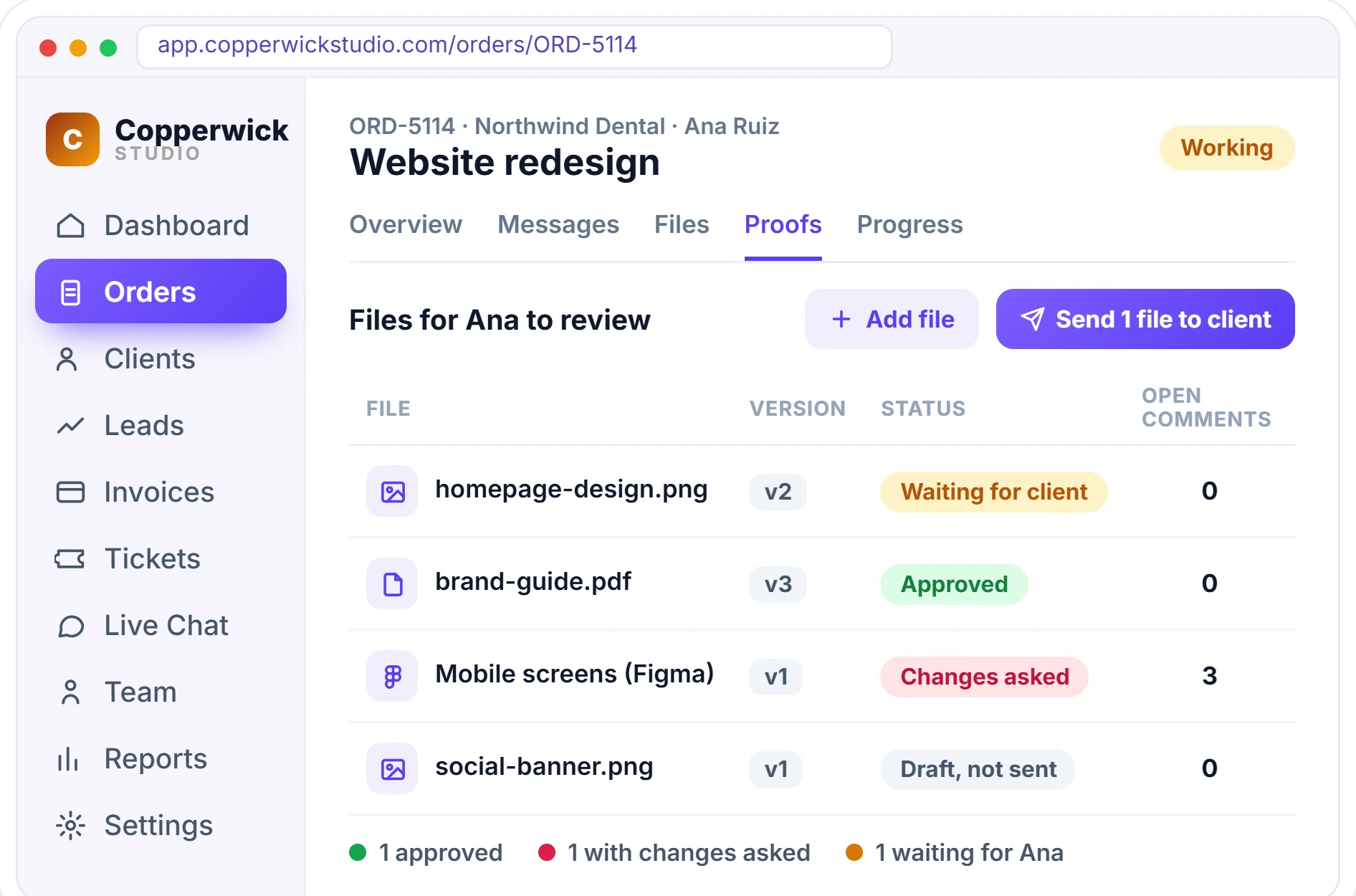
How Agencies Manage Client Approvals Without Endless Emails
Approvals stall for simple reasons: feedback arrives in five places, nobody is sure which file is the latest, and a project waits for a sign-off nobody asked for clearly. Putting review, comments and approval in one place, with a deadline, fixes all three.
Feedback in Five Places
Notes come by email, WhatsApp and calls, so the team rebuilds the change list by hand and still misses one.
final_v3_FINAL.pdf
Files get re-sent as attachments, and the client comments on an old version you already changed.
Sign-Off Nobody Chases
The work is done, but the project stays open because the client never clearly said yes.
The Client Approval Process in Four Steps
A client approval process works when every step has one place and one next action. In Clientish the files, comments and decisions live on the order the client already sees in your portal, so nobody has to ask where the latest version is or whether it was approved.
1. Send Files for Review
Add files to the order by link from Google Drive, Figma, Canva, Dropbox or any web page, then send them. The client gets an email and a bell.
2. The Client Comments
On images the client pins a comment on the exact spot. PDFs, Figma, Canva and web pages get comments on the whole file.
3. You Send a New Version
Add the fix as a new version of the same file, mark the open comments as fixed and send it. Earlier versions stay in the history.
4. Approve, Then Sign Off
The client approves each file, then approves the delivery, or it is approved automatically after the days you set.
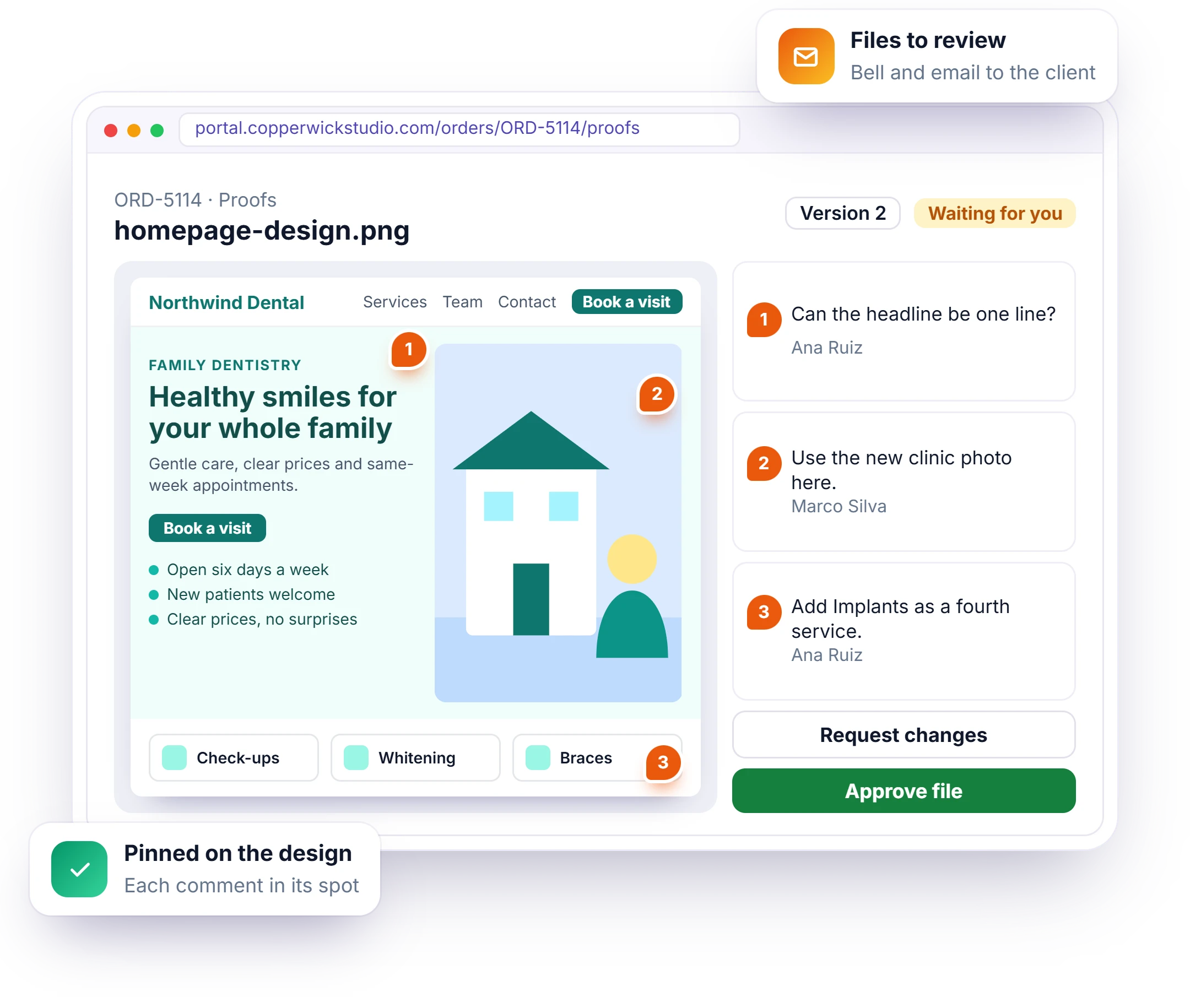
Design Proofing Software Inside Your Client Portal
Design proofing usually means another tool and another login for the client. Here the client reviews files in your own portal: they click an image to drop a pin and comment, leave a general note on any file, then press Approve file or Request changes. Files stay where they live, in Drive, Figma or Canva, and the client needs no account there.
- Pinned comments on images
- Comments on PDFs, Figma, Canva and web pages
- Approve file or Request changes
- Files stay in Drive, Figma or Canva
What Client Approval Software Changes for Your Agency
Approval stops being a hunt through inboxes and turns into a status you can read on every order. You see what each client has approved, what they sent back and what is still waiting, and the client always knows what is expected from them next.
Feedback Where It Belongs
Comments sit on the file, pinned to the exact spot on images, not in a thread.
The Latest File, Always
Each fix is a new version of the same file, so nobody reviews an old copy.
A Record of Every Yes
Approved files and the approved delivery carry the date, so scope talks start from facts.
No More Chasing
Automatic reminders go out for you, and deliveries approve themselves after the days you set.
You Hear It First
The owner and assigned team get a bell on every comment, approval and change request.
Automations on Decisions
Rules can start when a client asks for changes on a file or approves a delivery.
The Right Person Approves
Client team members review and approve files only with the permission you give them.
Team Notes Stay Private
Reply to the client on the file, or add a team-only note the client never sees.
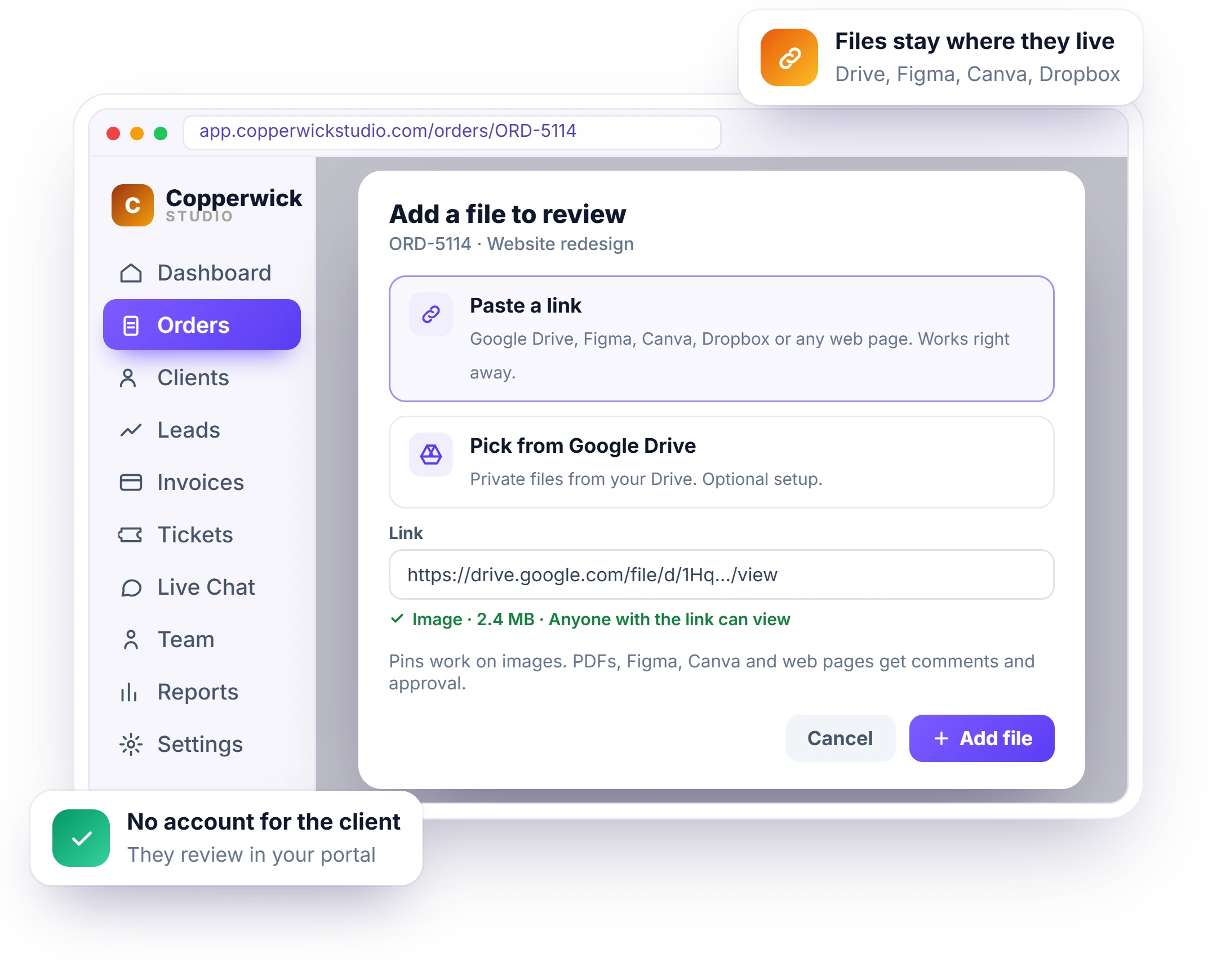
Proof Files From Google Drive, Figma and Canva
Sending design files as attachments means re-uploads, size limits and lost versions. Here you add each file to the order by its link from Google Drive, Figma, Canva, Dropbox or any web page, or pick private files from your Drive. Nothing is copied: the file stays where it lives and the client reviews it in your portal.
- Paste a link, checked as you paste
- Pick private files from Google Drive
- Refuses private links the client cannot open
- Remove a file without deleting it at the source
Every Revision Kept, Nothing Approved by Mistake
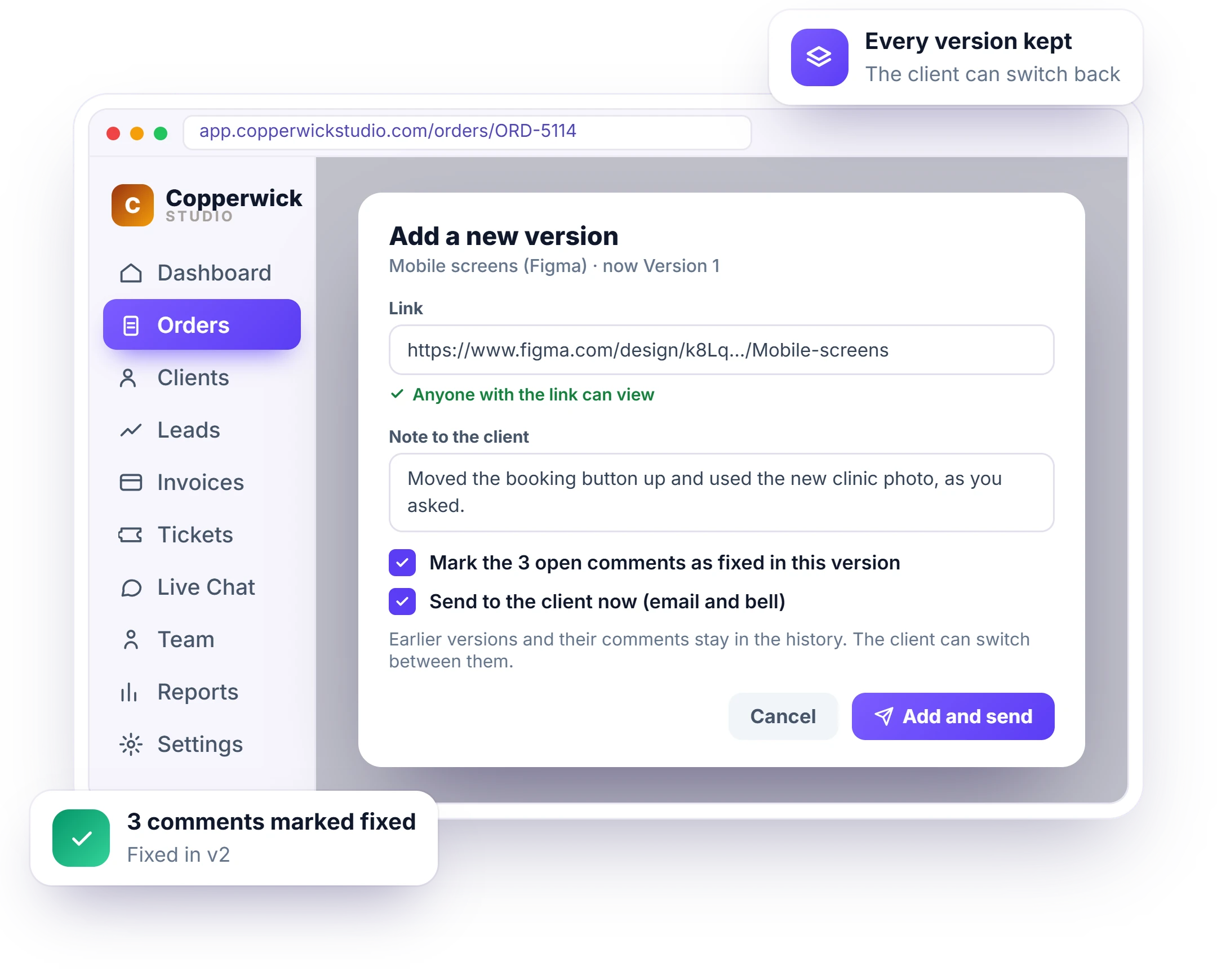
Clients comment on old files when versions travel by email. Add a new version to the same file instead: write a note to the client, mark the open comments as fixed in this version and send it in one step. The client sees the latest version first and can switch back to earlier ones with their comments.
- New version on the same file
- Open comments marked “Fixed in v2”
- Note to the client with each version
- An approved file is locked from new versions
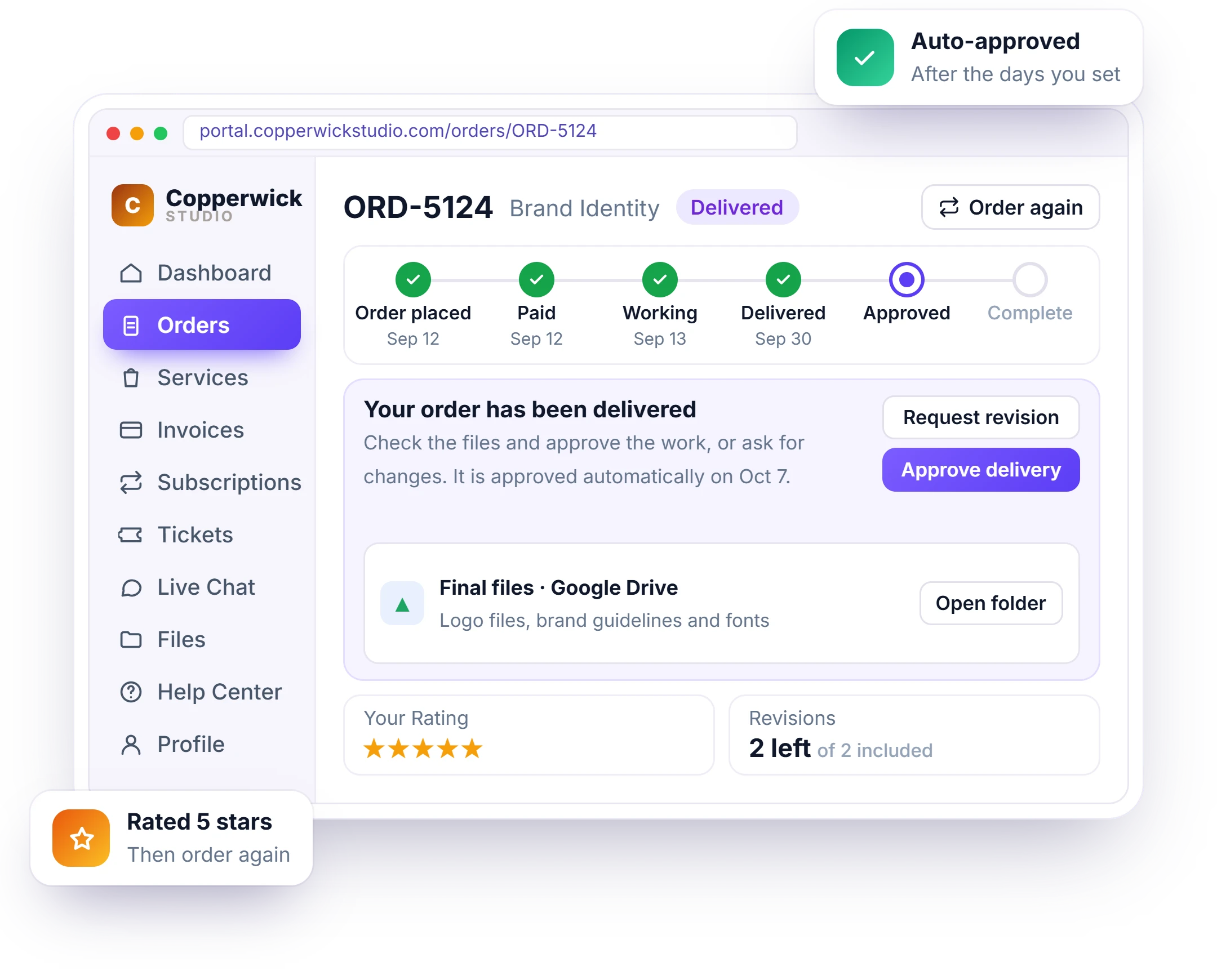
Client Sign Off on the Delivery, With Auto-Approve
The last approval is the one projects stall on. Move the order to Delivered and the client gets “Your order is ready for your review” with Approve delivery and Request revision. If they do not reply, the order is approved automatically after the days you choose, 1 to 60, 7 by default.
- Approve delivery or Request revision
- Auto-approve after 1 to 60 days
- Never auto-approves while a revision is open
- The approval date shown on the order
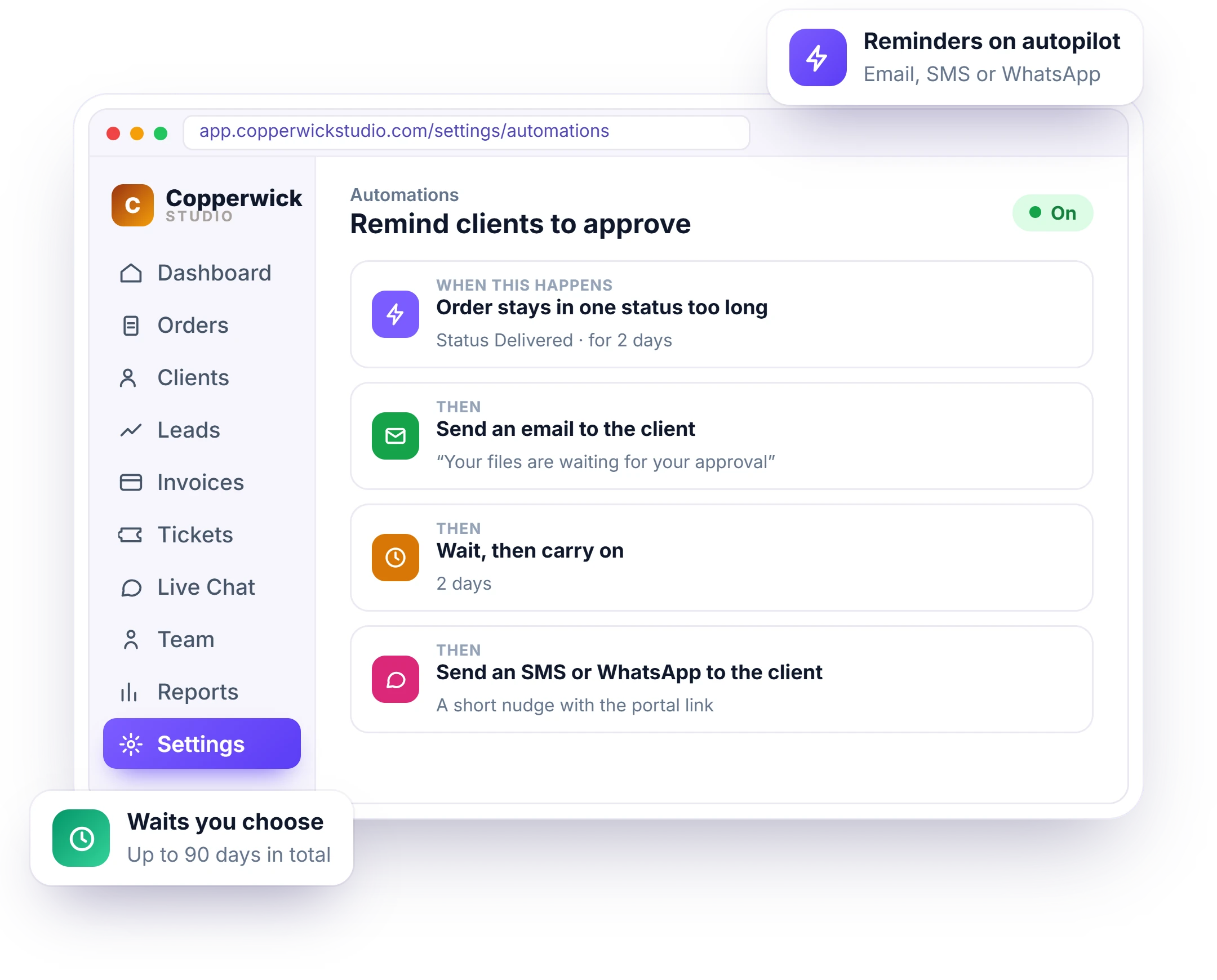
Approval Reminders That Go Out on Their Own
When a delivery sits unanswered, someone on your team has to remember to chase it. Set an automation once instead: when an order stays in Delivered for the days you choose, the client gets an email, an SMS or WhatsApp message, or a bell in their portal, and a second nudge after a wait if they still have not answered. Automations start on the Growth plan.
- Trigger: order stays in Delivered too long
- Email, SMS or WhatsApp, or a portal bell
- Wait steps, up to 90 days in total
- Auto-approve still closes it on time
Client Feedback Counted Against Your Revision Rounds
Unlimited rounds of client feedback eat the margin of a fixed-price project. Set how many revisions each service includes, and every revision request shows the client how many they have left, such as “This uses 1 of your 3 revisions”, so the limit is agreed before anyone argues about it. See order management.
- Revisions included per service
- The count shown to the client
- Revision rounds on the order timeline
- You see every revision request on the order
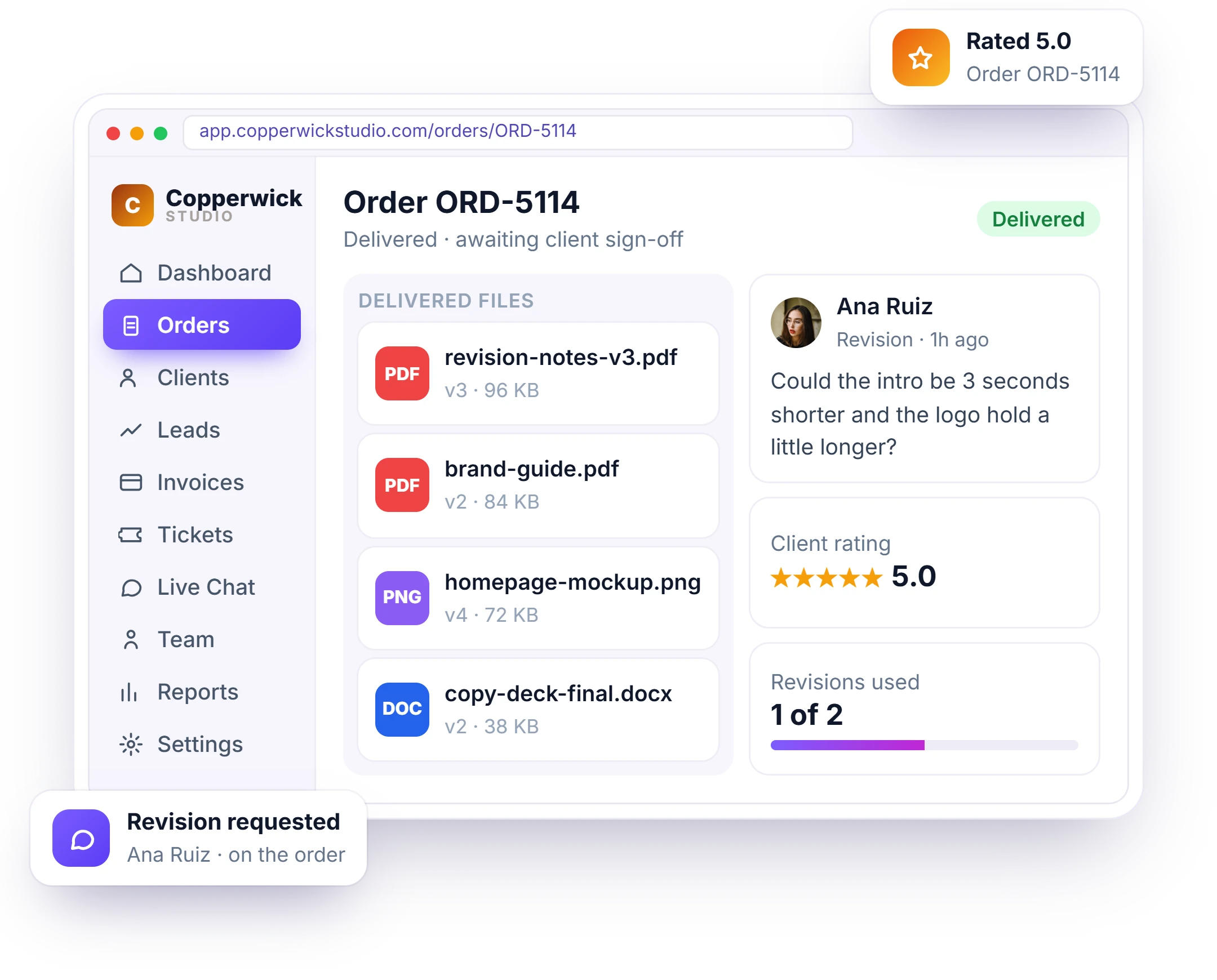
Email Approvals or a Client Approval Workflow
Email works for one file and one client. With several projects running, comments get lost, old versions get approved and sign-offs wait for weeks. A client approval workflow keeps each file, comment and decision on the order, with a record of what the client approved and when.
How Agencies and Freelancers Use Client Approvals
Every agency approves something different, from a logo to a monthly report. A few examples of how the same workflow fits the kinds of agencies and freelancers that run their client work in Clientish, each with the client reviewing inside your own portal.
Design Studios
Logo and brand concepts sent as images, with the client pinning comments on the exact spot to change.
Web Design Agencies
Homepage mockups in Figma reviewed screen by screen, then a delivery approval before launch.
Marketing Agencies
Ad creatives and campaign PDFs approved file by file before they go live.
Content Writing Agencies
Drafts in Google Docs reviewed and approved, with each rewrite sent as a new version.
Video Editors
Rough cuts shared from Google Drive, with comments on the whole file and a clear final sign-off.
Freelancers on Solo
One client portal for every client, so approvals never depend on finding the right email.
Client Approval Workflow FAQ
The questions agencies and freelancers ask when approvals slow their projects down: what client approval and an approval workflow are, the steps in the process, how long approvals take and what clients need to review your files.
What is client approval?
Client approval is the client’s formal yes on a piece of work, such as a design, a file or the finished delivery. In Clientish the client approves each file and then the delivery, and the date is kept on the order.
What is an approval workflow?
An approval workflow is the fixed path work takes from draft to sign-off: send, review, change, approve. For agencies it means the client reviews files in one place, asks for changes there, and approves when it is right.
What are the steps in a client approval process?
Send the files for review, collect the client’s comments, send a new version with the fixes, and get the client to approve each file and then the delivery. Clientish keeps all four steps on the same order.
How long do client approvals take?
It depends on the client, which is why a deadline helps. In Clientish a delivered order is approved automatically after the days you choose, from 1 to 60 with 7 by default, unless the client asks for a revision first.
How do I ask a client for approval to proceed?
Send the work with one clear request and a date. In Clientish, sending files emails the client a link to review them, and moving the order to Delivered asks them to approve the delivery or request a revision.
Can I remind clients automatically to approve?
Yes. Build an automation with the trigger “Order stays in one status too long” on Delivered, then send the client an email, an SMS or WhatsApp message, or a portal bell. Automations are on the Growth plan and up.
Does my client need a Figma, Canva or Google Drive account?
No. The client reviews the files inside your client portal, and the files stay where they live. Share the Drive or Figma file so anyone with the link can view it, and the client can comment and approve.
Which files can clients comment on and approve?
Images get pinned comments on the exact spot. PDFs, Figma and Canva files, Google Docs and web pages get comments on the whole file. Every kind can be approved or sent back with changes.
Is client approval included in every plan?
Yes. File proofing and delivery approval are included in every plan, starting with Solo at $9.99 a month. You can try the full client approval workflow in the 14-day free trial, with no credit card.
Stop chasing sign-offs. Let clients approve in your portal.
Every week a project waits for a “looks good” in an email thread is a week of work you cannot invoice. Send files for review, keep every comment and version on the order, and get a clear approval on the delivery, automatically if the client goes quiet.
- Files sent for review by link
- Pinned comments on images
- Approve file or Request changes
- Version history on every file
- Delivery approval with auto-approve
- Revision rounds counted
Every feature unlocked in the trial. Pick a plan only when you are ready.