
Client Status Updates for Agencies, Without the Emails
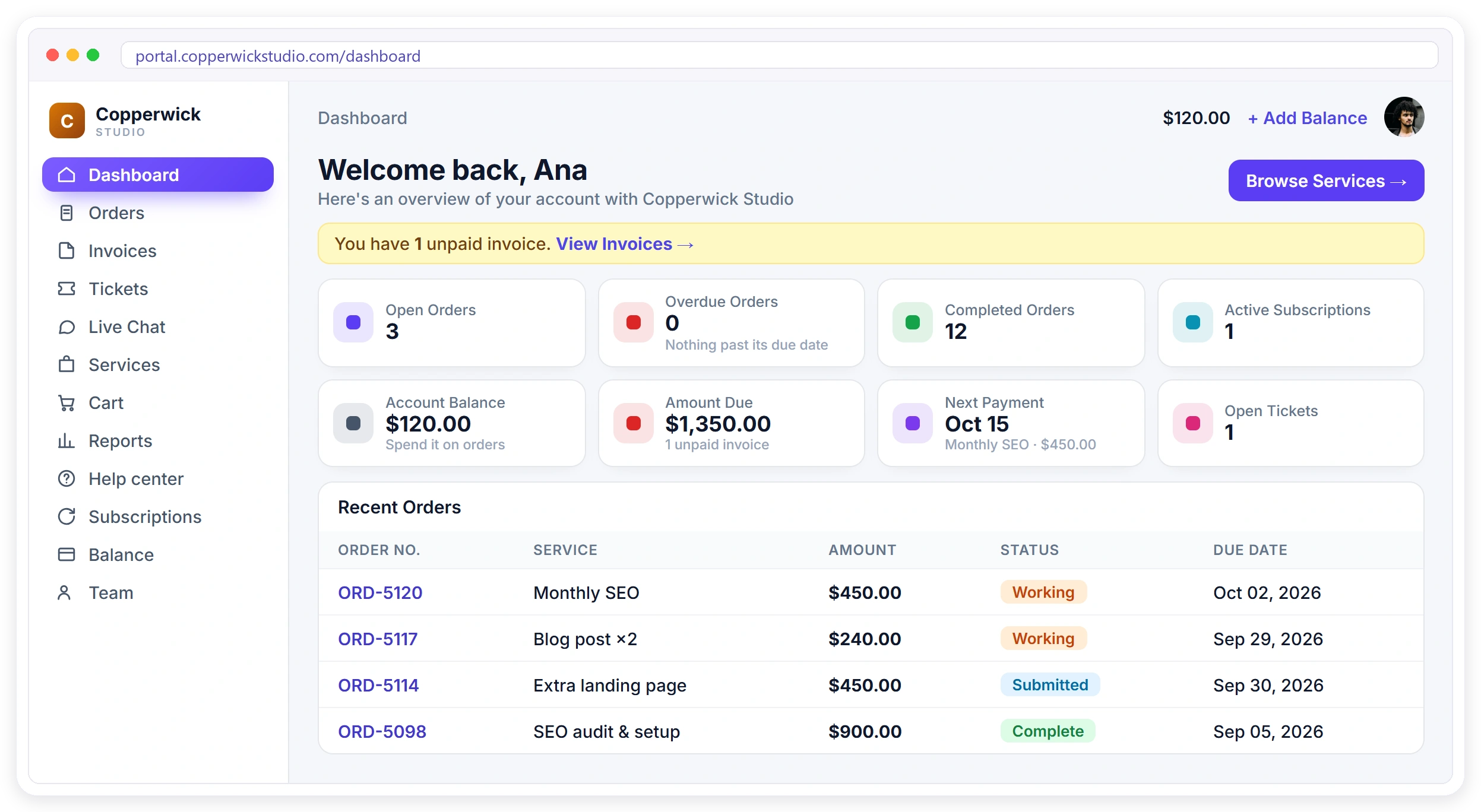
“Any update?” emails add up fast, and each one means you stopped working to write another client status update. With a client portal in Clientish, every client logs in and sees the project status themselves: where their order is, what is waiting on them, the files to approve and the notes from your last call. Status changes can email them for you, so the question stops coming.
How to Stop Clients Asking for Updates
Clients rarely ask because they distrust you. They ask because they cannot see anything between kick-off and delivery, and silence feels like nothing is happening. The usual fix, writing more status emails, only moves the work back onto you.
The Status Lives in Your Head
Progress sits in your task tool, your inbox and a chat thread. The client sees none of it, so they ask.
Every Update Is a New Email
Each “quick check-in” is written by hand, then gets buried, and next week the same question comes back.
Nobody Knows Who Is Waiting
The project stalls on a missing brief or an unpaid invoice, and both sides think the other one is late.
A Progress Timeline Your Client Can Check Anytime
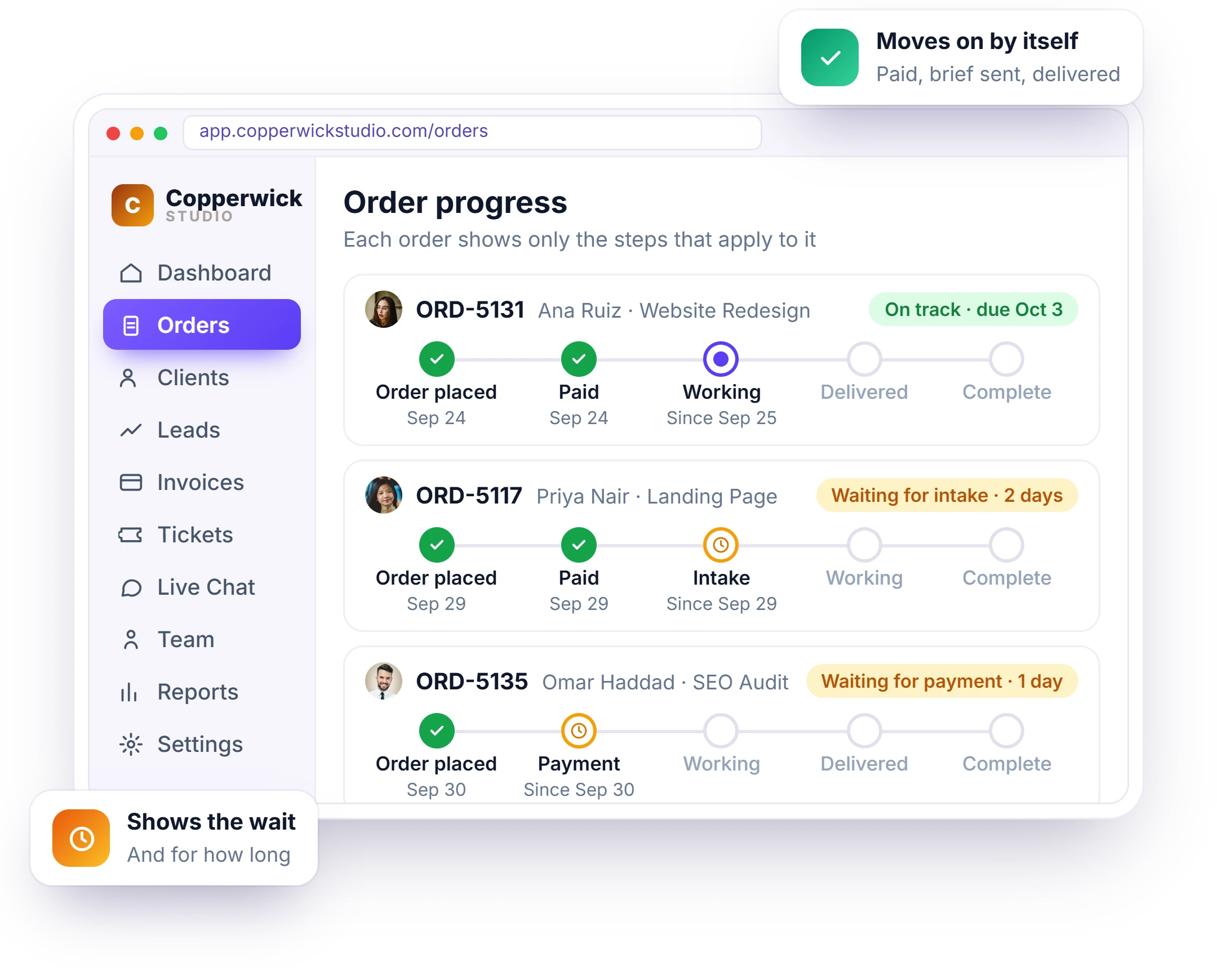
Every order in Clientish has a progress timeline the client sees in their portal: order placed, paid, details received, then your own statuses such as Submitted or Working, and Complete. Each step shows its date, so “where are we?” has an answer on screen before anyone types it.
- Steps follow your own order statuses
- Manual steps you choose to show or hide
- Dates on every finished step
- Revision rounds shown as they happen
Show What Is Waiting on the Client, Not on You
Many “any update?” questions are really about something the client still owes. The portal says it plainly: Waiting for your payment, Waiting for your project details, or files waiting for their approval, so the client knows the next move is theirs.
- Waiting for your payment
- Waiting for your project details
- Files and deliveries waiting for approval
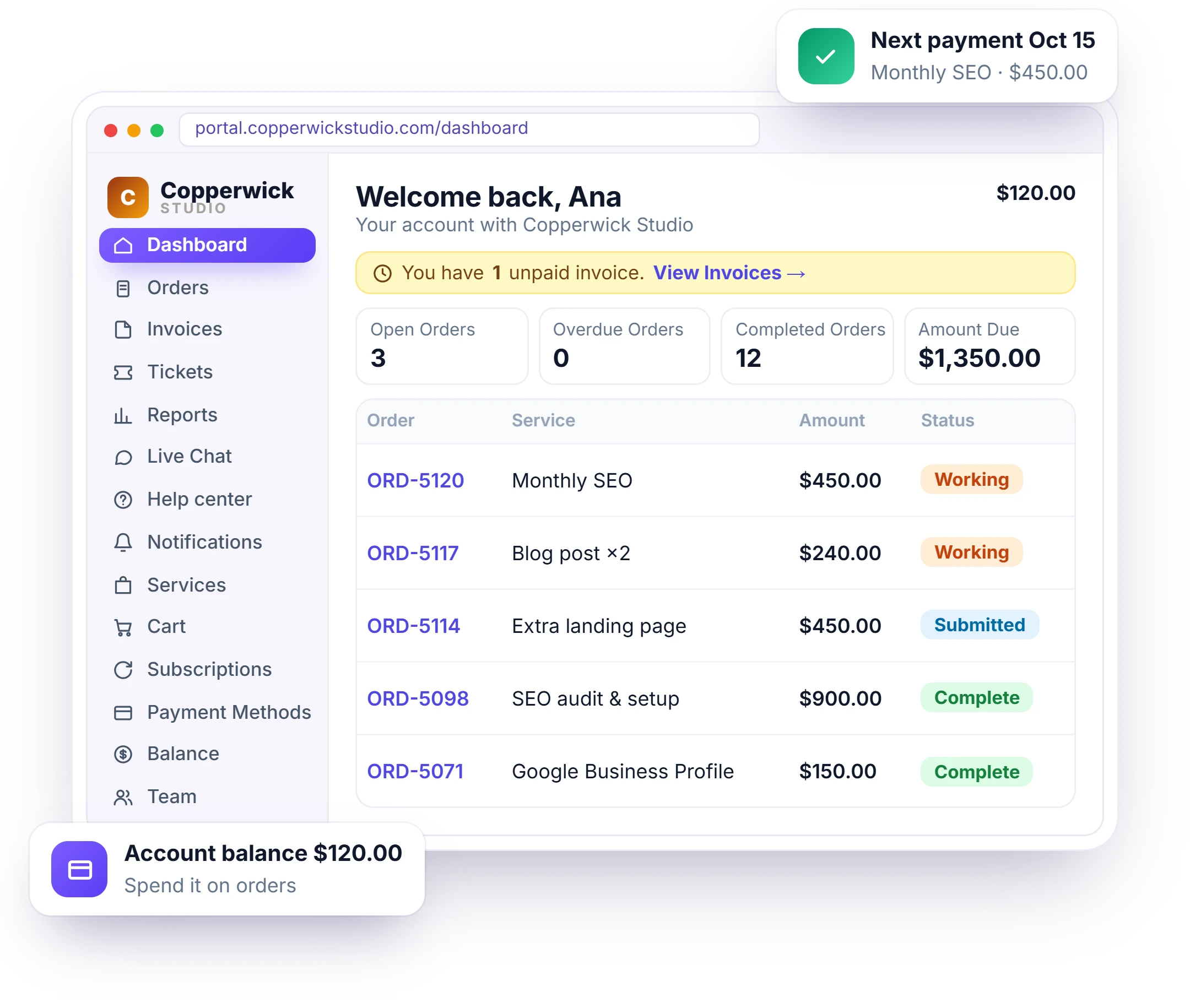
- Unpaid invoices on the client dashboard
Tell Clients When Something Changes, Automatically
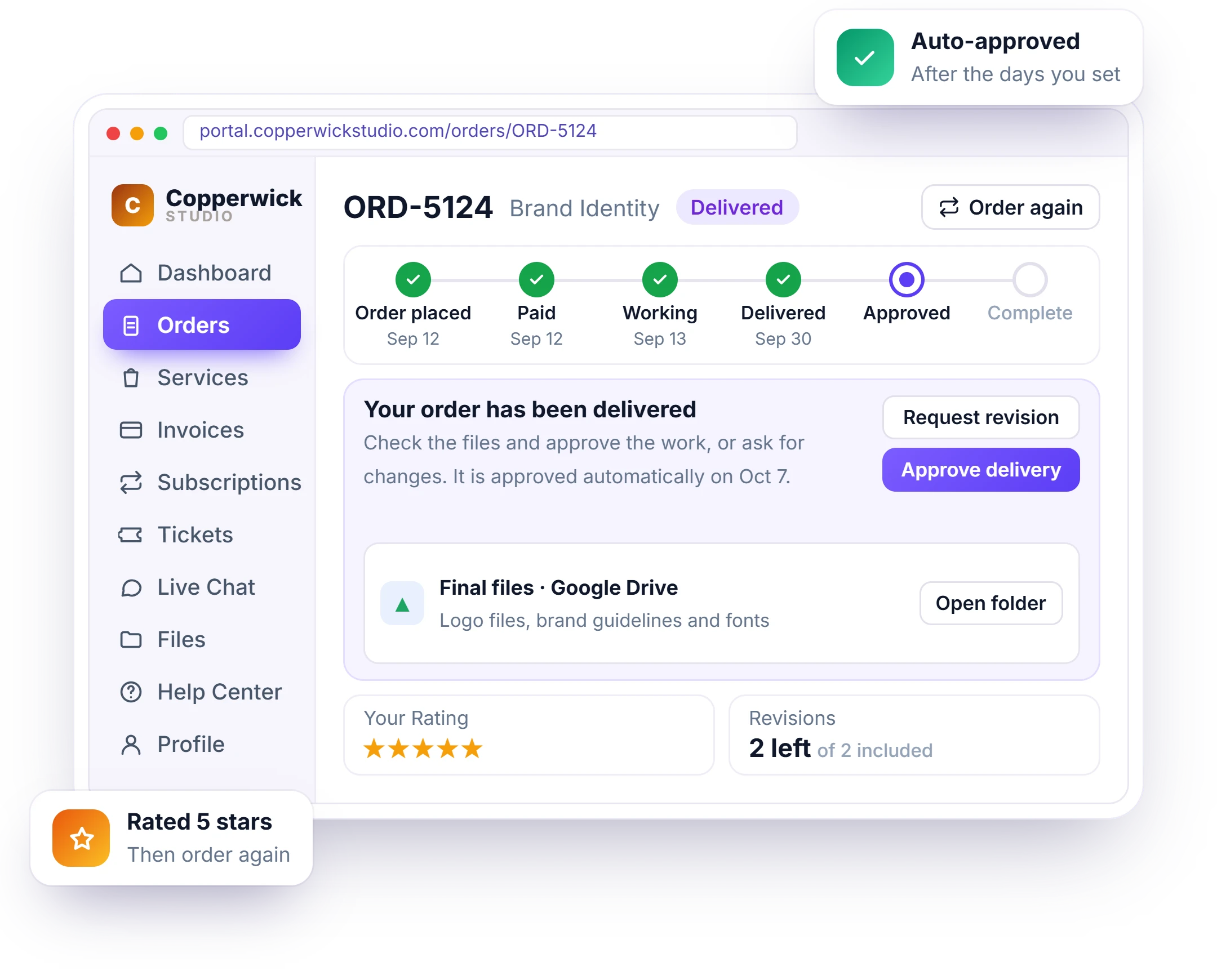
Instead of writing an update, let the status change send it. Clients get a bell in the portal when an order moves, and an email for the statuses you switch on, plus the Delivered email that asks them to review and approve. You decide which steps deserve an email.
- Portal bell on status changes
- Email only for the statuses you pick
- Delivered email with Review and approve
- Sent from your own email address
Share What You Agreed After Every Call
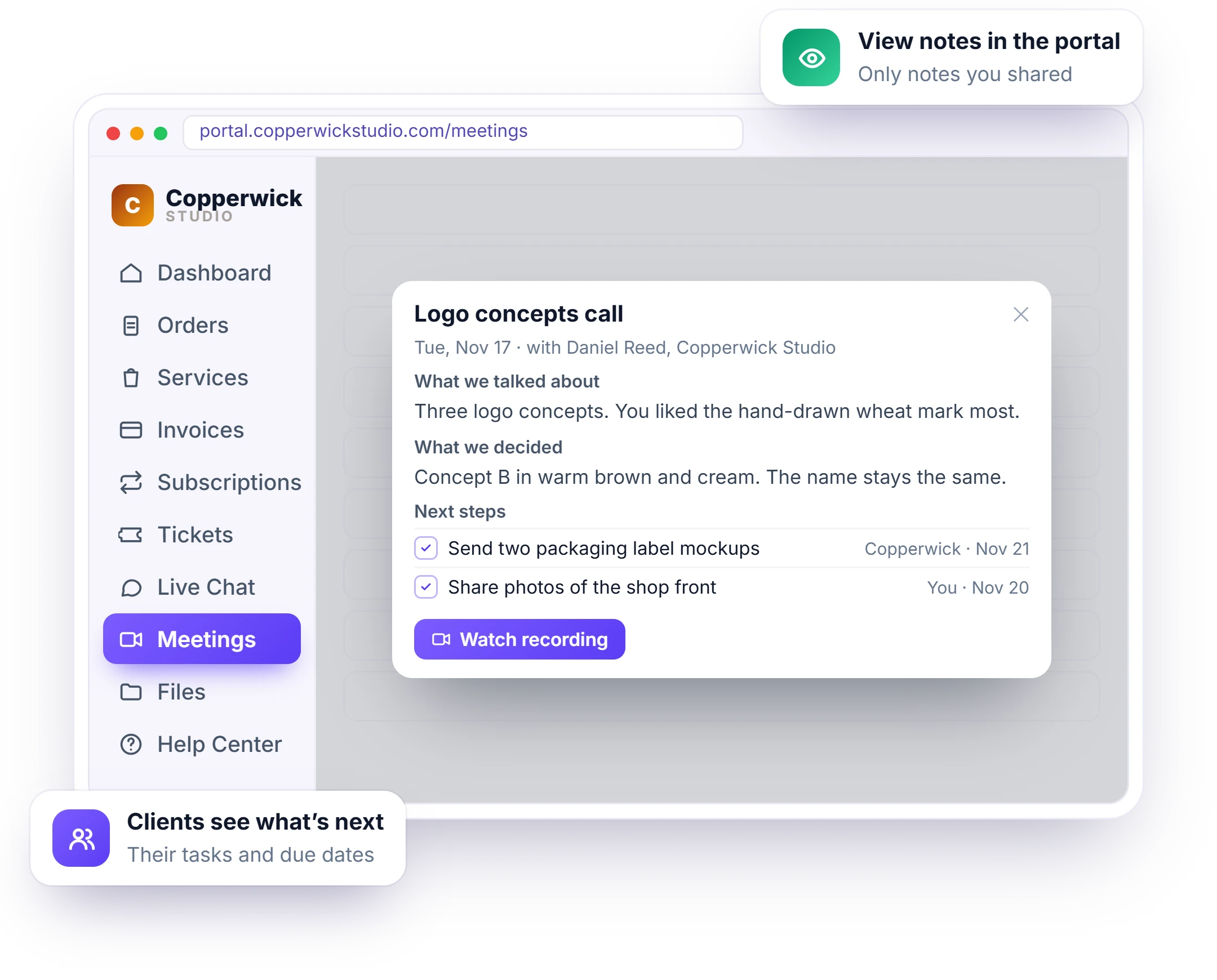
Many update requests start with “what did we decide last time?”. Write the notes on the call in Clientish, with next steps for your team and for the client, and tick one box to show them in the client’s portal under Meetings.
- What we talked about and decided
- Next steps with who and by when
- Steps the client owes marked for them
- Recording link next to the notes
One Place for the Questions That Still Come
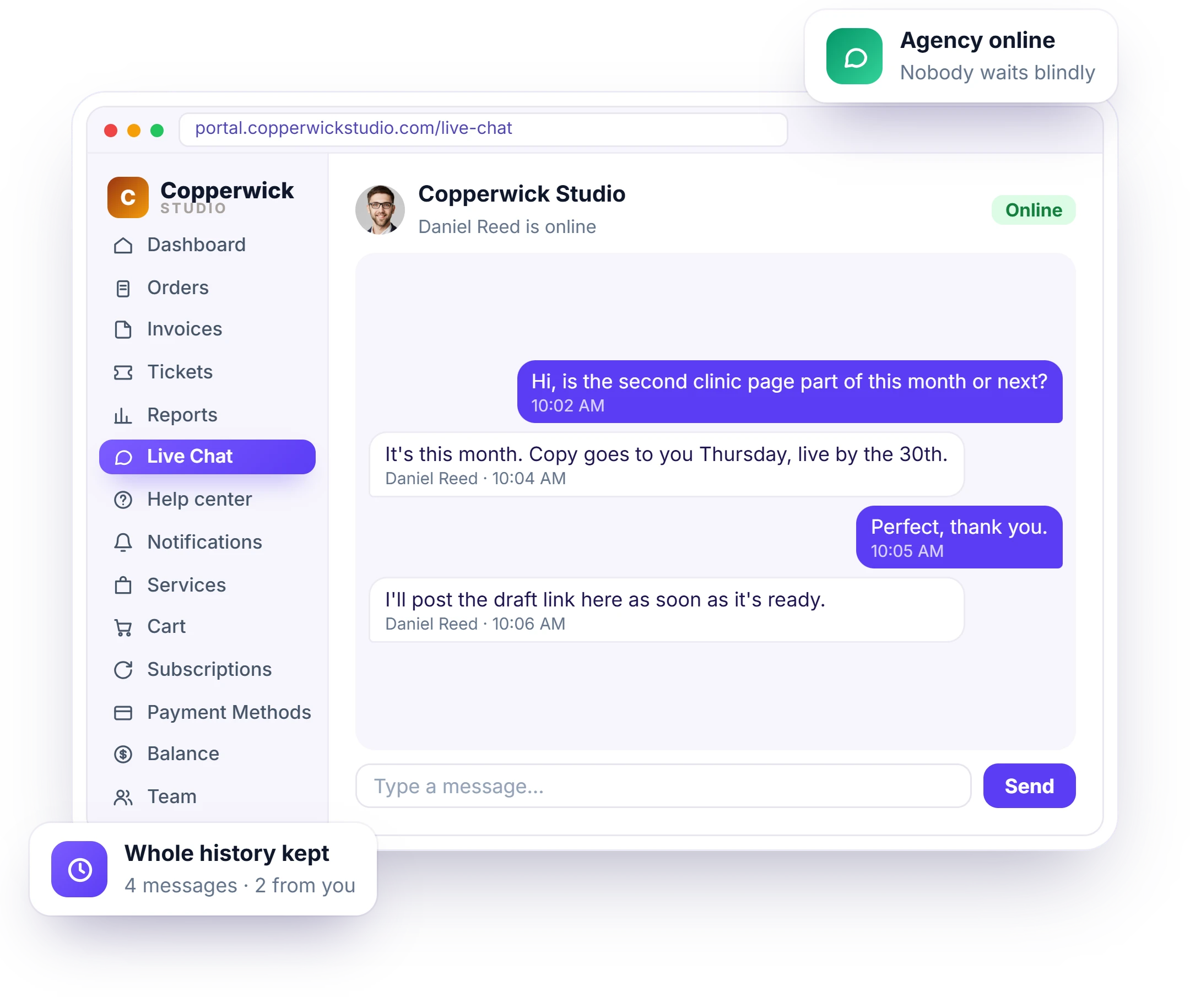
Some questions still need a person. Clients message your team from the portal next to the order they are asking about, instead of in a personal WhatsApp or a new email thread, and the whole history stays on their record.
- Chat inside the portal, from Starter
- Online and offline status
- Out-of-hours auto-reply in your words
- History kept on the client record
Project Status Update Emails or a Client Portal
Most agencies answer every “any update?” one email at a time, so the same status gets typed again for each client and is out of date by the next morning. With a client portal, each client looks it up themselves: live order progress, what is waiting on them and the notes from your calls, and you write only when something really changes.
Client Updates FAQ
The questions agencies and freelancers ask when clients keep chasing them for updates: how to stop the emails, how often to send a status update, what it should include, whether clients should see your project tool, and how to email them automatically when the status changes.
How do I stop clients from constantly asking for updates?
Give them a place to see the status themselves. In Clientish, each client logs in to your portal and sees a progress timeline on every order, what is waiting on them and shared meeting notes, and gets a notification when something moves.
How often should I send clients a status update?
There is no fixed rule. Many agencies send a short weekly update plus one at each milestone, and more often for anxious clients. When clients can check the portal any time, the scheduled update can be short, because the details are already there.
What should a client status update include?
What is done, what is next, what is waiting on the client and the dates. The progress timeline on each Clientish order shows exactly these, step by step, with what the client still owes, such as a payment or project details.
Should clients get access to my project management tool?
Usually not, because they would see your internal tasks and other clients. A client portal shows each client only their own orders, files, invoices and the progress steps you choose to show, while internal notes and team-only steps stay hidden.
Can I email clients automatically when the project status changes?
Yes. Each order status has its own Email client switch, so moving an order to Delivered can email the client from your own address. Smaller steps can stay as portal notifications only.
Can clients see what they still owe me?
Yes. The order says Waiting for your payment or Waiting for your project details, so the client sees the next step is theirs. Their dashboard also lists unpaid invoices and files waiting for approval.
Is this available on every plan?
Yes. The client portal, order progress, notifications and shared meeting notes are on every plan, starting with Solo at $9.99 a month. Live chat with clients in the portal starts on Starter.
Stop writing status updates. Let clients look them up.
Every status email you write today is out of date tomorrow. Give each client a branded portal with live order progress, what is waiting on them and the notes from your calls, and send an email only when a status deserves one. Try it with example data first.
- A progress timeline on every order
- What is waiting on them
- Files and deliveries to approve
- Notes and next steps from calls
- A chat with your team, from Starter
- Your logo, colors and domain
Every feature unlocked in the trial. Pick a plan only when you are ready.