

A client portal is a secure, login-only space where your clients check the status of their work, swap files, talk to you and pay their invoices, all under your brand instead of scattered across inboxes. In Clientish, they can also buy your services, ask for revisions and raise support tickets from that same login.
If you’ve ever dug through three email threads to find the version of a file a client approved, you already know why portals exist. This guide explains what one does, who it suits, what it costs, and how the one we build works from the client’s side and yours.
Key takeaways
- Each client gets one private place for their work, files, messages and payments.
- Most portals handle files, status and messages. Far fewer let clients order services, approve deliveries or open support tickets.
- The businesses that gain most are the ones whose clients come back every month.
- Check for your own branding and domain, two-factor sign-in, and payments that land in your account.
- As of October 2026, Clientish starts at $9.99 a month and includes a free 14-day trial.
What Is a Client Portal, in Plain Terms?
Here’s the simplest way we explain it: a client portal is a private room on your website with one client’s name on the door. Inside is everything that client has with you. The work in progress, the files, the conversation, the bills.
Picture a small design studio with twelve clients. Monday morning, one of them emails: “Where are we with the logo?” Another asks for last month’s invoice. Again. Neither question is hard, but answer twenty of them a week and a day is gone. With a portal, the logo client signs in, sees the order sitting at “In review”, grabs the draft and leaves a comment. The other downloads the invoice herself. Nobody at the studio had to stop what they were doing.
One thing trips people up. “Client portal” and “customer portal” get used as if they mean the same, and they don’t quite. A customer portal is usually a help centre for thousands of customers of one product. A client portal is for the handful of clients you work with closely, and each of them only ever sees their own work.
What a Client Portal Includes
So what’s inside that room? It depends on the tool more than most buyers expect. Nearly every portal covers the basics, and the gap opens up further down the list. The useful test is not “does it have feature X” but “what can my client do there without emailing me?”
| Part of the portal | What the client does there | How common it is |
| Secure sign-in | Logs in with email and password, ideally with two-factor sign-in | Every portal |
| Projects or orders | Checks the status of each piece of work | Nearly every portal |
| Files | Uploads briefs and downloads deliverables | Nearly every portal |
| Messages | Talks to your team next to the work it concerns | Most portals |
| Invoices and payments | Views invoices, pays online, downloads receipts | Many portals |
| Approvals and revisions | Approves a delivery or asks for changes | Some portals |
| Service catalogue and checkout | Buys a new service without a sales call | Few portals |
| Support tickets and live chat | Raises a problem and follows it to a fix | Few portals |
Look at the bottom three rows. A portal that only stores files saves you some email. One that also takes orders and payments starts replacing whole tools, which is where the real time comes back. If you want to see each part on screen, our client portal software page walks through them.
Client Portal vs Email, Shared Folders and a CRM
Fair question at this point: you already have email, a shared drive and maybe a CRM, so why add a fourth thing? Because none of those three is a place you and your client both use, around the same piece of work. The table shows where each one stops.
| Tool | Who uses it | Good at | Where it falls short |
| Everyone | Quick one-off messages | Files and decisions get lost across threads | |
| Shared folders | Team and client | Storing files | No status, no payments, easy to share with the wrong person |
| CRM | Your team only | Tracking leads and deals | Clients never see it |
| Client portal | Each client plus your team | Work, files, messages and payments per client | Clients need to be invited and shown around once |
The CRM row is the one people argue about. In our view the two belong together: the CRM tracks the lead, and the moment that lead pays, they should get a portal without anyone retyping their details. That’s the idea behind a CRM with a client portal.
Benefits of a Client Portal for Service Businesses
Strip it down and a portal buys you two things, time and trust. Time, because clients stop asking questions they can answer themselves. Status updates stop being something you write; they become something your client looks up.
Money moves faster too. An invoice with a Pay button gets paid sooner than a PDF sitting in an inbox, partly because paying takes a couple of clicks and partly because the client sees it every time they sign in.
Trust is quieter but just as real. When files, approvals and messages for a client live in one place, anyone on your team can pick up where a colleague left off. A branded login on your own address feels like part of your service, not a borrowed tool. And when every revision round and approval is on record, the “but we agreed to three versions” conversation gets a lot shorter.
Businesses That Use Client Portals
In our view, the businesses that get the most out of a portal share one trait: the same clients keep coming back. An agency running ten retainers. A bookkeeper chasing the same receipts every month. A coach selling packs of sessions. A video studio sending cut after cut for feedback. The trade changes; the headache doesn’t.
What does change is which corner of the portal they live in. Agencies spend their days in orders and approvals, bookkeepers in documents and invoices, coaches in packages and payments, and freelancers mostly want to look established without paying for an agency-sized tool. That spread is why we built Clientish as one platform rather than another file portal. Clientish is an all-in-one client management portal for agencies, freelancers, consultants and service-based businesses: leads, proposals, a branded client portal, orders, invoices and subscriptions, support tickets and live chat in one place. If you work on your own, the client portal for freelancers page shows a one-person setup.
How the Clientish Client Portal Works
Everything so far applies to any portal. To make it concrete, let’s follow one client through ours, from the first sign-in to the next invoice. It happens in six stages, and each one gets its own short section below the screenshot.
- Sign in on your domain and land on the dashboard.
- Buy a service from your catalogue and pay at checkout.
- Brief your team through that service’s intake form.
- Work together on the order: status, messages, delivery and revisions.
- Pay invoices and keep subscriptions and balance in order.
- Get help through a ticket or live chat when something comes up.
Signing in on your own domain
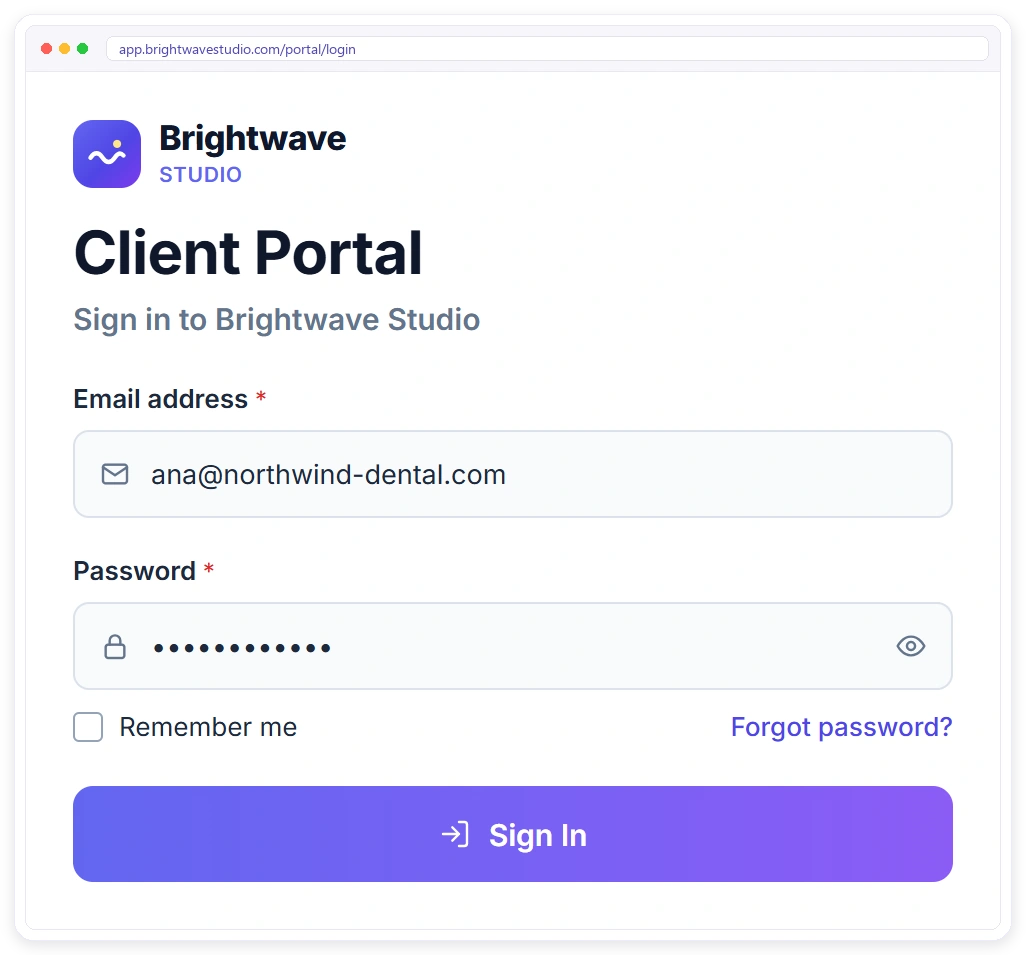
It starts with an invitation email that sends the client to your address, something like app.brightwavestudio.com, where they set a password. From then on that’s where they sign in, and every screen carries your logo and colours. If you turn on two-factor sign-in for clients, they also type a one-time code we email to them after their password.
The client dashboard
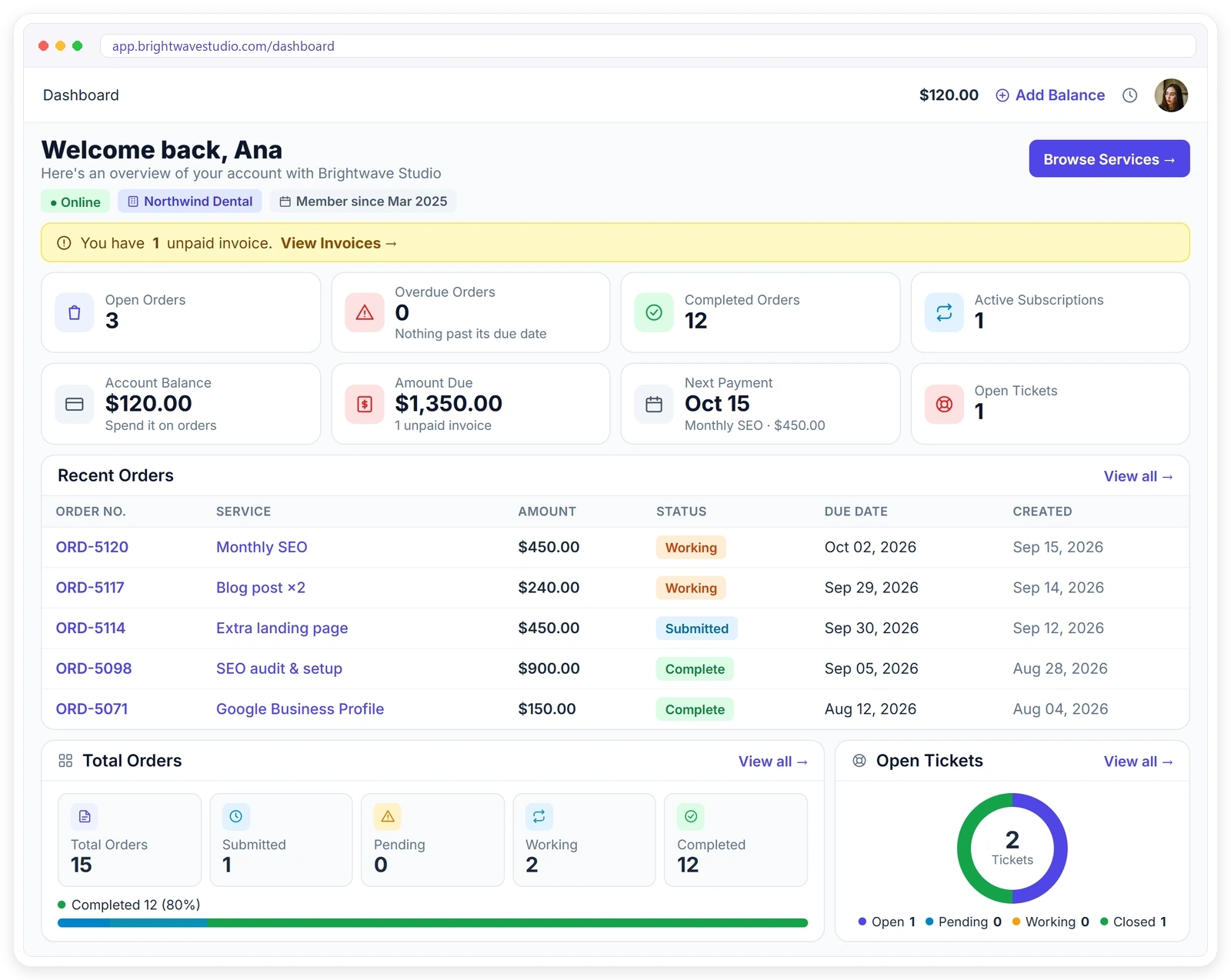
Once they’re in, the dashboard answers the four things clients ask about most: how many orders are open, how much they owe, what their balance is and when the next payment falls. Those numbers move as your team works, so it’s never a summary someone forgot to update.
Buying a service at checkout
From the dashboard, your catalogue is one click away. Clients add a service or two to the cart, change quantities, drop in a coupon code if you gave them one, and pay the invoice raised at checkout. We only create the order once that payment lands, and it goes straight to the team that delivers the service. No “did they pay yet?” before anyone starts.
Answering the intake form
Right after the order opens, the client gets the intake form you built for that service. This is where the brief arrives with the order instead of three emails later. Forms can mix text, file uploads, dates, dropdowns and checkboxes, and conditional logic hides the questions that don’t apply. The answers stay on the order, so nobody has to ask twice.
Following the order
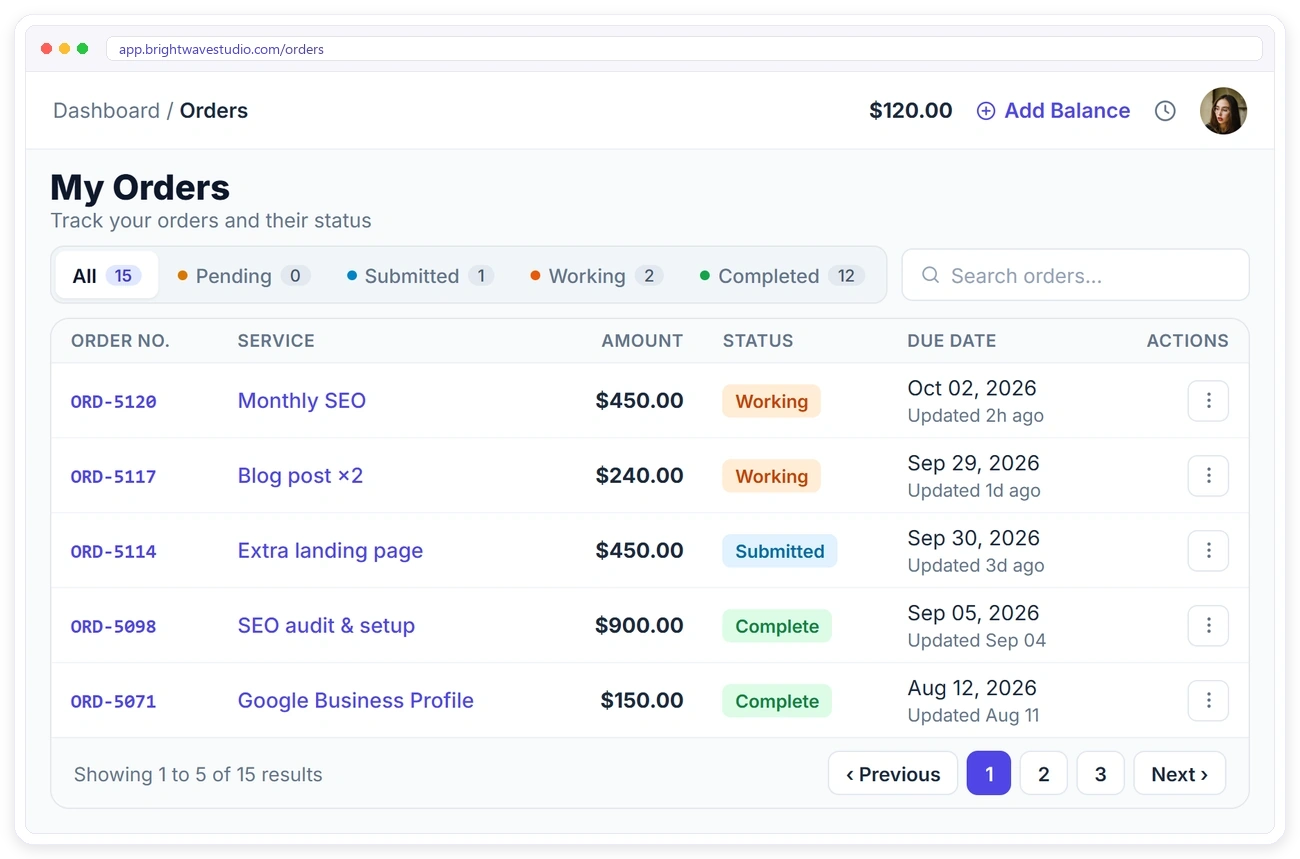
With the brief in, the work starts. Each order shows where it stands, and the status moves as your team takes it from intake to work to delivery. “Where are we?” stops being an email because the answer sits one click away, next to the files and the conversation.
Messages and files on each order
While the work is in progress, the client and your team talk in a thread on the order itself. Clients post feedback and share links to their reference files, and your replies, plus any files your team attaches, show up in the same place. Behind the scenes there’s a second, internal thread the client never sees. That’s where your team leaves handover notes and the questions you’d rather settle in-house.
Reviewing a delivery and asking for changes
Scope creep usually starts right here, so it’s worth slowing down. When you deliver, the client gets two choices on the order: approve it, or ask for changes. No ticket, no email. Each service comes with a set number of revision rounds, three unless you change it. And if the client goes quiet? After seven days the delivery counts as approved (you can pick anything from 1 to 60), so a project doesn’t sit open for a month because someone went on holiday.
Rating a finished order
Once they’ve approved, the client can give the order one to five stars, if you’ve switched ratings on. The score shows on the order on your side and in the Client Satisfaction card, and you can export the lot. It beats guessing how a project went from the tone of the last email.
Notifications that bring clients back
Between those steps, nobody expects a client to check the portal daily. A bell inside it counts what’s new: a message, a status change, an invoice, a reply on a ticket. Each one opens the right page. We also email them about new messages, new invoices and ticket replies, so a client who hasn’t signed in for a week still hears about anything waiting on them.
Invoices and ways to pay
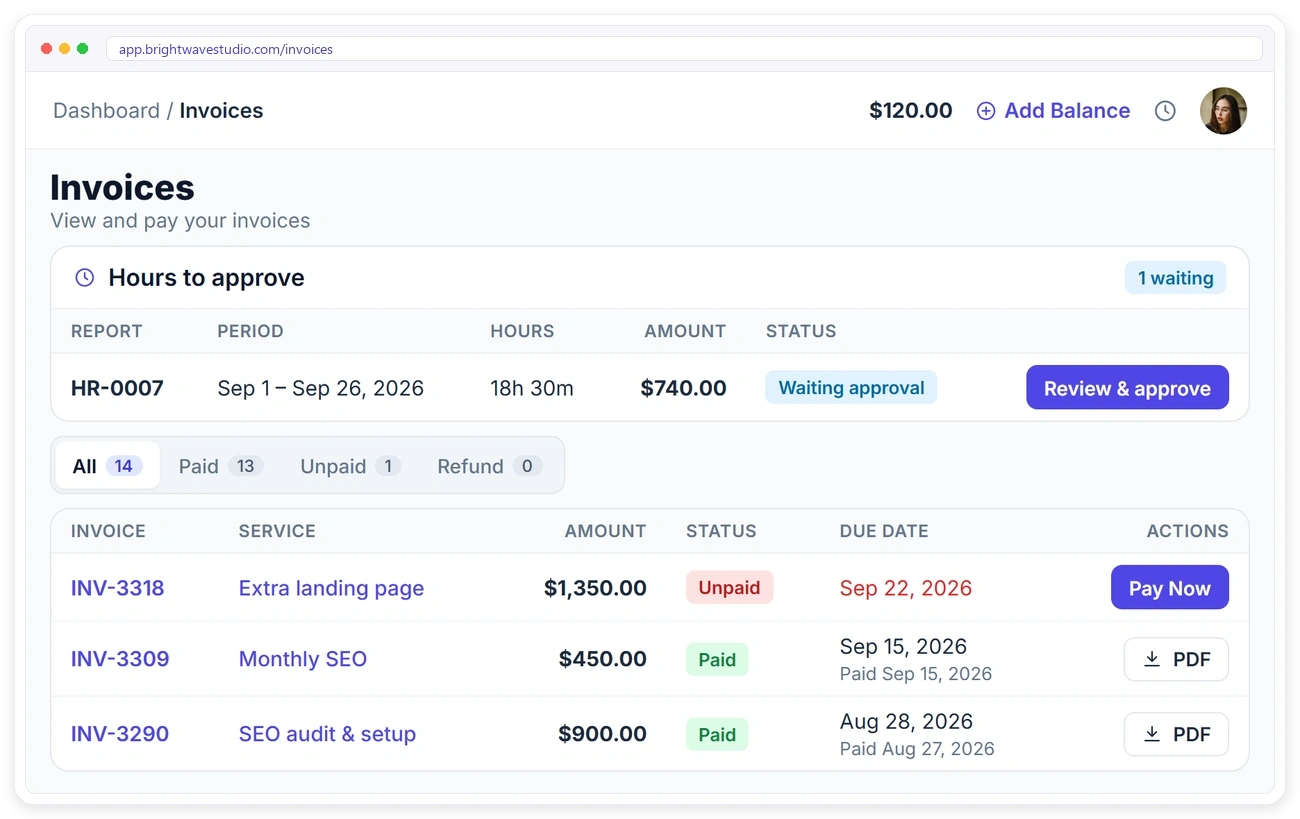
The money side runs alongside the work. The Invoices page lists every invoice with its amount, status and due date, and each one opens to show the items, any discount and tax. Clients pay through the gateway you connect, such as Stripe, PayPal or Paddle, or by bank transfer, typing in the transfer’s transaction ID. They can download any invoice as a PDF for their own books.
Subscriptions, saved cards and prepaid balance
Retainer clients also see each subscription and its next payment date, and they can cancel one if you let clients manage their own subscriptions. When a cycle comes round, the same invoice opens again for payment. Clients who’d rather not think about it can switch on auto-pay for a subscription, and the renewal is charged to their saved card; everyone else pays each renewal invoice themselves, so nobody is billed in a way they didn’t choose. Clients who prefer to pay ahead can top up a balance and settle invoices from it.
Support tickets
Not every question belongs to an order. A billing query or a problem that spans several projects goes into a ticket instead. Your team answers within the reply target you set for that priority, clients can attach files to the ticket, and once it’s closed they can rate the help they got, if you’ve turned ticket ratings on. Any notes your team adds inside the ticket stay internal.
Live chat
Some questions are too small even for a ticket. On Starter plans and above, clients can start a live chat from the portal instead. Chats arrive on your side for whoever is covering them, and each client has one running conversation, so last week’s answer is still there when they come back.
What Your Team Sees on the Other Side
That’s the client’s half. The other half matters just as much, because everything a client does lands on your side, filed under their name. This is where a portal stops being “one more screen to check” and starts saving your team time.
One record per client
Each client profile pulls their orders, invoices, subscriptions, tickets and balance into one view. So when a client says a payment “didn’t go through”, your team opens their profile and sees the invoice and the payment record, instead of asking for screenshots.
Briefs that arrive with the order
The intake answers we mentioned earlier land inside the order the moment the client submits them. Whoever picks up the job reads the brief right where they start working. No one copies answers out of an email into a project tool.
Seeing exactly what the client sees
Admins can sign in as a client and load their portal exactly as that client would. When a client can’t find an invoice or a revision button, your team reproduces it in seconds rather than talking them through a screen nobody can see. It’s also the quickest way to check a new client’s services, forms and branding before you send the invite.
Roles that limit what staff can open
Not everyone on your team needs to see billing. What each person can see and change on a client record comes from their role, which you build from presets and tweak for individuals. An account manager can move orders along without touching payment settings, and freelancers you bring in work from their own portal. Our guide to Clientish’s five portals explains who uses which.
Four Everyday Client Portal Scenarios
Features read better as moments, so here are four. They’re illustrations, not case studies, but every step in them is something a client can do in a Clientish portal today.
A design client reviewing a first draft
Sara runs a café and is getting a rebrand. She gets an alert that the order has moved to “Delivered”, signs in, opens the logo drafts your team shared on the order and asks for one change to the colour. Two days later she approves version two and leaves five stars.
A retainer client paying the monthly invoice
An accountancy firm pays you every month for SEO. Their office manager spots the new invoice on the dashboard, downloads the PDF for the books and pays it from the balance the firm topped up last quarter. Not one email changes hands.
A new client placing a first order
Leo, a startup founder, signs in to his new portal, adds a landing page package from your catalogue, uses the coupon from your proposal call and pays. Once the payment lands, the order asks him for the intake form: brand guide, launch date, pages needed. Your web team gets the order with all of it attached.
A client who needs help mid-project
Maya, one of your coaching clients, can’t find last month’s session notes. She opens a ticket with a screenshot attached, and your team replies within the reply target with a link to the right order. A week later she has a quick yes-or-no question, so she uses live chat instead.
Is a Client Portal Safe?
Every one of those moments depends on clients trusting the login with their files and payments. A well-built portal is usually safer than email, simply because those files and invoices sit behind a login rather than in inboxes. Still, a few settings make the difference, and these are the ones we’d check in any tool, ours included:
- Two-factor sign-in. Clients get a one-time code by email; your team can use an emailed code or an authenticator app.
- Separation. Every Clientish workspace is kept apart from other businesses, each client sees only their own orders, invoices and tickets, and staff see what their role allows.
- Payments through a known gateway such as Stripe or PayPal, straight into your own account. Clientish adds no fee on top.
- Login protection: lockout after repeated failed attempts, and optional reCAPTCHA.
- Self-service account changes. Clients change their own password, and a new email address only takes effect once they confirm it from the old one.
- A “sign out other devices” button that logs a client out everywhere except the browser they’re on, handy after using a shared computer.
- Uptime targets in writing. Ours are in our service level agreement.
One limit to be upfront about: Clientish doesn’t hold a SOC 2 report. If your clients require one, ask any vendor you’re considering to show theirs.
Setting Up a Client Portal in Six Steps
With safety covered, setup is the easy part. It takes an afternoon with most modern tools. The order below matters, though, because the most common mistake is inviting clients before the portal has anything useful in it.
- Brand it. Upload your logo, pick your colours and favicon, then point your own domain at the portal with a single DNS record. The white label client portal page has the details.
- Add your services with prices and an intake form for each, so orders arrive with a full brief.
- Connect a payment gateway so invoices can be paid online.
- Set revision rounds and ticket reply targets that match what you already promise clients.
- Import or add your clients, then invite them by email with a short note on why you’re moving.
- Walk your first few clients through it on a call. Five minutes once saves a lot of emails later.
How do you get clients to use the portal?
This is the bit owners worry about most, and the answer is less clever than people hope. Clients use a portal when it’s the only place things happen. Send invoices and deliveries only through it, answer portal messages first, and when a stray email arrives, reply with a link to the right order. Habits follow.
A phone helps too. Clients of a Clientish portal can install it from the browser on iPhone or Android, with your name and icon, and get push notifications for new messages and approvals. The branded client portal app page shows how.
How Much Does a Client Portal Cost?
Setup costs an afternoon; the subscription is the other cost. Prices depend on how many people on your side use the portal and how much it does. File-sharing portals can be cheaper, while ones that also run orders, billing and support cost more but replace other subscriptions. Here’s what ours costs:
| Clientish plan | Monthly | Billed yearly | Team members included |
| Solo | $9.99 | $8/mo | Just you |
| Starter | $29 | $23/mo | 5 |
| Growth | $49 | $39/mo | 15 |
| Pro | $99 | $79/mo | 30 |
| Enterprise | $149 | $119/mo | 50 |
Every plan includes the client portal with your branding and your own domain. Live chat and lead tracking start on Starter, and the “Powered by Clientish” line disappears on Pro. The full limits are on the pricing page, and you can start a free 14-day trial and set one up with a real client before paying anything.
When a Client Portal Is Not the Right Fit
Price aside, a portal only pays off when clients come back, and we’d rather say so than sell you one you won’t use. Run your own client list against these five situations before you sign up for anything, ours included.
- Your work is one-off jobs. If each client buys once and you never hear from them again, a portal adds a login they will use one time. A plain invoice and a file link will probably serve them better.
- You have one or two clients. With that few, a shared folder and a tidy email thread are easy to keep on top of. The portal starts paying back once you can’t remember who has which file.
- Some clients refuse new logins. Larger companies sometimes won’t let staff sign up to outside tools. Keep those clients on email and move everyone else; a portal doesn’t have to cover every client to save you time.
- Your own team won’t change habits. If invoices and deliveries keep going out by email, clients have no reason to sign in. The switch only works when your team sends things through the portal first.
- Your clients need formal compliance. If they require SOC 2 or a specific regulation, ask the vendor to show proof before you move any data. Clientish doesn’t hold SOC 2, so in that case we’d tell you to look elsewhere.
If none of these describe you, a portal is very likely worth the afternoon it takes to set up.
Client Portal Questions People Ask
These are the questions service businesses type into Google most often when they first look at portals. Each answer is short and complete, so skip to whichever one brought you here.
What is an example of a client portal?
A web design studio gives each client a login on its own domain. Inside, the client sees the website order marked “In review”, downloads the homepage draft, asks for one round of changes, and pays the second instalment. Banks and accountants run similar portals for statements and tax documents.
Is a client portal the same as a customer portal?
Not quite. A customer portal usually serves many customers of one product, such as a help centre with account settings. A client portal serves the smaller group a service business works with directly, so each client sees their own projects, files, messages and invoices rather than shared help articles.
Do I need a client portal if I already use a CRM?
Probably, because they do different jobs. A CRM is built for your team: it tracks leads, deals and notes that clients never see. A portal is what the client signs in to. Many businesses use both, and some tools combine them so a lead becomes a portal client the day they buy.
Can clients pay invoices through a client portal?
Many portals let clients pay online. With Clientish the choice is yours: link a card processor like Stripe or PayPal, accept bank transfers, and let clients spend any balance they have prepaid. For a subscription, the same invoice opens again every billing cycle, and the client either pays it or lets auto-pay charge their saved card.
Is there a free client portal?
Some tools offer free plans with limits on clients or features, and general website builders can be bent into a basic portal. Clientish has no free plan, but every plan starts with a free 14-day trial, so you can test the full portal with real clients before paying.
Can a client portal run on my own domain?
Yes, with tools that support custom domains. In Clientish you add one CNAME record in your DNS, the SSL certificate is issued automatically, and the old address keeps working, so clients sign in at an address such as app.yourstudio.com. If you never add one, clients use your workspace address, which already shows your logo and colours.
Does a client portal work on phones?
Most modern portals work in a phone browser. With Clientish, a client can also add your portal to their home screen from Safari or Chrome. It opens like an app with your icon and sends push alerts, and there is no app store listing to manage.
Final Thoughts
A portal proves its worth the first month a client finds an invoice, a draft and an answer without writing to you. If most of your work comes from the same clients again and again, we’d set one up now rather than after the next missed email.
Start small. Move two or three of your regular clients first, send their next delivery and invoice only through the portal, and count the “quick question” emails against last month. That number will tell you more than any feature list, ours included.
To see it with your own logo and services, signup & try the demo: the trial runs 14 days, long enough to invite one real client and watch how they use it.
Sources
Clientish publishes this guide. Comparisons are based on published articles about client portals from Softr, Zapier, ClickUp, Zoom and Stacker, reviewed in October 2026, and on Clientish’s own product pages and service level agreement. Clientish is not affiliated with the other companies named here.

