

Most people picture a client-management tool as a single dashboard where everyone signs in and sees some version of the same thing — maybe with a few tabs hidden here and there based on who you are. That assumption is understandable, but it’s also why agencies often end up with clients accidentally seeing internal notes, contractors viewing billing details meant for staff, or team members wading through a interface built for someone else’s workflow entirely.
Clientish is built differently. It runs as one shared workspace, but it has five completely separate portals, each with its own sign-in experience, its own interface, and its own defined scope of what the person using it can see and do. The five portals are the agency portal, the client portal, the team member portal, the remote member portal, and the consumer portal (the agency’s own billing account with Clientish). They share the same underlying client records and data, but no one logs into the same door.
This article walks through each of those five portals in turn — who it’s built for, what they can actually do inside it, and why keeping them separate produces a cleaner experience for every type of user rather than forcing everyone through one cluttered interface.
Why One Platform Needs More Than One Portal
Think about what a typical agency actually contains: internal cost figures, contractor rates, other clients’ project details, billing margins, staff notes. A client has no reason to see any of that. A contractor working on one project has no reason to see another client’s orders or your pricing strategy. Giving everyone the same login and then trying to hide things with permissions is technically possible, but it produces cluttered, confusing interfaces and creates real risk every time a permission is misconfigured.
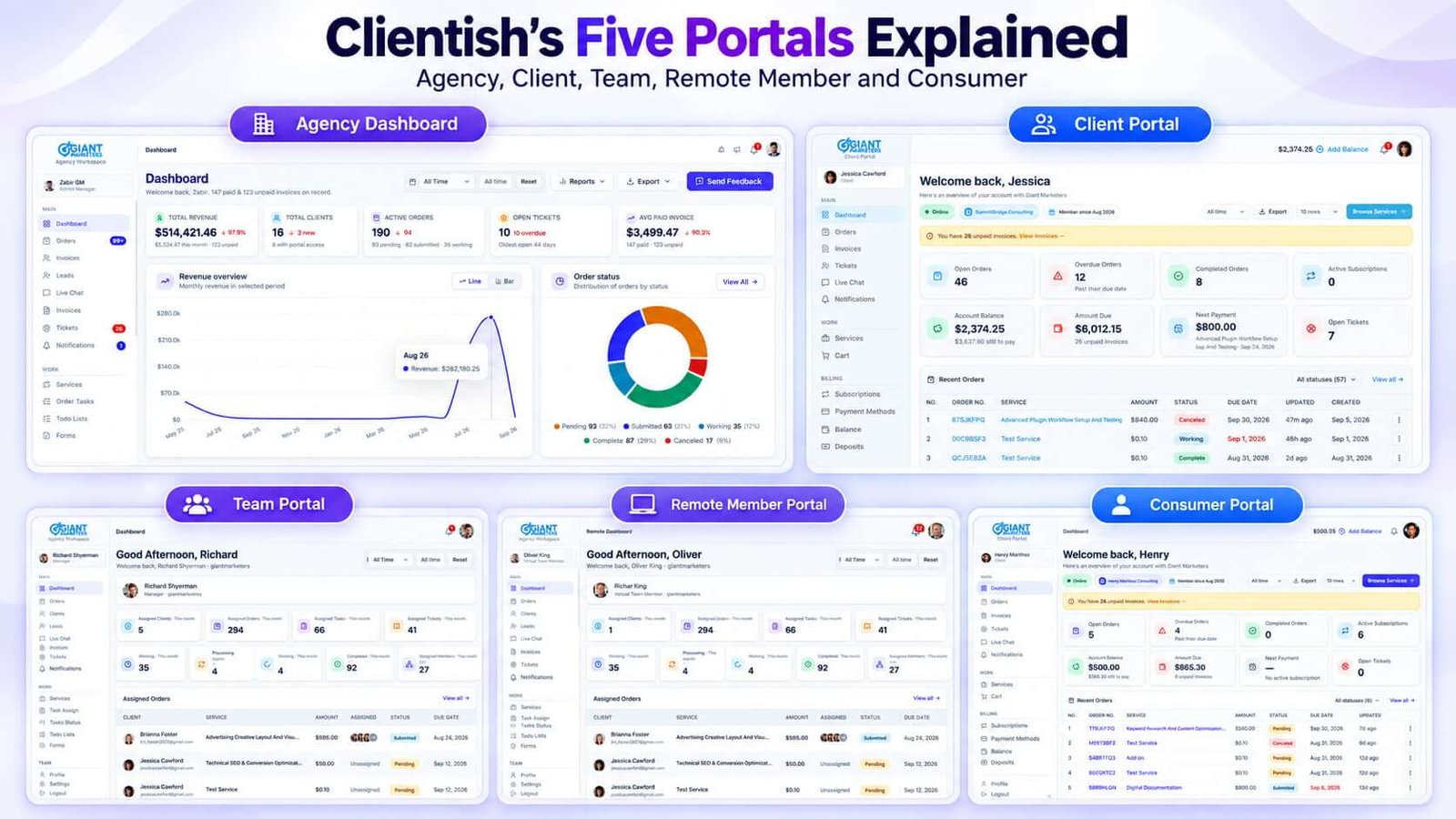
Clientish handles this by giving each type of user their own separate sign-in experience, scoped to exactly what they need. A client logs in and sees their orders, their invoices, their support tickets. Nothing else is visible because nothing else is relevant to them. A remote contractor logs in and sees their assigned work. They don’t see your client directory, your revenue figures, or what other contractors are being paid.
This matters for staff too. An in-house team member might legitimately need to manage orders and reply to tickets but should not automatically have access to invoice amounts or the ability to refund a payment. Clientish’s role and permission system lets you control that at a granular level, and because each portal is scoped from the start, the interface itself is simpler — team members aren’t wading through menus that don’t apply to their job.
The separation also protects clients from each other. In a shared-login model, a permission slip can expose one client’s data to another. Keeping client access within its own portal eliminates that class of problem entirely.
All five portals draw from the same underlying workspace and the same client records. The separation is about access and view, not about disconnected systems.
The Five Clientish Portals at a Glance
Clientish gives every type of user their own sign-in door. There are five of them, and each one is shaped around what that particular user actually needs to see and do.
- Agency Dashboard — the owner and admin’s control centre. This is where the agency manages everything: clients, orders, invoices, team, settings, and reporting. Full access, all records, all controls.
- Client Portal — the branded, self-service space your clients log into. They can check order progress, pay invoices, raise support tickets, and chat with your team. They see only their own data.
- Team Portal — the workspace for in-house employees. What they can see and do is scoped by the role and permissions you assign them. A project manager and a support rep can have entirely different views inside the same workspace.
- Remote Member Portal — a parallel space for contractors and offshore staff, managed separately from the in-house team. Remote members get their own shell with a dashboard and their assigned work items, nothing else.
- Consumer Portal — the agency’s own billing account with the Clientish platform itself. This is where the agency manages its subscription to Clientish, separate from the day-to-day workspace.
Each portal shares the same underlying workspace and client records, but no user crosses into another portal’s view. The sections below go through each one in detail.
The Agency Dashboard
The agency dashboard is where the admin, admin managers, and co-admins run everything. If the client portal is what clients see, and the team portal is what staff sees, the agency dashboard is the view behind all of it — the one place where every thread comes together.
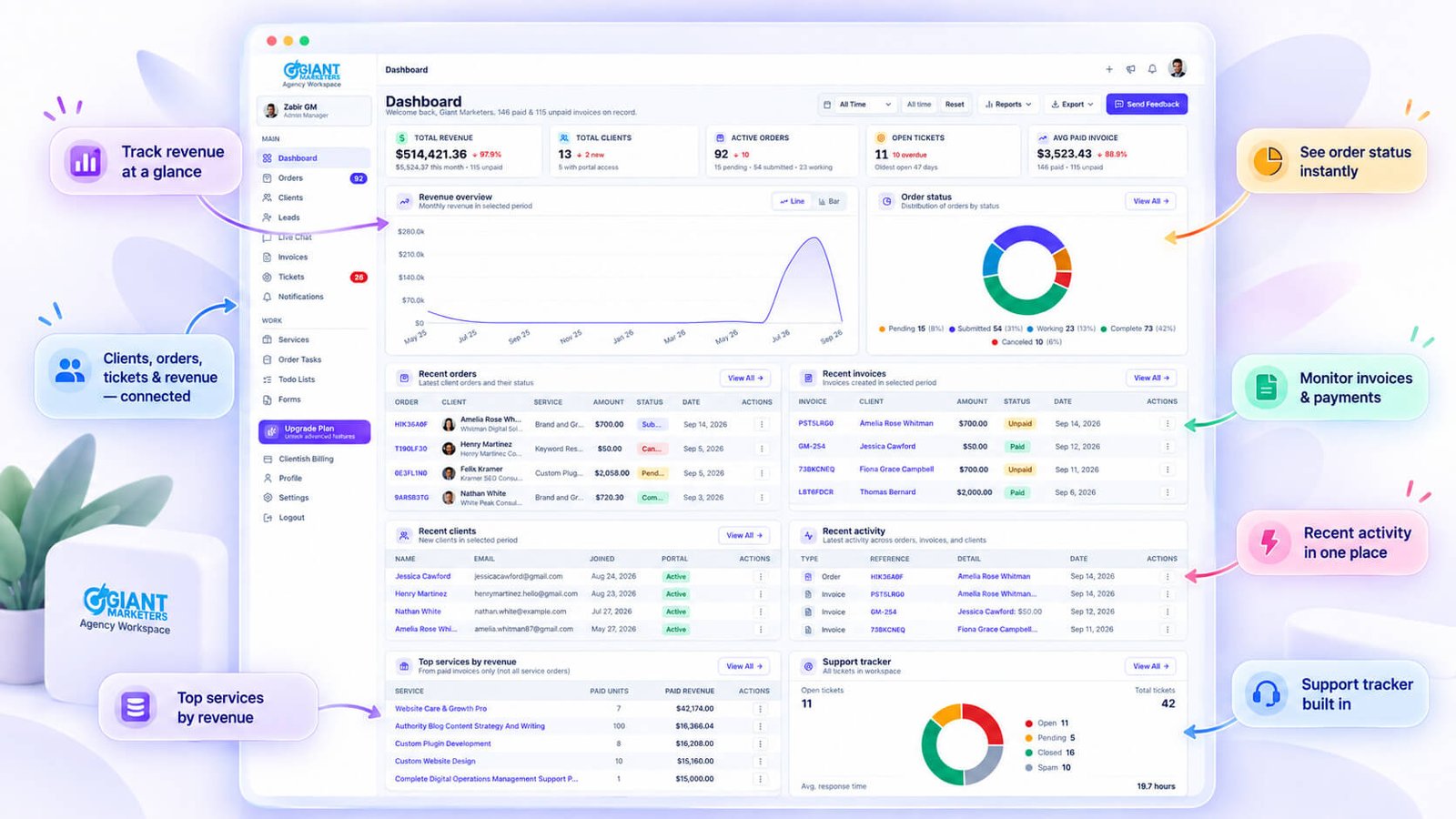
From here, you get a real-time picture of the workspace: revenue, active orders, open tickets, client count, and average paid invoice are all visible on the main dashboard with a date-range filter you can slide from today’s numbers out to all-time. That top-level view matters when you’re trying to answer a quick question like “how much did we actually bill last month?” without pulling a spreadsheet.
Beyond the overview, the dashboard is where the operational work happens. Orders, invoices, leads, services, and support tickets are all managed from this side of the platform. The service catalog lives here too — pricing, add-ons, intake forms, shareable payment links — so any change to what the agency sells gets made in one place and reflects across client-facing views automatically.
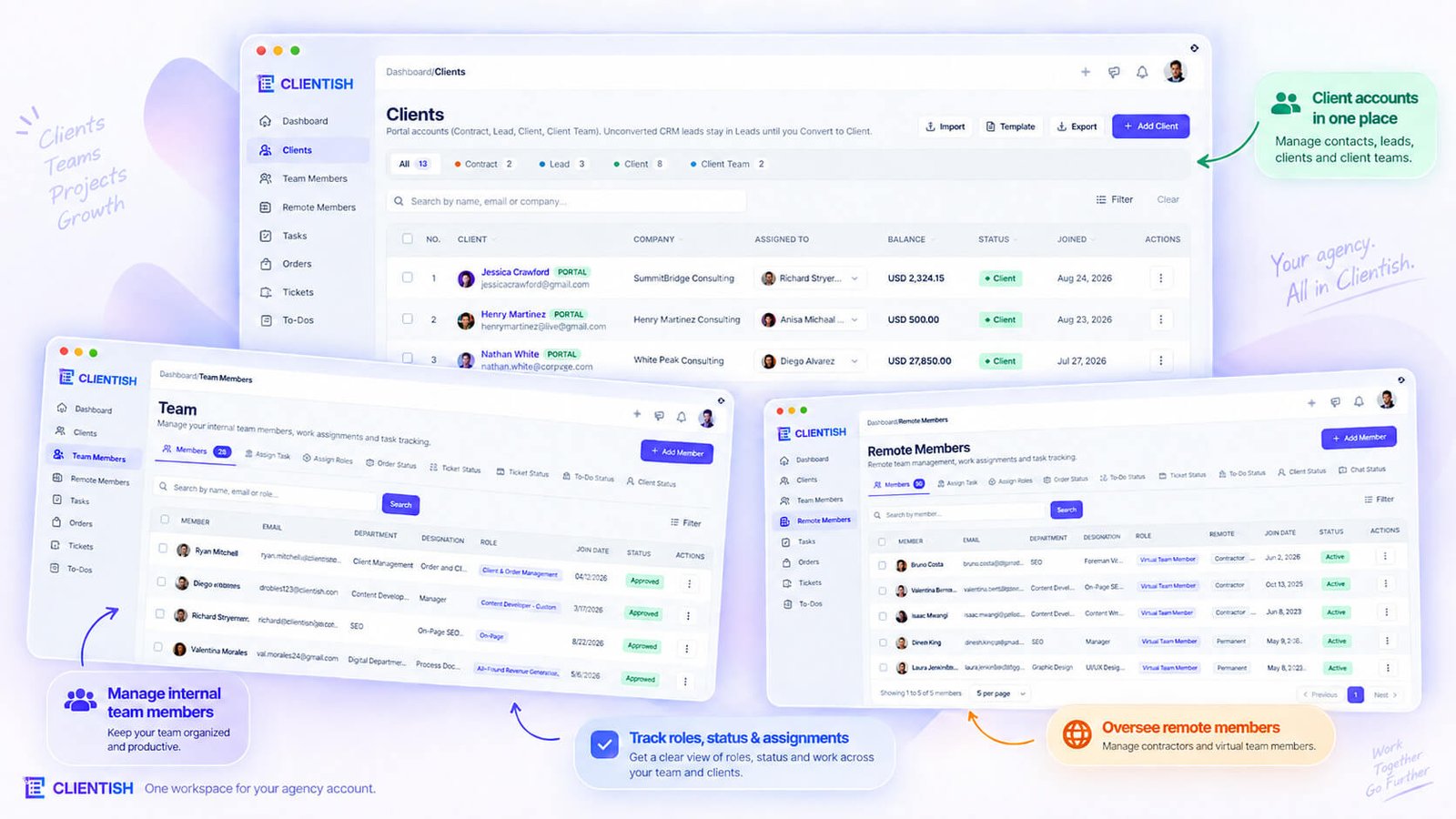
Team management runs through the agency dashboard. You can invite in-house members, assign roles, adjust individual permissions, promote someone to co-admin, or suspend access — all without touching anything that’s visible to clients. Remote and virtual members are managed separately within the same dashboard, with their own role system and work board, keeping contractor activity distinct from your in-house roster.
One capability that earns its keep is sign-in-as. An admin can step into any client’s portal, any team member’s view, or any remote member’s shell to see exactly what that person sees. A persistent banner stays visible throughout, and one click returns you to the admin view. It’s useful for troubleshooting a client question without a screen-share, or checking that a newly configured permission is actually working as intended.
Reports, workspace settings, branding, and integrations all sit in the agency dashboard as well. Branding — logo, favicon, brand colour, subdomain — is configured here and carries through to the client-facing portal. Settings like invoice numbering, tax ID, and payment preferences are set once and apply workspace-wide.
Co-admins get the same broad access as the agency owner for day-to-day operations, though the owner retains control over certain workspace-level settings. For agencies with an ops manager or an account director handling the bulk of client oversight, the co-admin tier lets them work without needing to route every action through the owner.
The Client Portal
When a client logs into Clientish, they’re not seeing the agency’s internal workspace with some columns hidden. They’re entering a completely separate environment, branded with the agency’s logo and colours, sitting on the agency’s own subdomain.
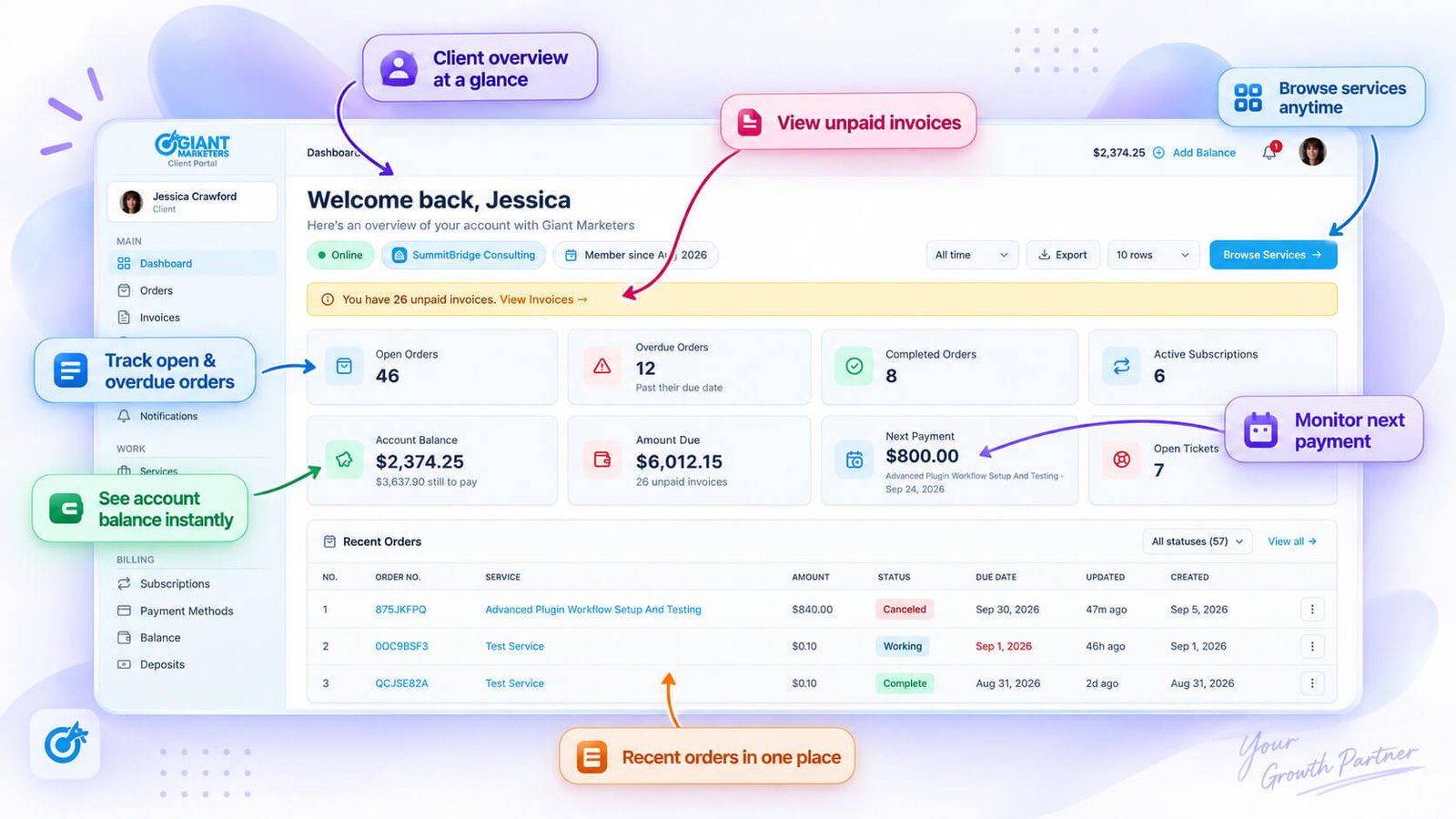
That distinction matters. A client who navigates to your portal sees only their own work — their orders, their invoices, their support tickets. There’s no way to stumble across another client’s project or catch a glimpse of your internal pricing.
What the Client Sees First
The client dashboard gives an immediate read on where things stand: active orders, outstanding invoices, and current account balance, all filterable and exportable to a spreadsheet. It’s a practical summary rather than a decorative landing page — the kind of thing a client can check in thirty seconds and know whether they need to take action.
Ordering and Payments
Clients can browse the agency’s service catalogue directly from the portal, add services to a cart, apply coupon codes, adjust quantities, and check out without any back-and-forth. That self-service flow handles the full purchase cycle inside the branded environment.
Invoices work similarly. A client can view the full invoice list, open the detail, download a PDF, or pay online using a saved card or payment gateway. Manual bank transfers are supported too, with a reference number provided so the agency can match the payment. Subscriptions are visible and cancellable from the portal, and clients can top up their account balance or make deposits against future work.
Inside an Order
Once an order exists, the client’s order view gives them access to the intake form they filled in at checkout, a message thread with the agency where they can attach files, and the ability to request a revision if the delivered work needs changes. They can also leave a rating when the order closes.
Each of those interactions stays tied to a single order record, so nothing gets buried in email threads.
Support
Clients can raise a support ticket directly from the portal, reply to existing ones, and see when someone on the agency side is typing a response. Live chat is also available for real-time conversations, with attachments, message reactions, and an email fallback if the client isn’t signed in when the agency responds.
Profile and Notifications
Clients manage their own profile — avatar, password, and email address — from inside the portal. An email change goes through a confirmation step from the current address, which keeps account security in the client’s hands without the agency having to intervene.
Notifications keep the client informed of order updates, invoice changes, and ticket activity without requiring them to log in and hunt for what’s changed.
The Team Portal (In-House Employees)
Team members get their own sign-in door, separate from the agency dashboard the admin uses. What they see after logging in depends entirely on the permissions attached to their role.
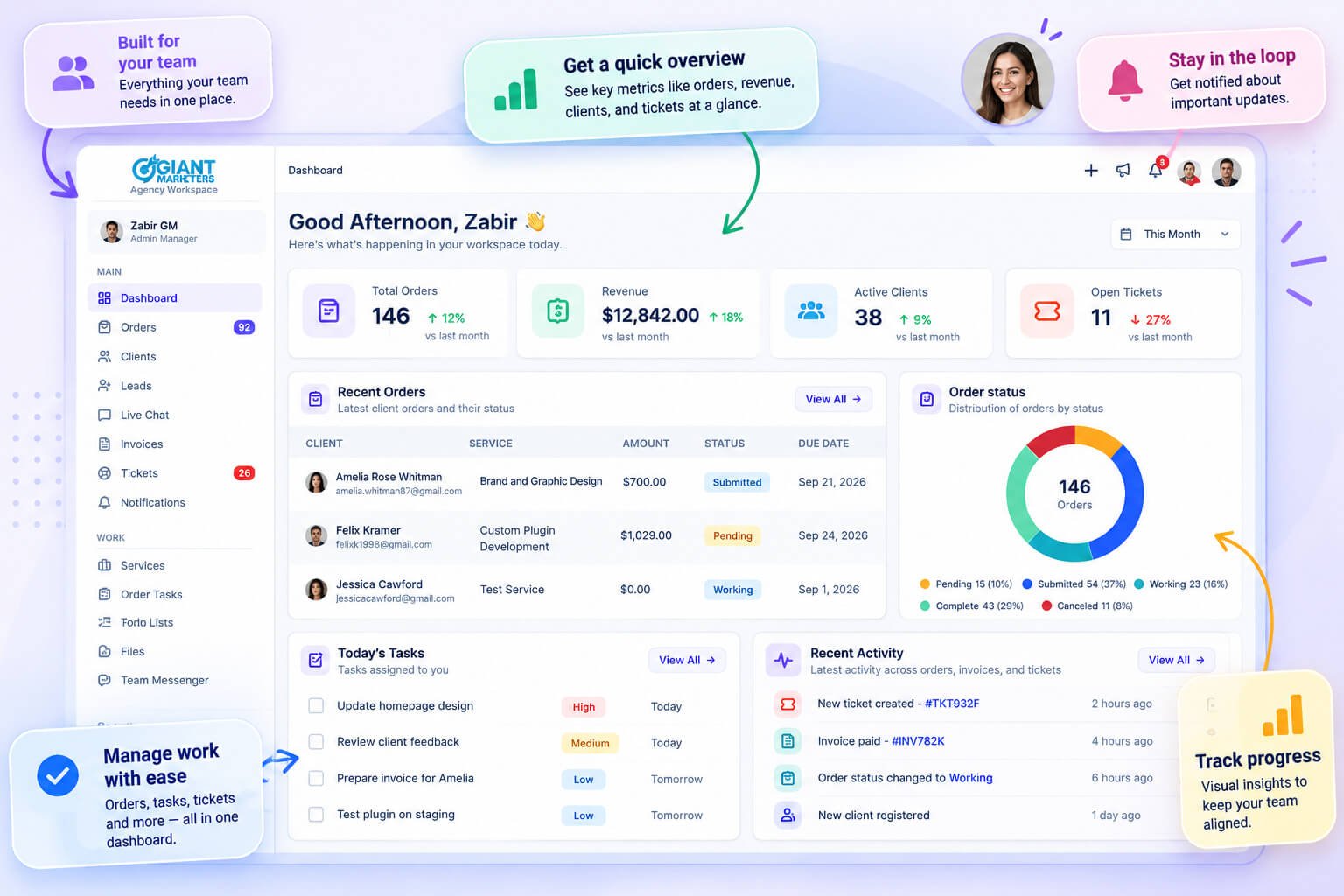
The structure mirrors the agency dashboard closely. Orders, clients, tickets, tasks, chats — all the same modules are there. But a team member only sees what their role permits. If their role doesn’t include access to invoice amounts, that column isn’t visible. If they’re scoped to a specific department, they only see the orders, invoices, services, and reports that belong to that department. The restriction isn’t cosmetic — permissions are enforced at the route level, not just hidden in the UI.
Each member gets a personal view of their own workload: assigned orders, tasks, tickets, clients, todos, and chats all filtered to what’s theirs. That personal task board is the practical centre of their day. They’re not wading through the agency’s full client list to find their assignments — it’s already narrowed down for them.
Permissions are set per member, not just per role. So if two people share the same role but one of them handles a sensitive client, you can adjust that individual’s access without changing the role for everyone. And if you’ve drifted from the original role setup, there’s a one-click option to restore a member’s permissions back to the role defaults.
One thing worth knowing: team members can be promoted to co-admin. That’s a meaningful step up — co-admins carry significantly broader access across the workspace. It’s a promotion you’d make deliberately, not as a casual setting adjustment.
This portal is strictly for in-house employees. Contractors, offshore staff, and other external collaborators belong in the remote member portal, which has its own separate structure, its own role system, and its own login shell.
The Remote Member Portal (Contractors and Virtual Staff)
Contractors, virtual assistants, and offshore staff occupy a genuinely different position in an agency than salaried employees do. They’re not on the internal team, they don’t need visibility into company-wide operations, and they often rotate between projects or engagements. Clientish handles this by giving remote members their own separate portal entirely, distinct from both the agency dashboard and the team member area.
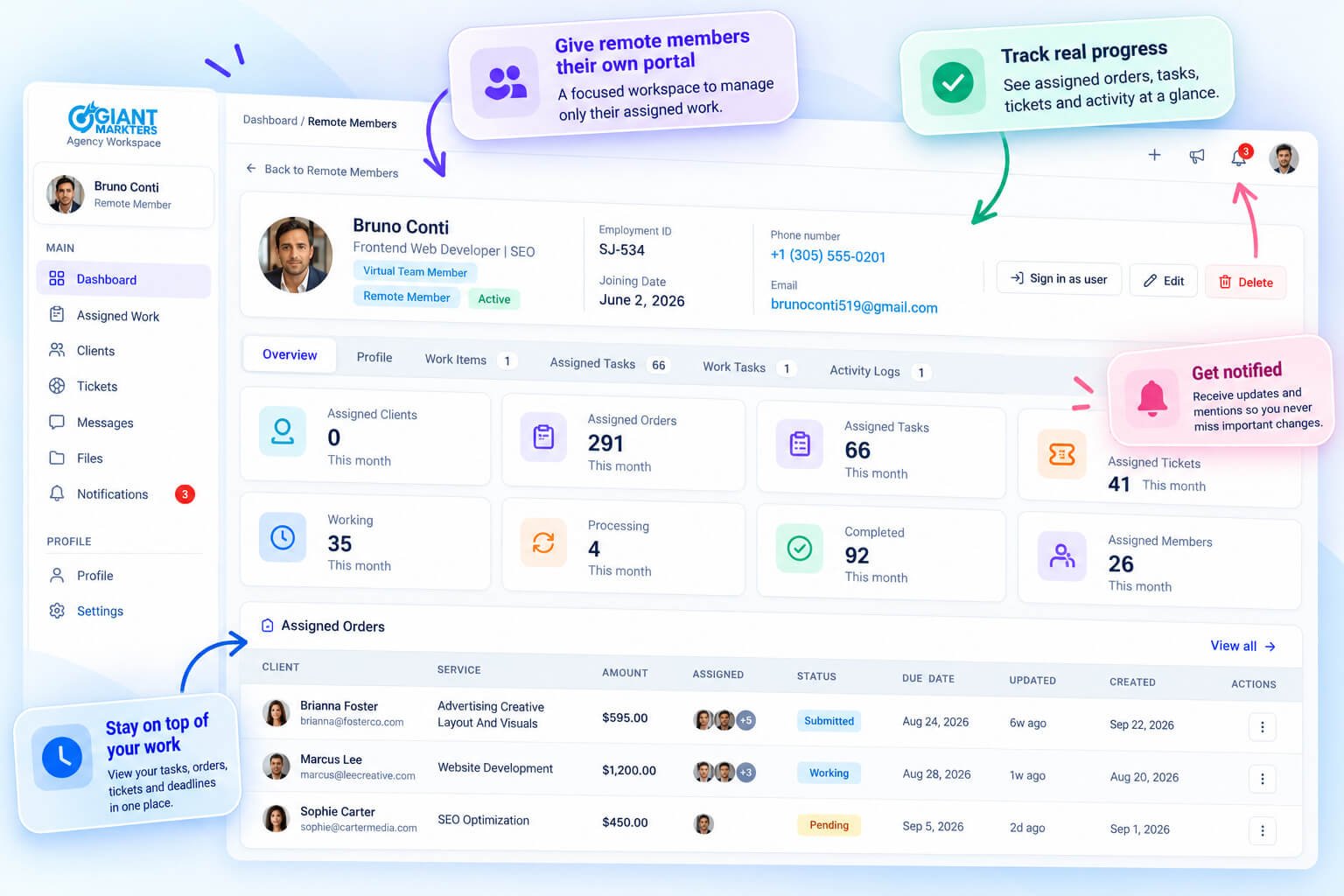
The remote roster is managed independently from in-house staff. Each remote member gets their own role pulled from a separate permission grid built specifically for this group. That grid mirrors the structure of the in-house team permissions but sits completely apart from it, so you’re not trying to wedge contractor access into a role system designed for employees. Remote-specific statuses reflect how that work actually runs: Task Based, Permanent, Contractual, and Temporary.
When you assign work to a remote member, it appears on their portal as a work item with a description, attached files, and a review status you control from the agency side. They can see their assigned orders, tasks, tickets, clients, todos, and chats — nothing outside what’s been assigned to them. There’s no browsing other clients, no exposure to pricing, no view into the broader workspace.
From the admin side, you can reset a remote member’s password, send them a welcome email, and sign in as them to confirm exactly what their view looks like. There’s also a task-status board scoped to the remote work board, with export if you need a record of it.
Keeping this population in a separate portal means your permission decisions for contractors don’t bleed into how you configure access for your internal team. Two groups, two systems, both controlled from the same workspace.
The Consumer Portal (The Agency’s Own Account)
There are five portals in Clientish, and four of them are about managing other people — clients, team members, remote staff. The fifth one is about managing yourself, specifically your agency’s own relationship with the Clientish platform.
Clientish calls this the Consumer Portal. It’s where the agency handles its subscription to the platform: its plan, billing history, payment methods, and any add-ons. Nothing in here relates to client invoices or work orders. This portal is purely the agency-as-customer of Clientish.
The practical content inside it reflects that. You can view your current plan, check usage against plan limits, and compare available packages when you’re ready to upgrade. The upgrade flow lets you apply a coupon before paying, which is useful if you’re coming in from a promotional link. If your circumstances change, you can cancel a subscription or resume one from the same place.
Payment method management sits here too — adding a card, setting a default, or removing an old one. Your invoices from Clientish (not your clients’ invoices — your own bills for the platform) are stored and accessible, so you have a clean record for accounting purposes.
Support access is also tied to this portal. If you need to contact the Clientish team about a platform issue — a billing question, a plan query, something technical at the account level — you can raise a support ticket or use live chat directly from here.
It’s a straightforward area, but the separation matters. Keeping the agency’s own account management in a distinct portal means it never gets entangled with the day-to-day client workspace. Your subscription details don’t appear inside the operational dashboard where your team works, and your platform invoices don’t mix with the invoices you send to clients.
How the Five Portals Connect
Separate doors don’t mean separate databases. Every portal in Clientish reads from and writes to the same underlying workspace, so the separation is about what each user sees, not about where the data lives.
When a client logs in and places an order, that order appears immediately on the agency dashboard. The admin doesn’t have to poll for updates or check an inbox — the order surfaces in the recent orders panel and the activity feed. If a team member is already assigned to that client, they can see the new order through their team portal as soon as they’re given access to it.
Assignments travel in the same direction. When an admin assigns work to a team member or a remote member, it shows up in that person’s portal automatically. A team member logs in and sees their tasks; a remote member logs into the /remote shell and finds their work items and current status. Neither one has to ask “was anything sent to me?”
Status changes close the loop back toward the client. When an agency-side update moves an order forward, or when a support ticket gets a reply, the client’s portal reflects it. They see the current status, the message thread, any uploaded files. The client isn’t watching email waiting for a forwarded update — it’s already in their account.
What keeps each portal tidy is the permission layer sitting underneath all of this. The same client record exists for everyone, but permissions decide which fields and tabs each portal actually surfaces. A team member might see a client’s orders and tickets but not their balance or total spend, depending on how their role is configured. A remote member working on one assignment has no visibility into other clients at all.
So the five portals aren’t five separate products bolted together. They’re five filtered views of one shared record, with access shaped by role.
How Roles and Permissions Shape Each Portal
Portals define who signs in where. Roles and permissions define what they see once they’re in.
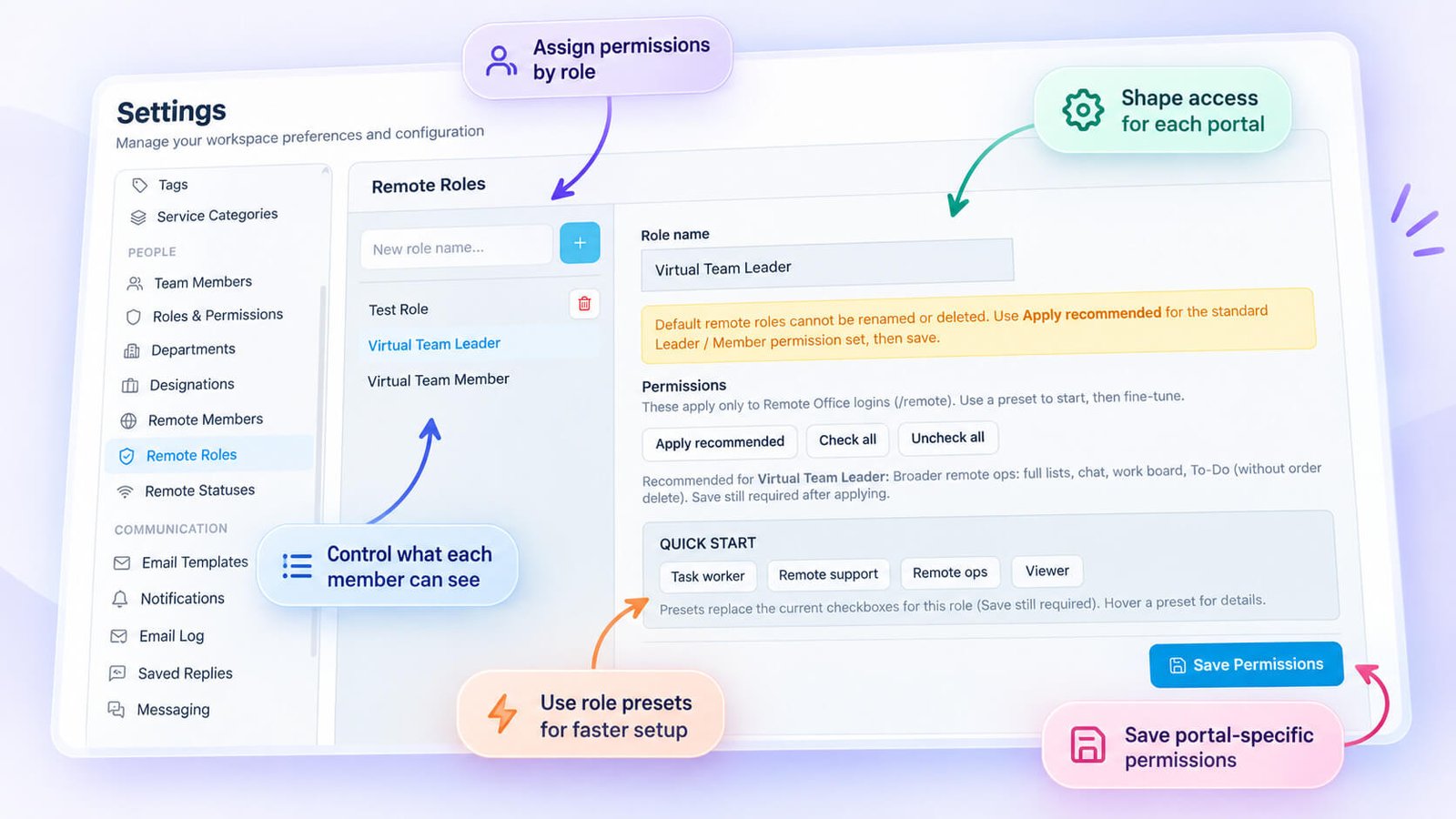
Clientish runs two entirely separate permission systems — one for in-house team members and one for remote members. They’re parallel grids covering the same broad areas (orders, tickets, clients, invoices, services, support, and more), but they don’t share settings. A role you create for a team member has no effect on a contractor’s access, and vice versa. That separation matters because the two groups have different levels of trust, different scopes of work, and sometimes different contractual relationships with your agency.
Within each system, you can create, edit, clone, and delete roles. Cloning is useful when you need a new role that’s close to an existing one but with a few permissions stripped out — you don’t have to rebuild from scratch.
Beyond the role itself, Clientish lets you override permissions at the individual member level. If one team member needs access to something their role doesn’t normally allow, you grant it directly on their record. If you’ve made a mess of individual overrides and want to reset, there’s a restore-to-role-defaults option that wipes the per-member changes and puts them back in line with the role.
Department-scoped access adds another layer of control. You can limit a member’s visibility to their own department for orders, invoices, services, reports, and team views. A project manager responsible for design work doesn’t need to see what the SEO team is billing or handling — department scoping enforces that without needing a separate role for every scenario.
Sensitive fields get their own toggles, independent of everything else. Whether a member can see an order’s monetary value, view a client’s email address, or manage a client’s balance are each controlled separately. Same with refund permissions and the ability to sign in as another user. These aren’t cosmetic controls — they’re enforced at the route level, meaning a user without the refund permission can’t trigger a refund through the API either, not just hidden buttons in the interface.
That route-level enforcement is what makes the permission system genuinely reliable rather than decorative.
Practical Examples: Who Logs In Where
These scenarios aren’t case studies — they’re illustrations of how each portal fits the person using it, based on what each portal actually contains.
Example 1 — The Agency Owner’s Morning
An agency admin opens Clientish and lands on the agency dashboard. She checks the KPI tiles: revenue for the month, how many active orders are running, open support tickets. She notices two invoices still unpaid from last week, clicks through to the invoices list, and marks one as paid after a bank transfer came in overnight.
She then pulls up a client record to check the activity log before a call — she can see every order, invoice, and ticket tied to that account in one place. Nothing about this view is visible to the client. The client has their own portal with their own view of the same underlying record.
Example 2 — A Client Checking an Order
That same client logs in through the agency’s branded client portal on the agency’s subdomain. He sees his active orders, the current status of each one, and the message thread attached to the order he’s waiting on. He’s not looking at the agency’s dashboard, other clients’ orders, or anything about how the agency is structured internally.
He downloads a PDF of his latest invoice, then opens a support ticket about a revision. That ticket appears in the agency dashboard the moment he submits it. He sees only what relates to his account.
Example 3 — An Employee’s Task Board
A team member logs into the team portal and sees her assigned orders and tasks for the day. She’s not in the same interface as the admin — her view is shaped by the permissions her role carries. If her role doesn’t include access to invoice amounts, she won’t see them. If she’s assigned to specific clients only, those are the only ones she can pull up.
She updates a task status, adds a note to an order, then checks her todos. The admin can see all of this from the agency dashboard without having to ask her for a status update.
Example 4 — A Remote Contractor’s Queue
A contractor working for the agency on a project basis logs into the remote member portal, which sits at a separate /remote path. His dashboard shows only what’s been assigned to him through the work board. He doesn’t see client billing details, other team members’ workloads, or the service catalog.
He opens his assigned work item, reviews the description and attached files, then updates the status to signal progress. The agency admin sees that status change from the work board on their end. The contractor never needed access to anything beyond his queue, and the permission system makes sure he doesn’t have it.
Why Separate Portals Benefit Your Business
The clearest way to see the payoff is to think about what breaks when everyone shares one login. A contractor spots a client’s total spend. A client notices another client’s company name in a dropdown. An employee accidentally views an invoice with internal markup on it. None of that is catastrophic on its own, but it erodes trust fast.
Separate portals cut that risk at the root. Each person signs into a view that was built for their role and contains nothing outside it. A client sees their own orders, invoices, and support tickets — nothing from the agency’s internal workspace, and nothing from another client. Staff see what their role allows. Contractors see their assigned work and nothing further.
For the agency owner, the practical gain is a single control centre where you can see everything while other people see only their slice. You can sign in as any user to check exactly what they see, manage roles and permissions from one place, and adjust access without touching anyone else’s view.
There’s also a professionalism angle that’s easy to underestimate. When a client logs in and finds a clean, branded portal showing only their project status, upcoming invoices, and a direct line to your team, it signals that your agency is organised. That impression matters during the early months of a relationship, when clients are still deciding whether they made the right call hiring you.
The contractor side is similar. Remote members work in their own shell, see their assignments, and have no visibility into your pricing or your other client relationships. That separation protects you commercially and removes any awkward ambiguity about what a contractor is or isn’t supposed to know.
Getting Started With Clientish’s Portals
Setup follows a logical sequence. Start with the onboarding wizard, which walks you through agency type, company details, logo, brand colour, currency, and service categories. Each step saves as you go, so you can pause and come back without losing progress.
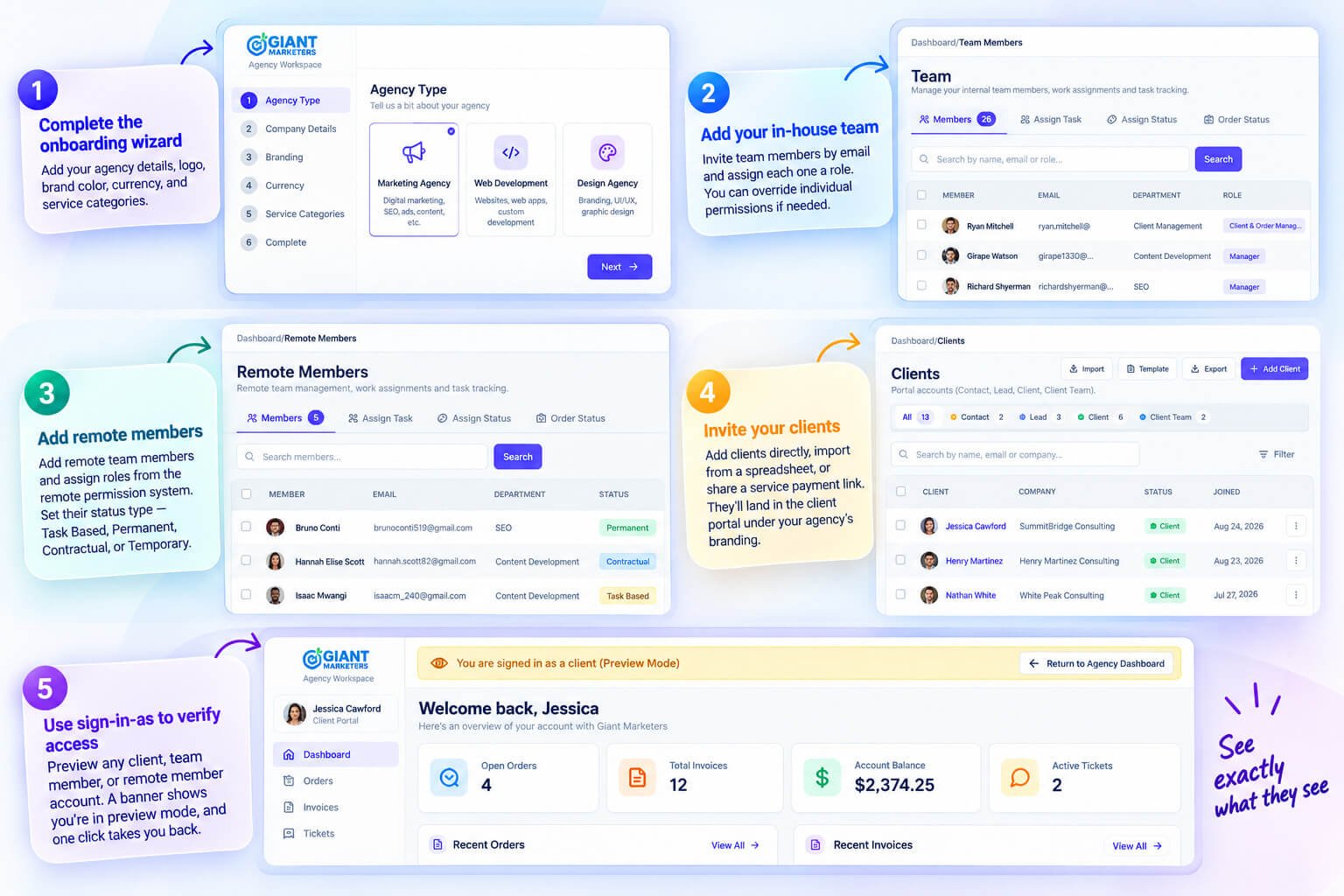
Once the workspace is configured, add your in-house team members by email and assign each one a role. Roles carry their own permission grids, but you can override individual permissions per person if someone needs a slightly different level of access than their role normally allows.
Remote members come next, and they’re added through a separate section. You assign them roles from the remote permission system (completely independent from the in-house grid) and set their status type — Task Based, Permanent, Contractual, or Temporary — depending on how they engage with the agency.
Clients can be invited directly, imported from a spreadsheet, or brought in through a shareable service payment link. Whichever route they arrive through, they land in the client portal under your agency’s branding.
Before you go live, use the sign-in-as feature to check what each person actually sees. Open a client record and sign in as that client, or do the same for a team or remote member. A banner stays visible at the top so you know you’re in preview mode, and one click returns you to the agency dashboard. It’s the fastest way to confirm permissions are set correctly without waiting for someone to report a problem.
Frequently Asked Questions
How many portals does Clientish have?
Five: the agency dashboard, the client portal, the team member portal, the remote member portal, and the consumer portal.
Do clients and staff share the same login?
No. Each group has its own sign-in URL and sees only what their portal was built to show them.
What is the difference between a team member and a remote member?
Team members are in-house employees managed through the team roster. Remote members are contractors, virtual assistants, and offshore staff who get their own separate portal and a completely independent permission system.
Can I control what each person sees?
Yes. Clientish runs a separate role and permission grid for in-house team members and another for remote members. Permissions are enforced at the route level, not just hidden in the interface.
What is the consumer portal?
It’s your agency’s own billing account with Clientish — where you manage your subscription. It’s kept separate from the day-to-day workspace.
Is the client portal branded to my business?
Yes. It carries your logo, brand colour, and runs on your workspace subdomain, so clients see your brand, not Clientish’s.
Are the portals separate apps?
No. They’re five different sign-in experiences reading from one shared workspace. The data is the same; the view each person gets is not.
Final Thoughts
Five portals, one workspace. That’s the whole architecture: each person signs in through the door built for them, sees exactly what they need, and nothing they don’t.
The separation isn’t a technical quirk — it’s what keeps a client from stumbling across another client’s project, a contractor from seeing internal cost figures, and a team member from accidentally touching something outside their role. Everyone gets a view sized to their actual job.
If your agency has outgrown a single shared login and the awkward permission workarounds that come with it, Clientish is worth a proper look. The 14-day free trial gives you full feature access, so you can set up each portal with real data before committing. Head to the Clientish site to start your trial and see how the five portals work in practice.

