

Most service businesses figure out early that they need some way to track what they’ve sold and what’s been delivered. What they end up with, more often than not, is a collection of email threads, a shared spreadsheet that’s perpetually out of date, and a mental map of who owes whom what. That works for a while. Then a client asks for a revision, a team member needs to pick up someone else’s job, and suddenly nobody’s sure which version of the brief is current or whether the invoice has gone out yet.
Quick answer: In Clientish, every order is a single record that holds the full picture of a job — the intake answers, the assigned team members, the task checklist, client and internal messages, revision rounds, and the invoice — all tied to one place so nothing has to be chased across separate tools.
This article walks through how that works in practice: how an order gets created, what lives inside the record, how statuses and tasks track progress, how client communication and team collaboration happen without mixing the two up, and how an order closes out through invoicing and client ratings.
How an Order Is Created
Every order in Clientish is built around a service. Whatever path creates it, the order record ties directly to a specific service in your catalog — that’s what gives it structure from the start.
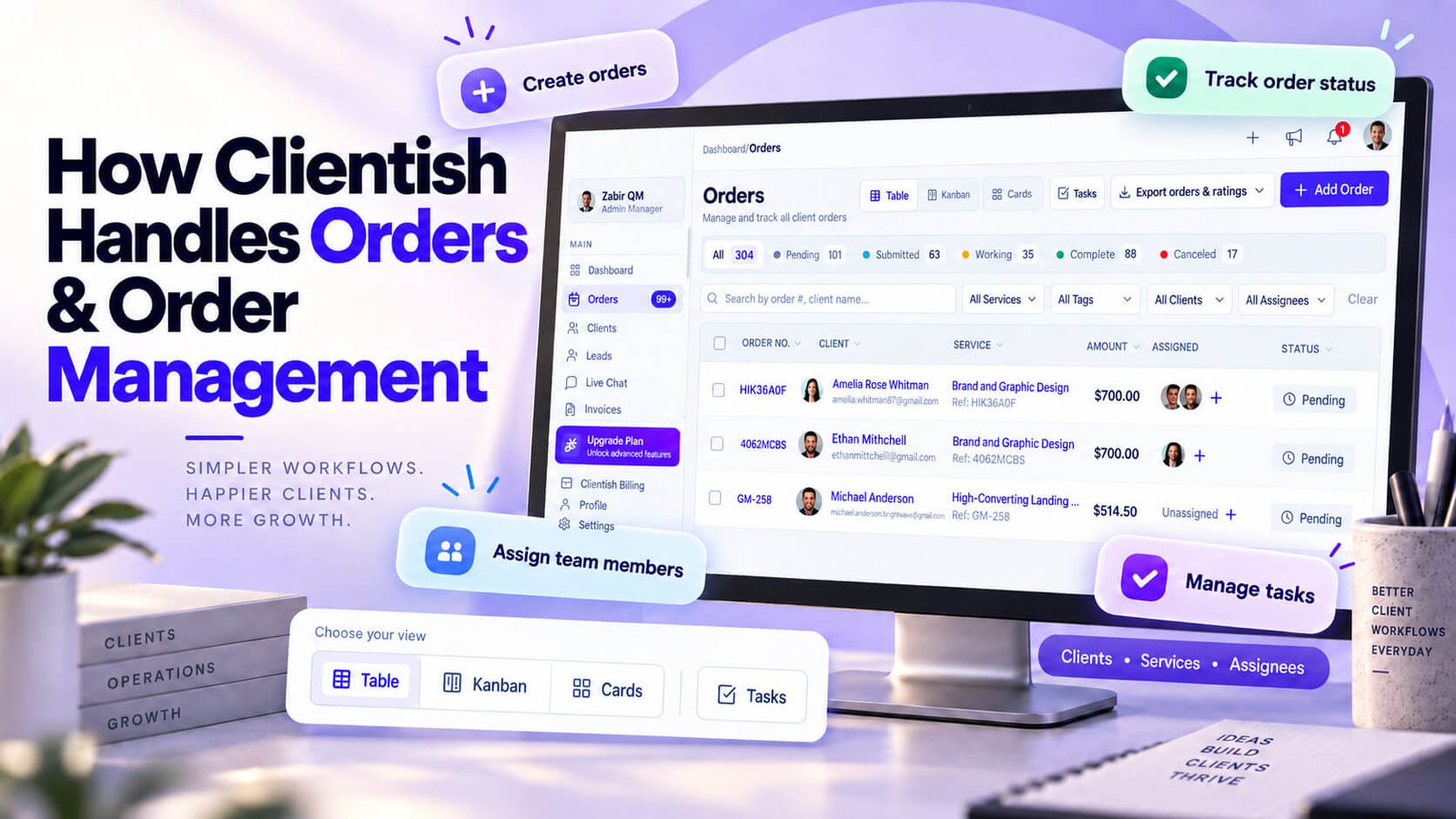
There are four supported ways an order gets created.
The Client Orders in Their Portal
Clients with access to the branded portal can browse your services and place an order directly. When they do, the order appears in your workspace automatically, already linked to their client profile and the service they selected. No manual entry needed on your end.
Through a Public Order Form
You can build an order form using the Forms module and publish it as a public link. When a client submits it, the submission creates an order record. This path works well for agencies that want to capture project details upfront — intake answers come in attached to the order from the moment it’s created.
Via a Service Payment Link
Clientish supports shareable payment links tied to a service. A client opens the link, pays, and the order is generated. The client doesn’t need to be signed in to a portal to complete this — which makes it a practical option for one-off or new client purchases.
The Agency Creates It Directly
Anyone with the right permissions can create an order manually from inside the workspace. This covers situations where work was agreed over a call, by email, or through any channel outside Clientish — you create the order, attach it to the client and service, and it enters the pipeline from there.
What’s Inside an Order
Once an order exists, it holds more than just a service name and a status. The record itself becomes the working file for that client job.
Intake Answers as Project Data
When a client places an order through a payment link or a form, their answers come in as project data attached to the order. That information stays editable afterwards, so if something needs correcting or a client provides an update, you’re not stuck with the original submission. Individual fields can be removed if they’re no longer relevant.
Downloading the Details
You can download the intake data as a PDF or as a file bundle. Useful when a team member needs everything offline, or when handing a job brief to a contractor who doesn’t have a Clientish login.
Notes, Tags and Following
Orders support notes, tags, and a follow option. Following means you get notified on activity for that specific order — practical if you’re not assigned to it but still need visibility.
Tracking an Order Through Its Statuses
Once an order is created, it needs somewhere to go. Clientish handles that through a status pipeline you configure yourself, with a full audit trail behind every move.
Custom Statuses for Your Workflow
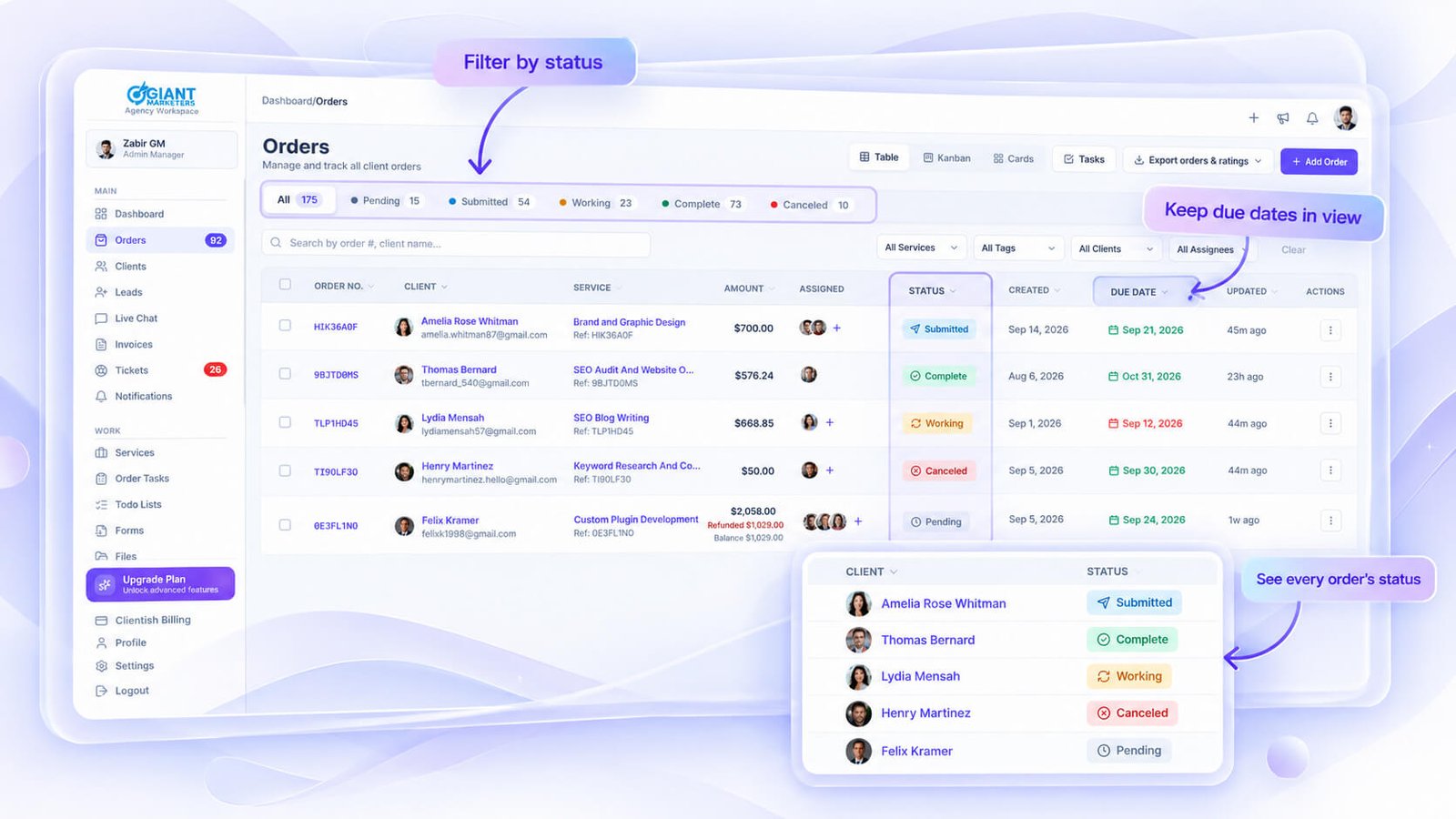
Clientish doesn’t ship with a fixed list of statuses you have to work around. Each workspace defines its own, so an SEO agency running monthly retainers can set up statuses that match how that work actually moves, and a design studio can do the same for something completely different. The status-change trail records every transition, so you always know how an order got to where it is now.
The Order History Log
Every order carries a per-order history log. If a status changed, an assignment was updated, or a note was added, that action sits in the log. You don’t need to chase down who did what or when — it’s there on the order record.
Filtering and Finding Orders
Status counters give you a quick read on how many orders sit at each stage without opening anything. From there you can filter to pull up exactly the slice you need — by client, by status, or by invoice — rather than scrolling through the full list.
Getting the Work Done: Assignment and Tasks
Once an order’s status is moving, the question becomes who’s doing what. Clientish handles that at two levels: who owns the order, and how the actual work inside it breaks down.
Assigning an Order
An order can be assigned to one or more team or remote members. That’s it — no elaborate routing rules, just a direct assignment on the order record. If you need to hand it off to someone else mid-project, you update the assignment. Anyone watching the order via the follow feature stays in the loop regardless of assignment.
Breaking It Into Tasks
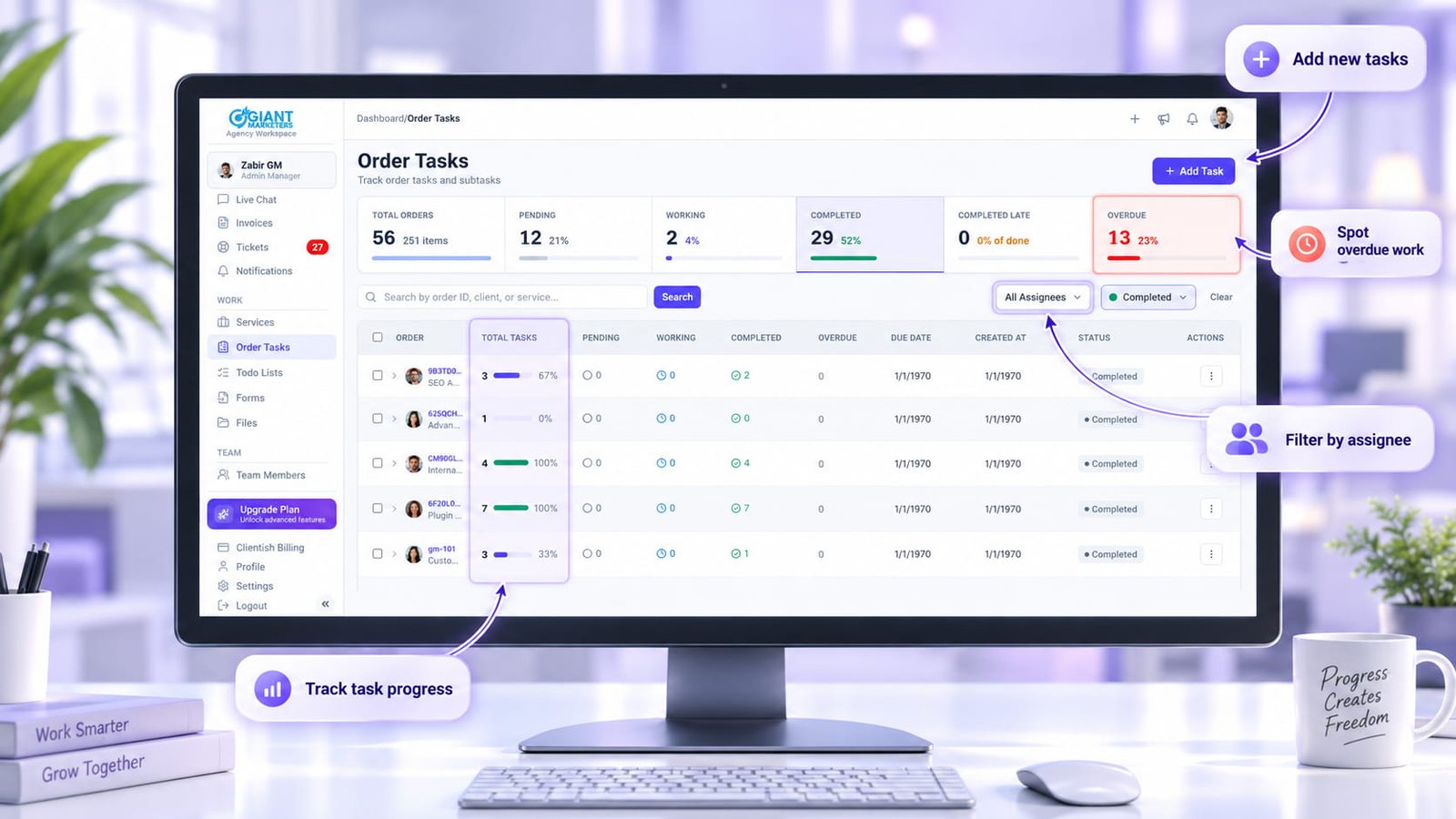
Within an order, work can be split into task items and sub-tasks. These aren’t generated automatically — you create them manually to match whatever the job actually requires. Each task item carries its own status: Pending, In Progress, Completed, Completed Late, or Overdue. You can edit, copy, or delete individual items as the work evolves.
Seeing All the Work
The dedicated Tasks screen pulls checklist items from across all orders into one view, grouped by order. You can filter by assignee (including Unassigned) to see exactly what’s sitting with whom, then use bulk actions to clean up or close out completed items. For a team juggling multiple active orders at once, this view is where you catch things that are slipping before a client does.
Communicating on an Order
Every order carries two separate message threads. They live on the same order record but serve completely different purposes.
The Client-Facing Thread
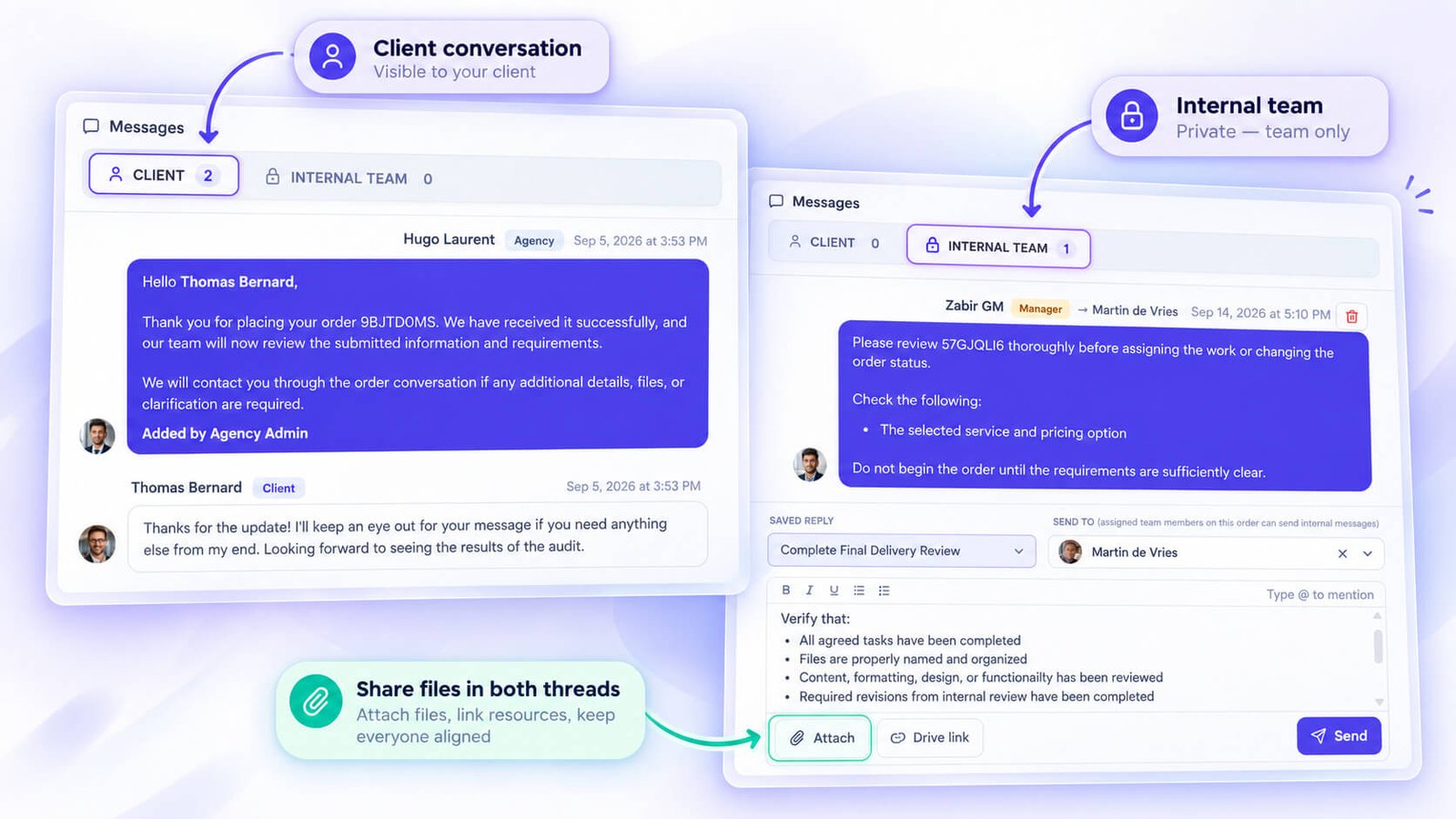
This is where you and the client exchange updates, ask questions, and share files. Anything posted here is visible to the client through their portal. Both sides can upload files directly in the thread, so you’re not hunting through email attachments to find what the client sent you last week.
The Internal Team Thread
This thread is for your team only — the client never sees it. Use it to flag issues, leave context for whoever picks up the order next, or attach internal reference files. Same upload capability, completely separate conversation.
Revisions and Completion
Every order eventually needs sign-off, and often a round or two of changes before it gets there. Clientish keeps that final stretch — revisions, starting and finishing the work, and the client’s rating — attached to the same order, so nothing about how a job wrapped up gets lost.
Revision Rounds
When a client needs changes, you advance the order through a revision round rather than creating a new order or managing it through a separate thread. Each round is tracked on the order record, keeping the full revision history in one place alongside the original brief.
The Shareable Order Link
Every order has a shareable portal link. You can send this to a client so they can view the order directly without needing to sign into your workspace.
Ratings on Completed Orders
Once an order is complete, clients can rate it. Those ratings are exportable, so you have a record you can actually use — whether for internal review or to show prospective clients.
Turning an Order Into an Invoice or Ticket
An invoice is created automatically when an order is created — you don’t need to do anything extra. By the time you open a new order, a linked invoice already exists against it, ready to send or collect payment on.
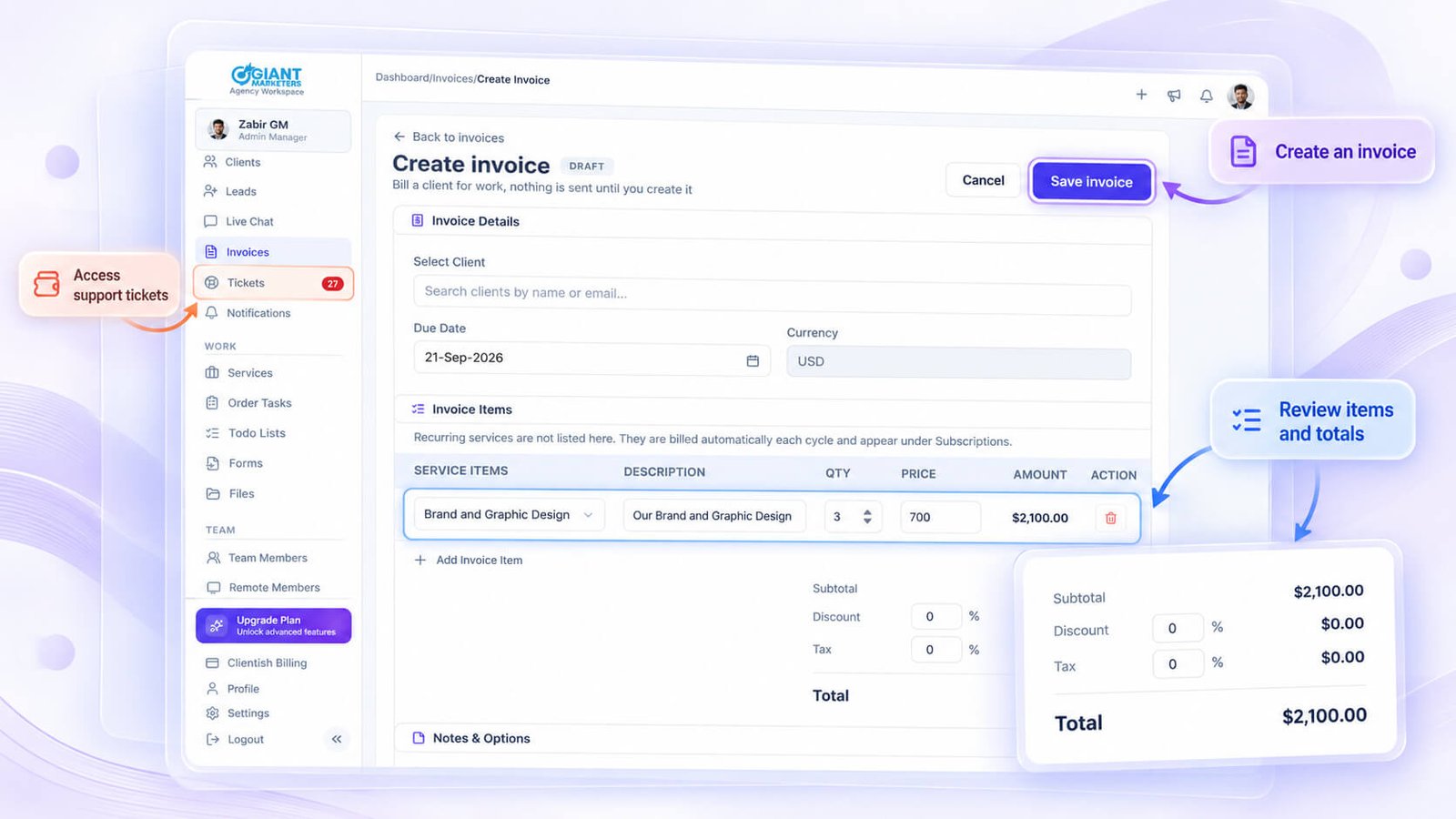
That automatic link is what keeps billing tied to the actual work. If you need to find all invoices for a particular client, you can view them from the client’s profile. If you need the invoice for a specific piece of work, it’s right there on the order record itself.
The ticket side works differently. Creating a ticket from an order is something you choose to do — typically when a client raises a support question about a delivered piece of work, or when something needs following up after completion. You initiate it from the order rather than starting a standalone ticket from scratch, which means the ticket carries context about the order it came from.
Both connections serve the same practical purpose: you don’t lose the thread between a client’s work, their bill, and any support that follows. Everything traces back to the original order record, so a team member picking up a support query can see what was delivered and invoiced without digging through separate systems.
Managing Orders at Scale
When you’re running a handful of orders, a simple list is enough. Once volume picks up, you need ways to slice, filter, and act on many orders at once — and Clientish covers that at several levels.
Creating and editing orders is straightforward: you can create, edit, duplicate, or delete any order. Duplication is useful when you’re starting a new order for the same service and client — the structure is already there. Bulk delete lets you clear out old records without going one by one.
Filtered views let you pull up orders by client or by invoice, so if a client calls with questions, you’re looking at their work within seconds rather than hunting through a full list.
Tags give you a flexible way to categorize orders outside the status pipeline. You can search by tag, which makes them practical for things like priority tiers, service types, or campaign groupings — whatever labeling makes sense for how your agency works.
Follow lets any team member watch a specific order for updates. Useful when a senior needs visibility on a job without being the assigned owner.
Import and export round out the scale tools. You can bring existing orders in from a spreadsheet and export your order data out — handy for reporting, handoffs, or keeping records outside the platform.
None of these are particularly glamorous features, but they’re what make the difference between a system that works for 10 orders and one that still works at 200.
Frequently Asked Questions
A few questions come up again and again about how orders actually behave day to day. Here are the short answers.
How is an order created in Clientish?
An order is created in one of three ways: a client pays through a shareable payment link tied to a service, submits an order form, or you create one manually from inside the workspace when work was agreed outside Clientish entirely.
What information does an order hold?
Each order stores the service details, intake answers (project data submitted by the client), notes, tags, assigned team members, tasks, a client-facing message thread, a separate internal team thread, status history, and a timeline log. Intake answers can be edited after the order is created, downloaded as a PDF or file bundle, and individual fields can be removed.
Can I set my own order statuses?
Yes. Clientish lets you define your own statuses per workspace. There’s no fixed list to work around, and every status change is recorded in the order’s audit trail.
How do I assign order work to my team?
You can assign an order to one or more team or remote members. For the work inside the order, tasks and sub-tasks can be created and assigned individually, and the dedicated Tasks screen aggregates these across all orders so nothing slips through.
Can clients and my team talk on the same order?
Both threads live on the same order record, but they’re separate. The client message thread is visible to the client through the portal; the internal thread is for your team only. Both support file uploads.
Does creating an order create an invoice automatically?
Yes. An invoice is generated automatically when an order is created, so you don’t have to create one manually afterwards.
Can clients rate their orders?
Clients can rate a completed order, and those ratings are exportable.
If any of these answers surfaced a gap in how you’re currently tracking client work, the full lifecycle walkthrough above covers each stage in more depth — from the moment an order is created through to delivery, billing, and feedback.
Final Thoughts
Once you’ve seen an order move from a client’s payment through assignment, task tracking, client messages, revisions, and a final rating — all sitting on the same record — it’s hard to go back to chasing status updates across email and spreadsheets.
The thing that makes Clientish order management practical for agencies is that nothing gets orphaned. The invoice connects to the order. The tasks connect to the order. The client conversation and the internal thread both live there. You don’t have to reconstruct the history of a job when something changes mid-project.
If you want to see how it works for your agency’s actual services, Clientish offers a 14-day free trial with full feature access — worth walking through with a real order or two rather than a demo dataset.

