

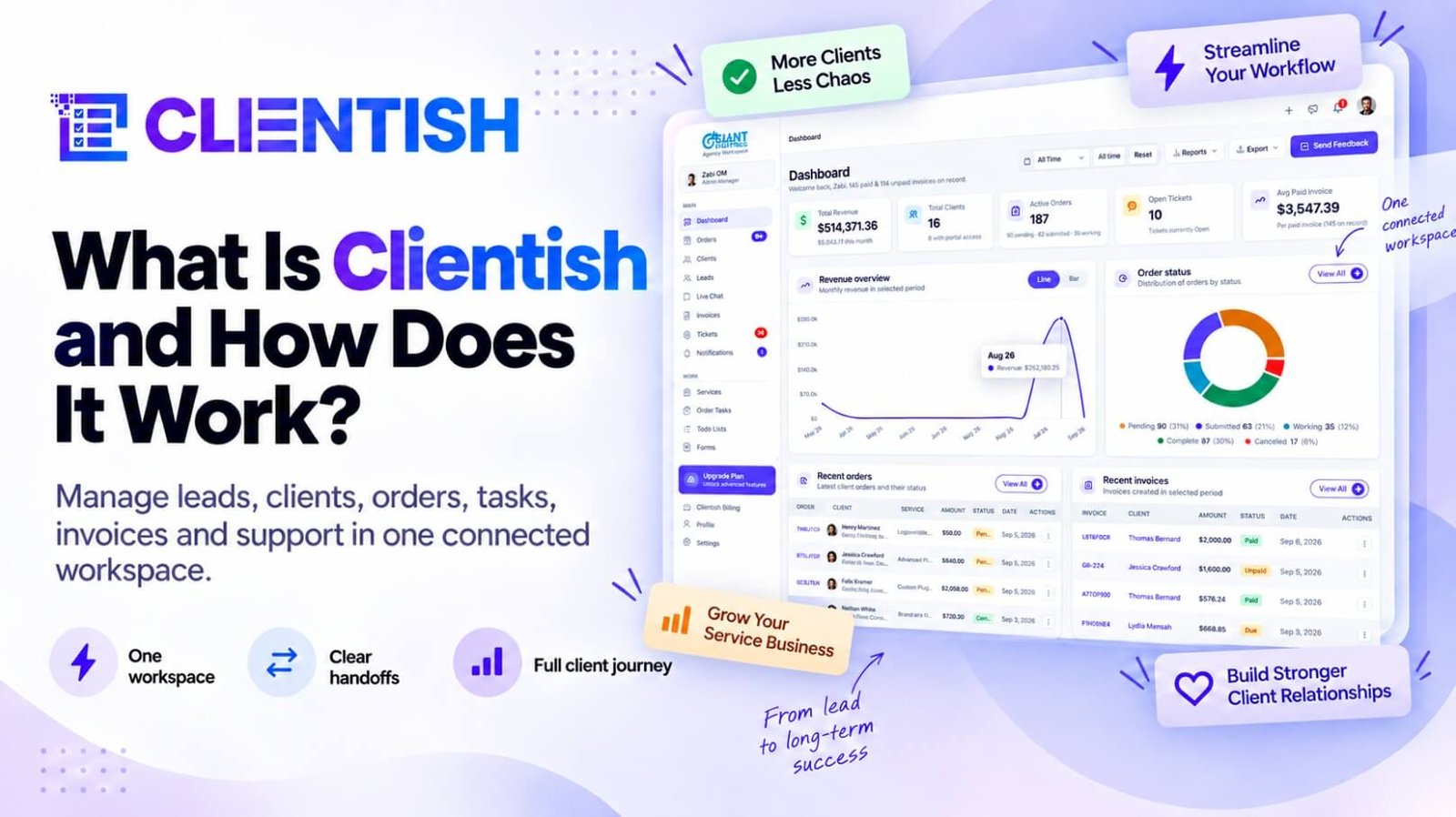
Clientish is an all-in-one client management portal for agencies, freelancers, consultants and service-based businesses: leads, proposals, a branded client portal, orders, invoices and subscriptions, support tickets and live chat in one place. I built it because I kept watching good agencies lose clients in the gaps between six tools.
This page is the long answer to “what is Clientish?”. It covers who it’s for, how a client moves through it from first enquiry to paid invoice, every part of the product including the features added in autumn 2026, what it costs, and the things it deliberately doesn’t do.
Key takeaways
- Clientish runs the whole client relationship in one workspace: leads, proposals, orders, delivery, billing, support and the client’s own portal.
- It’s built for agencies first, and fits freelancers, consultants and any service-based business whose clients come back.
- Each client signs in to a portal that carries your brand, and can install it on their phone like an app.
- New this autumn: an inbox for WhatsApp, SMS and Telegram, automations, an AI assistant, client teams, recurring work and imports from other tools.
- Plans start at $9.99 a month, and the 14-day free trial opens every module without asking for a card.
The Problem Clientish Solves
Here’s the pattern I see again and again. A lead comes in through a website form and lands in one person’s inbox. The proposal goes out as a PDF. The client pays through a link nobody can find later. The brief lives in an email thread, the files in Drive, the feedback in WhatsApp and the invoice in a separate billing tool. Every handover between those tools is a place where something gets dropped, and the client feels each one.
None of that is a talent problem. The work itself is usually good. What breaks is the glue: who follows up, where the latest file is, whether the invoice went out. Three months into a relationship, the team is rebuilding a client’s history from half a dozen places every time that client gets in touch.
I didn’t want to build a seventh tool on top of that pile. I wanted the client to have one door, and the agency to have one record behind it.
What Is Clientish? A Simple Definition
Put simply, Clientish is the operating layer around your client work. It doesn’t design the logo or write the blog post; it handles everything that wraps around the work, from the first enquiry to the final rating. The table lists every part, so you can see the whole product at once before we go through it piece by piece.
| Part | What it does for you |
| Leads | Captures enquiries from your site, ad forms and booked calls, then follows them up |
| Proposals | Designed proposals that turn into a client, an invoice and an order when accepted |
| Clients | One record per client with orders, invoices, tickets, balance and activity |
| Services and orders | A catalogue clients buy from, with intake forms, revisions and delivery approval |
| Tasks and team | Task lists per order, roles and permissions, freelancers, time tracking and workload |
| Communication | Live chat, an inbox for WhatsApp, SMS and Telegram, and an internal team messenger |
| Billing | Invoices, subscriptions, auto-pay, coupons, balances, refunds and tax |
| Support | Tickets with reply targets, plus a help center for your clients |
| Reports and exports | Revenue, services, clients and orders, with your data always exportable |
| Automations and AI | “When this happens, do that” rules, an AI assistant and a Claude or ChatGPT connector |
| Client portal | Your branded space where clients buy, follow work, pay and ask for help |
Everything in that table shares the same records. A lead becomes a client without retyping, an order knows its invoice, and a ticket knows which order it’s about. That shared record is the whole point.
Who Is Clientish For?
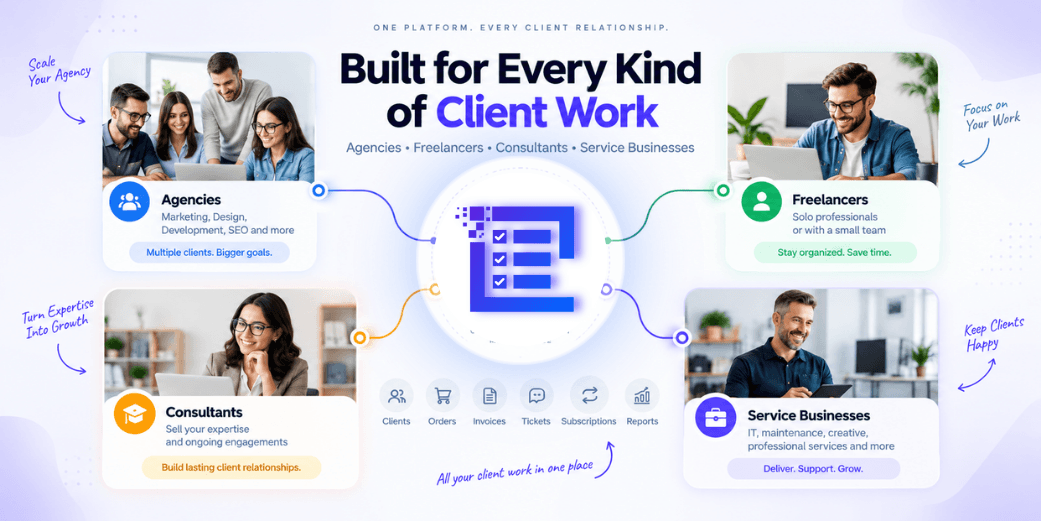
I built Clientish first for agencies, because that’s where the juggling hurts most: ten clients, five people, three services each. The same shape fits a lot of other businesses, though, and the sections below cover the ones I hear from most.
Agencies
Marketing, design, development and SEO agencies get the quickest win, because the order flow (brief, assignment, delivery, invoice) is already how their projects move. Several people can work on one order, clients get a branded portal, and nothing falls between departments.
Freelancers
A solo freelancer gets the same lead capture, client records, orders, invoicing and support as an agency, just without the team settings they don’t need. The main gain is looking established: a branded login on your own address reads very differently from a pile of email threads.
Consultants and consultancy firms
Consultancies tend to mix one-off projects with long retainers. Clientish handles both through one-time and recurring pricing, a per-client activity log and a billing history that stays tidy across years of work with the same client. A consultant who has worked with the same company for three years can open one record and see every engagement, invoice and support question since the first proposal.
Service-based businesses
Any business that sells a service and delivers it to a client fits the same pattern: bookkeepers, coaches, studios, virtual assistants, HR and legal support firms. If your clients buy, wait for something, ask questions and pay again next month, the flow is the same.
Internal service teams
Teams inside larger companies (IT, operations, client success) that take requests, assign them and close them out can use the order, task and ticket parts in the same way, with colleagues in the place of clients.
If your work is mostly one-off jobs for people you never hear from again, I’d tell you plainly that Clientish is more than you need.
How Clientish Works, From First Enquiry to Paid Invoice
Before the detail, here is the client workflow from lead to delivery in one line: lead, proposal, client, order, team, tasks, conversation, delivery, invoice, payment, support. Every step hands over to the next inside the same workspace, so there’s no export from one tool and import into another.
- A prospect arrives as a lead, from your site, an ad form or a booked call.
- You talk, send a proposal, and when they accept, the lead becomes a client with an invoice and an order.
- The order collects the brief, goes to the right people and gets broken into tasks.
- The client follows progress in their portal, talks to your team and approves the delivery.
- Invoices, renewals and support questions stay attached to the same client record.
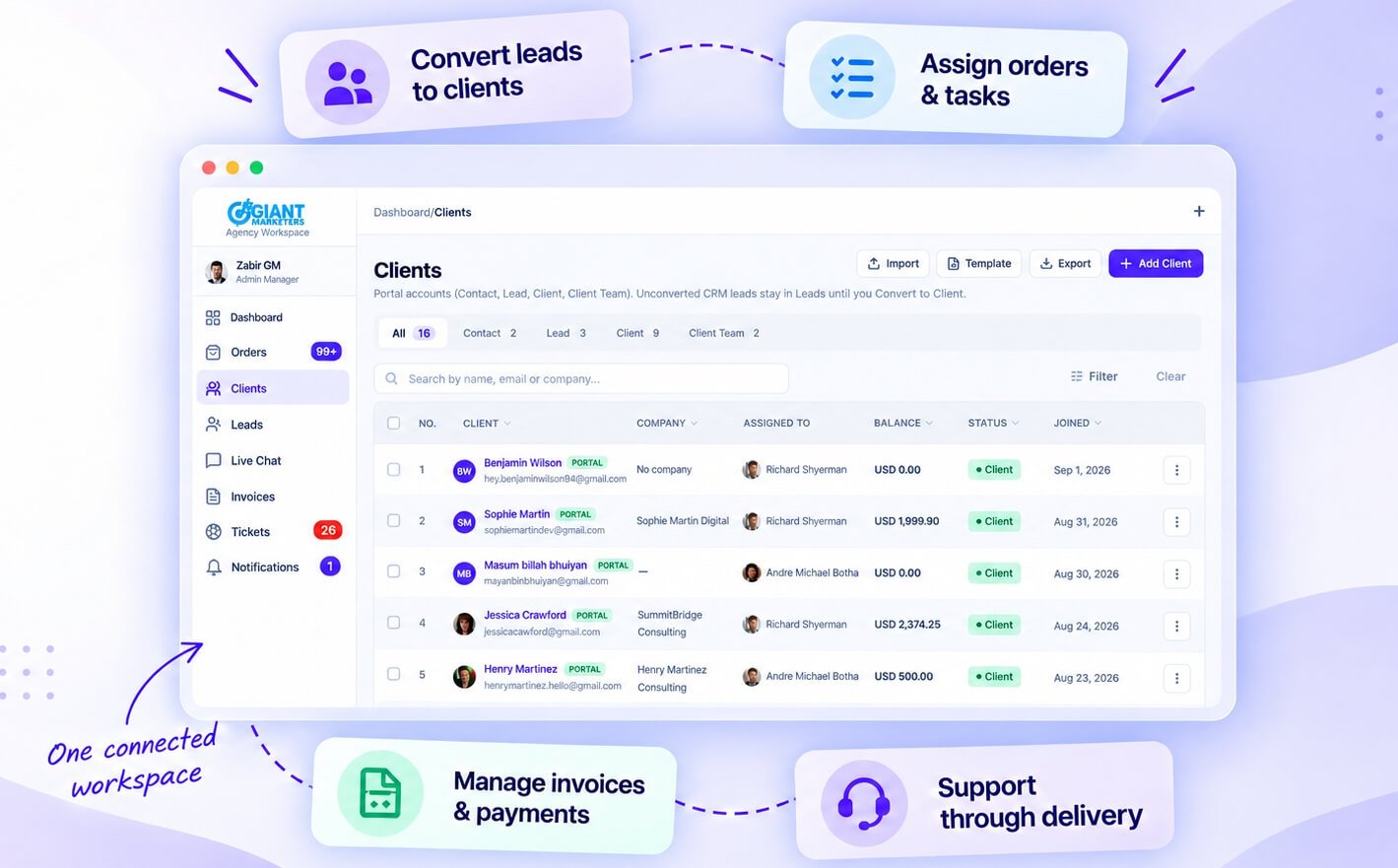
The rest of this page goes through that journey part by part, starting with where clients come from.
Leads: Catching Enquiries Before They Go Cold
The gap between “someone got in touch” and “they signed” is where most work quietly disappears. Leads in Clientish keep every prospect in one pipeline with the people assigned, a value and a full history, so nobody has to remember who promised to call back.
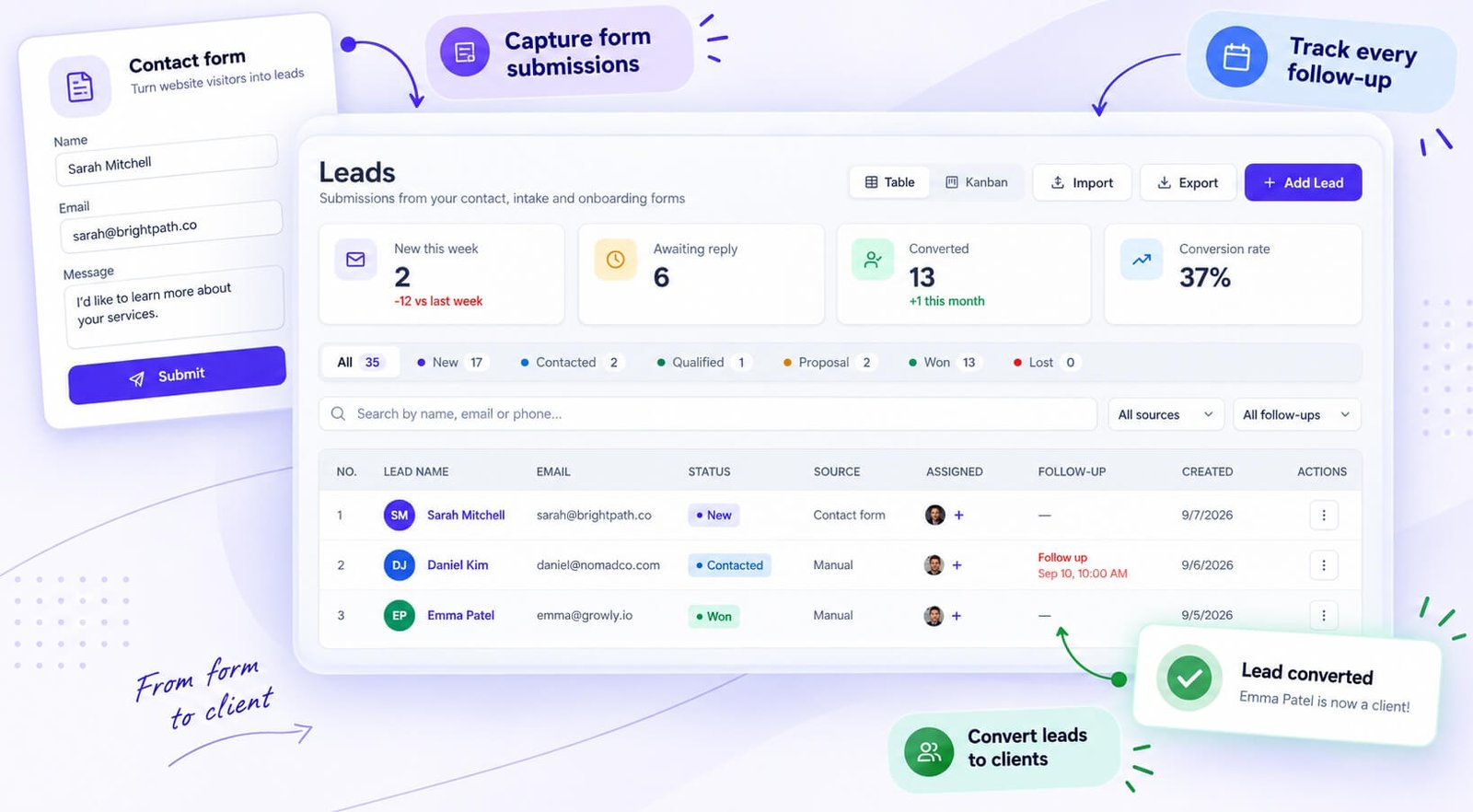
Lead records and website capture
Each lead has the people assigned to it, a status, a source, an expected value and notes, so you can see at a glance who’s responsible and what the deal might be worth. A Clientish contact form on your site creates the lead automatically and emails the visitor a private chat link; other forms can create leads through the API. By the time you see the enquiry, the record is already waiting.
Leads from ads and booked calls
Two newer sources save a lot of copying. Leads from Facebook and Instagram Lead Ads land straight in the pipeline and ring the bell for the team. And if you use Calendly or Cal.com, a booked call becomes a lead too, carrying the brief the person filled in and a place to record how the call went. I added these because I kept seeing agencies paste ad leads from a spreadsheet every Monday.
Follow-up reminders
Follow-up reminders fire in your workspace’s timezone and reach the people you pick in the app, so they don’t vanish into an inbox nobody reads. Set one as you end a call (“check back Thursday”), and on Thursday morning it turns up for the right person. Most lost deals I’ve seen weren’t lost to a competitor; somebody simply forgot to call back.
Scheduling and tracking lead emails
You email a lead from inside the record: send now or schedule it, cancel a scheduled send, and retry one that failed. Open tracking tells you whether they opened it, and the email history shows whether each email was delivered, opened or bounced.
Magic-link lead chat
Early in a sales conversation, asking someone to create an account is a good way to lose them. So every lead gets a private chat page behind a unique link. They open it and talk; no sign-up. A link shared by mistake can be renewed, and old ones expire on their own.
Activity timeline per lead
Every lead keeps an activity timeline of emails, follow-ups and chat messages, which is what saves you before a call with someone you haven’t spoken to in two weeks. The timeline earns its keep when a lead changes hands, too: whoever takes over reads it instead of asking a colleague what was said. I’d read it before every follow-up call, because the lead remembers what you promised last time, even when you’ve forgotten.
Duplicates, value and trash
If the same person comes in twice, Clientish flags the duplicate: merge them, or mark them Not a duplicate to hide the warning. Beside the expected value, a lead now shows its actual value, the amount really paid on the invoice it turned into. Deleted leads wait in a Trash for 30 days before they go for good.
Converting a lead into a client
Once a lead is ready, one action turns them into a client, and their sales history comes along, so the account manager who picks them up doesn’t start from a blank page. The conversion also ends the double entry where sales keeps one record and delivery creates another. From that moment, orders, invoices and tickets attach to the same person the lead record described.
Importing and exporting leads
Leads can be imported from a spreadsheet using a template and exported at any time, so a migration from another CRM doesn’t mean starting over. Download the template, paste your columns in and upload, and your pipeline is back where it was. The export works the other way, for a mailing, an accountant or a backup you keep yourself.
Proposals That Become Paid Work
A proposal is usually where a deal stalls: a PDF goes out, a week passes, and nobody knows whether it was opened. In Clientish a proposal is a live page your client reads, signs and pays from, and accepting it sets the work in motion.
Designs and templates
You pick from a range of design styles and add packages, so the client can choose a tier instead of asking for a new quote. There are ready-made templates for common agency and freelancer services, and you can save your own as templates for next time. I wanted a proposal that looks like you put an afternoon into it, built in ten minutes.
From “yes” to work in progress
Acceptance creates the client’s account, the invoice and the order in one step, with an optional deposit if you ask for part of the fee up front. Signing takes a typed name and job title, and Clientish stores that with the IP address it came from. Proposals go to existing clients and to leads alike.
Knowing where it stands
Clientish shows when the client opened the email with your proposal, and sends reminders on a schedule you pick. If you change the prices after sending, the proposal is marked as updated and the client is told, so nobody accepts a number that’s no longer right.
Setting Up Your Workspace
Once leads and proposals are in place, the workspace itself needs to look and behave like your business. Setup is short on purpose; you shouldn’t spend a week configuring software before your first client sees it.
Sign-up and the setup checklist
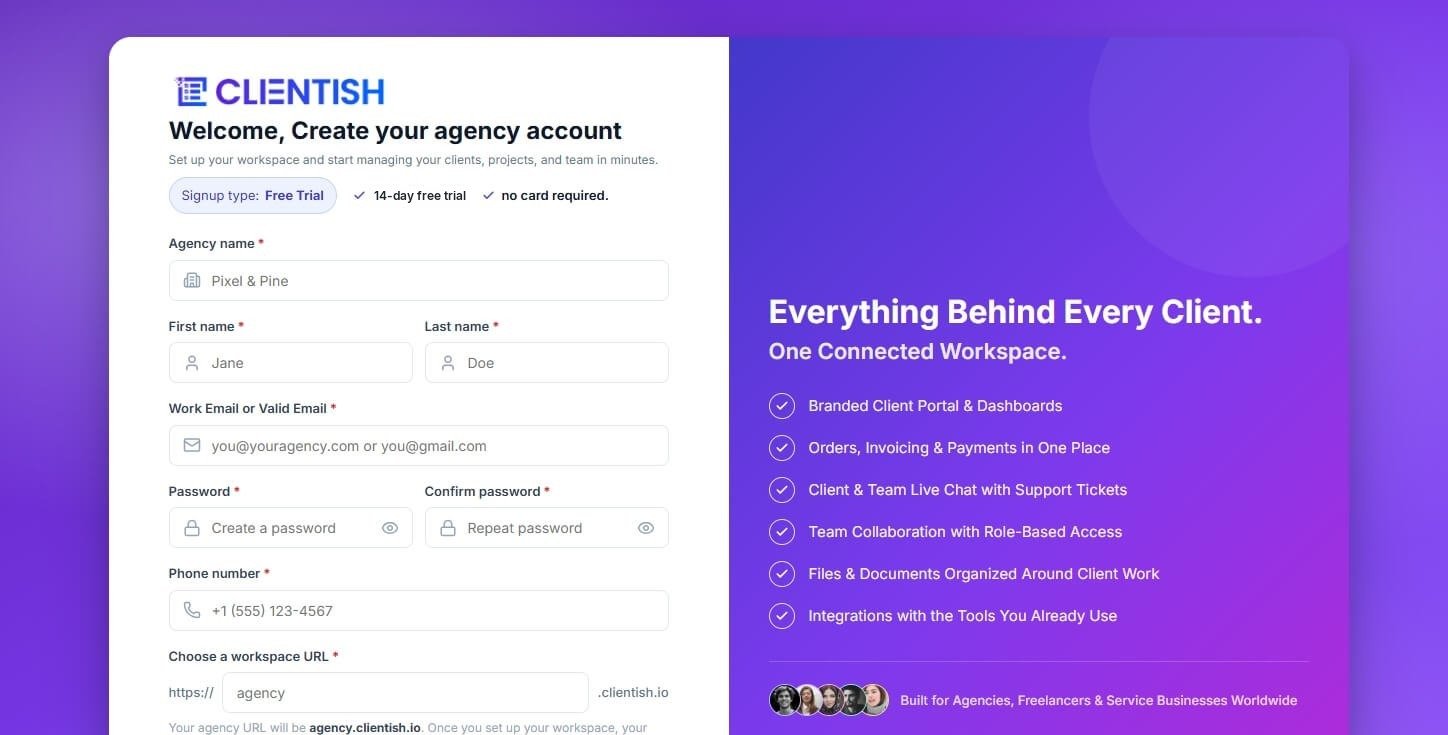
Sign-up asks for your agency name and workspace address and four short questions, and a “Set up your workspace” checklist on the Dashboard walks you through branding, email, payments and team. It’s a few steps, not an interview, and it gets you to a workspace that already looks like yours before you invite anyone. Signing up and signing in with a Google account works too.
Your address: workspace subdomain and your own domain
Every workspace gets its own Clientish address, where your team signs in and your clients reach their portal. Prefer clients to see your own domain, such as app.brightwavestudio.com? Point it at your workspace with one DNS record, wait for the certificate to switch on by itself, and carry on: the Clientish address doesn’t stop working. Both work at the same time, so you can switch whenever you’re ready.
Logos, favicon and brand colour
Branding goes further than one logo. You upload a light and a dark version of your logo, a favicon for the browser tab, and a brand colour that runs through the interface. A client signing in sees your identity on every screen.
Currency, timezone and service categories
Currency and timezone shape how invoices are calculated, when reminders fire and how dates read across orders, tickets and logs. Getting the timezone right on day one saves a lot of “why did this arrive at 3am?” later. Service categories are set here too; they work like folders that keep your catalogue easy to browse once it grows.
Inviting your first teammates
Invite people before any client work starts; each invitation sends a welcome email, and it can be resent. Staff are added under Team Members, and freelancers or contractors under Remote Members; the two groups use separate sign-in pages and begin with different access. Permissions are set per person in a grid, with a “restore to role defaults” button for when you’ve changed too much.
Demo data
A new trial workspace comes filled with example clients, orders and invoices, so you can explore before entering anything real. I added it because an empty workspace teaches you nothing: with example records in place, you can open an order, see how an invoice links to it and watch a client record fill up before you’ve typed a single real name. When you’re ready, Clear example data removes it in one click.
Managing Clients in One Place
When a lead converts, they become a client record, and that record is where everything about the relationship lives. I think of it as the page you open before any call with that client: one screen, no hunting.
The client record
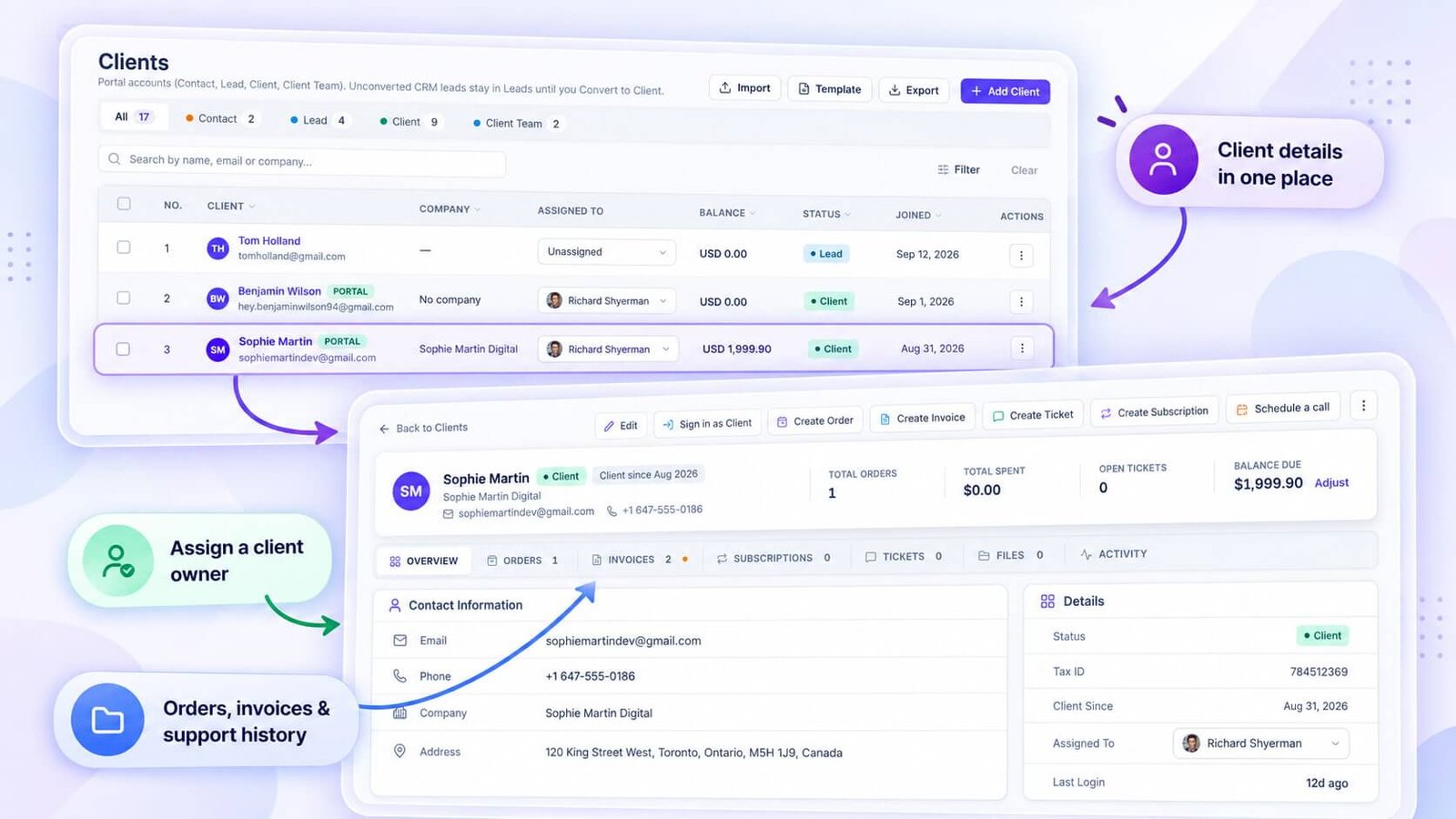
Each profile holds the basics (name, email, phone, company, billing address, avatar) plus internal notes like “prefers calls on Tuesdays”. What makes it more than an address book is the context around it: balance, lifetime spend and status sit at the top, so you know whether this is a new account or a five-year client before you read a word.
Status, assigned team and balances
Every client has one of four statuses (Contact, Lead, Client, Client Team), and a Lead who pays for an order moves to Client automatically. You assign one or more team members to the client, which ties responsibility to people and lets you filter the client list by who’s handling what. The balance shows any credit the client has paid in advance.
Tabs for orders, invoices, tickets, files and activity
Under the profile, tabs hold everything connected to that client: orders, invoices, subscriptions, tickets, files and an activity log of everything that has happened. Six months later, when a client comes back, that log is how you reconstruct the story in a minute.
Importing, merging and moving from other tools
Clients come in from a spreadsheet using a template, de-duplicated by email, and duplicates that slip through can be merged into one record. Leaving ClickUp, Asana, Monday.com, Trello or Notion? A guided import carries clients, their work and the comments on each task into Clientish, and a CSV or Excel export from anything else is accepted as well. I spent a lot of time on this part, because “we’d switch, but moving everything is a nightmare” was the most common reason I heard for staying put.
Signing in as a client
From a client’s record you can send a password reset link, and, more usefully, sign in as them. Their portal loads exactly as they see it, with a banner only you can see, and one click takes you back. So the next “where’s my invoice?” call takes seconds: you see the same screen they do.
Filters and bulk actions
The client list filters by status, and the filters live in the page address, so you can bookmark a filtered list and your weekly check-in list is one click away. Bulk actions change status, assign a team member or send welcome emails to many clients at once, without opening records one by one.
Client teams
Bigger clients rarely have one person. A client can now invite their own colleagues to the portal, each with their own permissions: one may order but not pay, another may only view invoices. It solves a common problem with larger accounts: the marketing manager orders, finance pays, and the founder only wants to see invoices. Each person gets a login under the same client account, so nobody passes one password around the client’s office.
A client dashboard you arrange
You decide what clients see at the top of their portal dashboard, by group: someone who has bought a service sees different blocks from someone who hasn’t yet. A client who hasn’t bought yet can be pointed towards your services, while a retainer client sees their own work first. The first screen a client lands on shapes how they use the portal, so it’s worth ten minutes to set it up for each group.
Selling Services and Taking Orders
With clients in place, the next question is how they buy. Clientish treats selling and delivering as one flow: you build a catalogue, a client orders, and that order becomes the place where the brief, the work, the conversation and the billing all meet.
Your service catalogue
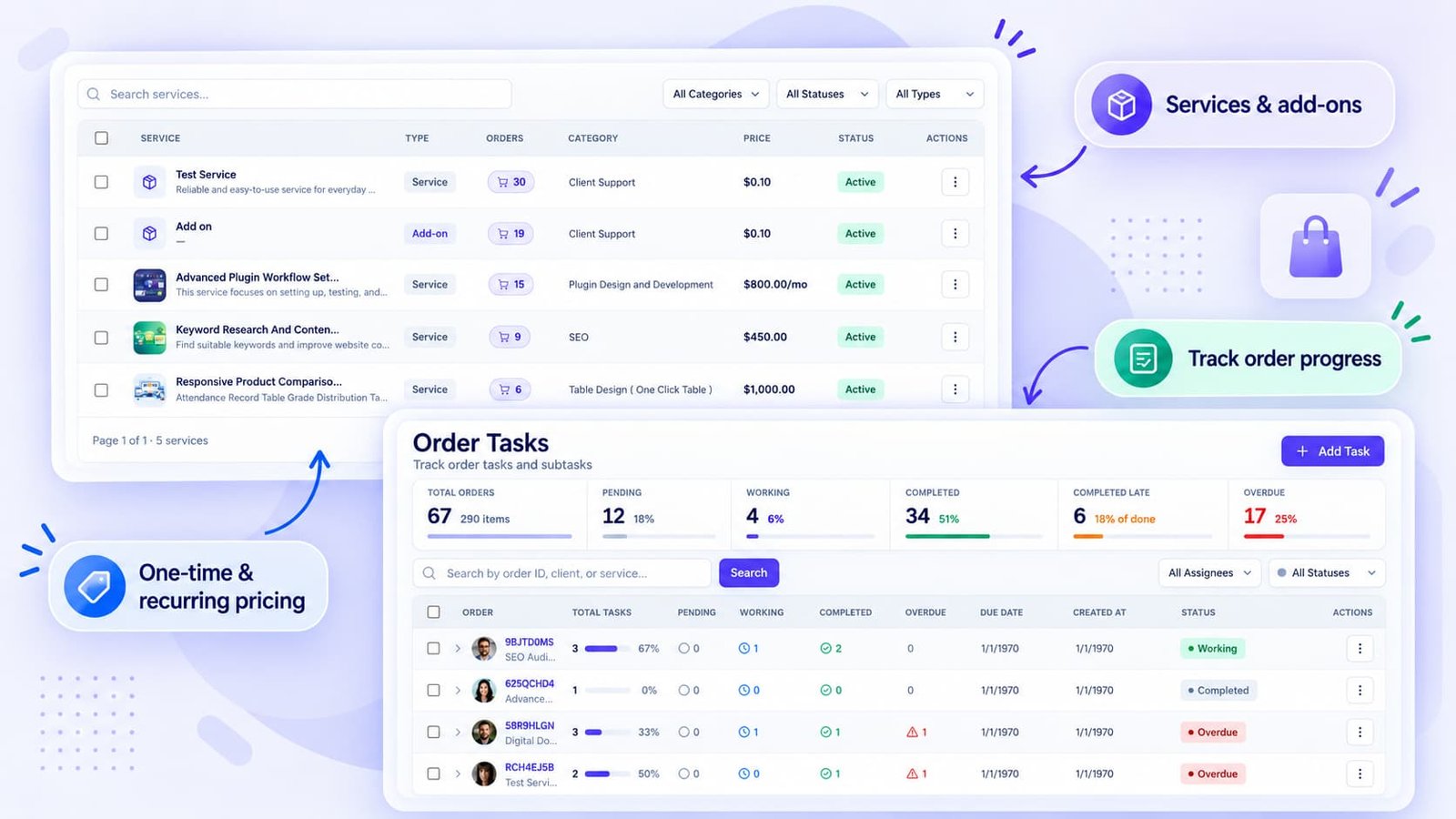
Each service has a name, a pricing type (one-time or recurring), a deadline, the team members it’s assigned to by default and a status. Public services show in the portal, Draft ones stay hidden while you work on them, and Archived ones are retired without losing their history.
Folders and categories
As a catalogue grows, folders and categories keep it easy to browse on your side; clients only see the services you’ve made public. A full-service agency can keep SEO retainers apart from one-off design work instead of scrolling one long list.
Add-ons, quantities and multiple orders
Most productized pricing fits without a separate listing for every variation. Add-ons cover optional extras like rush delivery. Pricing options sell “5 blog posts” and “10 blog posts” from one service. And a client can order several things in one checkout.
Payment links for a single service
Every service has its own payment link you can drop into an email or a chat. The client pays from the link without browsing the portal, which suits one-off work where a full sign-in feels like too much. It’s also a quick way to sell to someone who isn’t in your portal yet: they pay from the link, and the order follows for your team to pick up.
Intake forms with conditional logic
Each service can carry its own intake form, with text, long text, dropdowns, checkboxes, radio buttons, file uploads and dates. Conditional rules show a question only when an earlier answer calls for it, so a logo client gets asked about file formats and a blog client doesn’t. Clients who skip the form get a nudge on whichever days you set.
The order at the centre
Once something is bought, everything about it lives in the order record: the brief, the people assigned, the status, notes, tags, tasks, two message threads (one with the client, one for your team only), revision rounds, the client’s rating and the linked invoice. You name the stages yourself, the client watches a progress timeline move through them, and on delivery they approve or ask for changes right there on the order.
Statuses you name yourself
Orders move through the stages you define, not a fixed “In Progress / Done” pair. A content agency might run Brief received, Writing, Editing and Published, while a dev shop uses its own steps. The tabs on the orders screen show how many orders sit in each status, so a pile-up at one stage is visible the moment it starts.
Two conversations on every order
Each order carries two threads side by side. One is with the client, for updates, questions and handing over the finished work; your team attaches files there, and clients share theirs as links. The other belongs to your team alone, which is how a designer can write “their logo is low-res, ask for the vector” without it ever reaching the client.
Revisions and order ratings
If a delivery isn’t quite right, the client asks for a revision on the order itself instead of starting a new email chain. Your team starts the revision and marks it done when the changes are in, so each round stays with the job it belongs to. With Lock completed orders switched on, a client has to request a revision before anything reopens. With ratings switched on, a finished order gets one to five stars from the client, and you can export those scores whenever you want to review them.
Intake answers as a PDF or a ZIP
The brief a client submits stays inside the order, and you can take it out when you need to. Export PDF saves every answer as one document, and Download Files collects the uploaded files into a single ZIP. That’s handy when you pass a job to a freelancer who needs the brief and the assets but nothing else.
Notes, tags and finding an order
Notes on an order hold the quick facts your team keeps checking, like an access detail or a deadline the client moved. Tags label orders by campaign, priority or anything else that matters to you, without inventing a new status for each case. The orders screen switches between three views and filters by status, service, tag, client or team member, so “every rush order for one client this month” is a single filter away.
Duplicating an order
Some clients order the same thing again and again. Duplicate copies an existing order into a new one with a fresh status and its own unpaid invoice, so you don’t set it up again from scratch; add the assignees again on the copy. For work that repeats on a fixed schedule, the recurring work feature below does the same job without anyone clicking.
File proofing and Google Drive
For visual work, file proofing lets clients review a file and ask for changes on it. Each order can carry the Google Drive folder it’s delivered in, and your team can hand work over as a Drive link where uploading a large file makes no sense.
Recurring work
Retainers mean the same work every month. Recurring work repeats orders and tasks on a schedule you set, so the March social media order appears on its own without anyone duplicating February’s. Think of it as the delivery side of a retainer. Billing renews in the subscriptions section, and recurring work makes sure the order and its tasks are there for the team. Set the schedule once when the retainer starts, and it carries on until you change it.
Getting the Work Done: Tasks and Team
Orders tell you what was sold; tasks and team settings decide who does it and by when. This is where a list of client orders turns into managed work.

Tasks inside every order
Split an order into the steps it really takes, hand each step to the people doing it, and follow it through five states: Pending, Working, Completed, Completed late or Overdue. The last two set themselves when a deadline passes, so slipped work shows up without anyone having to flag it. Tasks can be copied, edited or deleted.
One screen for every task
The Tasks screen gathers every task across every order, grouped by order so you keep the context. Filter by assignee (including Unassigned), and see status across the agency at a glance. For a team with more than a handful of live orders, this is where the morning check-in happens.
Workspace-wide status boards
Workspace-wide boards cover orders, tasks, tickets, clients, to-dos and chats, and each can be exported. They answer the Monday question, “what’s open across the whole agency?”, without asking five people. In a busy week I’d keep one open on a second screen; a ticket that has sat since Thursday is hard to miss when it’s on a board in front of you.
Each member’s own page
Every team member also has a page showing their assigned clients, orders, tasks, tickets and activity, which is the page I’d open before giving anyone more work. It’s also the fairest place to start a one-to-one: you’re both looking at the same list of clients and tasks, not a feeling about how busy someone seems. The Workload tab puts every person side by side.
Workload
The Workload tab on Team and Remote Members answers one question: who has how much on right now. It’s the quickest way to spot the person quietly carrying twice the load of everyone else. I’d check it before saying yes to a rush job. When everyone is already full, the right answer for the client is a later date, not a promise the team can’t keep.
Your in-house team
Team members get their own login and appear in assignment lists across orders, tasks, clients and tickets. Invite, edit, put them on hold or remove them, resend a welcome email, reset a password, keep notes on a member and sign in as them to see their exact view when a permission question comes up. Departments and designations keep a larger roster readable.
Roles, permissions and co-admins
You build your own roles from presets, then adjust permissions for individual people in a grid, with a way back to the role’s defaults. A junior account manager doesn’t need billing; a designer doesn’t need every client’s full profile. Co-admins get elevated access without the owner’s full control, and you can take that back at any time.
Remote members and contractors
Freelancers and contractors sign in through their own door with their own permissions, separate from your staff. Each one can carry a remote status label you define, such as Contractual or Temporary, which helps when you scale up for a busy month and back down after.
Time tracking with client approval
Freelancers on your remote team log hours with a running timer or as manual entries, priced at the rate you agreed, and those entries add up to timesheets. Before any of it is invoiced, the client signs off the hours report, so disputes about time get settled up front rather than after the bill.
Suspending or removing someone
When someone leaves, put them on hold first (suspend, for remote members). That blocks access but keeps their history, assignments and records intact, and you can restore them if they come back. Removal is permanent. That difference matters for your records, because a removed member’s name shouldn’t vanish from orders they delivered last year. A freelancer who works with you a few months each year is the classic case: suspend them between projects.
Talking With Clients and Your Team
Once work is moving, conversation is what keeps it moving. Most agencies spread it across email, Slack, WhatsApp and a ticket tool. Clientish brings it into one workspace but keeps the channels apart: client-facing chat, an inbox for messaging apps, threads on each order, and an internal messenger the client never sees.
Live chat in the portal
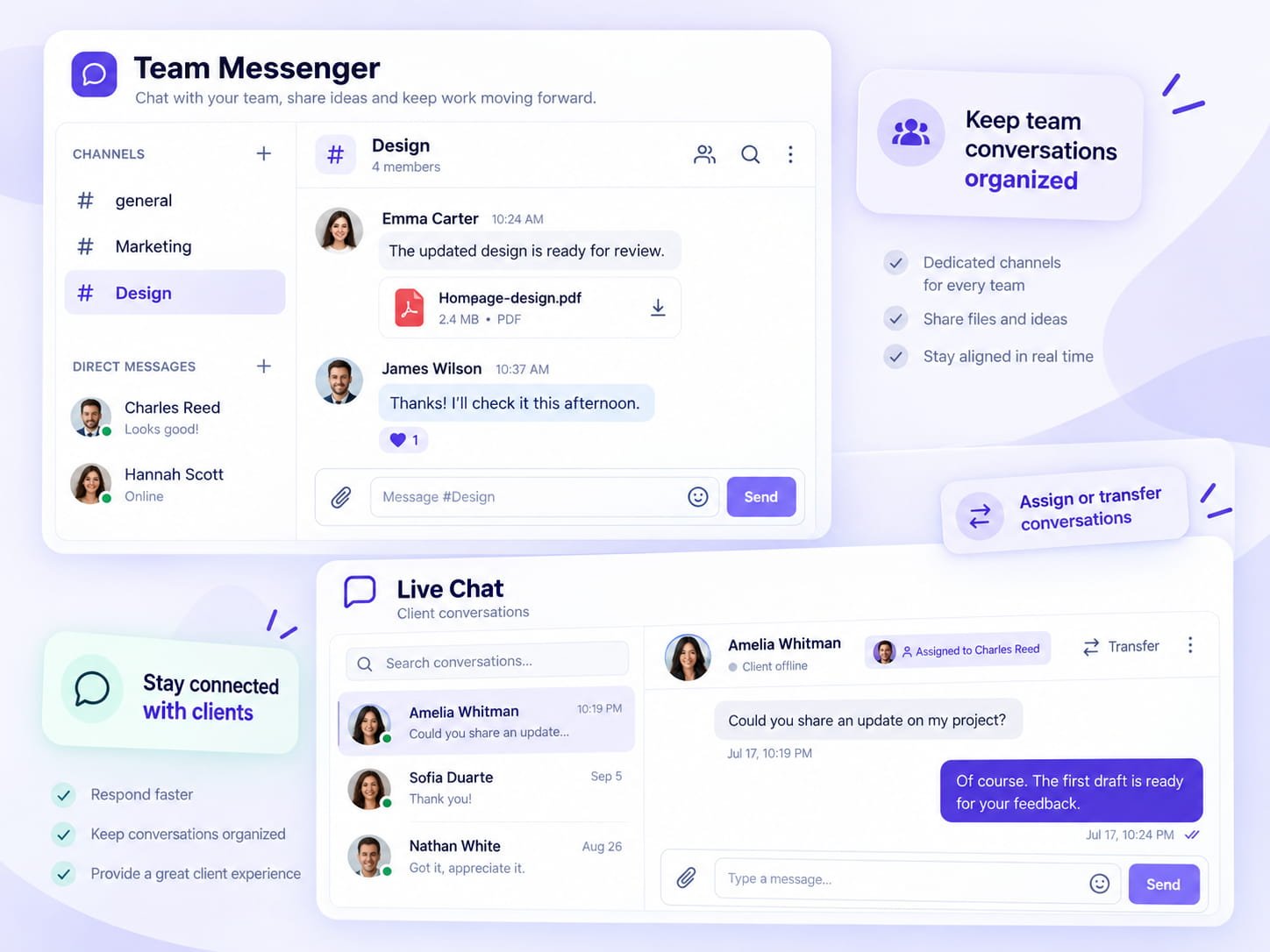
Clients signed in to the portal can start a live chat, and your team answers from the workspace. It’s built for quick questions and status checks: files and screenshots can be shared, both sides see typing, and messages can be edited or deleted. Live chat is on Starter plans and above.
Read receipts, pins and search
Read receipts tell your team whether the client has seen the last reply, which answers “did they get my message?” before anyone asks. Important conversations can be pinned so they stay in view, and search inside a conversation finds the line where a client approved a price three weeks ago.
Emailing a client from the chat
If a client goes quiet, you can email them from the chat’s details panel, and the message lands in their inbox. It’s the polite nudge for someone who asked a question and then closed the tab. Clients don’t always keep the portal open, and an email reaches them wherever they are. It works best as a short note pointing them back to the conversation.
Out-of-hours auto-reply and transfers
Outside business hours an auto-reply sets expectations: a client writing at 9pm reads that the team is back in the morning, instead of wondering whether anyone saw the message. During the day, a chat can pass to the colleague who knows billing or the technical side, and the client doesn’t have to repeat themselves to the new person.
AI that answers when nobody can
Set a wait of 1 to 60 minutes and AI steps in on any chat still unanswered by then, which means a question sent at midnight doesn’t sit there till morning. Your team picks the conversation up in the morning with everything in view.
Inbox for WhatsApp, SMS and Telegram
Clients don’t always email. Many agencies tell me their clients message on WhatsApp first, and I got tired of seeing those chats copied into a project tool by hand. The Inbox puts WhatsApp, SMS and Telegram conversations next to live chat, one thread per person. WhatsApp connects through Meta, Twilio or a QR scan.
Previews for Loom, Figma and Frame.io
Paste a Loom, Figma or Frame.io link into a message and it shows a preview under the text, so nobody has to open three tabs to see what you’re talking about. A two-minute Loom walking through a draft often replaces a long written explanation, and a visible preview makes it far more likely the other person presses play.
Team Messenger
Team Messenger is for your team only; clients never see it. Channels can follow clients, service lines or departments, direct messages handle one-to-one talk, and replies quote the original message, and reactions, @mentions and personal pins help people keep track.
The internal thread on every order
Besides the messenger, each order has its internal thread for production talk about that specific job: a delay, a note for whoever picks it up next. It sits right next to the client thread, so nobody loses track of which order they’re discussing.
Billing, Payments and Recurring Revenue
All that delivery only pays off when the money comes in. Billing in Clientish isn’t a separate step someone remembers afterwards: invoices are tied to orders and clients from the start, so the trail from “client bought something” to “money collected” builds itself.
Invoices
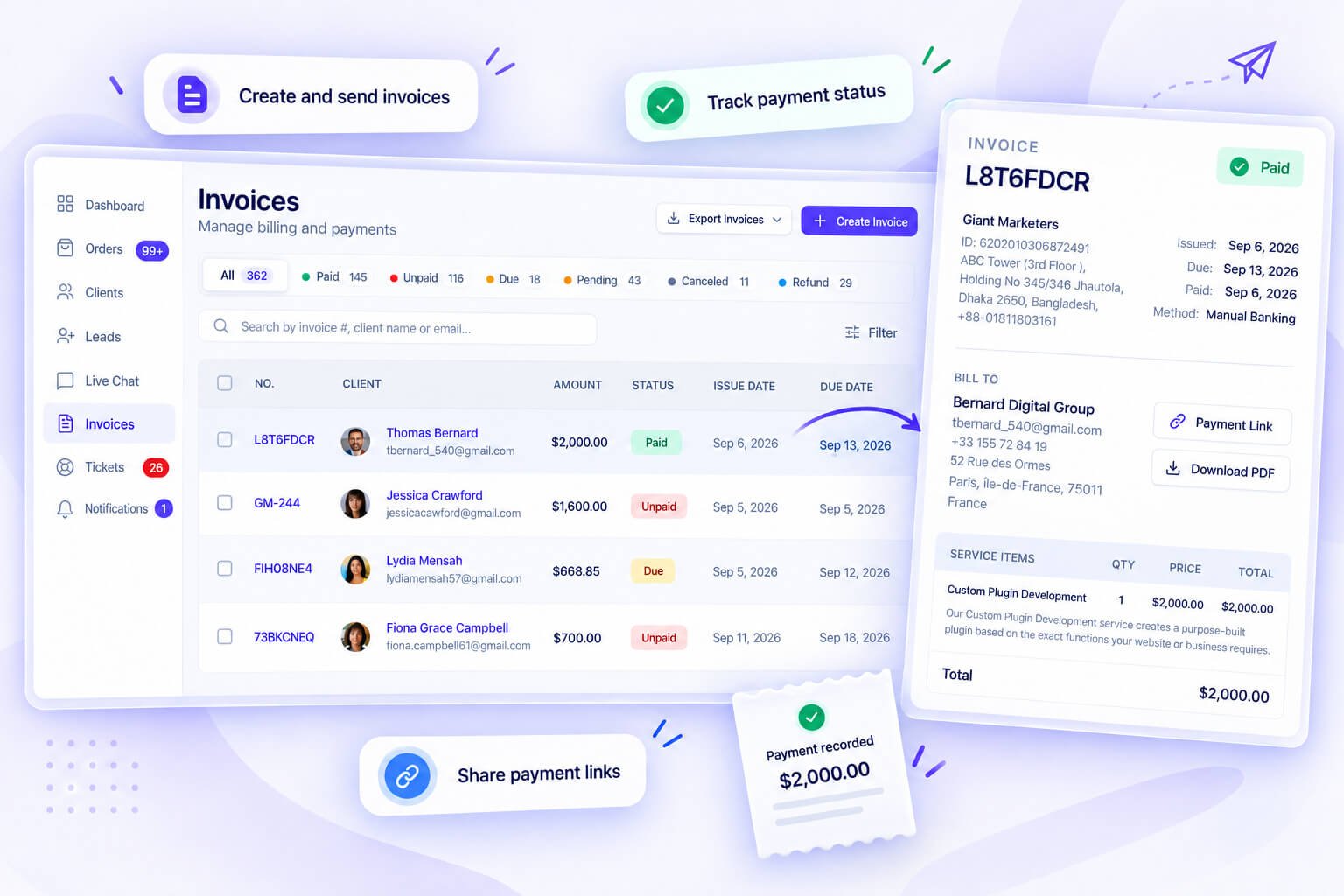
Orders and invoices are linked both ways: an order bought at checkout comes from the invoice the client paid, and an invoice you raise from an order shows where it came from. Invoices can also be created by hand, duplicated, and deleted in bulk. Each invoice takes line items, discounts, tax and a processing fee (coupons apply at checkout), keeps its own activity log, and can be downloaded as a PDF, emailed from inside Clientish or paid through a public link. Invoices can be raised in another currency when a client pays in theirs.
Invoice numbering and settings
You set the prefix, the starting number and zero padding, so your numbers read INV-0001 rather than INV-1, along with your tax ID and default notes that print on every invoice. A client’s accounts team will thank you for a clean sequence.
Payment gateways
Clients pay into your own accounts through Stripe, PayPal, Paddle, Braintree, Authorize.net, SSLCommerz, Razorpay, Paystack, Mollie or PayFast, or by bank transfer, and Clientish takes no fee from those payments. For a bank transfer the client enters the transfer’s transaction ID, so you have something to match against your statement. If you pass fees on, you can add a processing fee (a percentage plus a flat amount) on the gateways you pick, labelled as a processing fee, service charge or convenience fee.
Public pay links
Every invoice has a link the client can pay from in a browser without signing in. For a one-off project, or a client who won’t create an account, this is the shortest path to getting paid. Sending it with the delivery is the simplest way to ask for payment while the client is happiest with the work.
Subscriptions, saved cards and auto-pay
Recurring billing has one master switch, and once it’s on you create subscriptions that tie a client to a service, a price and an interval. Renewal day reopens that subscription’s invoice rather than issuing a new one, and the subscriptions page sorts them into Active, Awaiting payment, Past Due, Canceled and Completed tabs. Clients can save a card through Stripe and choose auto-pay on a subscription, so the renewal is charged to that card; if the card fails, the invoice stays open as before. Clients who don’t switch it on simply pay each renewal themselves.
Coupons with limits and expiry
Coupons can have usage limits and expiry dates, so a launch discount doesn’t run forever because someone forgot to switch it off. A code for your first ten clients stops at ten, and a Black Friday code ends on the date you set. Clients enter the code at checkout in the portal, and the Coupons report later shows whether the offer brought anyone in.
Client balance and deposits
Each client also has a balance they can top up in advance. Each top-up sits as credit until they choose to pay an invoice from it, and a client has one pending top-up at a time. Retainer clients often find one top-up simpler than paying every invoice separately.
Marking invoices paid
When money arrives outside Clientish, you mark the invoice as paid and the change goes into its log. Cash, a cheque or a transfer you confirmed by phone all end up recorded the same way, so the invoice’s status and your revenue report stay right. The log keeps the date of the change, which settles any later question about when a payment was recorded.
Refunds
Refunds can be full, half or a custom amount, each with a reason, so a quarter’s refunds make sense later. Say a client is unhappy with one deliverable out of four: a partial refund settles it without cancelling the whole invoice. The reason you type stays on the record, which helps the next time someone asks why revenue dipped that month.
Tax by country
Tax rules support per-country rates, so you don’t work out VAT by hand for clients in three countries. You set the rates up once in your settings, which beats a figure someone types from memory on each invoice. It’s a small setting until the quarter you file returns, when consistent tax lines on every invoice save an evening of checking.
Accounting and reminders
Invoices can go straight into QuickBooks or Xero, so your bookkeeper isn’t retyping them. Payment reminders go out at times you choose, and you can see when a client opened the invoice email, which makes the polite second nudge a lot easier to time.
Supporting Clients After Delivery
Delivering the work doesn’t end the relationship. Questions come in, files need explaining, something stops working. Clientish gives those moments their own place, tied to the client and the order they’re about.
Support tickets
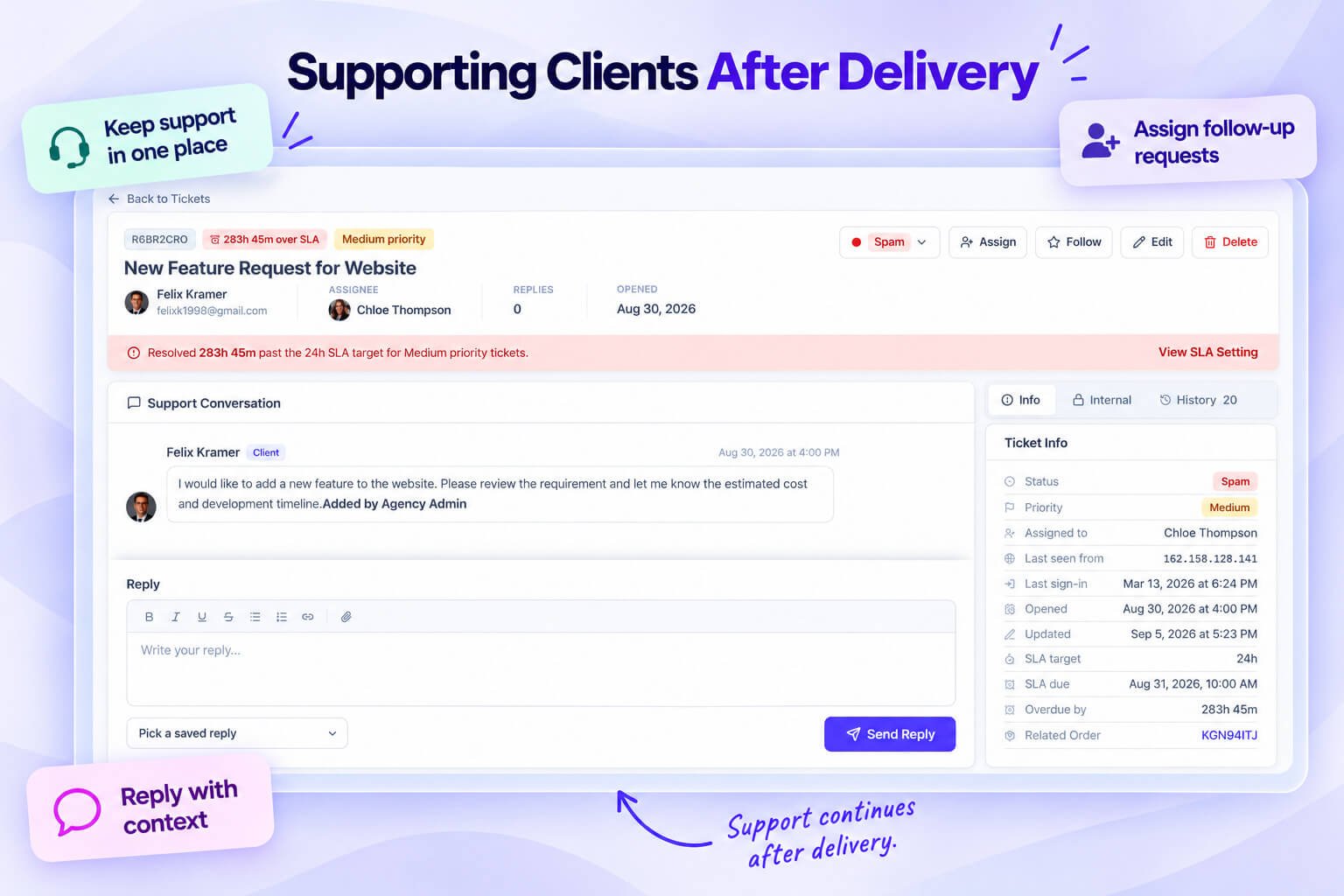
Clients raise tickets from their portal, and your team can open one on a client’s behalf. Each ticket is its own thread, separate from order messages, so support doesn’t get mixed into project talk. Clients can attach files to their tickets.
Ownership, watchers and internal notes
Each ticket has an assignee, so ownership is clear from the first minute, plus CC watchers who need to stay informed without replying. Internal notes sit inside the thread but stay invisible to the client, which is where “be gentle, they were unhappy with the last revision” belongs.
Saved replies, signatures and reply targets
Saved replies cover the questions you answer every week, and signatures fill themselves in. Each priority carries a first-reply target, an overdue timer shows what’s slipping, and AI can draft a reply for your team to check and send. The first-reply target is the part clients notice most: a quick “we’ve got this and we’re looking into it” buys a lot of patience, even when the fix takes longer.
Statuses, priorities and tags
You define your own ticket statuses, such as Waiting on client or Escalated, instead of living with a fixed set that doesn’t match how your team works. Priorities flag what’s urgent, and tags group related tickets, so a run of questions about one launch can be read together.
The related order beside the ticket
The related order sits in the ticket sidebar, so whoever handles it sees what the client bought and where the work stands. Most support questions are about one specific delivery, and this saves the first round of “which project do you mean?”
Whose turn it is, and what happened
A waiting-on marker shows whether a ticket is waiting on the client or on your team, which is the quickest way to sort a long list. Every assignment, status change and reply goes into the ticket’s activity log, so a ticket that passed between two people still tells a clear story.
Ticket ratings
Once a ticket is closed, the client can rate the help if you’ve turned ratings on. Read over a few months, those ratings show which kinds of question your team handles well and which ones keep ending badly. Low ratings teach more than high ones. Read the ticket behind each one, and you’ll usually find a slow first reply or an answer that missed the question.
A help center for your clients
The best ticket is the one that never needs writing. Each workspace has its own help center for its clients, starting with 25 ready articles you can edit, and suggestions from it appear while a client is writing a ticket.
Reports, Exports and Client Reports
Once the work and the money are flowing through one place, the numbers come for free. Reports has a tab for each slice of the business, with one date range across the tabs and exports on most of them.
Revenue, services and clients
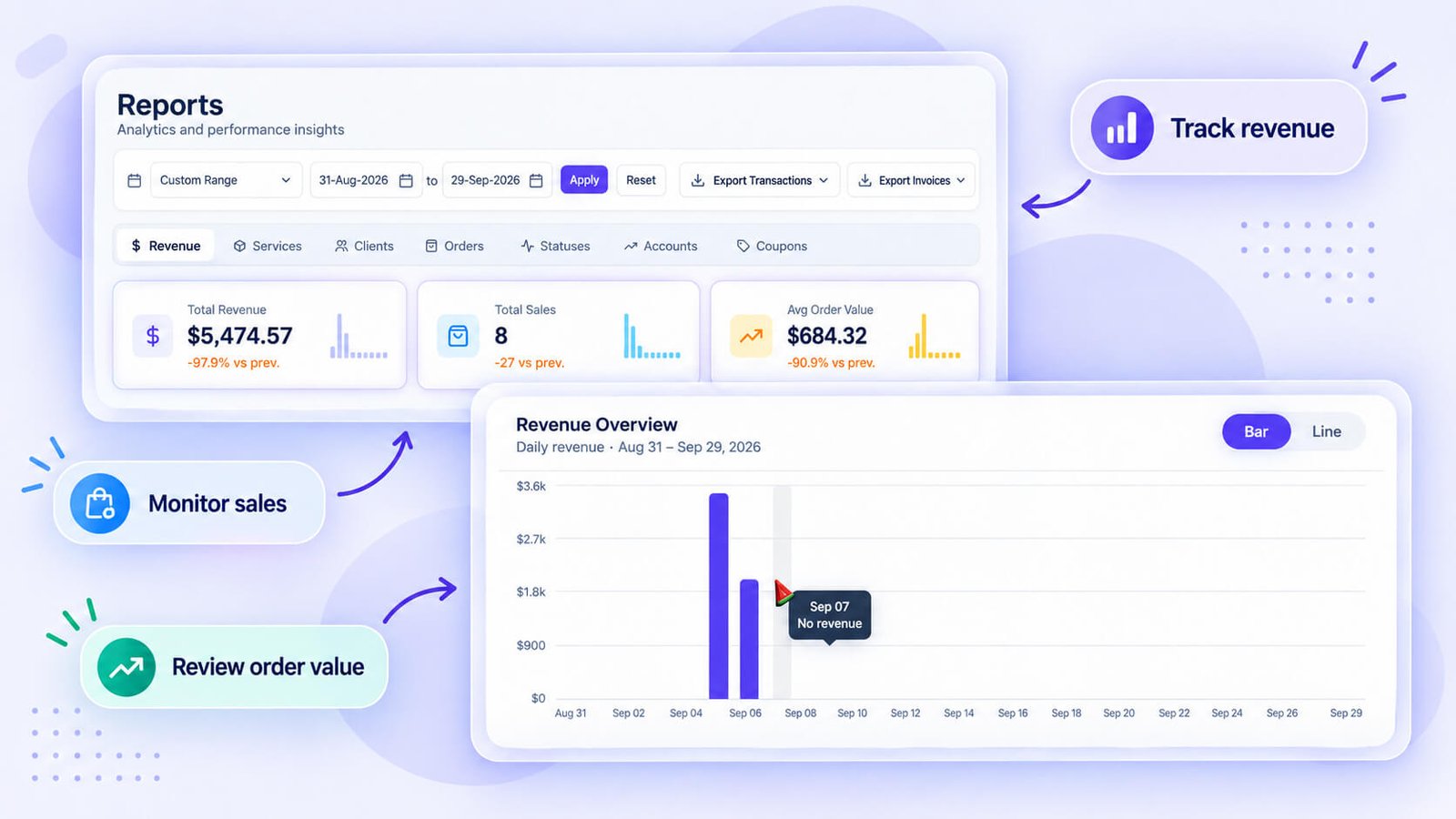
The Revenue tab shows income over the period you pick, which is where you see whether a slow month was a one-off or the start of a trend. Services shows which offers bring in orders and money, a useful input when you’re deciding what to drop or reprice. Clients shows how your client base is growing and how active it is.
Orders, statuses and coupons
Orders counts what came in, and Statuses shows where those orders sit right now, so work piling up in review is visible without counting by hand. Coupons shows how often each code is used, which tells you whether a promotion brought in real orders or just discounted ones you’d have got anyway.
Account balances
The Accounts tab lists your clients’ prepaid balances in one view. For retainers and clients who pay in advance, this is how you see who still has credit without opening profiles one by one. The same tab catches the opposite case. Credit that sits unused for months usually means work that isn’t being ordered, and that client may be worth a call.
Assigned orders and logged time
Assigned Orders breaks the work down by the person handling it, and it’s the view I’d look at monthly: it shows who’s carrying the most before it turns into a bottleneck. With time tracking on, a Time tab adds the hours your remote members logged.
Who sees which report
Each report tab opens only for people whose permissions cover that area, so an account manager can see client activity without seeing revenue, and a project lead can check order status without billing data. The owner and co-admins see every tab.
Getting your data out
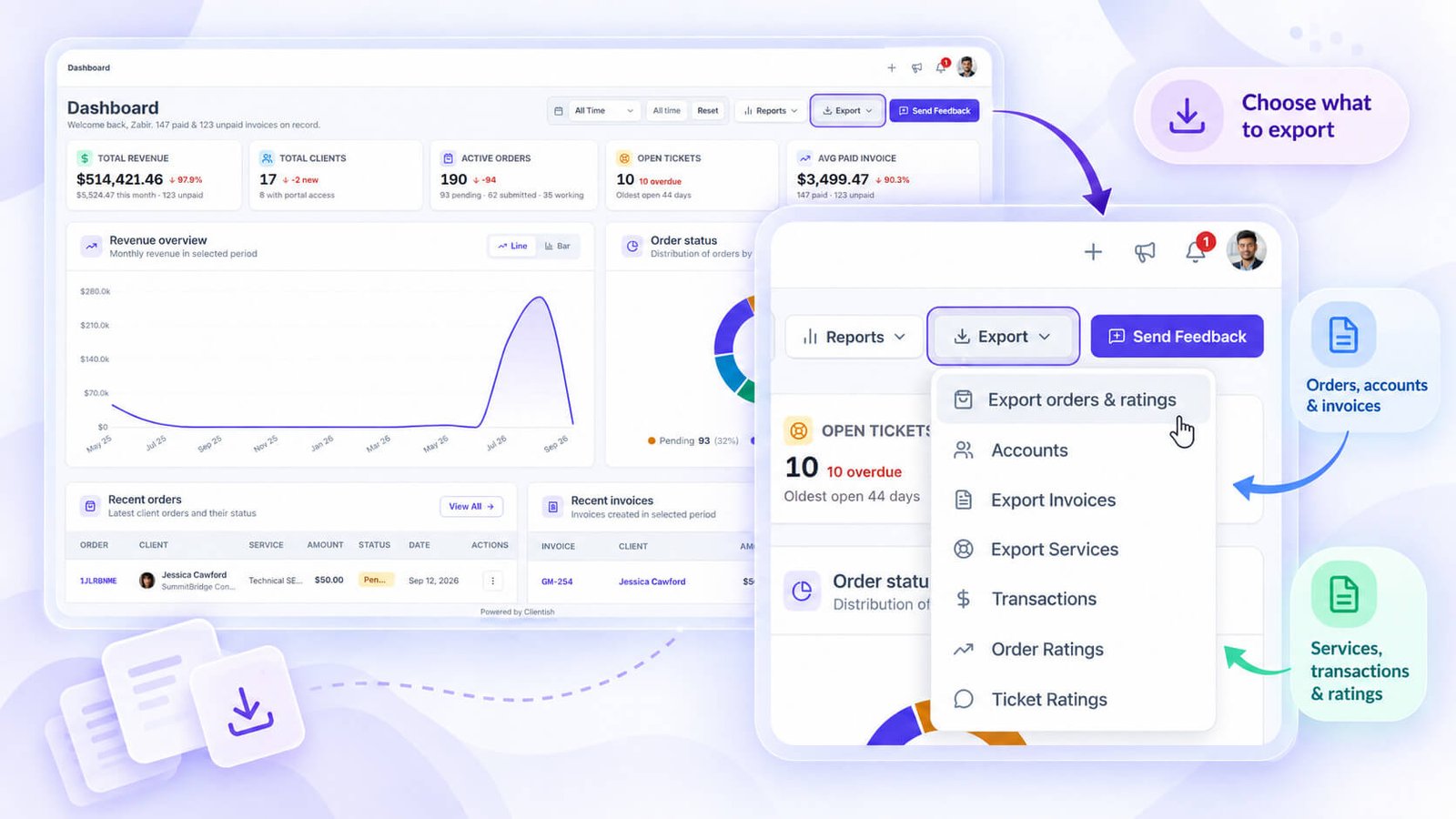
Your data is never locked in. Clients, orders, invoices, transactions, services, form entries, and order and ticket ratings all export as Excel or CSV files, and each export downloads straight away in your browser. That’s the file you hand to an accountant at year end, or keep as your own backup.
Exports inside each list
Some exports live where you’re already working. The clients list, the services list and the task boards each have their own export button, so you can pull the list in front of you without going to a separate screen. It’s the fastest route when you need a quick list for one meeting rather than a full backup.
Client reports
The newest piece is client reports: publish a report into the portal of one client or a whole group, and each of them receives an email from your address that opens it directly. Many agencies already send a monthly summary as a PDF attachment. Inside the portal, the report sits next to the client’s orders and invoices, so the results and the work behind them are in one place.
Automations, AI and Integrations
Much of running clients is repetitive: the same reminder, the same assignment, the same follow-up, each one fine until the week it gets forgotten. This is the part of Clientish that takes those steps off your team.
Automations
Every workspace can build automations, which are simple rules of the form “when this happens, do that”. Pick a trigger (a new order, a status change, a submitted brief, a rating, an overdue task, an incoming WhatsApp message, a schedule), add checks, then steps: assign someone, send an email, wait, branch with if and otherwise. Before switching a rule on, run a test to see exactly what it would do; for the usual jobs, start from one of the ready-made rules.
The AI assistant
Ask AI sits in the top bar and works with your own Claude or ChatGPT key. It knows which page you’re on, drafts and summarises, and anything it would change waits for your Confirm, with an Undo afterwards. It can also write a message to a client on an order, which you check before it goes.
Claude and ChatGPT connector
If you already work inside Claude or ChatGPT, you can connect them to your workspace. You choose which areas they may change, they can read and act only inside your agency, and every change they make is listed with an Undo.
Integrations, API and webhooks
Team updates can go to Slack, Microsoft Teams, Discord or Telegram, each picking the events it cares about. Through the API, other tools can create and update clients, orders, tickets, leads and draft invoices; webhooks report events as they happen; and Zapier has a Clientish app of its own, while Make connects through webhooks.
The Pieces That Tie It Together
Around the core sit smaller features that decide whether a workspace runs smoothly or needs workarounds. None of them is exciting on its own; together they’re why things don’t fall through.
Forms beyond intake
Apart from per-service intake forms, a standalone form builder covers feedback, contact requests and anything else, with responses landing in an entries inbox instead of someone’s email. A satisfaction survey after delivery, a request form for a new project, a plain contact form: each gets its own form and its own list of answers. Because the entries stay in Clientish, they don’t depend on whose inbox the form used to send to.
Your own email address
Connect your SMTP server and every invoice, welcome and notification goes out from your own address, which helps both trust and deliverability. Clients reply to a name they know instead of a no-reply address. Replies stay in one place as well: when a client answers an invoice email, the reply reaches your real inbox, not a mailbox nobody checks.
Email log and templates
An email log shows what was sent and when, which ends most “I never got it” conversations quickly. You edit the templates too, so automated emails sound like you rather than like software. The templates cover the emails clients receive most, like new invoices and welcome messages, so a few minutes there changes how every one of them reads.
Central files
Files from orders, messages and work assignments are reachable from a central files area, so nobody has to remember which thread a logo was posted in. Next time a client asks for “the version we approved in spring”, you look in one place instead of scrolling three conversations. Each file shows where it came from, with a link to its order or ticket, so the context stays with it.
Notifications
Your team chooses which events reach their notification bell, and you choose which client emails go out. A designer might want every new order message but no billing alerts, while an account manager wants the opposite. On the client side, the emails that go out are the ones that matter, such as a new invoice, not a message for every small change. Fewer pings means the ones that do arrive get read.
Activity logs and workspace search
Activity logs on clients, orders, leads and invoices show what changed and when, with retention you control. They answer the questions that otherwise turn into blame: who moved the due date, when did the price on this invoice change. A workspace search finds clients, orders, invoices and more from anywhere in the app, and once you have a few hundred records it’s the quickest way around; type a client’s name and you’re on their record.
Security
People sign in with email and password, or with Google. Staff can add a second step with an emailed code or an authenticator app, and when you switch two-factor on for clients, they confirm with a code sent by email. Repeated failed attempts lock the account, reCAPTCHA can be added, and any user can sign out every other device at once. New passwords need at least eight characters.
Google Calendar
Google Calendar shows dated records like deadlines where your team already plans its week, so a due date isn’t something people only see when they open Clientish. Deadlines that live only inside a project tool tend to be noticed the day after. Seen in the same calendar as calls and holidays, a clash shows up a week early, while there’s still time to move something.
Mailchimp
Mailchimp can receive new clients automatically, with a backfill for existing ones, so your newsletter list stays current without a monthly export. The backfill matters on day one, because clients you had before connecting go across too, not only the ones who arrive later. After that, every new client lands in your list without anyone copying an email address.
Business hours
Business hours decide when the auto-reply goes out, so a client writing on a Sunday knows when to expect an answer. Set them in your own timezone to match when your team is really at work. A clear “we’re back Monday at 9” reads far better to a client than silence, even when the answer itself would be the same.
An app your clients install
On iPhone or Android, a client adds your portal to the home screen straight from the browser; it opens under your name and icon and pings them with the same alerts as their notification bell, such as new messages and invoices. Clients find a QR code on their dashboard to set it up, and you never deal with an app store.
The Client Portal at a Glance
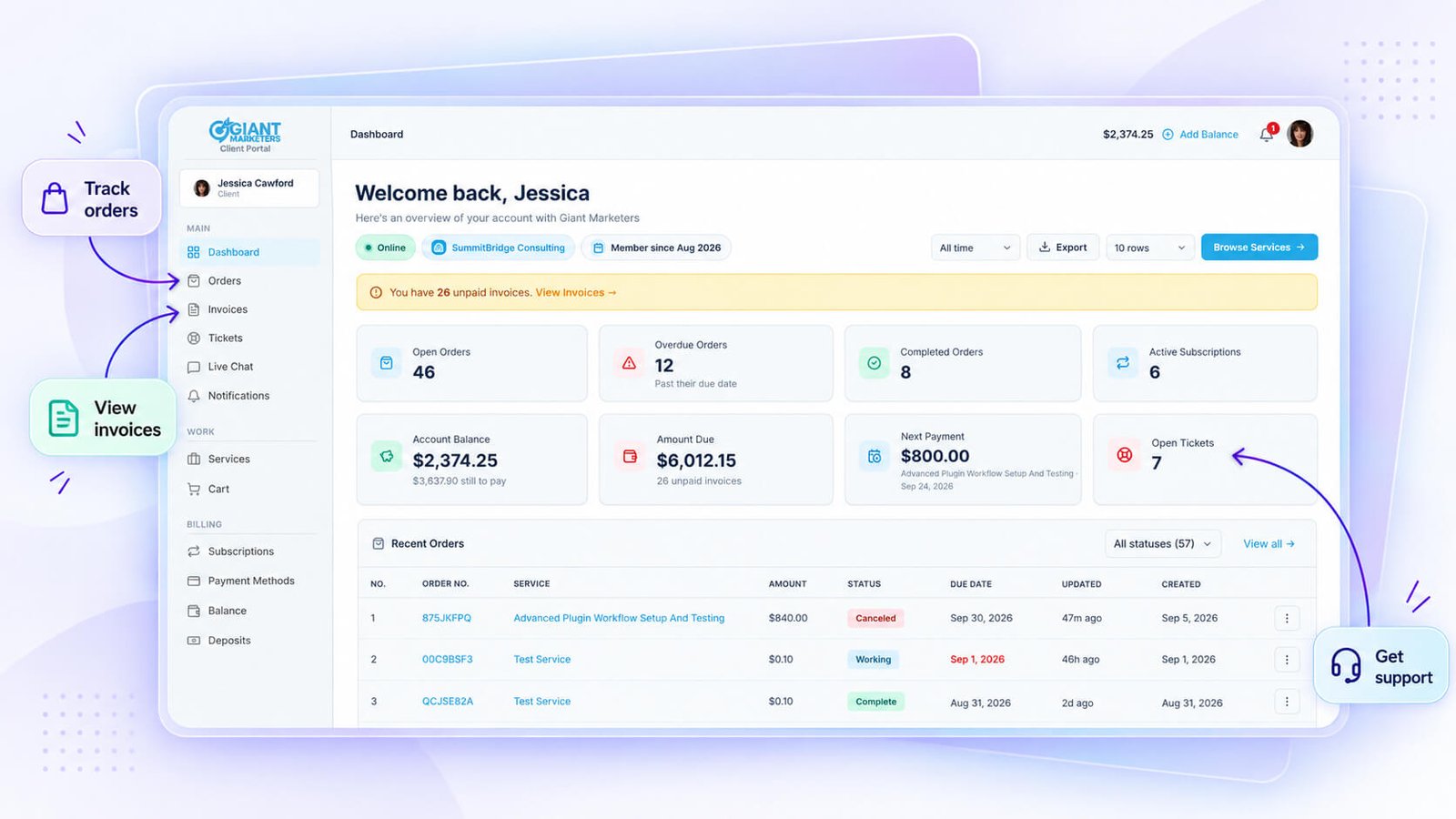
Everything above is mostly the agency side. Clients see their side of all this in the portal, under your logo and colours, at your workspace address or on your own domain. I wrote a separate guide to what a client portal is and how ours works, so here is the short tour of what a client can do there.
Buying from your catalogue
Clients browse the services you’ve made public, add them to a cart, change quantities, apply a coupon and check out, without you quoting each request by hand. Draft and archived services stay out of sight, and a client with a payment link can skip the catalogue entirely.
Following orders and approving work
Each order shows its status and a progress timeline, the conversation with your team and the brief they submitted. When a delivery arrives, they approve it or ask for a revision right there, and they can rate the finished order if ratings are on.
Paying invoices and managing subscriptions
Every invoice appears with its status; clients open it, download a PDF or pay online with the methods you’ve switched on, including a bank transfer with its transaction ID. Recurring services sit on their own Subscriptions page, where clients pay the next bill and, if you allow it, cancel.
Balance, deposits and saved cards
Clients can top up their balance in advance and spend it on invoices, see their payment history, and save a card through Stripe if they want renewals charged automatically. Clients whose finance teams prefer one larger payment to a run of small ones tend to like this, and the balance stays visible on their dashboard so they always know what’s left.
Tickets, chat and help articles
Support questions go into tickets from the same portal, with files attached, and live chat covers the quick ones on Starter plans and above. Your help center sits beside both, so many clients find the answer before they write. Clients pick the channel that fits the question: a ticket for a problem that needs tracking, chat for a quick check, an article for the how-to they’d rather read alone.
Profile and password
Clients keep their own profile, avatar, email address and password up to date without emailing you. Changing a password needs the current one and a confirmation by email, which keeps the account safe without your team stepping in. Every request a client can handle alone is one less small task for your team.
Five Portals, Not One Shared Dashboard
Rather than one login with everything hidden behind permissions, Clientish gives each kind of user their own portal and sign-in. That keeps access clean and makes each screen simpler for the person using it.
| Portal | Who uses it |
| Agency dashboard | The owner and admins: revenue, orders, tickets, activity |
| Client portal | Your clients: buying, orders, invoices, support |
| Team portal | In-house staff, limited to what their role allows |
| Remote member portal | Freelancers and contractors, with their own permissions |
| Clientish account | The agency’s own plan, invoices, add-ons and support with Clientish |

A separate sign-in page for each
Clients, staff and remote members each sign in on their own page. That’s cleaner than one login screen with permissions doing all the hiding, and it’s easier to tell a client which link is theirs. Separate doors prevent mistakes as well: a contractor can’t wander into the staff side, and a client never lands on a team login asking for details they don’t have.
Plan limits and role permissions
What a person sees depends on two things together: what your plan includes and what their role allows. The plan sets the ceiling for the whole workspace, such as how many team members and remote members you have, and the role decides what each person does under that ceiling. When someone can’t see a screen they expect, one of the two is the reason, and checking both takes a minute. The roles section above covers the permission side in detail.
Sessions on every device
Anyone can sign out of all their other devices at once, the first thing to do after using a shared computer. Clients get a single button for it, while your team can also see where their own account is signed in. If a laptop goes missing, signing out everywhere and changing the password takes a minute.
Seeing exactly what someone else sees
The sign-in-as feature from the client section works for team and remote members too, so a permission question gets answered by looking rather than guessing. Say a contractor tells you “I can’t see the brief”: signing in as them shows in seconds whether it’s a permission, an assignment or a misunderstanding.
Your Own Clientish Plan
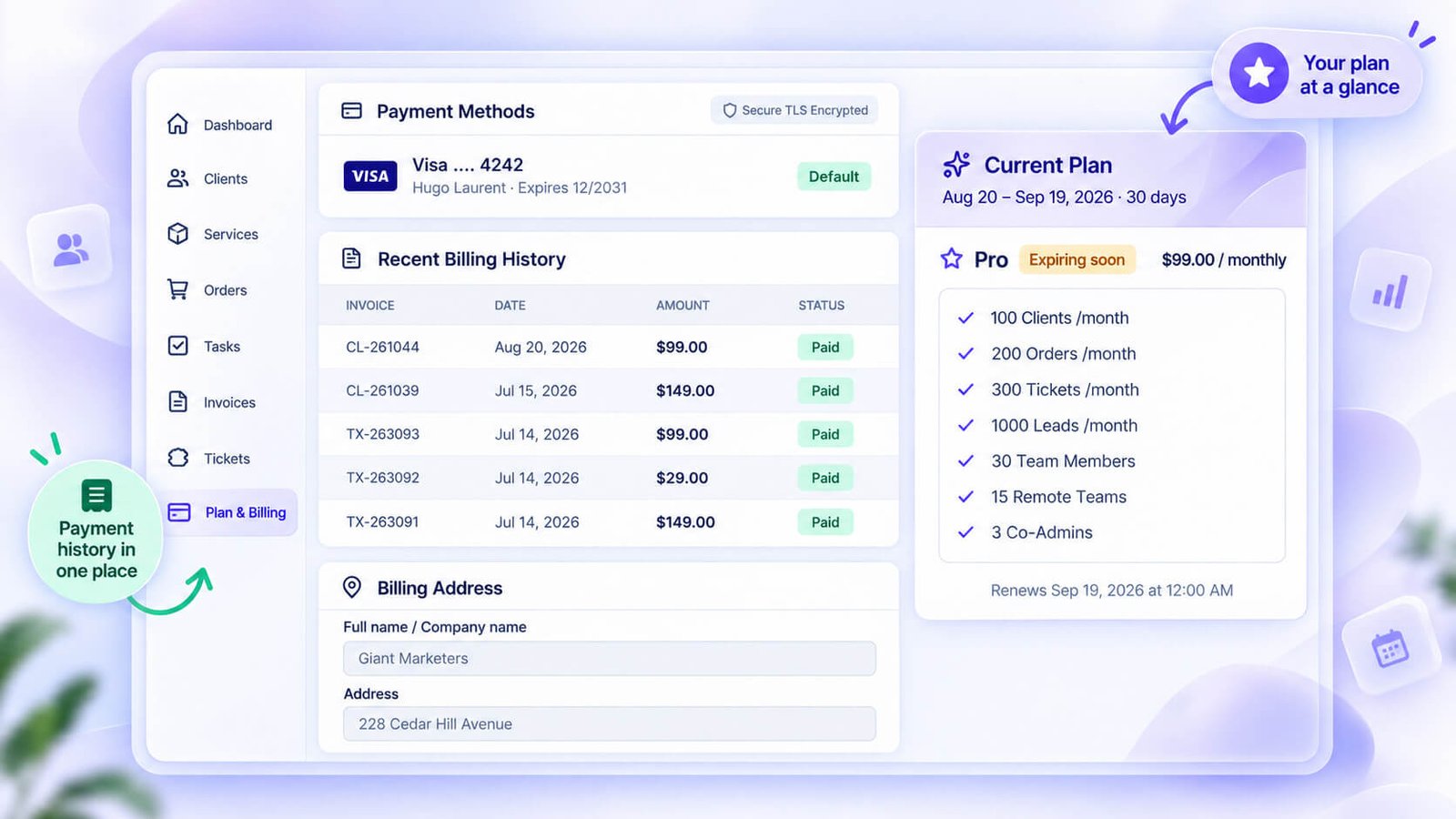
You’re also a customer of Clientish, and that side lives in its own billing area, separate from the billing you run for your clients.
Plan and usage
The billing area shows your plan and how much of each allowance you’ve used, so you see a limit coming before you hit it. You manage cards, auto-renewal of your own plan and your billing address there. It’s the screen to check before a busy month, so a limit doesn’t surprise you halfway through a launch.
Add-ons for extra allowance
If you’re close to a limit but not ready for the next plan, add-ons buy extra allowance on top of your current one. It’s the cheaper move when one busy month pushes you over, and nothing about your setup changes. Buying the same add-on every month is usually the sign that the next plan would cost less.
Support from the Clientish team
Support with the Clientish team runs through tickets and live chat in the same area, so you’re not hunting for an email address when something needs fixing. First replies are promised within 24 hours on Starter and Growth and faster on Pro and Enterprise, as the service level page sets out. When you write in, say what you clicked and what you expected; it’s the quickest way to an answer.
Upgrading
The upgrade screen compares plans side by side, monthly or yearly, with room for a coupon before you pay. Yearly billing works out at about a fifth off on every plan, so it’s worth a look once you know Clientish is staying. Moving up doesn’t mean rebuilding anything; your clients, orders and settings carry on as they were.
What Clientish Does Automatically
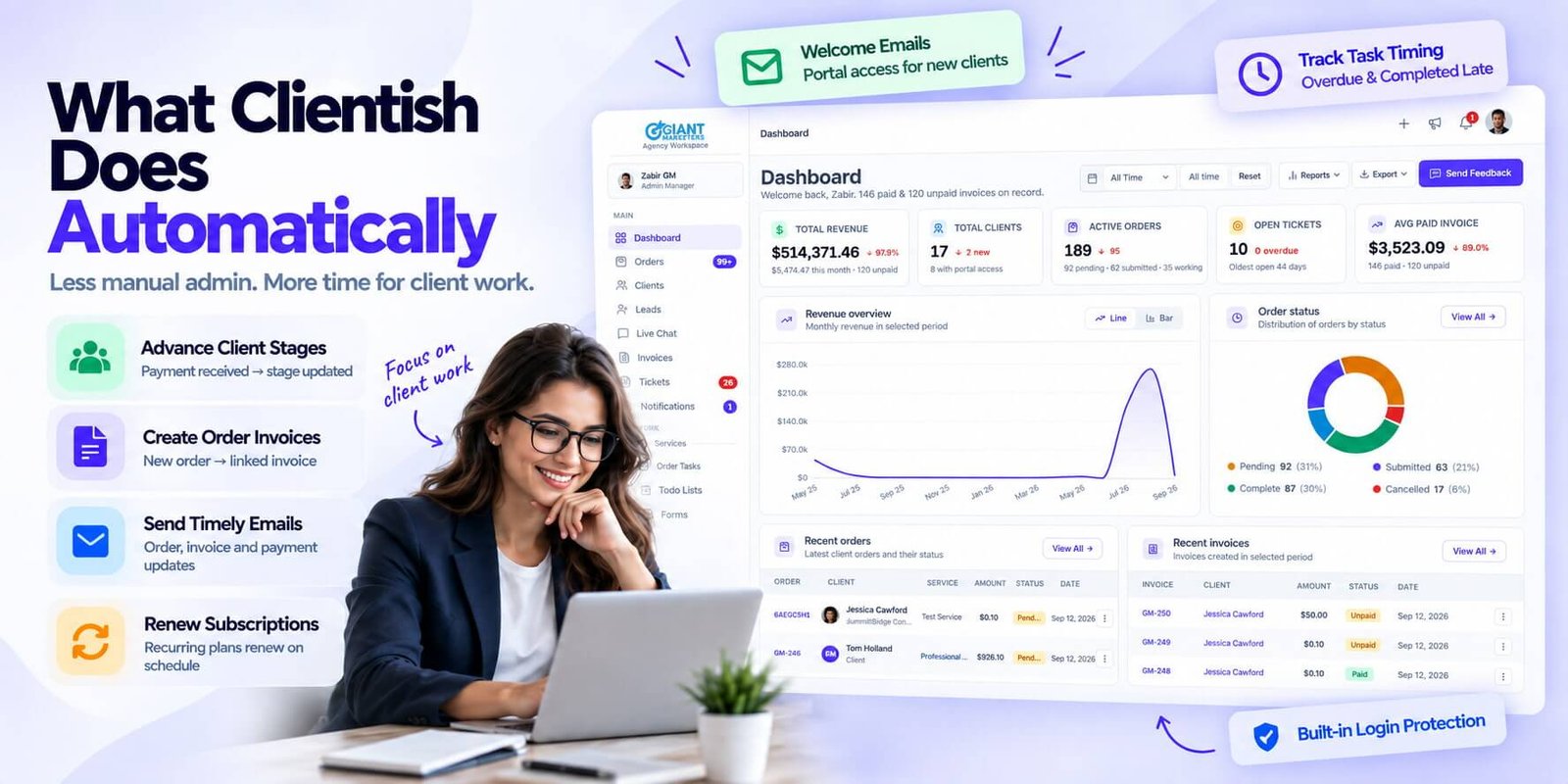
Some steps don’t even need an automation rule; they happen as part of the normal flow. These are the ones that save the most small effort every week.
Leads become clients when they pay
A Lead who pays for an order becomes a Client, so nobody edits records after each sale. The client list then separates people who have really bought (status Client) from everyone who once filled in a form, and the lead’s actual value fills in from the invoice they paid.
Emails on orders, invoices and payments
Template emails go out on new orders, invoices and payments, so clients hear from you at the right moments without anyone writing each message. You set the wording in the email templates, so a new order email can explain what happens next in your words, with your name at the bottom.
Renewals and auto-pay
Subscriptions reopen their invoice each cycle, and auto-pay charges the card when the client has chosen it, so retainers keep billing themselves. Clients who prefer to pay by hand see the renewal invoice in their portal instead. Either way, nobody on your side has to remember that the 14th is renewal day for one client and the 28th for another.
Overdue and late tasks
Tasks turn Overdue or Completed late by themselves when deadlines pass. Nobody has to admit a slip for it to show, or update a status at 6pm on a Friday. Over a month, the number of tasks finished late tells you more about workload than anyone’s impression of who’s been busy.
Lead emails that report back
Lead emails show whether they were delivered, opened or bounced, scheduled ones send on time, and a failed send can be retried. In practice this tells you which follow-up to make next: a bounce means you need a better address, an unopened email might need a new subject line, and an opened one with no reply is the moment for a call.
Lead chat links that expire
Magic chat links for leads stop working after a while, so an old link doesn’t stay open forever. That matters more than it sounds. Sales chats often hold prices and contact details, and a link forwarded around a prospect’s office months later shouldn’t still open the conversation. If the lead is still active, renew the link and send the fresh one.
Sign-in protection
Sign-in is protected by lockout, reCAPTCHA where enabled, verification emails and two-factor codes switched on once for the whole workspace. You don’t manage any of it per client or per staff member, which matters when a client portal holds invoices and a team login can reach every account.
Welcome emails and portal access
New clients and team members can get a welcome email with their sign-in link when you add them; just tick the box. Leaving it unticked has its uses: you can set a client up quietly, add their first order and invoice, and send the welcome once there’s something for them to see.
What Clientish Costs
Pricing follows team size and how much you sell each month, not the number of features. Branding and your own domain come with the portal on all five plans.
| Plan | Monthly | Billed yearly | Team members |
| Solo | $9.99 | $8/mo | Just you |
| Starter | $29 | $23/mo | 5 |
| Growth | $49 | $39/mo | 15 |
| Pro | $99 | $79/mo | 30 |
| Enterprise | $149 | $119/mo | 50 |
Live chat and leads start on Starter, and the “Powered by Clientish” line disappears on Pro. The pricing page has every limit, and you can start a free 14-day trial; no card is needed, and all modules are open while you test.
What Clientish Doesn’t Do
I’d rather you know the edges now than find them in month two. These are the things Clientish deliberately leaves to other tools, or doesn’t offer yet:
- It doesn’t do the work itself. Design, code and writing still happen in your own tools; Clientish handles everything around them.
- There’s no app-store app. Clients and staff use the browser, and clients can install your portal from it.
- It’s English only for now.
- There’s no SOC 2 report. If your clients require one, ask any vendor for theirs.
- One workspace per account. Running two separate brands means two accounts.
Is Clientish Right for You?
All of this only matters if it fits how you work. A quick way to tell: if the path from “the client said yes” to “invoice paid, work delivered” involves more than one person, more than one tool or more than one step, Clientish is built for exactly that gap.
A strong fit if…
- Your clients come back, and you need their order and invoice history in one place.
- You have staff or freelancers who need access to some clients and orders but not to everything.
- You’d like clients to order, pay and ask for help in a portal instead of by email.
- You’re a freelancer who has outgrown email threads and spreadsheets and wants to look established.
You’ll still use your own work tools
Your production work, the designing, coding and writing, stays in the software you use for it today. If most of your pain sits inside that software, Clientish won’t fix it; what it fixes is the client admin around it. It’s also a weak fit for single projects with buyers who never return.
Try it with your own workflow
Two weeks is long enough to watch a lead turn into a paid order, see the tasks move, and answer a support question, all in one place. Use the steps you already follow rather than a feature checklist, and the fit, or the lack of it, shows quickly.
Clientish Questions People Ask
These are the questions I get most often from people trying to work out whether Clientish fits. Each answer stands on its own.
What is Clientish in simple terms?
It’s one workspace for the business side of client work. Leads, proposals, client records, orders, invoices, subscriptions, support and a branded portal live together, so you stop running a CRM, a project tool, a billing app and a help desk side by side.
Is Clientish only for agencies?
No. Agencies were the first users, but freelancers, consultants, coaches, bookkeepers and other service-based businesses use the same flow. A solo user simply ignores the team settings. Consultants lean on the retainer billing and client records, coaches on the portal and subscriptions, freelancers on proposals and invoices. What matters is whether your clients come back and need a place to order, pay and ask for help.
Does Clientish have a free trial?
Yes. You can start with a free 14-day trial with every module open and no card needed. There’s no free-forever plan, so pick a plan when the trial ends if it works for you. During the trial you can set up your branding, connect a payment gateway and invite a teammate, so what you test is close to how you’d really run it.
Which payment methods does Clientish support?
Card and wallet gateways including Stripe, PayPal, Paddle, Braintree, Authorize.net, Razorpay, Paystack, Mollie, PayFast and SSLCommerz, plus bank transfer. Money goes to your own gateway account, and Clientish adds no fee. Stripe and PayPal cover most countries, while Razorpay, Paystack, PayFast and SSLCommerz serve local cards and wallets in markets such as India, Nigeria, South Africa, Pakistan and Bangladesh.
Can I use my own domain and email?
Yes. Connect your own domain for the portal with one DNS record while the workspace address keeps working, and connect your SMTP server so emails leave from your own address. Clients then see your brand in the address bar and in their inbox, and the certificate for your domain switches on by itself, so there’s no separate certificate to buy.
Does Clientish give clients their own portal?
Yes. Each client signs in to a portal under your name, where they order, follow work, pay invoices, top up their balance, open tickets and rate finished orders. They see your brand, apart from a small “Powered by Clientish” line on the Solo, Starter and Growth plans.
How does security work in Clientish?
Sign-in uses email and password or a Google account. Staff can add two-factor codes by email or an authenticator app, and clients get emailed codes when you turn that on. Too many wrong passwords lock the account, you can add reCAPTCHA to sign-in, and anyone can end their sessions on other devices in one click.
Can clients pay automatically?
If a client saves a card through Stripe and switches on auto-pay for a subscription, each renewal is charged to that card. Otherwise the renewal invoice opens in their portal and they pay it themselves. Auto-pay is off by default and works with Stripe cards only. If the card fails, the invoice simply stays open in the portal for the client to pay.
Can I move my clients from another tool?
Yes. There are imports for ClickUp, Asana, Monday.com, Trello and Notion, plus spreadsheet imports for clients and leads, and any tool’s CSV or Excel export. I’d move your active clients first and leave old history for later, rather than migrating years of records on day one.
Does Clientish have AI?
Yes. Ask AI runs on your own Claude or ChatGPT key with Confirm and Undo, AI can draft ticket replies and answer chats after a wait you set, and you can connect Claude or ChatGPT to your workspace with limits on what they may change.
Final Thoughts
I built Clientish so the business side of client work stops depending on someone’s memory. When the lead, the proposal, the order, the invoice and the support thread share one record, the gaps where clients get lost mostly close by themselves.
If you’re curious, don’t test it with a feature checklist. Take one real client, put their next order and invoice through it, and see whether the week feels lighter. Signup & try the demo free for 14 days and do exactly that.
Sources
Clientish publishes this guide. It is written from the Clientish product, its documentation and pricing page, as of October 2026; prices and limits can change, and the pricing page is always current. Clientish is not affiliated with the payment providers and software companies named here.

