
Clientish Documents
Step-by-step guides for every module, from your first workspace to proposals, billing, support and automation.
Assignees and Team Follow-ups
Assign leads to your team and set follow-ups that remind them on time.
Assign each lead to the people who look after it, and set a follow-up so your team is reminded when it is time to get back in touch.
Overview
This guide covers assigning leads and the Team follow-up card.
Who Can Access
Team members need Edit Leads.
Assign a Lead
Pick the people
On the Leads page, click + in the Assigned column and tick the people in Assign team members. On the lead page, use Assigned To in the Pipeline card. A lead can have several people.

They are told
Each person you add gets a Lead assigned to you notification. Only members whose role can see leads are listed.
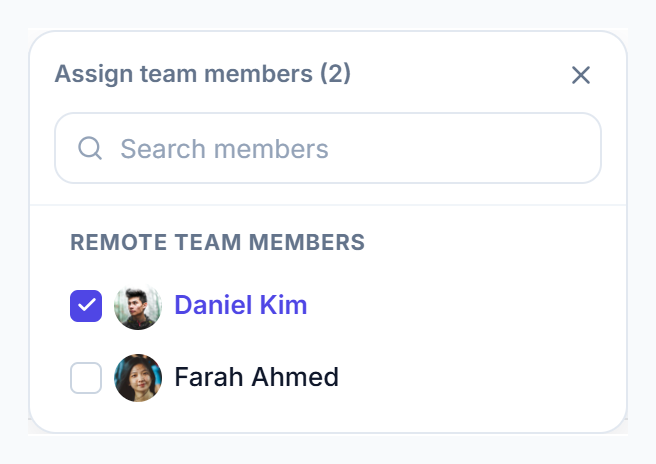
Assigning shows who looks after a lead. It doesn’t hide the lead from anyone else who can see leads.
Set a Follow-Up
Choose the time
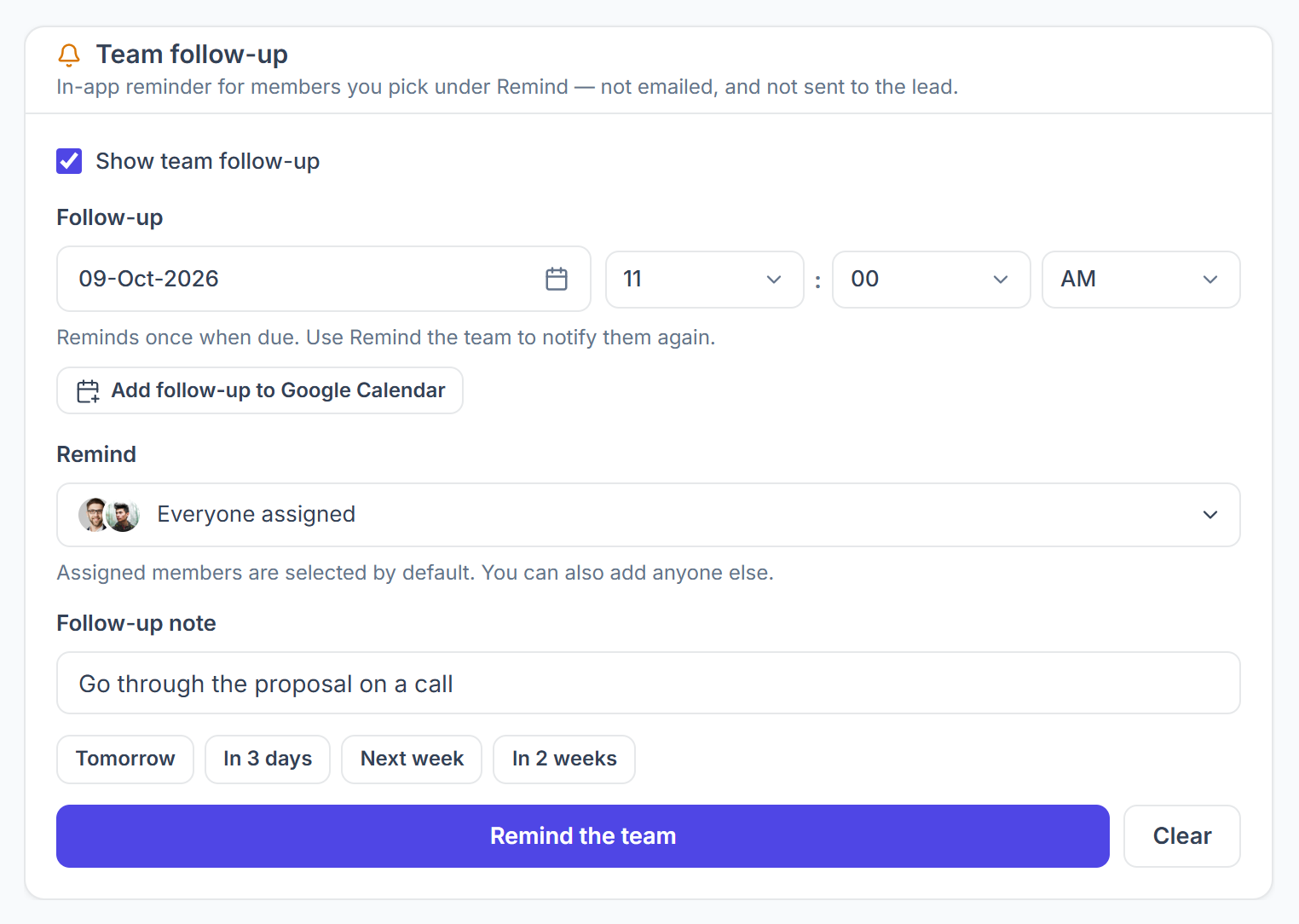
On the lead page, in the Team follow-up card, pick the Follow-up date and time, or use Tomorrow, In 3 days, Next week or In 2 weeks. Times are in your workspace timezone.

Choose who is reminded
Remind lists everyone assigned. Add anyone else, or use Reset to everyone assigned. Add a Follow-up note so they know what to do.
Get reminded
When the time comes, the people under Remind get a notification in Clientish, once. It isn’t emailed, and the lead isn’t told. Click Remind the team to remind them again, Add follow-up to Google Calendar to put it in your calendar, or Clear to remove it.
Overdue and Due Today
- On the Leads page, the follow-up shows Overdue in red once the day has passed, and Today in amber on the day.
- Use the All follow-ups filter to see only Overdue, Due today or Upcoming leads.
- On the lead page, a banner says Follow-up overdue or Follow-up due today, with Reschedule and Mark done.
- Changing the time sets up a new reminder. Converting the lead clears its follow-up.