
Clientish Documents
Step-by-step guides for every module, from your first workspace to proposals, billing, support and automation.
Limit by Department
The six department boxes, how a department is matched, and what members still see.
Permissions decide what a member may do. Department scope decides whose records they see.
Overview
This guide explains the six Limit by Department boxes and how a department is matched to your records.
Who Can Access
The Boxes
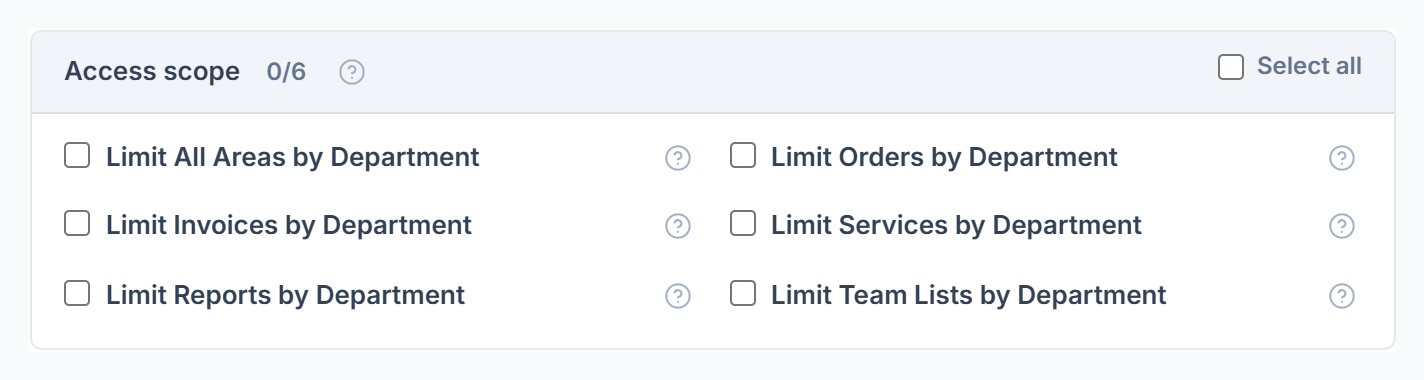
Each box works on its own. Tick Limit All Areas to cover everything, including Tickets, which has no box of its own.
How a Department Is Matched
Name a service category like the department
Create a department in Settings → Departments and a service category with exactly the same name in Settings → Service Categories. Capitals don’t matter.
Put services in that category
An order, ticket or invoice belongs to a department through its service’s category.
Set the member’s department
Pick the department on the member’s Edit page, then tick the boxes on their role.
What They Still See
- Orders assigned to them, even from other departments.
- Tickets assigned to them or where they are copied in.
- Invoices with no service.