
Clientish Documents
Step-by-step guides for every module, from your first workspace to proposals, billing, support and automation.
Add and Edit a Lead
Add a lead by hand, what is refused, and which leads you can edit.
Add a lead yourself when someone gets in touch by phone, email or in person, and correct the details of leads you added.
Overview
This guide goes through the Add Lead form and what happens when you save.
Who Can Access
Team members need Create Leads to add and Edit Leads to edit.
Step-by-Step Guide
Open the form
Go to Leads and click Add Lead.
Enter their details
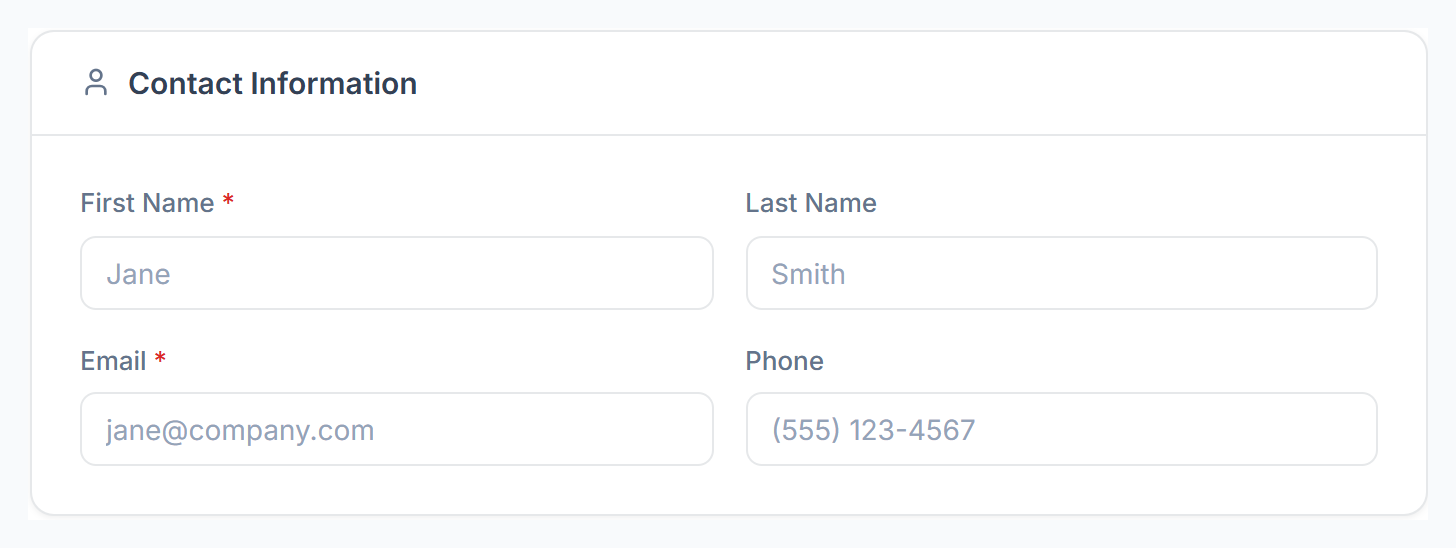
Under Contact Information, fill in First Name and Email. Last Name and Phone are optional.

Say what they want
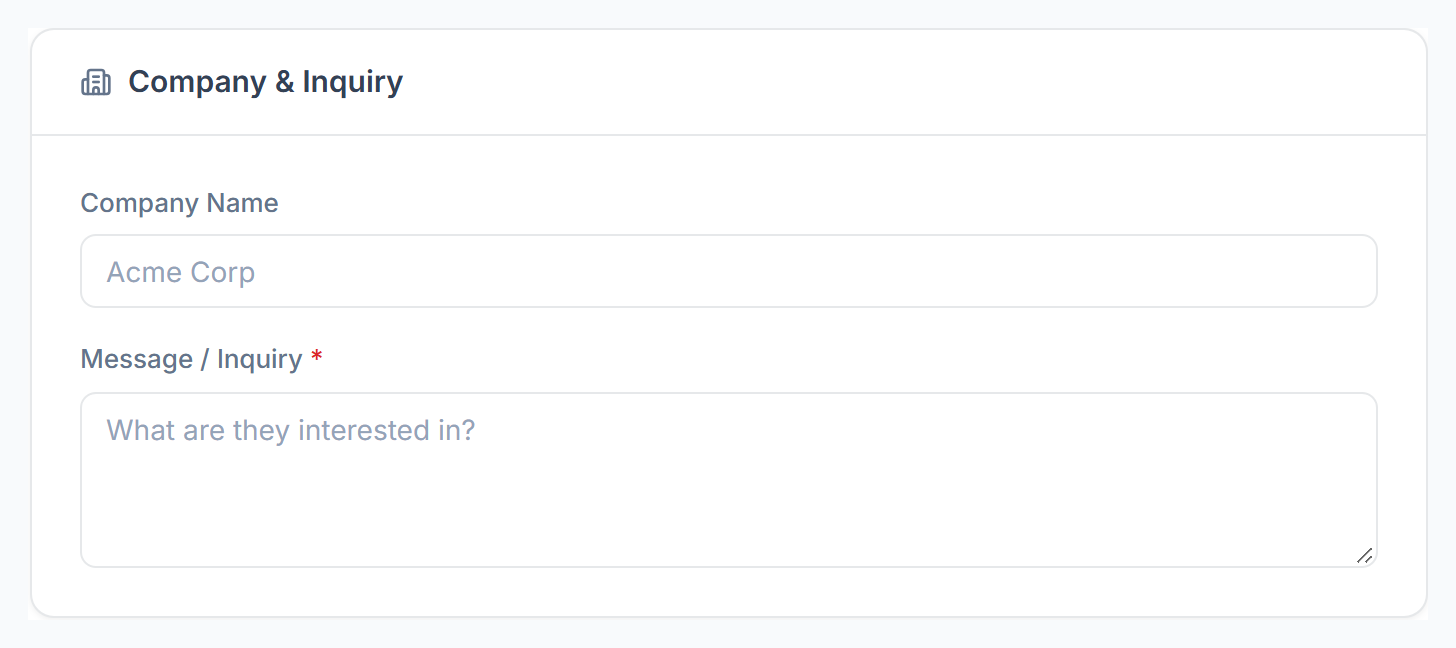
Under Company & Inquiry, add the Company Name if there is one and write what they are interested in under Message / Inquiry.

Set the status and team
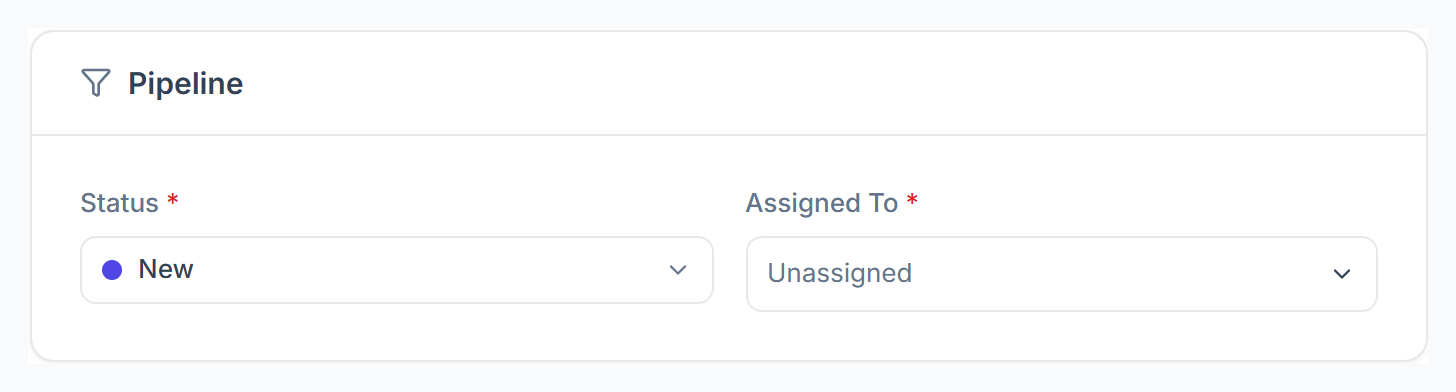
Under Pipeline, pick a Status and assign at least one person under Assigned To. Won isn’t available here: a lead becomes Won when you convert it.

Internal Notes are only for your team.
Save
Click Save Lead. The lead gets an email with a private link to chat with you, and each person you assigned gets a notification.
Emails That Can’t Be Added
- An email that already belongs to a client. Open the client instead.
- An email that belongs to a member of your team.
- An email that already has an open lead. Open that lead instead.
Edit a Lead
Choose Edit Lead in the lead menu, or Edit Details on the lead page, change the details and click Save Changes. You can only edit leads you added or imported. Leads from a contact form keep their details as they were sent.