
All Permissions

3 min read

Every permission group a role can have, with how many boxes each holds.

Every permission a role can have, grouped the way the Roles screen shows them.

Overview

A team role has 214 boxes in 20 groups. Remote roles have the same boxes, plus 15 Time Tracking boxes when time tracking is on.

Who Can Access

Agency AdminTeam Member

Reading a Group
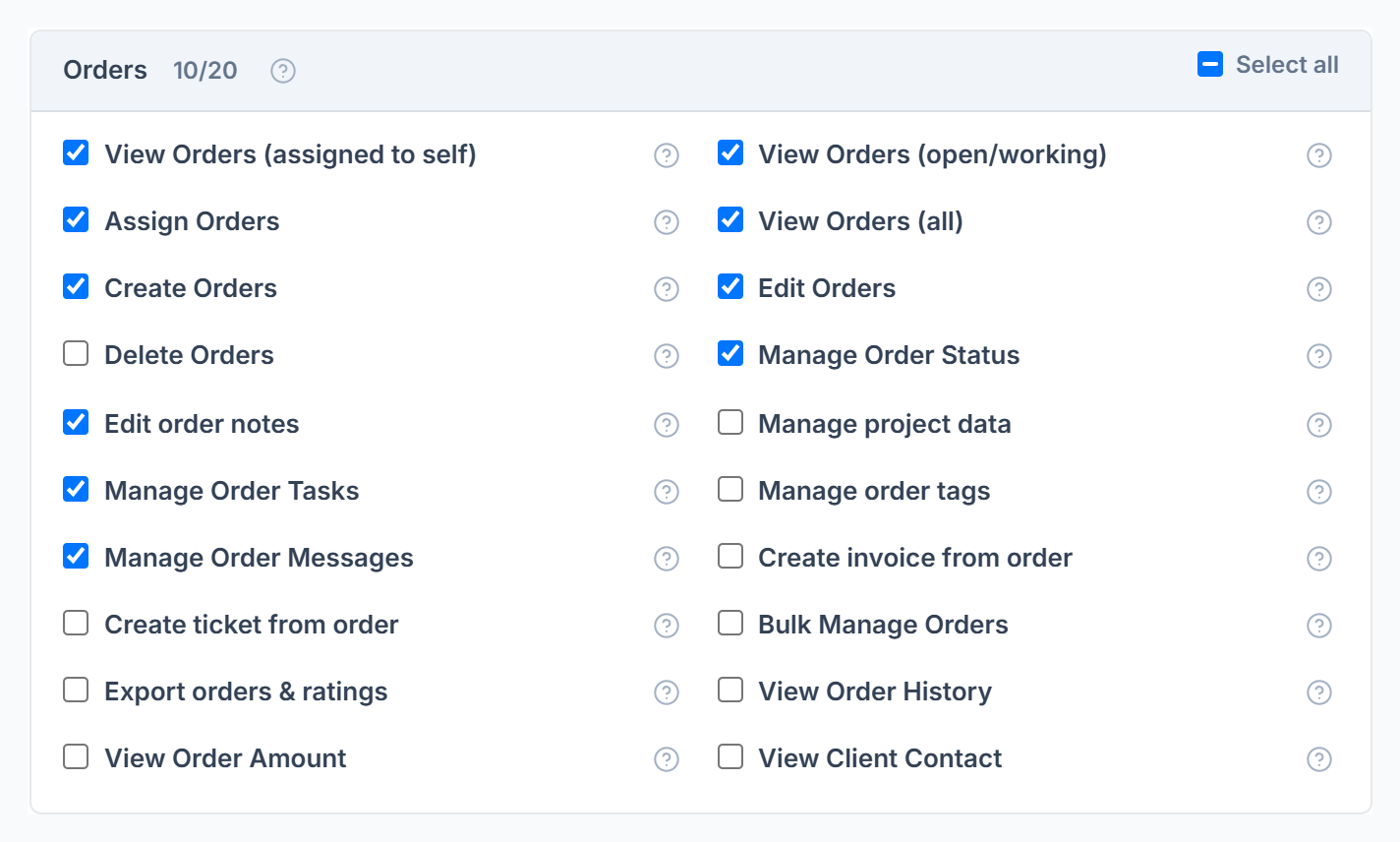
Orders permission group with its count, Select all and one checkbox per action
  • The number next to the group name shows how many boxes are ticked.
  • Select all ticks or unticks the whole group.
  • Hover the ? on a box to see what it unlocks.

The Groups

GroupBoxesWhat it covers
Access scope6Limit what a member sees to their department
Orders20Which orders they see and what they may change, including amounts and client contact
Tickets16Which tickets they see, reply, assign, status, tags, history
Clients21View, add, edit, delete, merge, notes, balance, contact and sign in as client
Leads8View, add, edit, delete, convert and chat
Proposals6View, create, edit, send and delete
Invoices16View, create, edit, send, payments, refunds, delete
Team Messenger7View, send, channels, direct messages, moderation, files
Live Chat4View, send, edit or delete, start conversations
Team & remote roster25Team and remote members, history, sign in as, personal details
Task Assign8The remote work board
Services, forms & coupons21Services, categories, forms, entries, coupons
To-Do & items10To-Do lists and their items
Roles4View, create, edit and delete roles
Workspace settings8General settings and statuses
Remote Roles4View, create, edit and delete remote roles
Messaging & tags (settings)14Messaging, email templates, tags
Accounts & logs (settings)4Account settings and logs
Integrations2View and change integrations
Payments & company (settings)10Payment settings, company details and your plan

Good to Know

  • Seeing and doing are separate. A role can view orders without editing them, or edit them without seeing the amount.
  • Orders and Tickets have three view boxes: assigned to self, open and working, and all. All wins when more than one is on.
  • There is no box per report. Reports follow what the member can see, and Limit Reports by Department.

Frequently Asked Questions

Why can’t a member see something I ticked?⌄
Check their department limits and whether they have their own personal permissions.