Clientish Documents
Step-by-step guides for every module, from your first workspace to proposals, billing, support and automation.
Saved Replies and Message Templates
Save the answers you send most often for clients and your team.
Save the answers you send most often, so your team can drop them into an order or ticket message instead of typing them again.
Overview
Saved replies are for clients or for your team. This guide shows how to create and manage them.
Who Can Access
Step-by-Step Guide
Open Saved Replies
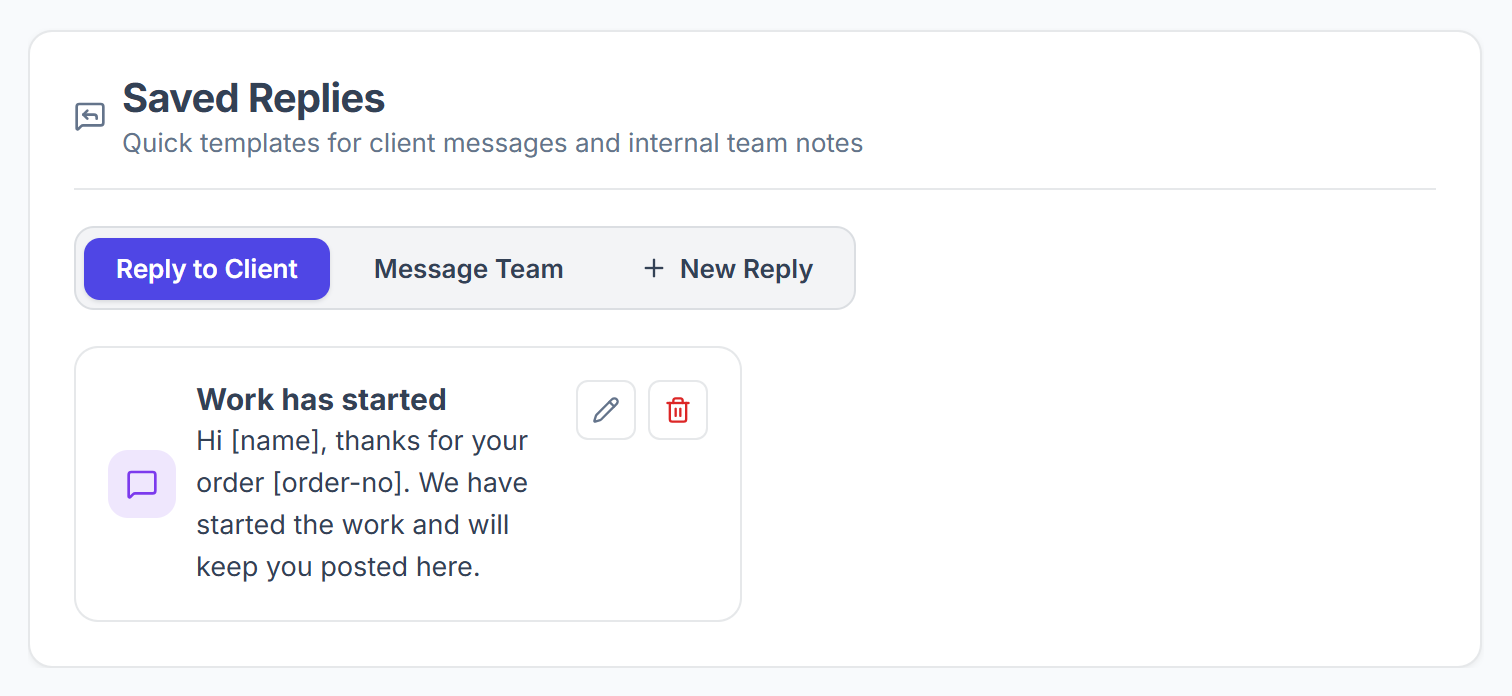
Go to Settings → Saved Replies. Reply to Client shows replies for clients, and Message Team shows notes for your team.

Create a reply
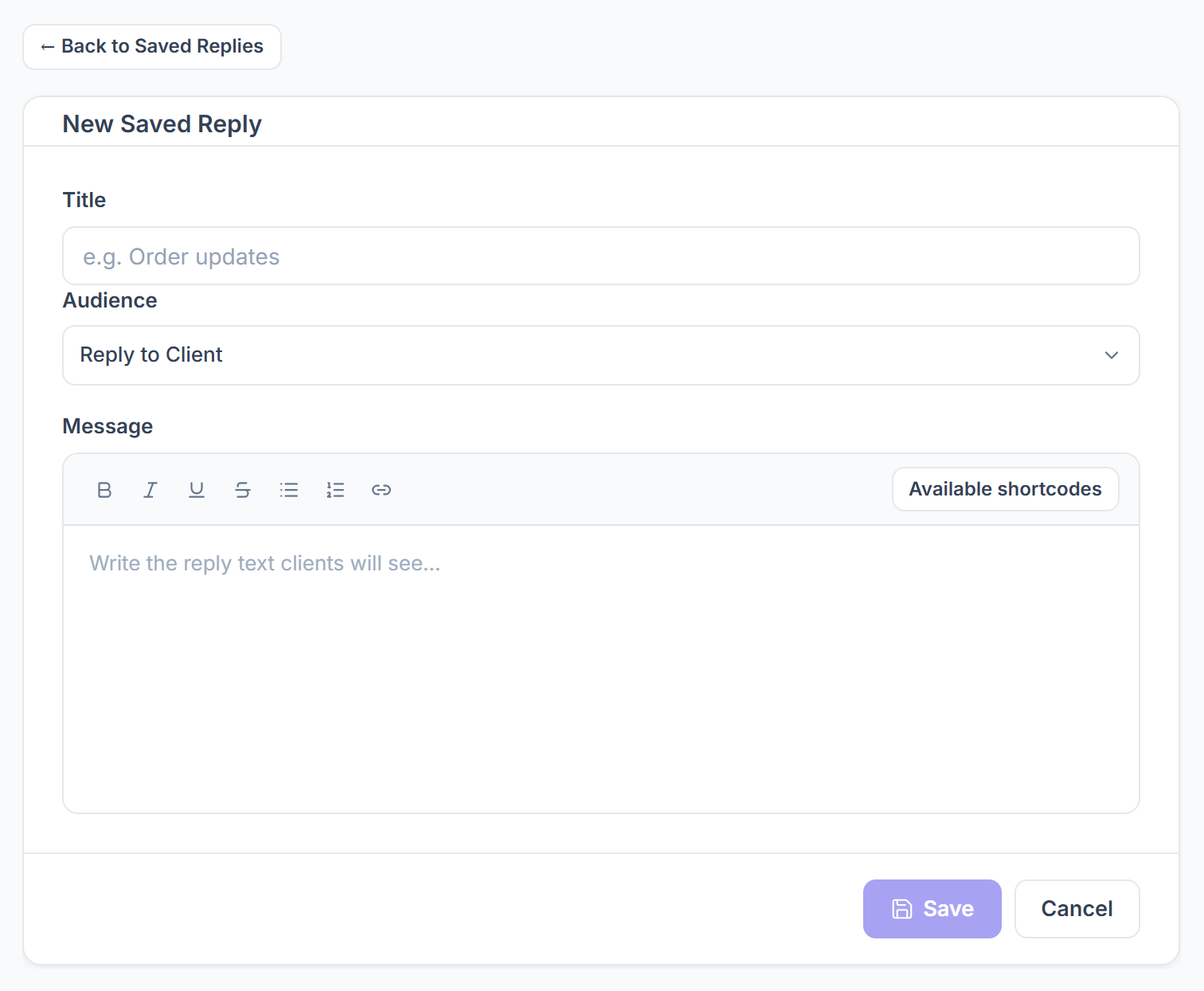
Click New Reply. Enter a Title, choose the Audience and write the Message. Available shortcodes adds [name], [email], [order-no] or [ticket-no], which are filled in when you use the reply. Click Save.

Edit or delete
Use the pencil to edit a reply and the bin to delete it.
Message Templates
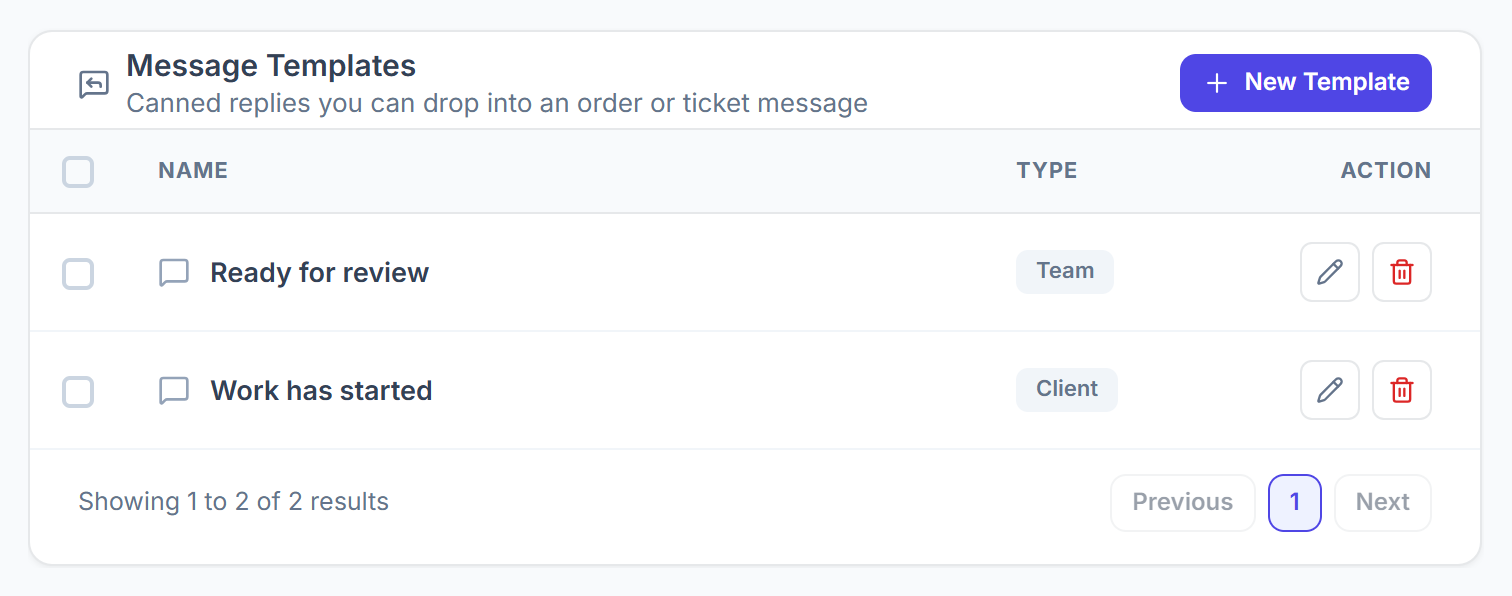
Settings → Messaging shows the same replies as a table under Message Templates, with the type (Client or Team). You can create, edit and delete them there too.