
Clientish Documents
Step-by-step guides for every module, from your first workspace to proposals, billing, support and automation.
Recurring Services
Bill a service every period, and choose what each payment does.
A recurring service is billed every day, week, month or year, such as a monthly retainer.
Overview
This guide covers the recurring settings on a service and what happens each time it is paid.
Who Can Access
Step-by-Step Guide
Turn on recurring billing
Go to Settings → Payment Settings and switch on Recurring billing. Until you do, Recurring isn’t offered on services.
Make the service recurring
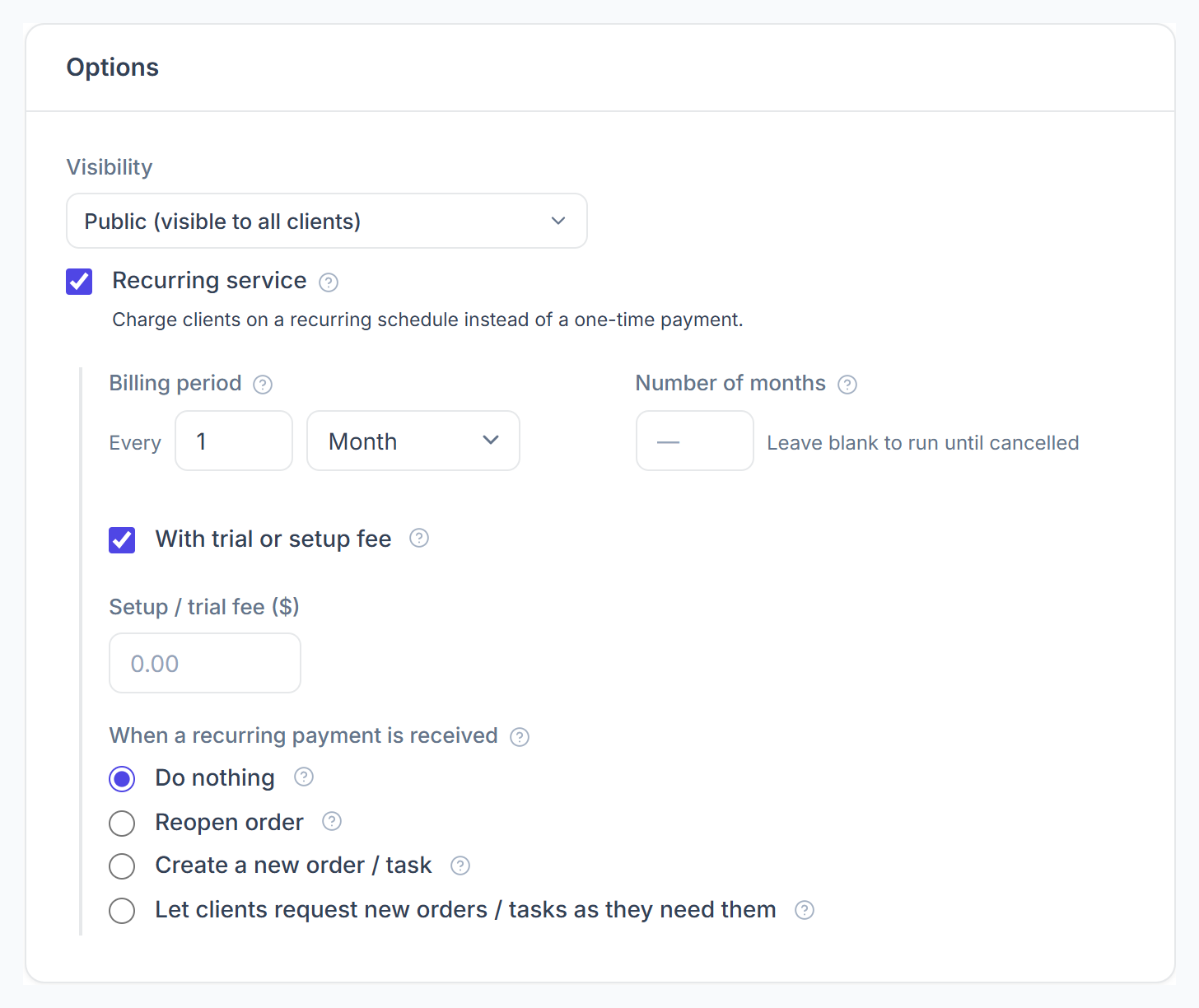
Tick Recurring service under Options, or choose Recurring as the Pricing Type. Set the Billing period, such as every 1 month, and the Number of months; leave it blank to bill until the client cancels.

Add a setup fee
Tick With trial or setup fee to add a one-off fee to the first invoice.
Choose what each payment does
Under When a recurring payment is received: Do nothing, Reopen order, Create a new order / task, or Let clients request new orders / tasks as they need them.
Good to Know
- When a client buys it, a subscription is created. See Subscriptions.
- The price is per billing period.
- A payment link charges once and doesn’t renew, so create a subscription for recurring work.
- If you turn recurring billing off later, existing recurring services can still be edited.