
Clientish Documents
Step-by-step guides for every module, from your first workspace to proposals, billing, support and automation.
SMTP & Mail Config
Send every workspace email through your own mail server, test it, and see in the Email Log what was delivered.
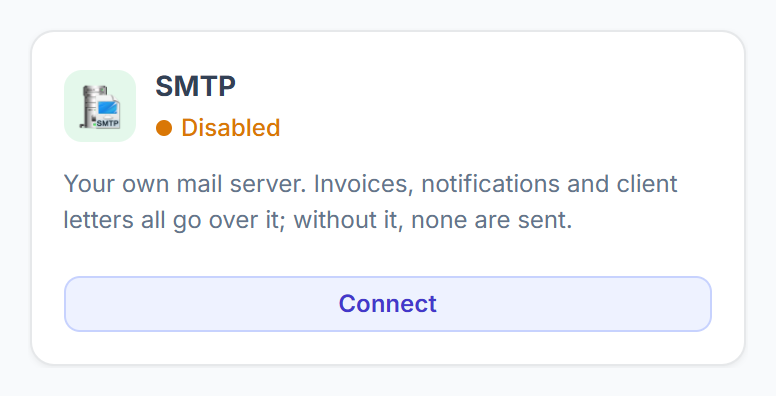
Every email your workspace sends goes out through your own mail server: invoices, notifications, order updates, ticket replies and client letters. Until SMTP is set up, none of them are sent.
Overview
This guide shows how to add your mail server, send yourself a test, and check in the Email Log whether each email reached the recipient.
Who Can Access
Only people who can manage integrations and settings can change the mail server.
Step-by-Step Guide
Get your SMTP details
Your email provider gives you a host, a port, a username and a password for sending mail. Examples of a host are
smtp.gmail.comorsmtp.sendgrid.net. Also decide which address your emails come from.Open the SMTP settings
Go to Integrations and click Connect on the SMTP card. You can also use Settings → General; see below.

Fill in your mail server
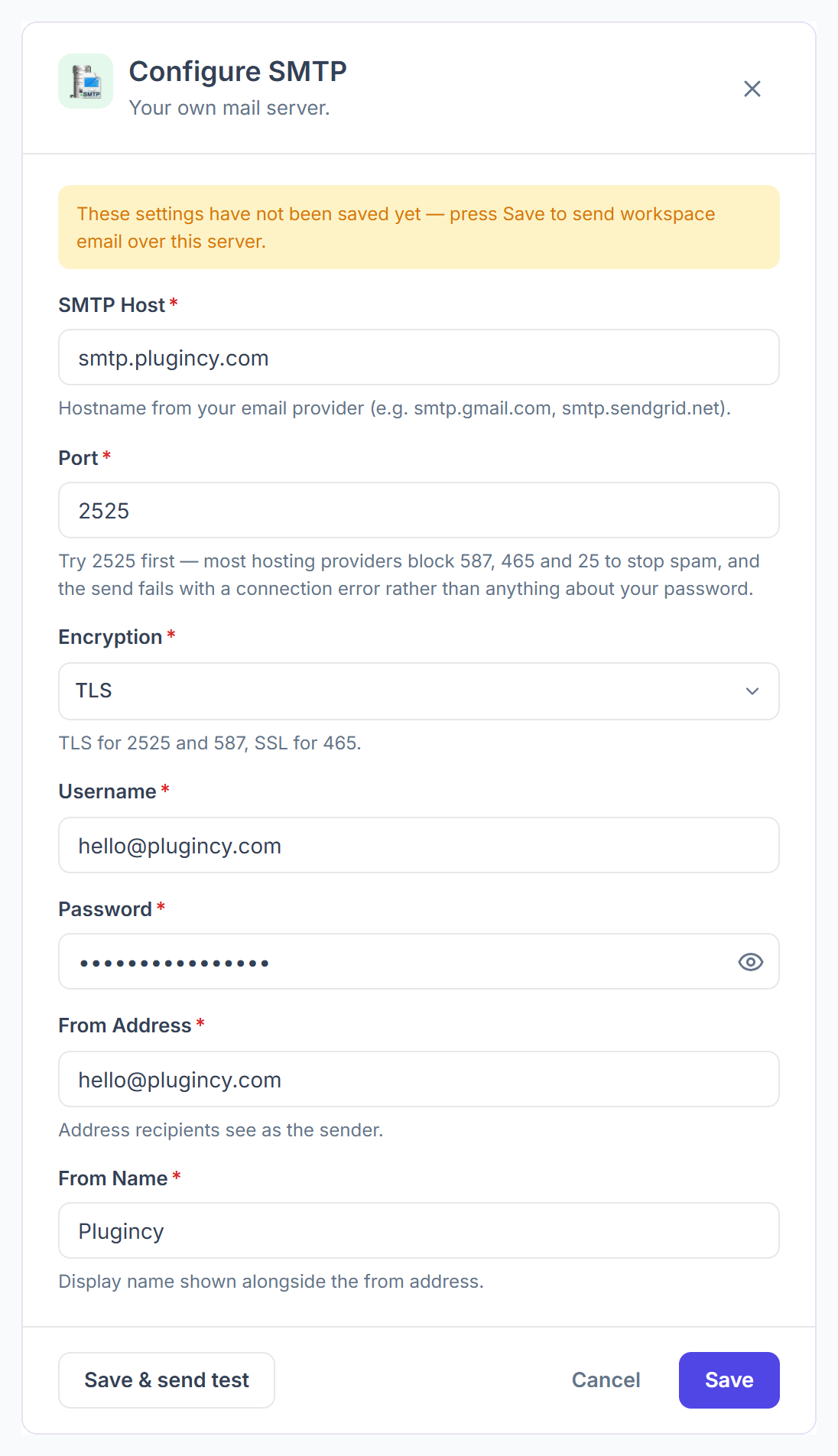
Enter the details from your provider:
- SMTP Host: the server name, for example
smtp.gmail.com. - Port: try 2525 first. Most hosting providers block 587, 465 and 25, and a blocked port fails with a connection error, not a password error.
- Encryption: TLS for port 2525 and 587, SSL for 465.
- Username and Password: your SMTP login.
- From Address and From Name: the address and name your recipients see as the sender.

- SMTP Host: the server name, for example
Save and send a test
Click Save & send test. Your settings are saved and a test email goes to your own account email over that server, the same way your clients receive invoices. After saving, the SMTP card shows Connected. Check your inbox for the test email. To save without a test, click Save.
Check the Email Log
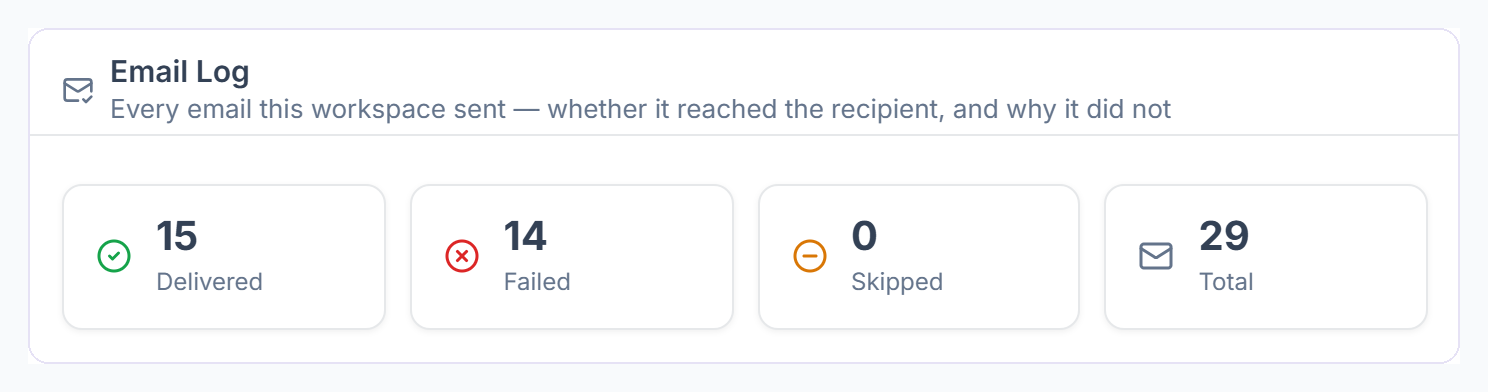
Go to Settings → Email Log. It lists every email your workspace sent and whether it was delivered, failed or skipped.

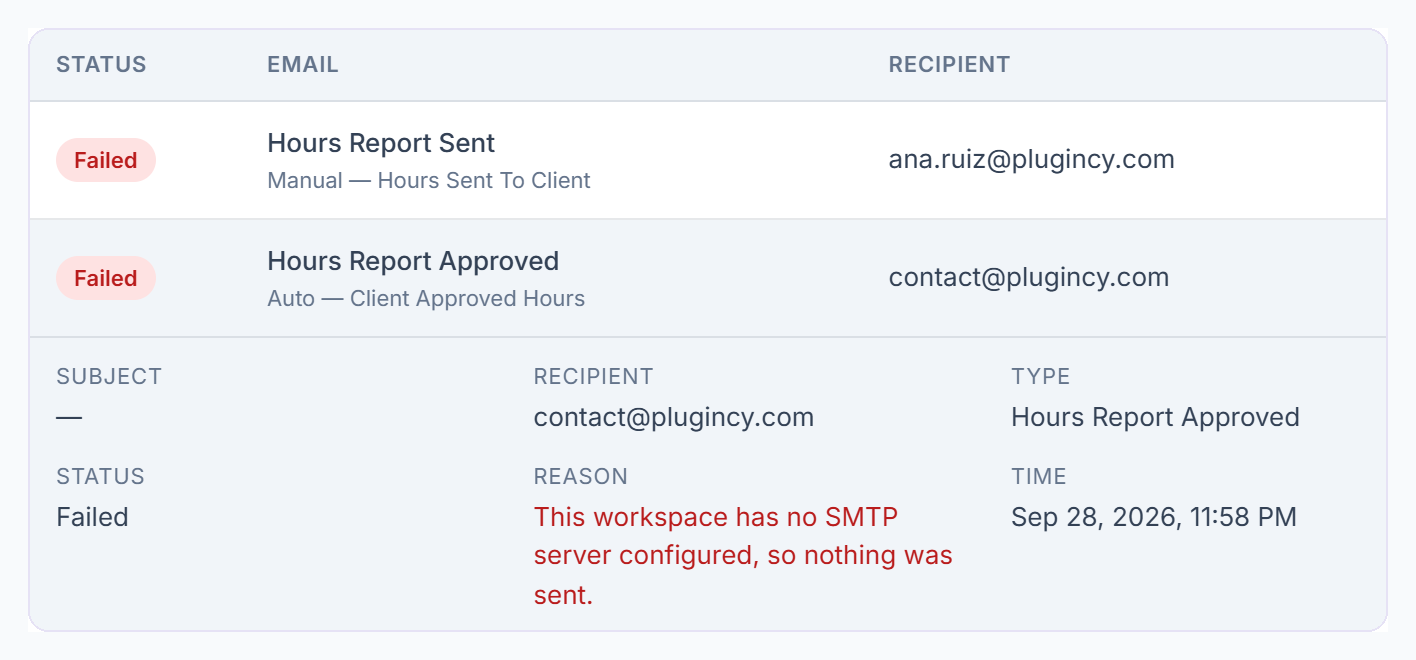
Click an email to see who it went to and, if it failed, the reason. Use the search and filters to find one recipient or type of email.

Or Set It Up in Settings → General
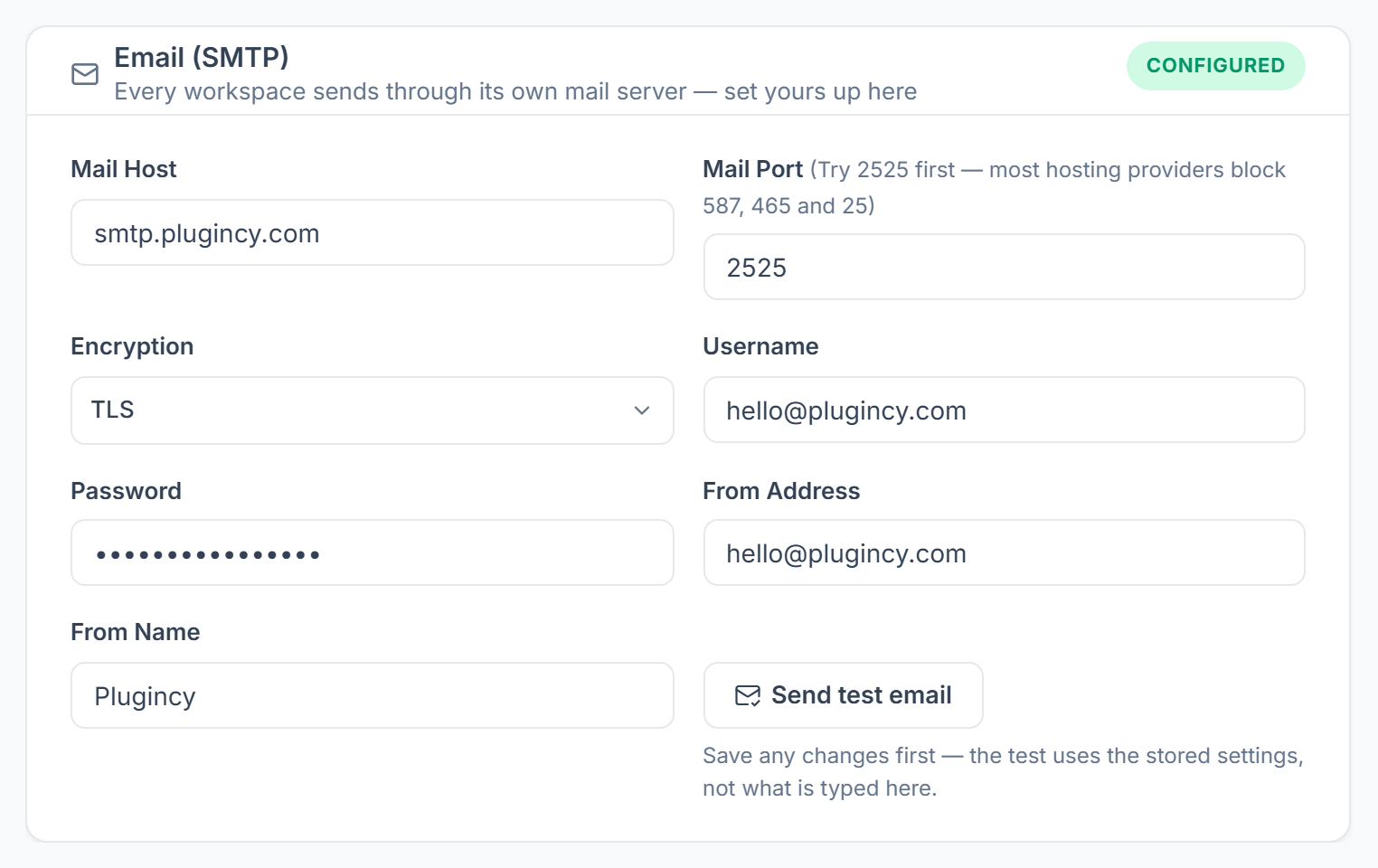
The same mail server settings are also under Settings → General → Email (SMTP). It is one setting shown in two places: whatever you save here also shows on the SMTP card in Integrations, and the other way round.
The badge at the top shows CONFIGURED or NOT CONFIGURED. Click Save changes first, then Send test email: the test uses the saved settings, not what is typed in the boxes.
Common Issues
- Connection error. The port is usually blocked. Switch to 2525 with TLS and send the test again.
- The test fails after a password change. Enter the new password and save again.
- Emails fail with the From address. Use an address your provider lets you send from.
- Reason: no SMTP server configured. SMTP was never saved. Fill in the settings above and save them.
Tips & Best Practices
Set up SMTP before you send your first invoice, and send a test whenever you change the password or provider. The Email Log shows at once if something stops going out.