
Clientish Documents
Step-by-step guides for every module, from your first workspace to proposals, billing, support and automation.
Clients List
The Clients page: buttons, status tabs, the table and the menu on each client.
The Clients page lists everyone with a portal account in your workspace: contacts, leads, clients and client team members. From here you add, import and export clients and open any client in one click.
Overview
This guide explains the buttons, the status tabs, the table and the menu on each client. People who only filled in a form and haven’t been converted stay in Leads until you use Convert to Client.
Who Can Access
Team members need View Clients. With it they see every client in the workspace, not only the ones assigned to them.
Step-by-Step Guide
Open Clients
Click Clients in the sidebar. The buttons at the top are Import, Template, From ClickUp, Export and Add Client. Below them, the tabs show how many accounts have each status. Click a tab to see only those, or All to see everyone.

Read the table
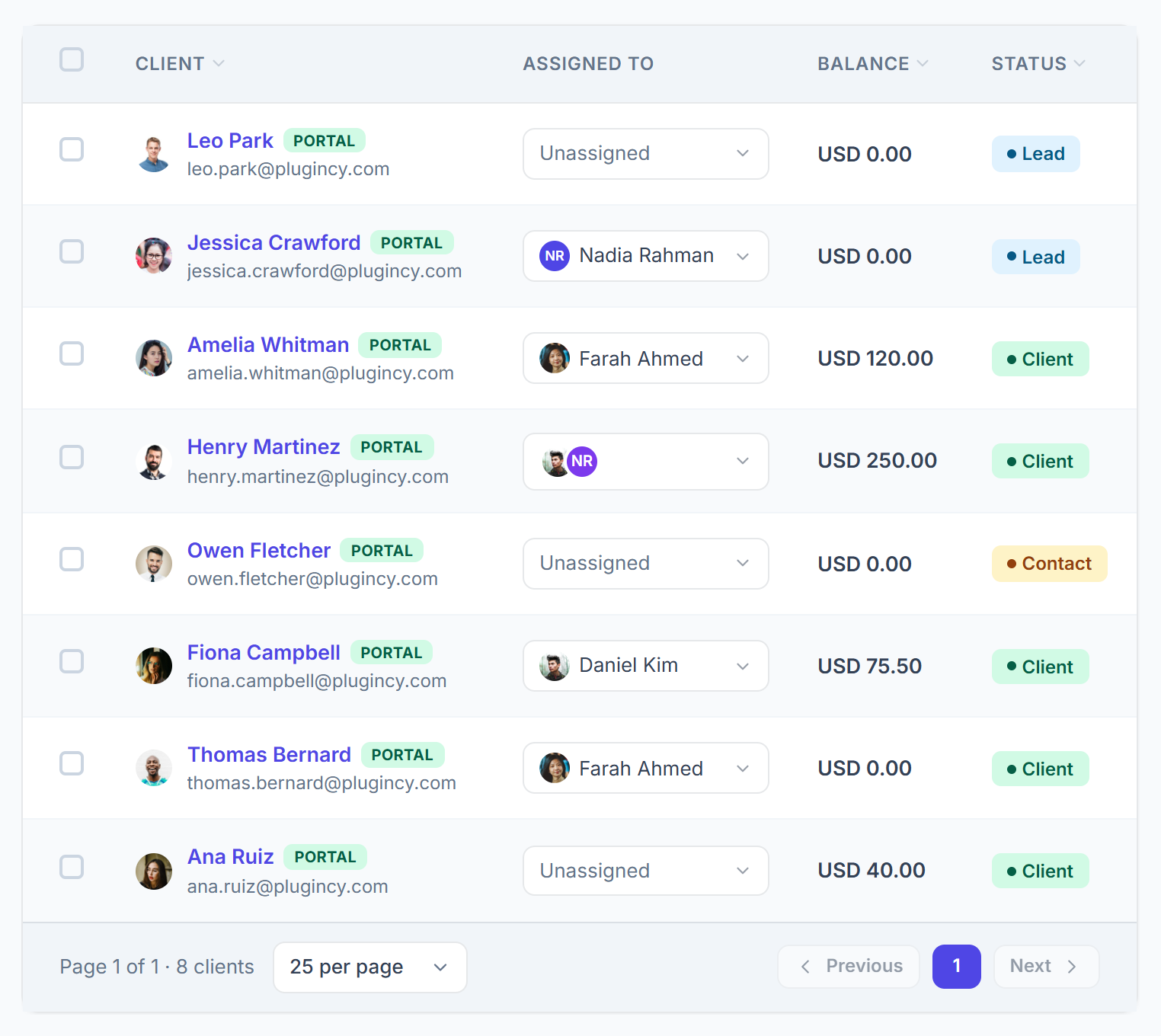
Each row shows the client with their email, their company, who is assigned to them, their balance, their status and the date they joined. A green Portal badge means the client can sign in to your client portal. Click a column title (Client, Company, Balance, Status or Joined) to sort by it.

At the bottom, choose 10, 25, 50 or 100 clients per page. Your choice is remembered in this browser.
Use the client menu
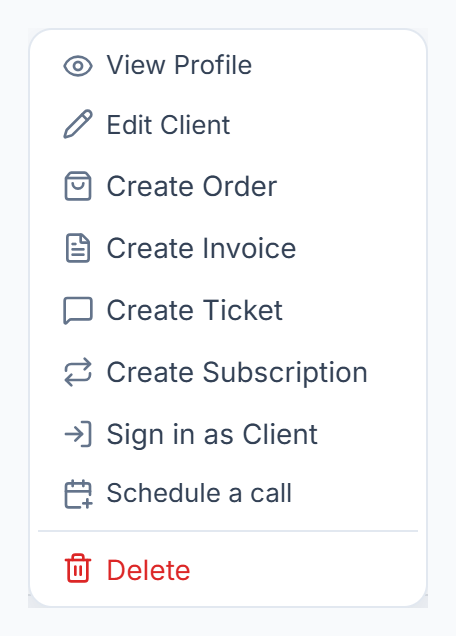
Click ⋮ at the end of a row for View Profile, Edit Client, Create Order, Create Invoice, Create Ticket, Create Subscription, Sign in as Client, Schedule a call and Delete.

Schedule a call opens Google Calendar with a new event for this client. Delete here removes the client and everything linked to them; to choose what to keep, delete from the client’s profile instead. See Delete a Client.

What Team Members See
- The Create items in the menu need Edit Clients, Sign in as Client needs Login As Client, and Delete needs Delete Clients.
- Without View Client Contact the email shows as Hidden; without View Client Balance the balance does.
- See Client Permissions for every permission.