Clientish Documents
Step-by-step guides for every module, from your first workspace to proposals, billing, support and automation.
Search, Filters and Bulk Actions
Find clients with search and six filters, then change many at once.
Find a client in seconds with search and filters, then change many clients at once with the bulk actions.
Overview
This guide covers the search box, the six filters and the four bulk actions on the Clients page.
Who Can Access
Team members need Bulk Manage Clients to use the bulk bar, and Delete Clients to delete in bulk.
Step-by-Step Guide
Search
Type in Search by name, email or company…. Part of a name or address is enough. The table shows matches in the tab you are on, and the tab counts show how many matches each tab has, so you can see when the client you want is in another tab.
Filter
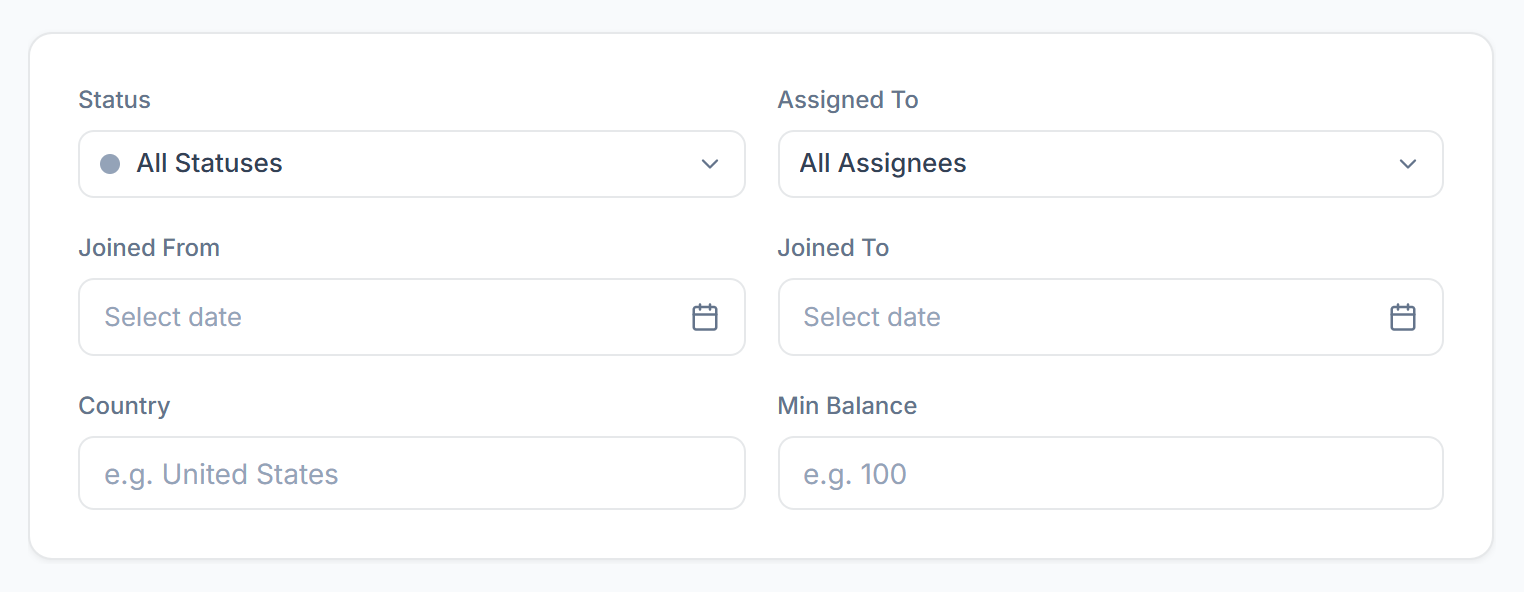
Click Filter to open the filters: Status, Assigned To, Joined From, Joined To, Country and Min Balance. The Filter button shows how many are in use. Clear resets the search, the tab, the filters and the sorting.

Your search and filters are kept in the page address, so you can bookmark a filtered list or send the link to a teammate.
Select clients
Tick the box on each row you want, or tick the box in the header to select every client on the current page. The bulk bar appears and shows how many are selected.

Apply an action
Change Status moves the selected clients to another status. Assign To adds a team member to them and keeps the people already assigned. Send Welcome Email emails each of them their portal address and a link to choose a password. Delete asks you to confirm and then removes the clients with all of their records.