
Clientish Documents
Step-by-step guides for every module, from your first workspace to proposals, billing, support and automation.
Team Dashboard Panels: Orders, Tasks, Tickets and Teammates
The Assigned Orders, Team Members, Assigned Tasks, Total Orders and Assigned Tickets panels, plus Quick Links.
Below the cards, the Team Dashboard lists the team member’s orders, tasks and tickets, their teammates and a set of shortcuts.
Overview
This guide walks through each panel from top to bottom. View All on a panel opens the full page, when the member’s role allows it.
Who Can Access
Every in-house team member. Panels for orders, tickets and teammates appear only when the role allows them.
Step-by-Step Guide
Assigned Orders
The newest five open orders: client, service and reference, amount, who is assigned, status, due date, last update and created date. The ⋮ menu has View Details. This list does not follow the date filter.

Team Members
Up to eight teammates with their job title and how many orders, tasks and tickets each has in the period. Click a teammate to open their profile, if your role can view team members.

Assigned Tasks
One row per order with a task list: total tasks and how much is done, completed, working and overdue tasks, due date, created date and status.

Total Orders and Assigned Tickets
Total Orders splits your orders into Submitted, Pending, Working and Completed with a bar for each. The Assigned Tickets chart shows your tickets by status.

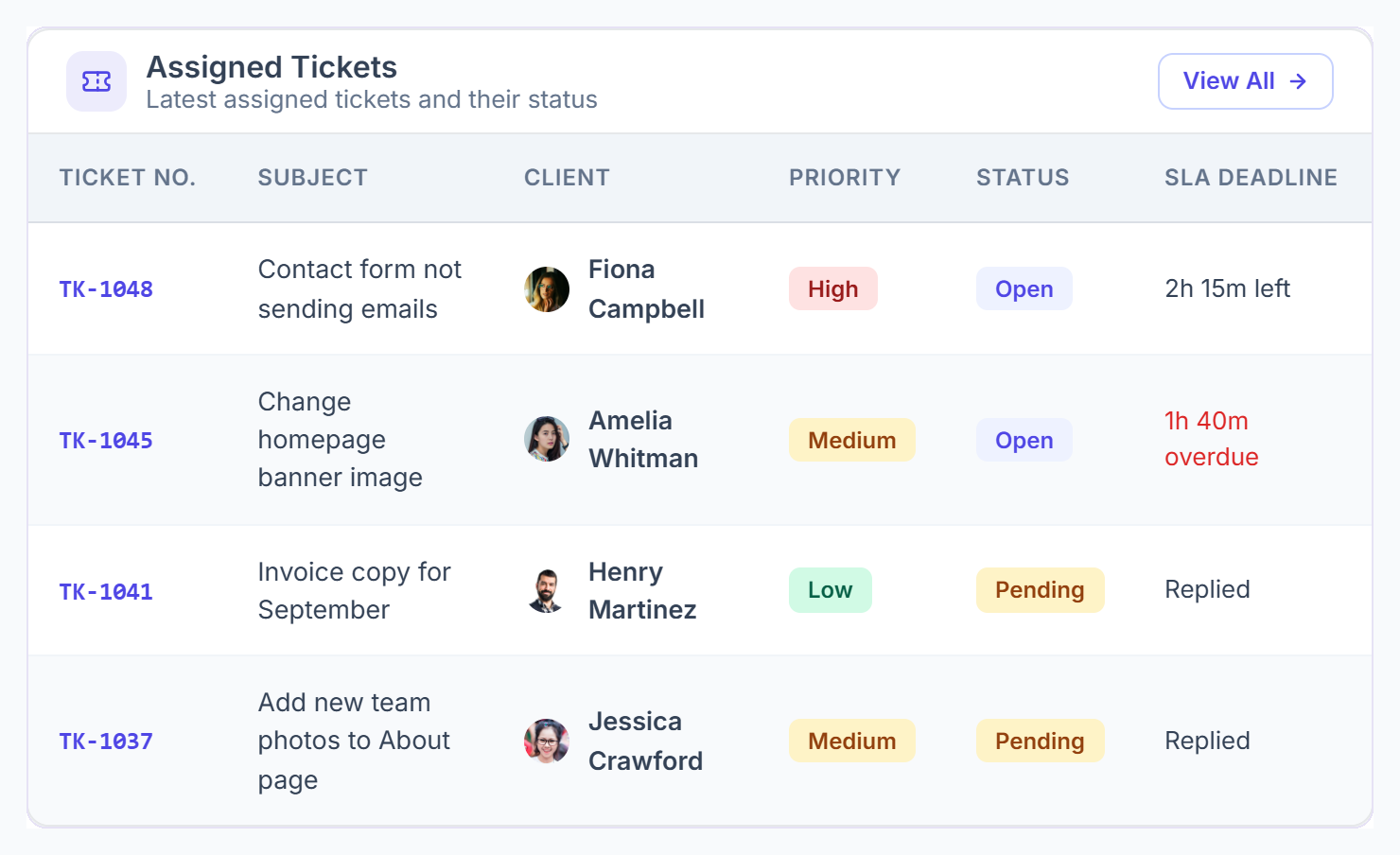
Assigned Tickets
The newest five open tickets: ticket number, subject, client, priority, status, SLA deadline, who is assigned and date. The SLA shows time left, time overdue in red, or Replied.

Quick Links
Shortcuts to the pages the member can open, such as Orders, Tickets, Task Assign, Todo Lists, Team Messenger, Live Chat, Notifications and My Profile.



Good to Know
- Team Members shows the whole team to a role that manages the team, and only remote members to a role that only manages remote members.
- If the role is limited to its department, only teammates in the same department are listed.
- An empty panel means nothing is assigned yet.