Clientish Documents
Step-by-step guides for every module, from your first workspace to proposals, billing, support and automation.
Team Member Profile and Sign-in History
How a team member updates their photo, details, email and password, and signs out other devices.
My Profile is where a team member updates their photo, contact details and password, and sees where they are signed in.
Overview
This guide covers the profile page in the Team Dashboard. For how email and password changes work for every user, see Your Profile, Email and Password.
Who Can Access
Every team member, for their own profile. Open it from Profile at the bottom of the sidebar or My Profile in Quick Links.
Step-by-Step Guide
Change your photo
Click the camera on your picture. Use a JPG or PNG, 200 × 200, up to 100 KB. You can also remove it.
Update your details
Edit your first and last name, email, phone, address, city, state, zip code and country, then click Save Changes. Your timezone is set by your workspace administrator.

Change your email
A new email address is confirmed by a link sent to your current address. The old address stays in use until you open it.
Change your password
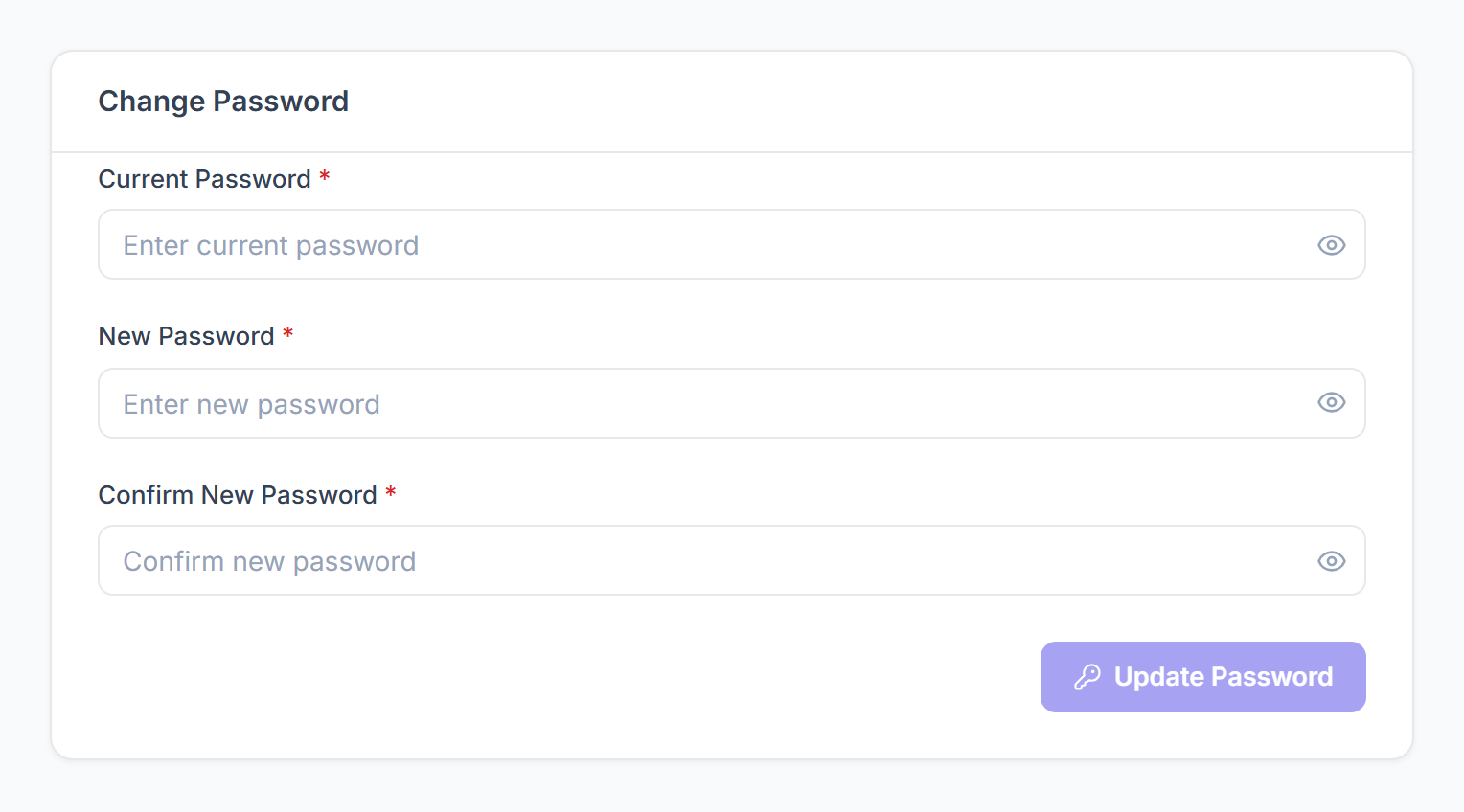
Enter your current password and the new one twice (at least 8 characters), then click Update Password. Open the link in the email to confirm. Your old password works until you do.

Check where you are signed in
Recent Login History lists each device with its browser and location. Your own is marked Current session.

Sign out other devices
Click Sign out of other devices and confirm. Every other browser has to sign in again.