
Clientish Documents
Step-by-step guides for every module, from your first workspace to proposals, billing, support and automation.
User Roles & Permissions
Who is who in your workspace, what a role contains, and where team and remote roles are managed.
Roles decide what each person in your workspace can see and do. Give your team exactly the access their work needs, and nothing more.
Overview
This guide introduces the kinds of users and where their roles are managed. For every permission in detail, see the Roles & Permissions topic.
Who Can Access
Who Is Who
- Workspace owner: the person who signed up. Can do everything, including your Clientish plan and billing.
- Co-admins: added on the Team Members page. They can view billing, but only the owner can change it.
- Team members: your staff. What they can do comes from their team role.
- Remote members: freelancers and contractors. What they can do comes from their remote role.
- Clients: sign in to the client portal and see only their own orders, invoices, tickets and files.
Step-by-Step Guide
Open the team roles
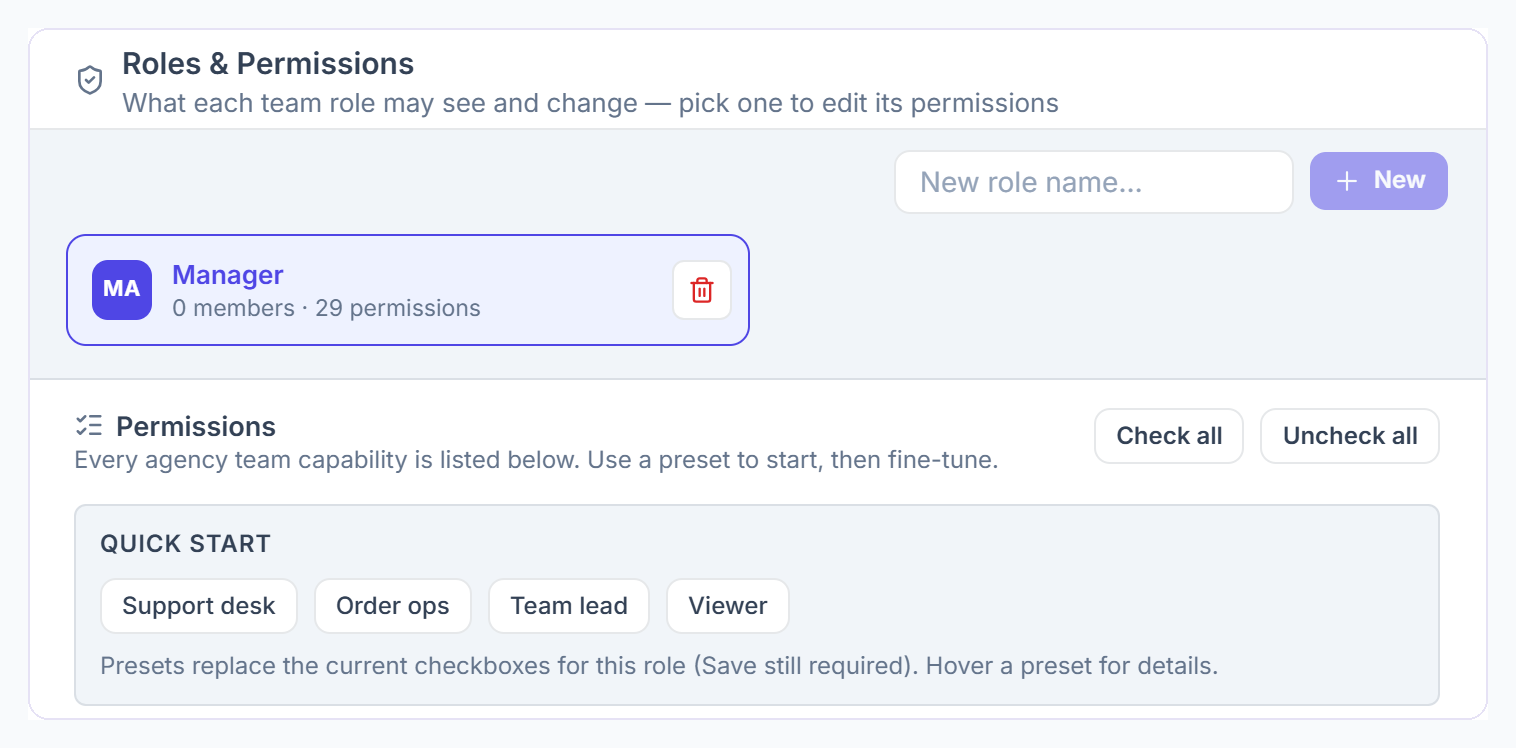
Go to Settings → Roles & Permissions. Pick a role to edit it, or type a New role name and click New.

Start from a preset
Under Quick start, choose Support desk, Order ops, Team lead or Viewer. The preset ticks a sensible set of permissions; adjust them and save.
Limit by department
Access scope can limit a role to its own department’s orders, invoices, services, reports and team lists.
Set up remote roles
Remote members have their own roles under Settings → Remote Roles, with the presets Task worker, Remote support, Remote ops and Viewer.
What a Role Can Contain
A role is a list of permissions, one checkbox each. Team roles have 207 permissions in 20 groups. Remote roles use almost the same list, and when time tracking is on they also get a Time Tracking group of 15; in the demo workspace a remote role shows 218 in total.
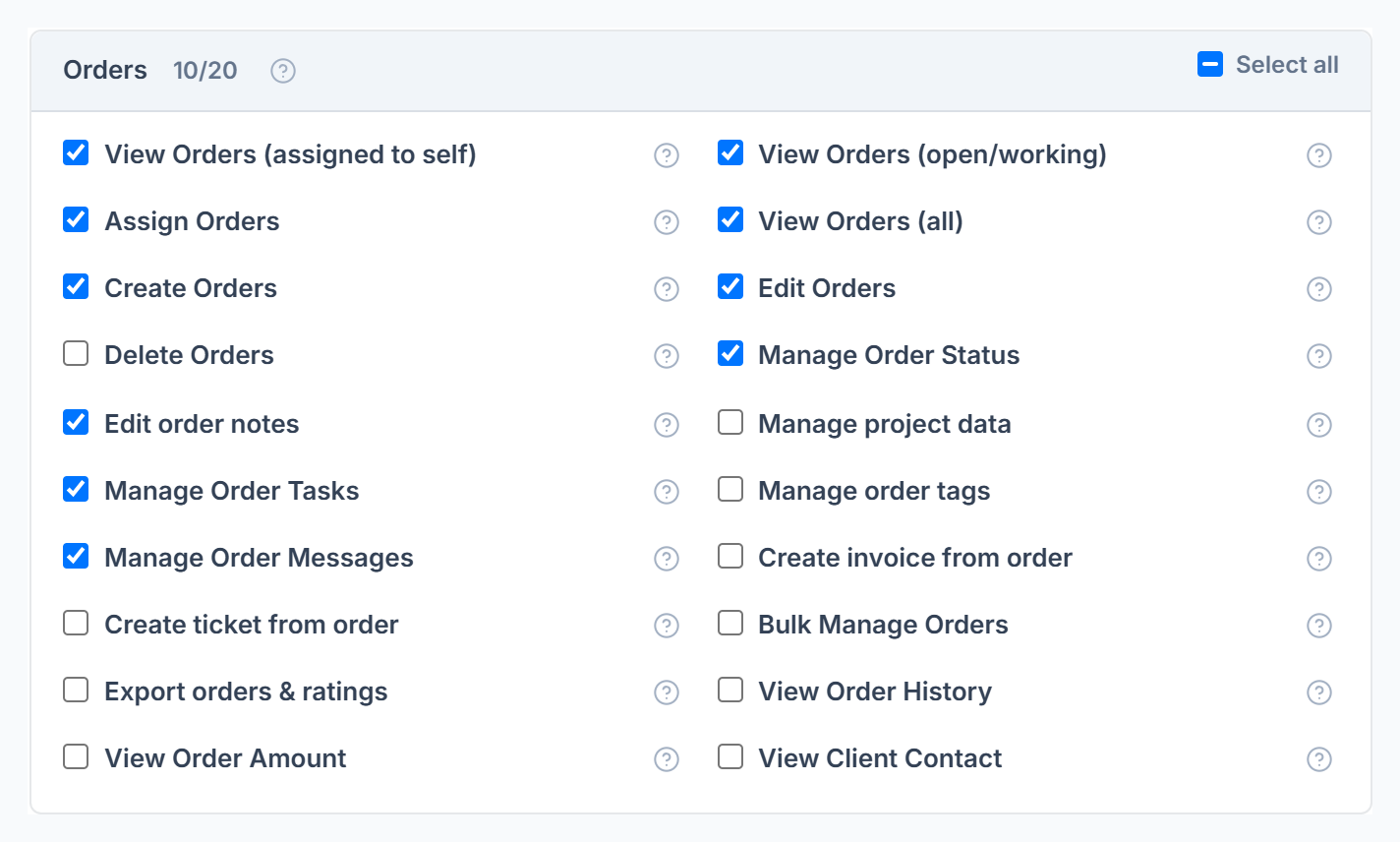
Each group shows how many of its permissions the role has, for example Orders 10/20. Tick the ones the role needs, or use Select all. Hover the ? next to a permission to see exactly what it allows.
For what every single permission does, see Permission Matrix.