
Clientish Documents
Step-by-step guides for every module, from your first workspace to proposals, billing, support and automation.
Service Intake Form
Build the form clients fill in after buying a service, with show and hide rules.
An intake form collects what you need to start the work. The client fills it in after they buy the service.
Overview
This guide shows how to build a service’s intake form and add rules.
Who Can Access
Team members need Manage Service Intake and the Forms permissions.
Step-by-Step Guide
Open the Intake Form tab
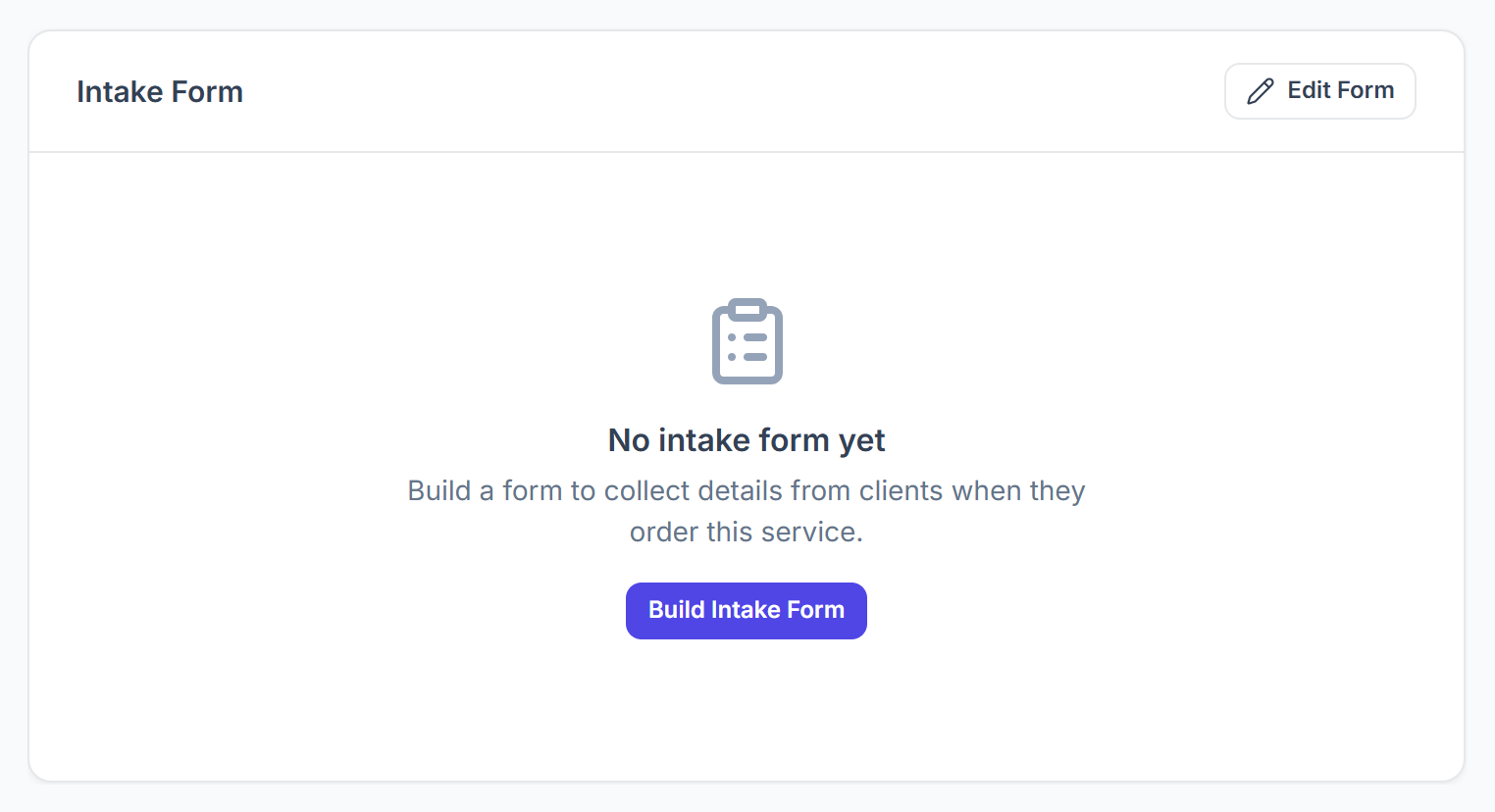
On the service page, click Intake Form, then Build Intake Form. You can also use Intake Form Builder in the Actions card.

Add the fields
The builder is the same as for your other forms. Add fields such as short and long text, dropdowns, checkboxes, dates, file uploads, spreadsheets and signatures, then publish it.
Add rules
Intake Form Rules shows or hides fields based on an answer: If a field is or is not a value, then show or hide other fields. Publish the form first.
What the Client Sees
- An order for the service starts as Pending.
- In their portal the order shows Complete intake. They fill in the form and click Start Order.
- The work can’t start until the form is sent.
- The answers appear on the order under Project Data and Intake.