
Clientish Documents
Step-by-step guides for every module, from your first workspace to proposals, billing, support and automation.
Reports Overview
Where Reports is, the tabs, the date range and the export buttons.
Reports shows how your agency is doing: revenue, services, clients, orders, statuses, client balances and coupons.
Overview
This guide covers where Reports is, the tabs, the date range and the export buttons.
Who Can Access
Reports is on every plan. Team members see only the tabs their permissions allow. See Who Can See Which Report.
Step-by-Step Guide
Open Reports
Click Reports under Billing in the sidebar.
Pick the dates
Choose a preset or set a start and end date and click Apply. Reset goes back to this month. One date range applies to every tab.

Switch tabs
Use the tabs: Revenue, Services, Clients, Orders, Statuses, Accounts and Coupons. With time tracking on, there is also a Time tab.
Export
The export buttons above the tabs change with the tab. See Export Report Data.

Date Presets
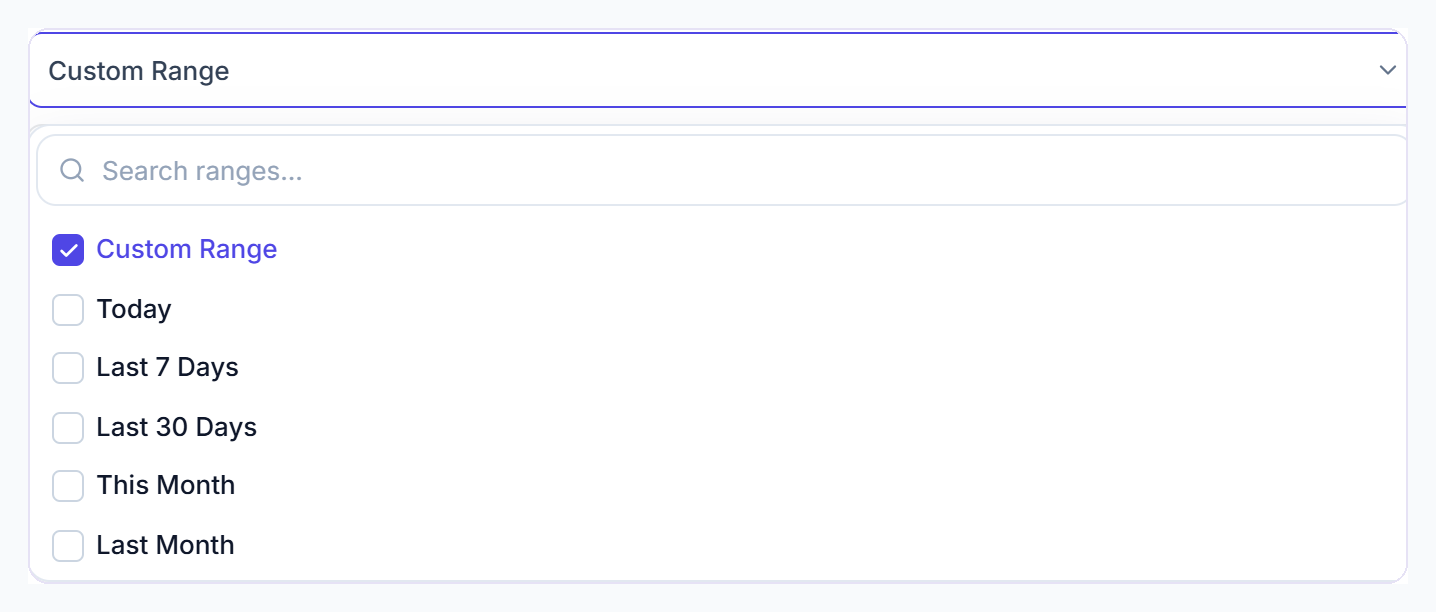
- Today, Last 7 Days, Last 30 Days, This Month and Last Month.
- A custom range can be up to one year.
- The cards compare with the same length of time just before your range.
- The 6-month charts on Clients and Orders always show the last six months.