
Clientish Documents
Step-by-step guides for every module, from your first workspace to proposals, billing, support and automation.
Client Portal Overview
What your clients see when they sign in: the menu, the header and your branding.
Every client gets their own portal on your workspace address. It carries your logo and colours, and it is where they follow orders, pay, ask for help and talk to you.
Overview
This guide shows what your clients see when they sign in: the menu, the header and how to see the portal through their eyes.
Who Can Access
Clients sign in at your workspace address, for example youragency.clientish.io/portal/login. See Client Sign-In and Security.
The Menu
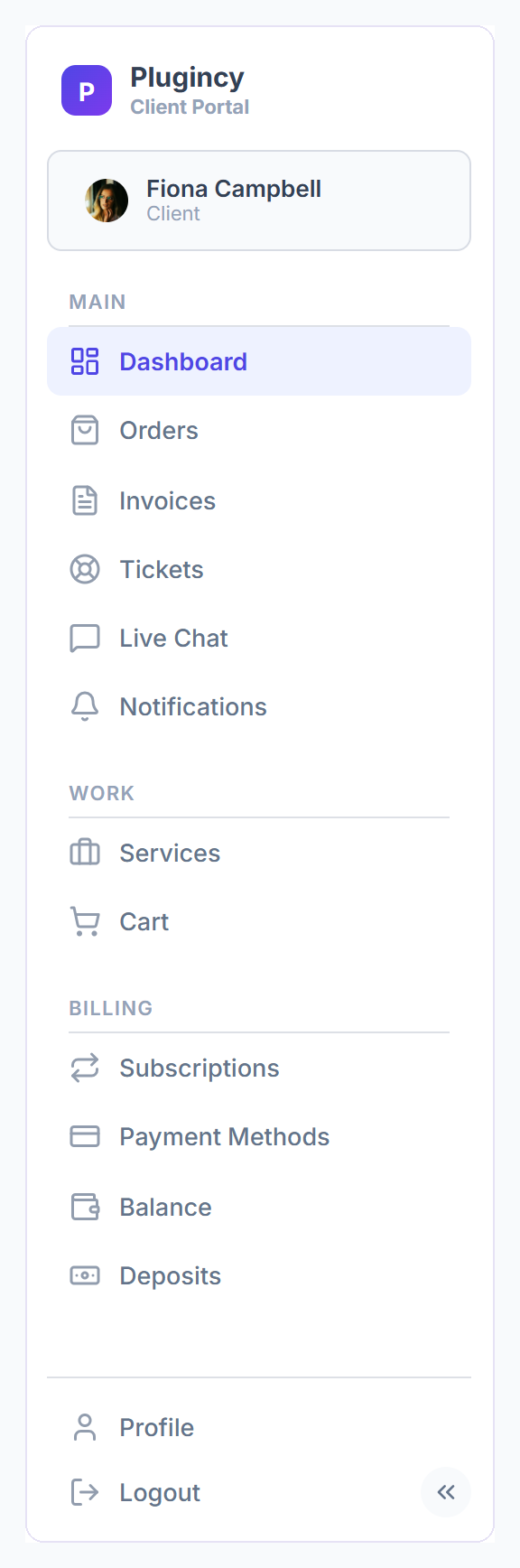
- Every client sees the same menu.
- Live Chat shows only when your plan includes live chat (Growth and up, and during the trial).
- Reports shows only when you have shared at least one report with that client.
The Header
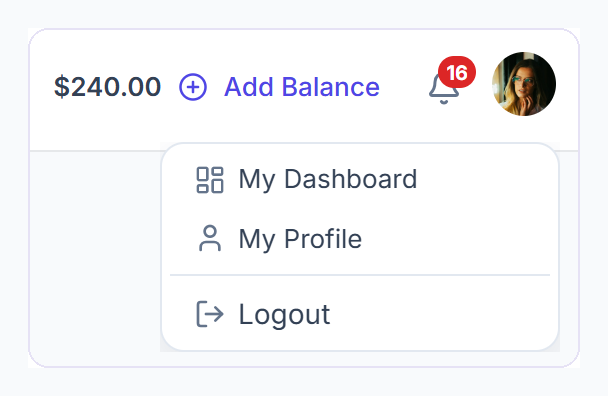
- The client’s account balance, with Add Balance to top it up.
- The bell with their unread notifications.
- The profile menu with My Dashboard, My Profile and Logout.
Your Branding
- The portal uses your workspace logo, name and theme colours.
- The footer says “Powered by Clientish”. Pro and Enterprise plans can hide it.
- If your Clientish plan lapses, the portal becomes read-only after the grace period. Clients can still look but not change anything.
See What a Client Sees
Open the client
Go to Clients and open the client.
Sign in as them
Click Sign in as Client. Their portal opens with a bar at the bottom.
Go back
Click Back to Agency Dashboard in that bar when you are done.