
Clientish Documents
Step-by-step guides for every module, from your first workspace to proposals, billing, support and automation.
The Leads Page
Where leads come from, the summary cards, status tabs, table and Kanban board.
Leads are people who have asked about your services but aren’t clients yet. The Leads page shows every one of them, how much they could be worth, and what needs your attention.
Overview
This guide explains where leads come from, the summary cards, the status tabs, the table and the Kanban board.
Who Can Access
Team members need any one of the Leads permissions. With it they see every lead in the workspace. Leads is included on the Growth, Pro and Enterprise plans and the free trial, but not on Starter.
Where Leads Come From
- Contact forms: each time someone sends one of your contact forms. Intake and onboarding forms don’t create leads.
- By hand: with Add Lead. See Add and Edit a Lead.
- Import: from a CSV file. See Import and Export Leads.
- Facebook Lead Ads: when you connect it under Integrations.
Step-by-Step Guide
Open Leads
Click Leads in the sidebar. Switch between Table and Kanban at the top. Template, Import and Export move leads in and out, Duplicates finds leads with the same email, and Add Lead adds one by hand.

Read the summary cards
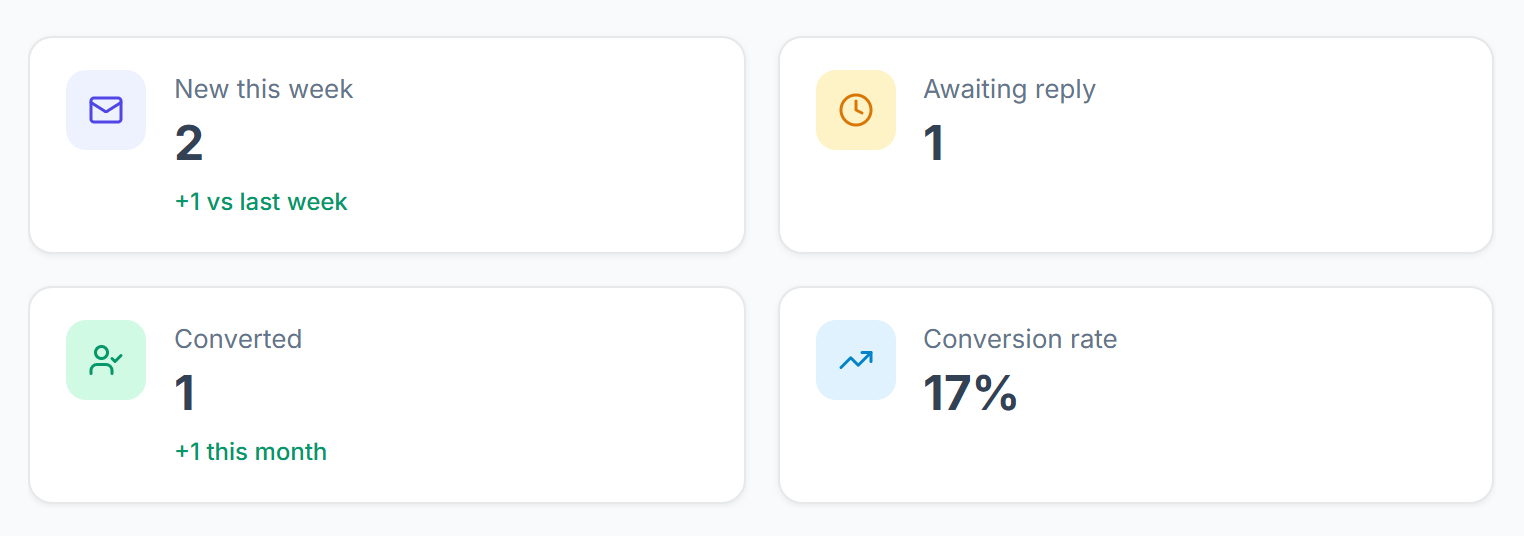
New this week counts new leads, compared with last week. Awaiting reply counts open leads where your team sent the last chat message, so you are waiting on them. Converted counts leads that became clients; click it to see them. Conversion rate is the share of all leads that converted.

Filter by status
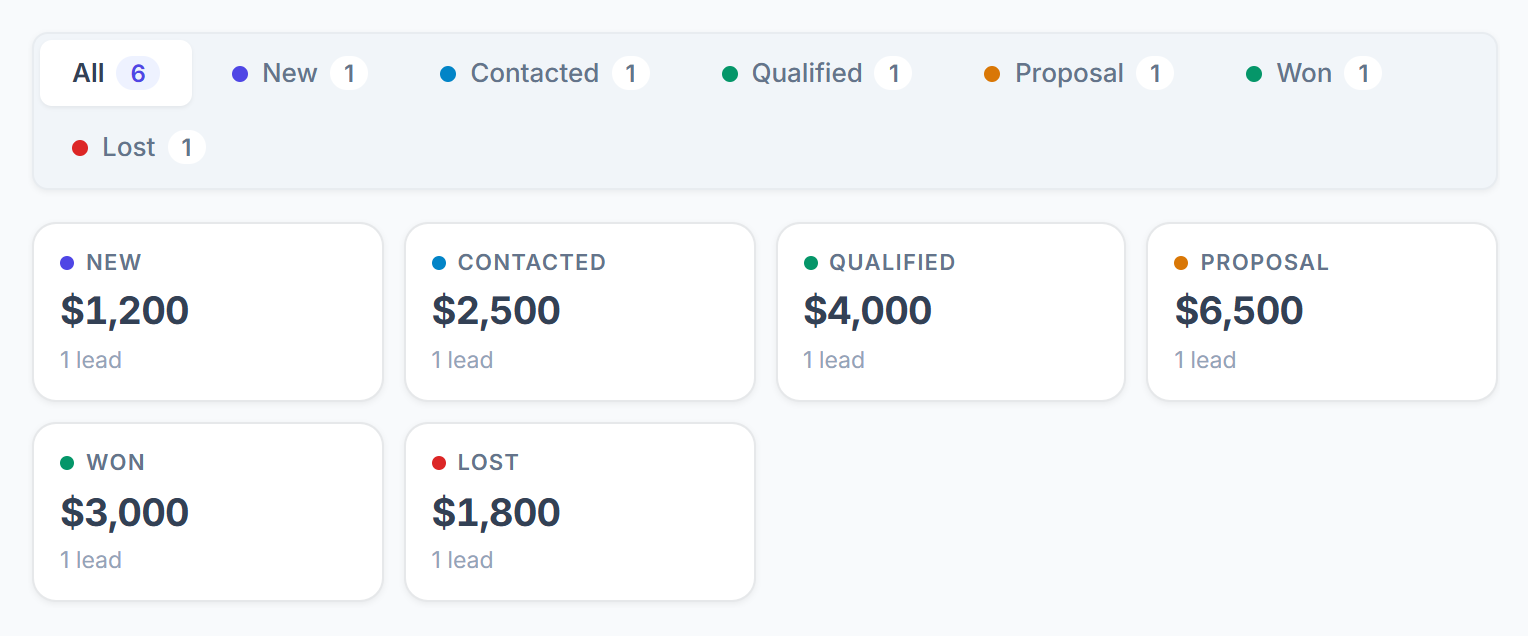
The tabs show how many leads are in each status. Below them, each status shows the total expected value of its leads. See Lead Statuses and Pipeline Value.

Search and filter
Search by name, email, phone or company. All sources shows leads from one source only, and All follow-ups shows the ones that are Overdue, Due today or Upcoming. Clear resets them.

Read the table
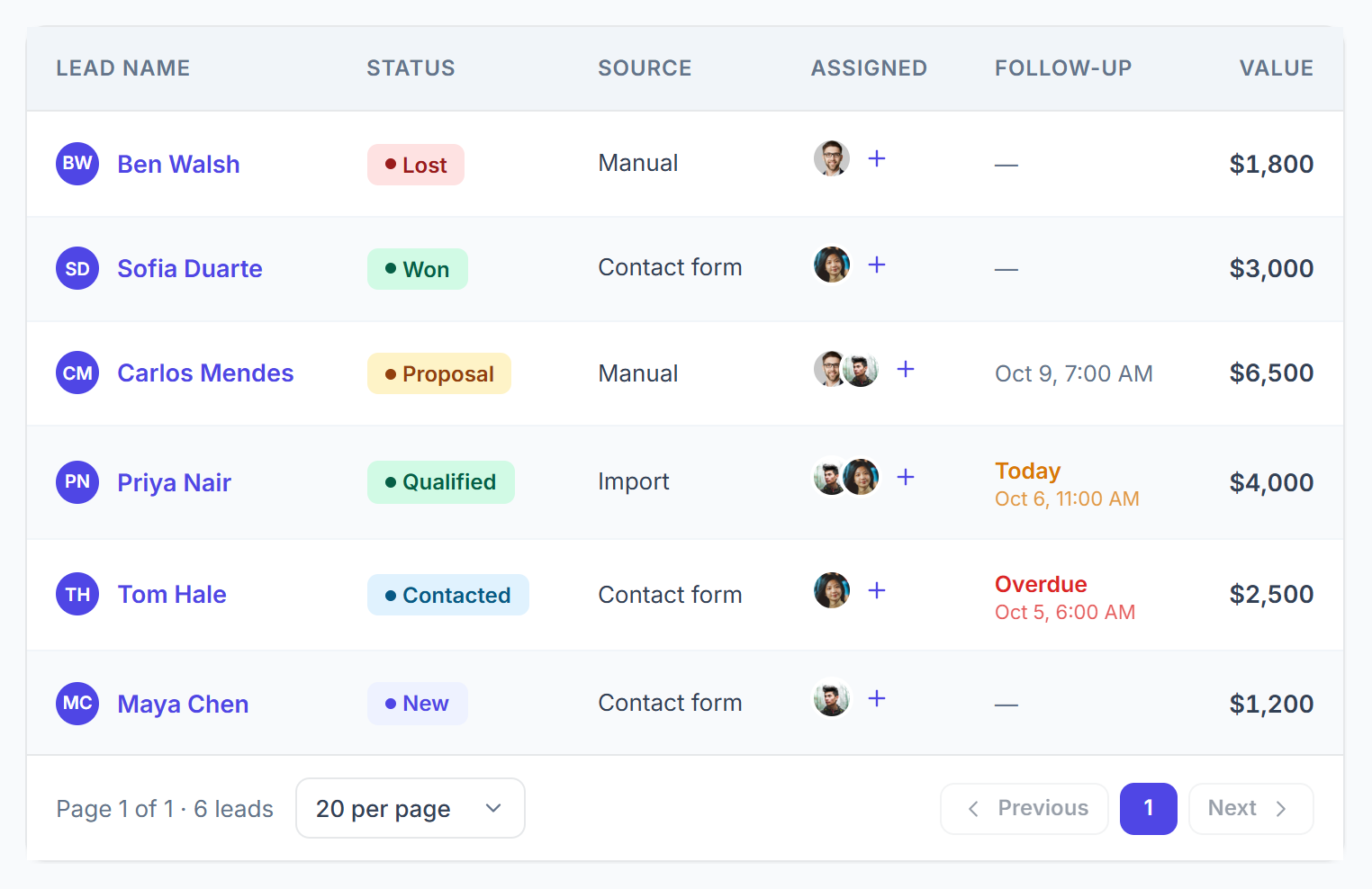
The table shows each lead’s name, email, status, source, who is assigned, the follow-up, company, when it came in and its expected value. A follow-up is marked Overdue in red or Today in amber. The newest leads are at the top. Choose 5 to 100 leads per page at the bottom.

Use the lead menu
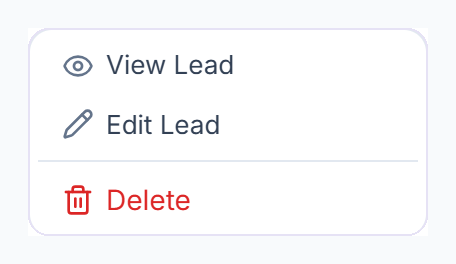
Click ⋮ on a row for View Lead, Edit Lead and Delete. Leads from a contact form can’t be edited, because their details are kept as they were sent; you can still change their status, assignees, notes and follow-ups.



The Kanban Board
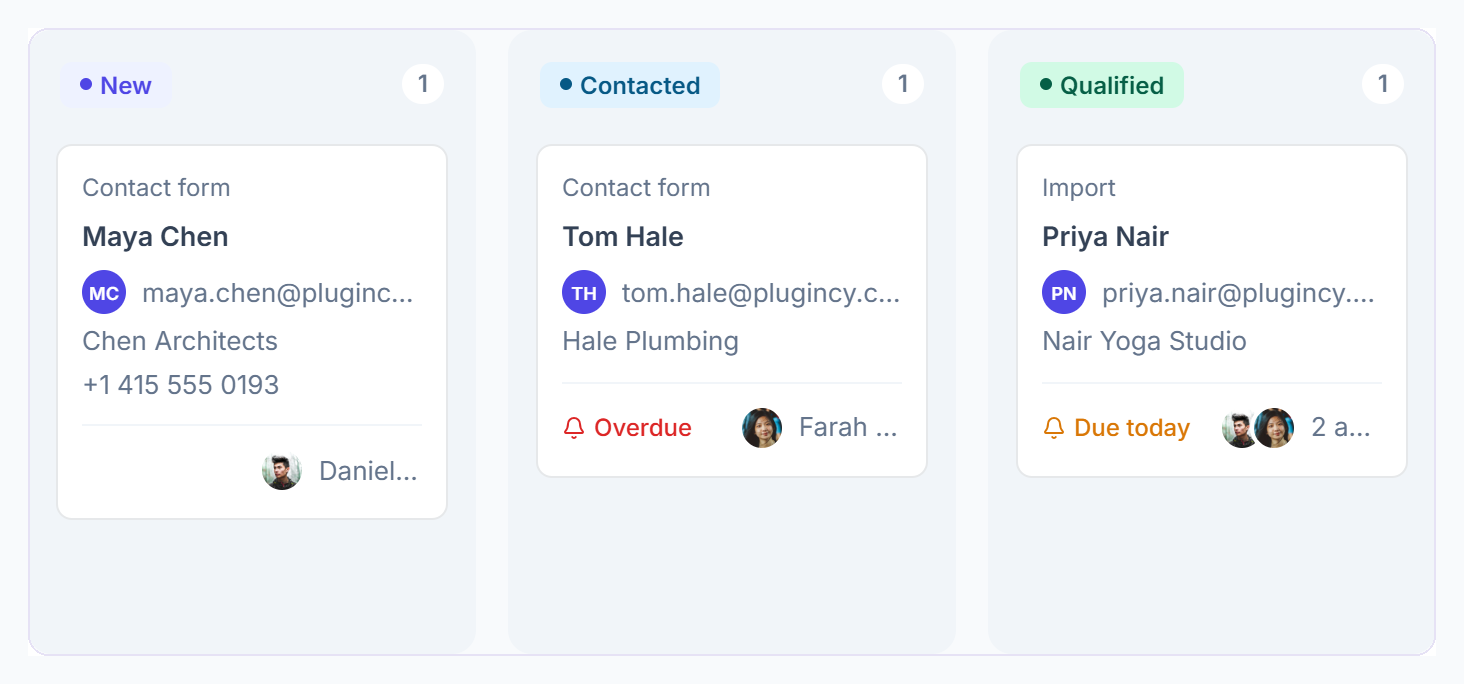
In Kanban, each status is a column. Drag a card to another column to change its status. You can’t drop a card on Won: a lead becomes Won when you convert it to a client. Converted cards can’t be moved.
Deleting a Lead
Choose Delete in the lead menu and confirm. A deleted lead no longer counts towards your monthly lead allowance, and its chat link stops working. Converted leads can’t be deleted; the client account stays either way.