
Clientish Documents
Step-by-step guides for every module, from your first workspace to proposals, billing, support and automation.
Clientish AI Assistant: Ask AI on Your Own AI Key, With Confirm and Undo
What Ask AI can read and change in your workspace, the 8 AI providers it works with, and how Confirm and Undo keep every change in your hands.
In Clientish, the AI assistant answers questions about your orders, clients, invoices and tickets from any page, and it can make changes once you click Confirm. It runs on your own AI account, so you pick the provider and pay that provider directly for what you use.
Who can do it: only the workspace owner sets it up and chooses which team members may use Ask AI
What Can the Clientish AI Assistant Do?
It reads your workspace the way the person asking could read it, answers in plain words, and, if you allow it, prepares changes for you to confirm.
- Answer questions such as “What needs my attention today?” or “Which invoices are more than 30 days late?”, with links to the orders, tickets, clients, invoices and leads it mentions.
- Read orders, clients, invoices, tickets, leads, services, proposals, to-dos, your team, your reports and your own Help center articles.
- Write a client update or a ticket reply for you to edit and send.
- Make 18 kinds of changes across orders, tickets, leads, clients and invoices: change a status, assign someone, add an internal note or task, message a client, open a ticket, add a lead or client, or prepare an invoice.
- It never deletes anything and never moves money.
Which AI Providers Work With the Assistant?
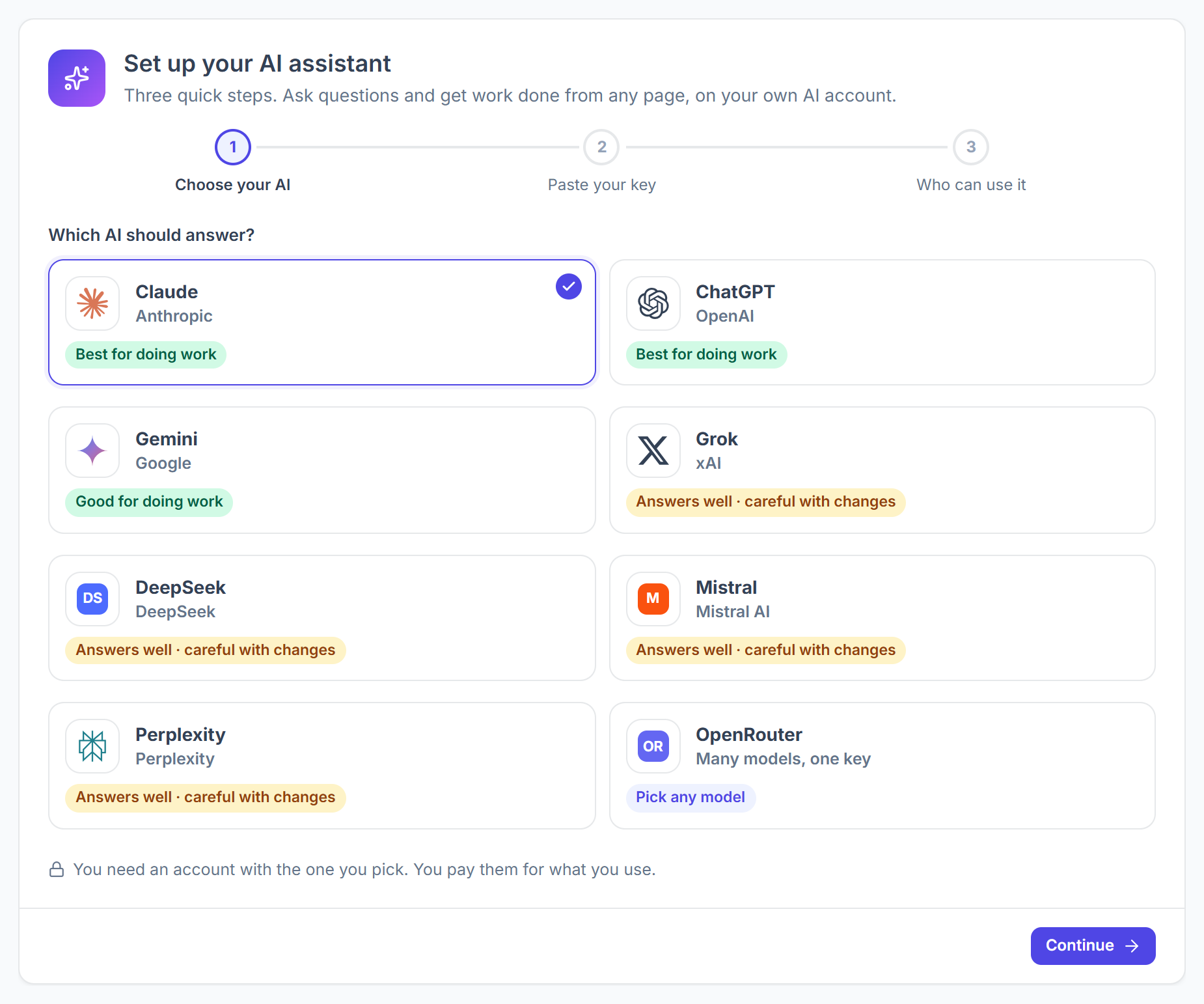
You can connect any of 8 providers, from Claude and ChatGPT to Gemini, Grok, DeepSeek, Mistral, Perplexity and OpenRouter. The setup screen marks how well each one handles changes.
Each provider offers a few models. The first one is the default and the cheapest, and it is enough for most questions; bigger models cost more per question.
How Does Ask AI Know Which Page You’re On?
Ask AI reads the page you have open and treats it as the subject of your question. The panel shows it as Looking at: followed by the page name.
- Open it with Ask AI in the top bar, or press Ctrl+J (Cmd+J on a Mac).
- On an order, “this” means that order. Suggestions change with the page: “What’s left on this order?” on an order, “Draft a reply to this ticket” on a ticket, “What does this client owe?” on a client.
- The chat stays open while you move between pages. Past chats lists earlier conversations, which are kept for 30 days.
How Do Confirm and Undo Work in Ask AI?
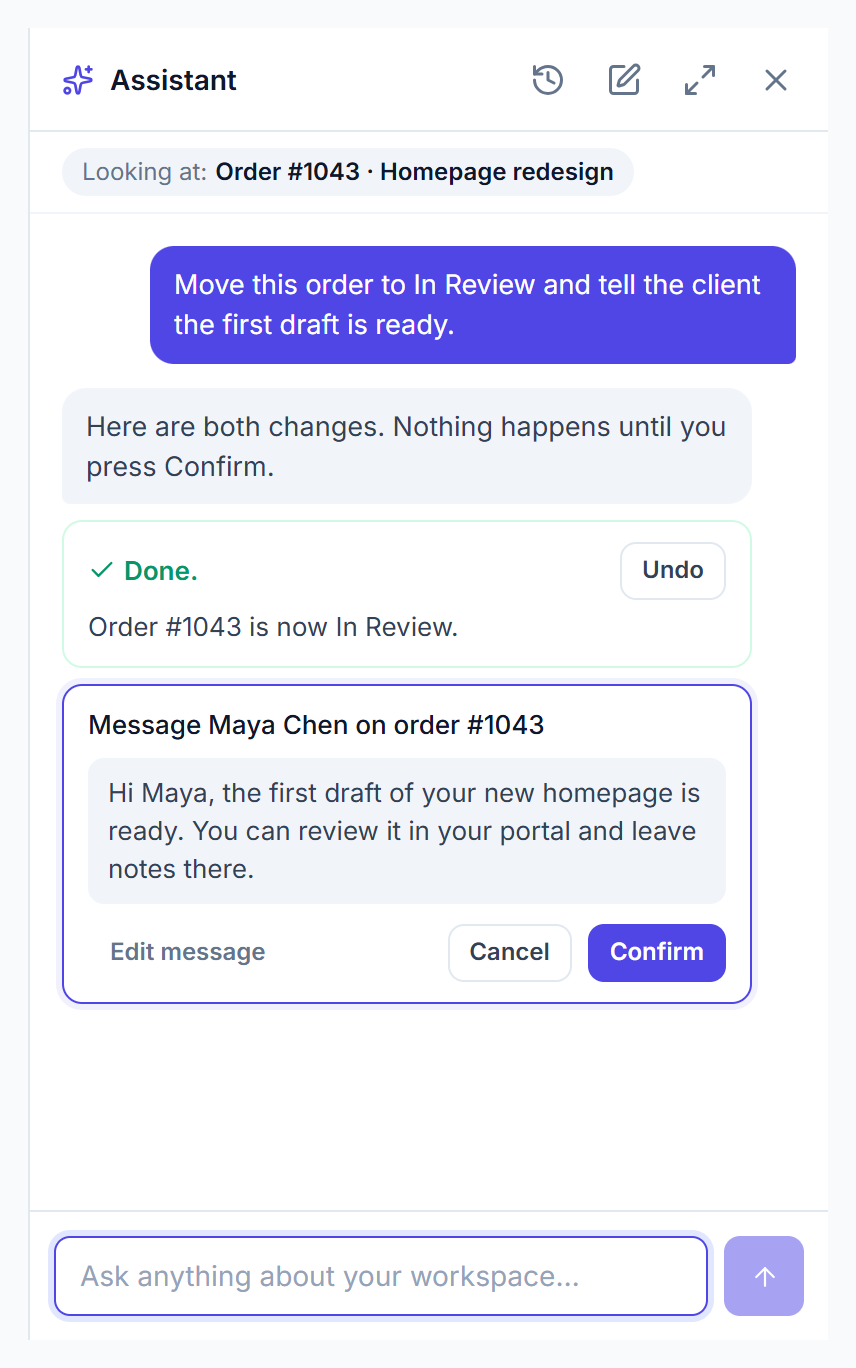
Nothing changes until you click Confirm. Each proposed change appears as a card that says exactly what will happen, with Cancel and Confirm buttons.
- For a message to a client or a ticket reply, Edit message lets you change the words before you confirm.
- After a change is made, the card shows Done. and an Undo button. Undo stays available for 7 days.
- The client is notified about a status change or a message exactly as if a team member had done it manually.
Who Can Use the AI Assistant?
The workspace owner always can, and can add team members under Me and people I choose. Clients never see Ask AI.
Each person sees and changes only what their role already allows. A member who can’t open invoices won’t see them through the assistant either, so you don’t need separate AI permissions.
What Does the AI Assistant Cost?
Clientish adds no charge for it: your AI provider bills its own account for the questions your team asks. To keep that bill in check, set a Monthly limit of questions; when it is reached, Ask AI says so and opens again on the 1st of the next month.
Ask AI Problems and Fixes
The Ask AI button is missing⌄
Ask AI says this month’s limit is used up⌄
The settings show Refused or Out of credit⌄
It answers only general questions⌄
The Undo button is gone⌄
Related
- How to set up the AI assistant
- Connect an AI agent (MCP): use Claude or ChatGPT outside Clientish
- Per-member permissions: what each role can see
- AI assistant for agency owners