
Clientish Documents
Step-by-step guides for every module, from your first workspace to proposals, billing, support and automation.
How to Add a Client Report in Clientish (Google Sheets, Looker Studio, Google Analytics or Any Link)
Paste a share link, pick the client, and set up Google Sheets, Looker Studio and Google Analytics reports the way each one works best.
In Clientish, you add a report by pasting its share link, naming it and choosing which client sees it. The link is checked as you paste it, so you know before saving whether it will open inside the portal or in a new tab.
Who can do it: team members whose role has the Edit Clients permission
Before You Begin
- In the tool the report comes from, set sharing so anyone with the link can view it. A private link shows the client a sign-in page instead of the report.
- The link must start with https:// and be reachable from the internet.
How to Add a Report for One Client
Open Client reports
Go to Settings → Client reports (under Communication) and click Add report. From a client’s own page, the Reports panel offers the same button with that client already chosen. On an order page, + Add → Report opens it for that order.
Pick the source and paste the link
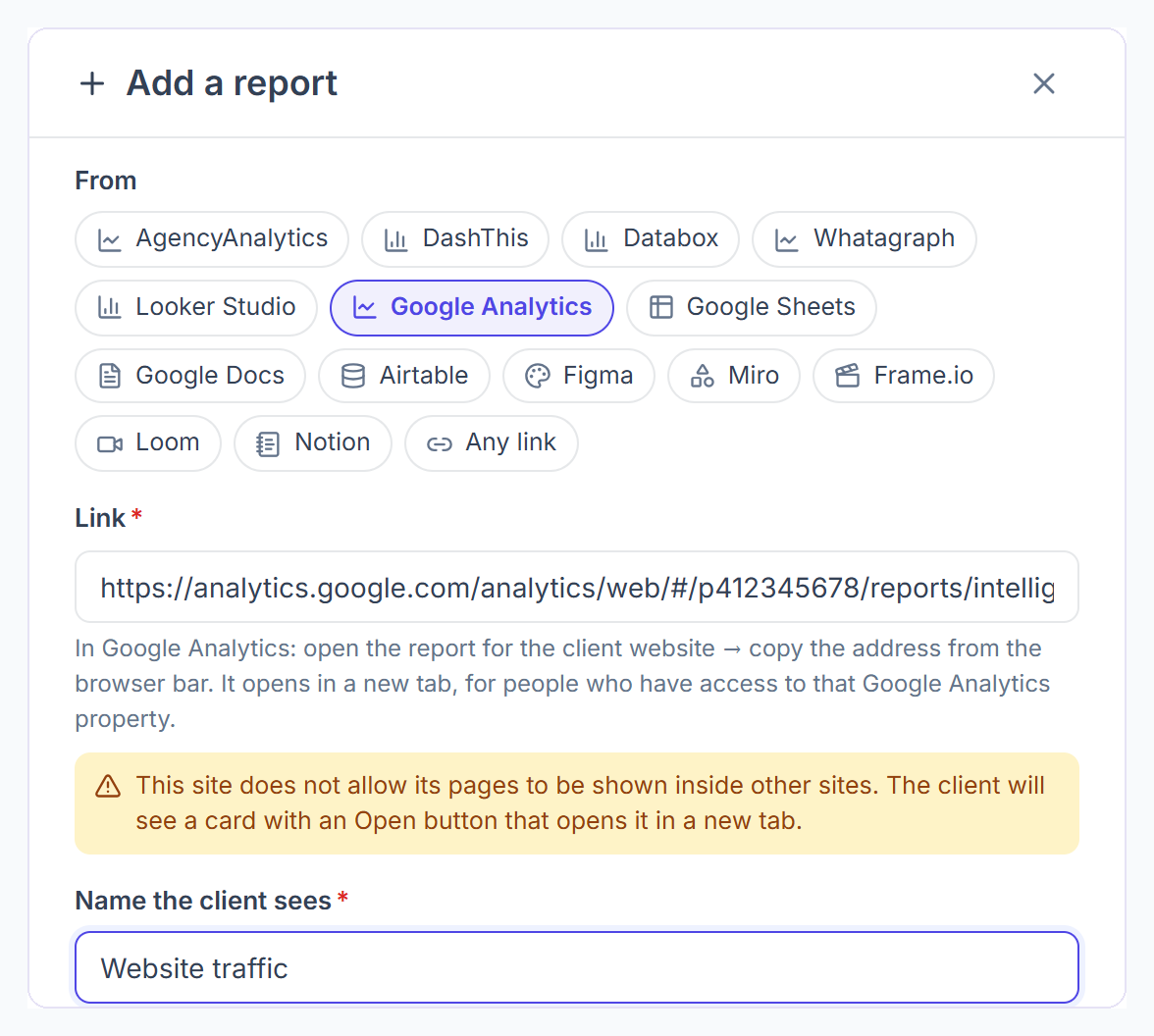
Under From, click the tool the report comes from, or Any link, and paste the share link into Link. A pasted link from a known tool selects it automatically. A green line says the report can be shown inside the portal; a yellow one says it will open in a new tab.
Name it
Type the Name the client sees, up to 80 characters, and pick an Icon for the client’s list.
Choose who sees it
Under Who sees it, pick One client and choose the client, or All my clients, or Clients with an order for… and pick the services. With One client, the optional Order field ties the report to one of that client’s orders; leave it on All orders to keep it for the client as a whole.
Tell the client and save
Leave Tell the client checked to send a “New report” notification in the portal and an email, then click Add report.

How to Share a Google Sheet as a Client Report
Share the sheet
In Google Sheets, click Share, set General access to “Anyone with the link”, and copy the link.
Add it in Clientish
Click Add report, choose Google Sheets and paste the link. The client sees a read-only preview of the sheet inside the portal, so nobody can edit it from there.
How to Share a Looker Studio Report With a Client
Make the report viewable by link
In Looker Studio, open the report, click Share, set Link settings to Unlisted and click Save. Under Resource → Manage added data sources, set each data source’s credentials to Owner’s, so clients don’t need a Google account with access to your data.
Turn on embedding
Open File → Embed report and turn on Enable embedding. Without it, the report can only open in a new tab.
Add it as a Looker Studio report
In Clientish, click Add report, choose Looker Studio under From and paste the report link. A normal /reporting/ link is turned into the /embed/reporting/ address for you, and the report opens inside the portal.
How to Add a Google Analytics Report for a Client
Copy the report address from Google Analytics and add it with Google Analytics as the source; the client opens it in a new tab.
Copy the report address
In Google Analytics, open the report for the client’s website and copy the address from the address bar.
Add it as a Google Analytics report
In Clientish, click Add report, choose Google Analytics under From and paste the address. A yellow line says the report opens in a new tab, and Open in a new tab instead of inside the portal is checked for you.
Make sure the client has access
The client must be signed in to a Google account that can see that Google Analytics property. If they don’t own it, add their Google account in Google Analytics under Admin → Property access management.
How to Add One Report for Several Clients
Click Add for several clients on the Client reports page. Give the report one name, choose all your active clients or the clients of chosen services, then paste each client’s own link on the next step. Clients left without a link are skipped, and up to 200 can be added at once.
How to Edit, Hide or Remove a Client Report
Open the menu at the end of a report’s row in Client reports:
- Edit changes the link, name, icon or who sees it.
- Hide from client takes it out of the portal for now; Show to client brings it back.
- Move up and Move down set the order clients see.
- Delete removes it from the portal. The report itself stays in the tool it came from. Deleting an order also deletes the reports added on it.