
Clientish Documents
Step-by-step guides for every module, from your first workspace to proposals, billing, support and automation.
How to Connect Slack, Microsoft Teams, Discord or Telegram in Clientish
Where to copy the webhook URL, workflow URL or bot token in each chat app, which updates to tick, and how to send a test.
To connect a team chat in Clientish, you need one link or one bot token from the chat app. After you save it, new leads, orders, tickets, paid invoices and call briefs post to the channel you picked, each with a link back to the record.
Who can do it: the owner and co-admins, and team members whose role has the General Integrations permission
Before You Begin
- Rights in the chat app to add a webhook or workflow to the channel you want.
- For Telegram: a bot of your own, made with @BotFather, and a group or channel where it may post.
How to Connect Slack
Create a webhook in Slack
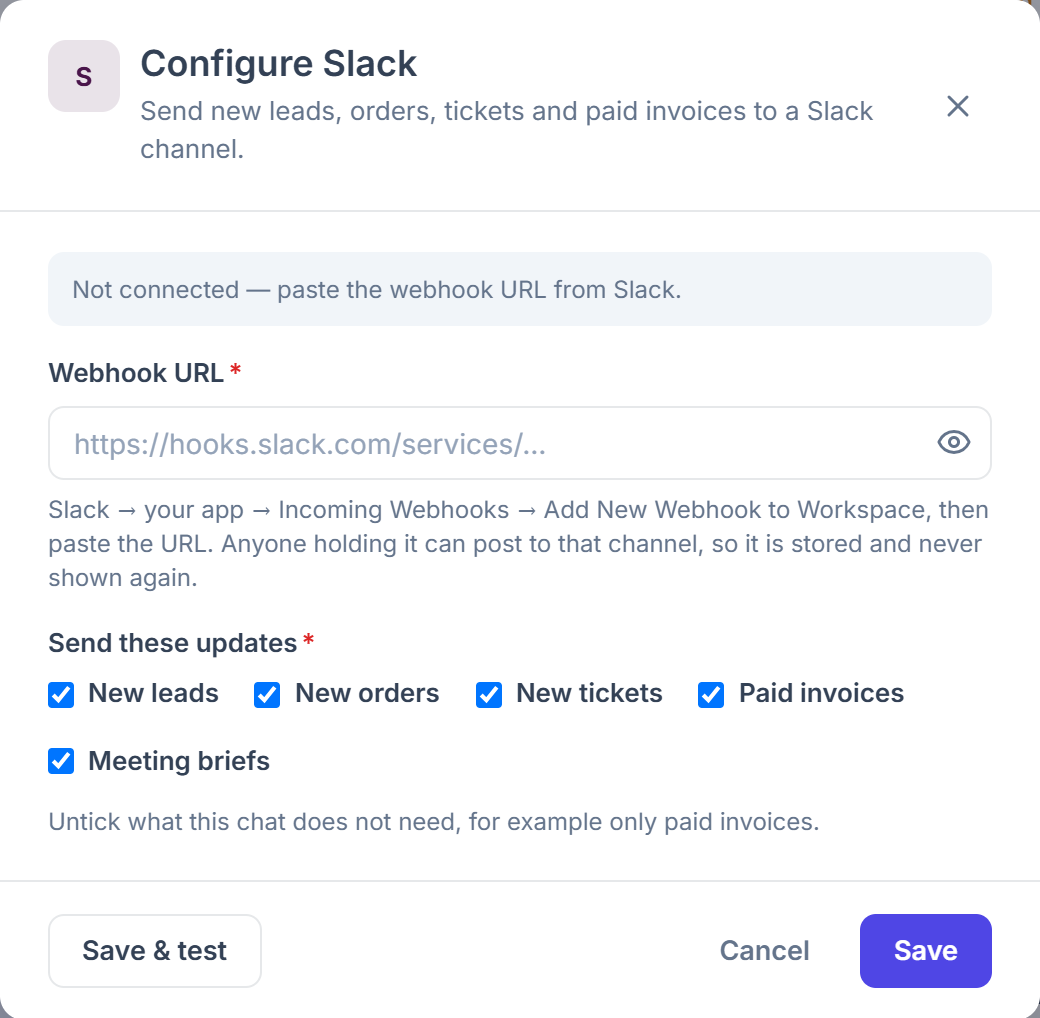
In your Slack app, open Incoming Webhooks, click Add New Webhook to Workspace, pick the channel, and copy the URL Slack gives you.
Paste it into the Slack card
In Clientish, open Integrations from the sidebar, go to the Communication tab and click Connect on the Slack card. Paste the URL into Webhook URL.
Choose the updates and test
Under Send these updates, uncheck anything this channel doesn’t need, then click Save & test.
How to Connect Microsoft Teams
Create a workflow in Teams
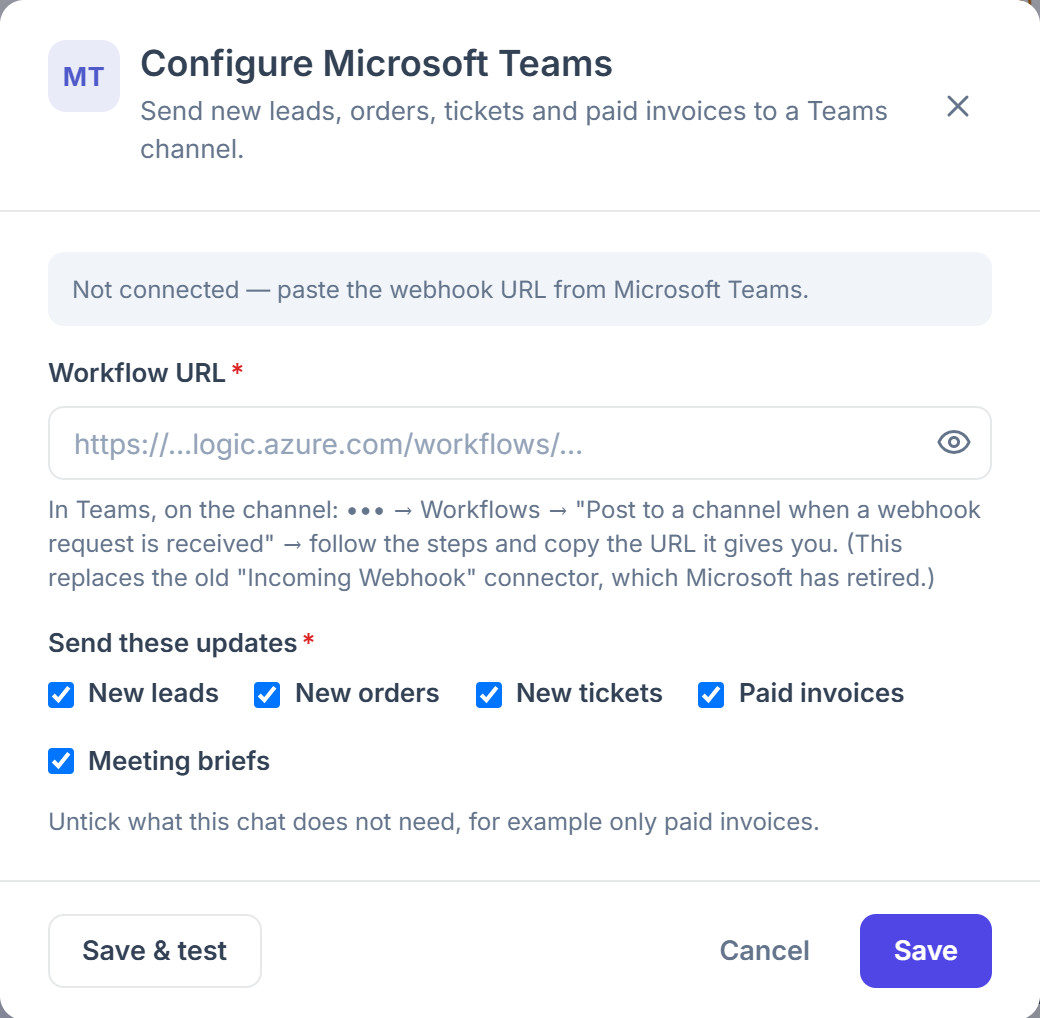
On the channel, open ••• → Workflows and choose Post to a channel when a webhook request is received. Follow its steps and copy the URL it shows at the end. Microsoft has retired the old Incoming Webhook connector, so use this workflow.
Paste it into the Teams card
In Clientish, open Integrations from the sidebar, go to the Communication tab and click Connect on the Microsoft Teams card. Paste the URL into Workflow URL.
Choose the updates and test
Check the updates for this channel and click Save & test. The test arrives as a card with an Open Clientish button.
How to Connect Discord
Create a webhook in Discord
Open the channel’s Edit Channel → Integrations → Webhooks, click New Webhook, then Copy Webhook URL.
Paste it into the Discord card
In Clientish, open Integrations from the sidebar, go to the Communication tab and click Connect on the Discord card. Paste the URL into Webhook URL, check the updates, and click Save & test.

How to Connect Telegram
Create a bot
In Telegram, message @BotFather, send /newbot, answer its questions and copy the token.
Add the bot to your chat
Add the bot to the group your team uses and send any message there. A bot only learns a chat after a message in it. For a channel, make the bot an admin so it can post.
Pick the chat
In Clientish, open Integrations from the sidebar, go to the Communication tab and click Connect on the Telegram card. Paste the Bot token and click Find my chats, then pick the chat from the list. You can also type the Chat ID yourself: a number such as -1001234567890, or a @channelname.
Choose the updates and test
Check the updates and click Save & test.

This bot is for your team’s updates. To let clients message you on Telegram, connect a bot in Live Chat instead: see Connect Telegram.
What Happens After You Connect a Team Chat?
The card reads “Connected: the updates you ticked go to Slack” (or Teams, Discord, Telegram), and from then on each new lead, order, ticket, paid invoice or brief is posted as it happens.
- The URL or token is stored and shown only as dots. To change it, paste a new one; leaving the box blank keeps the saved one.
- The card gets an on/off switch on the Integrations page. Off keeps the settings and stops the posts.
- Each message has a link that opens the record in your own workspace, so whoever clicks it lands on the lead, order, ticket or invoice.