
Clientish Documents
Step-by-step guides for every module, from your first workspace to proposals, billing, support and automation.
Clientish Client Reports: Show Live Reports Inside Your Client Portal
Which 15 report sources you can share, who sees each report, what the portal Reports page looks like and how to tell a report was opened.
Clientish Client Reports put the reports you already build, in AgencyAnalytics, Google Sheets, Looker Studio or any page you can share, inside your client portal. Clients open them under Reports without hunting for links in old emails, and you see who has opened each one.
Who can do it: seeing the list needs the View Clients permission; adding, editing and removing reports needs Edit Clients
What Are Client Reports in Clientish?
A client report is a link to a page that lives in another tool, shown inside the client’s portal. Nothing is copied: the client’s browser loads the page from that tool, so the client always sees its latest numbers.
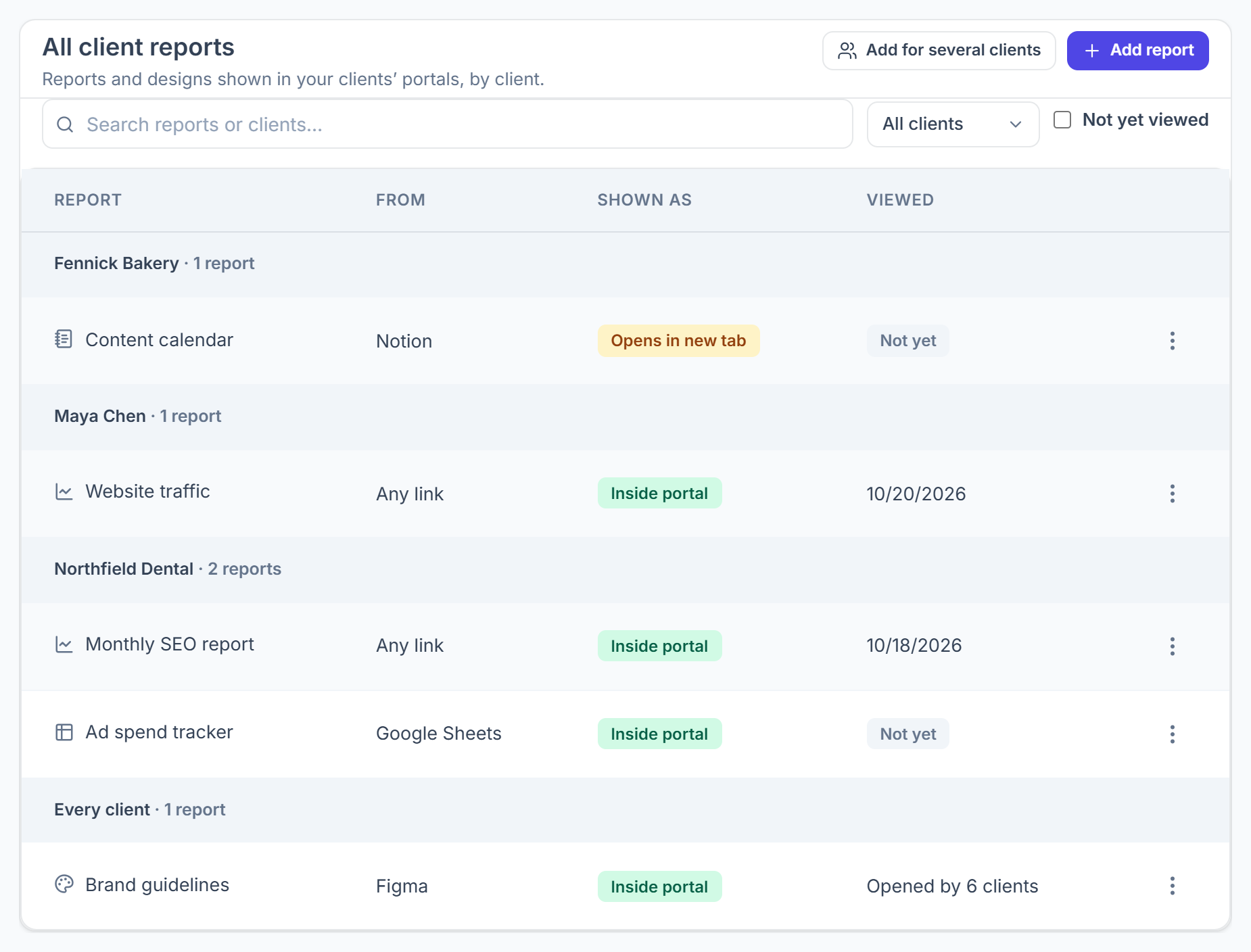
- Reports live under Settings → Client reports, grouped by client, and on each client’s page under Reports.
- Each one has a name the client sees, an icon and a choice of who sees it.
- When a site refuses to be shown inside another site, the client gets an Open button that opens it in a new tab instead. You’re notified before you save.
Which Report Tools Can You Share?
You can pick from 15 sources: 14 named tools, Looker Studio and Google Analytics among them, plus Any link for everything else.
Each source shows where to copy its share link. Google Sheets and Docs open in read-only preview, while Notion pages and Google Analytics reports always open in a new tab.
Who Sees a Client Report?
You choose for every report: One client, All my clients, or Clients with an order for… the services you pick.
- A service-based report reaches clients who have a live order for one of those services; a canceled order doesn’t count.
- To give several clients their own copy of the same kind of report, use Add for several clients. Each client gets their own link and nobody sees another client’s report.
- The client sees exactly what the link shows, so share one client’s data only with that client.
- A one-client report can belong to one of that client’s orders. A Reports tab then shows on that order’s page, for you and in the client’s portal, and the report stays under Reports too. Deleting the order deletes its reports.
What Do Clients See on the Portal Reports Page?
A Reports item appears in the client’s portal menu as soon as they have one report, with a count of the reports they haven’t opened yet.
- Their reports are listed on the left, with a New badge on unopened ones; the chosen report fills the rest of the page.
- Full screen enlarges the report, and the Open button opens it in the tool it comes from.
- Opening a report clears its New badge and the count in the menu.
- A new report also brings a “New report” notification in the portal and an email, sent through your own mail server, when you leave Tell the client checked.

How Do You Know a Client Opened a Report?
The Viewed column in All client reports shows the date the client last opened it, or Not yet. For a report shared with many clients, it counts how many have opened it.
Tick Not yet viewed to list only the reports nobody has opened, and use the search and client filter to find one client’s reports.
Can You Show a Looker Studio Report in the Client Portal?
Yes. Choose Looker Studio as the source and paste the report link; a normal /reporting/ link is turned into the embed link for you. In Looker Studio, turn on embedding, set the link to Unlisted and use Owner’s credentials on the data source, or your client sees “Can’t access report”. The steps are in How to add a client report.
Can You Share a Google Analytics Report in the Client Portal?
Yes, as a report the client opens in a new tab: Google does not let other sites show Google Analytics inside their pages.
Only people with access to that Google Analytics property can open it, so it suits clients who own their property or have been given access. To show website numbers right inside the portal, build a Looker Studio report on the same Google Analytics data and add that instead. The steps are in How to add a client report.