
Clientish Documents
Step-by-step guides for every module, from your first workspace to proposals, billing, support and automation.
Clientish Client Team: Let Clients Invite Their Own People
How your clients add colleagues to the portal, the 24 permissions they can give, seat limits and what changes for your agency.
In Clientish, each client can bring its own colleagues into your client portal. The client invites people from their company and checks what each one can see and do, so a finance lead pays invoices while a marketing manager reviews files, all under one client account.
Who can do it: your client’s account owner, or a person on their team allowed to manage it. There is nothing to set up on your side.
What Is the Client Team in Clientish?
Client Team is a Team page in your client portal where a client manages the people from its own company.
- It sits under Company → Team in the portal menu, for the account owner and for anyone they allow to manage the team.
- How many people a client can add besides the account owner follows your plan: 1 on Solo, 3 on Starter, 5 on Growth, 10 on Pro and unlimited on Enterprise (5 during the free trial). Removed people free their seat.
- Each person signs in with their own email and password and sees the company’s account only as far as their permissions allow.
- Orders they place belong to the client’s account, so your team keeps working with one client.

What Permissions Can Client Team Members Have?
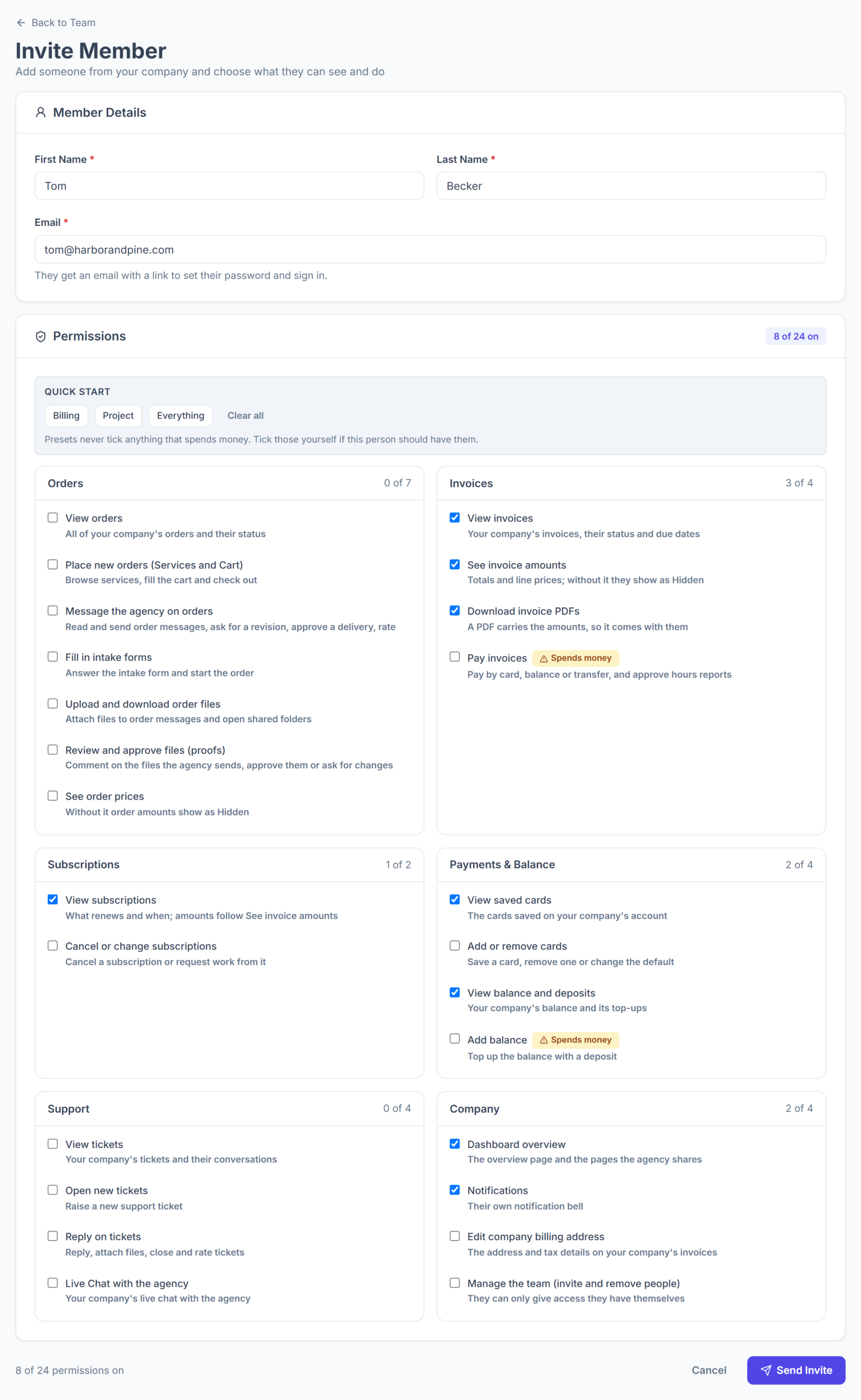
There are 24 permissions in 6 groups, checked one by one or set with a preset.
- Three presets fill the boxes in one click: Billing, Project and Everything.
- Presets never check anything that spends money. Pay invoices and Add balance carry a “Spends money” badge and are checked manually.
- A box brings the boxes it depends on. Seeing invoice amounts, for example, also turns on the invoice list.
- Without a price permission, order and invoice amounts show as “Hidden”.
How Does a Client Invite a Team Member?
The client opens Company → Team, clicks Invite Member, enters the person’s name and email, picks permissions and clicks Send Invite. The steps with screenshots are in inviting client team members.
What Does an Invited Team Member Receive?
They get an email from your agency, sent through your own email settings and brand, saying who invited them to which company’s portal.
- The Set your password link in it works for one hour. After that, the client sends the invite again.
- Their first sign-in counts as accepting. The account owner, and whoever sent the invite, get a bell notification that they joined.
- From then on they get the emails that match their permissions, such as files to review when they can approve proofs.
What Does Your Agency See of a Client’s Team?
Nothing changes on your side: client team members are not your clients.
- They don’t appear in your client list and take no client seat.
- Adding one doesn’t count as a new client for your webhooks or automations.
- You keep one client record per company, however many people work in its portal.