
Clientish Documents
Step-by-step guides for every module, from your first workspace to proposals, billing, support and automation.
How to Connect Google Tag Manager to Clientish
Load your Tag Manager container on the client pages you pick and send each paid purchase on to GA4, Google Ads or Facebook.
In Clientish, you can load your own Google Tag Manager container on the pages your clients and buyers see, such as order forms, proposals and invoice payment links. Each paid purchase can also reach Tag Manager, so Google Analytics 4, Google Ads or Facebook can count the sale.
Who can do it: the workspace owner and co-admins, and team members whose role has General Integrations
Before You Begin
You need a Google Tag Manager account with a web container. Its ID starts with GTM- and is shown at the top of the container in tagmanager.google.com.
How to Connect Google Tag Manager in Clientish
Turn on the Google Tag Manager card, paste your container ID and check the pages where the container should run.
Turn on the card
Go to Integrations, find Google Tag Manager and set it to ON. Then click Connect.
Paste the container ID
Enter your ID in Container ID, for example
GTM-AB12CD3.Choose where it loads
Under Where it loads, check the pages that should run your container. There are 10 kinds:
- Order forms and checkout
- Contact forms, Intake forms and Onboarding forms
- Proposals
- Invoice payment links
- Sign-up and sign-in pages
- Client portal (signed-in clients)
- Order page for guests (no sign-in)
- Lead chat
Decide about purchases
Leave Send each purchase to Tag Manager checked if your ads or analytics should count sales. Then click Save.
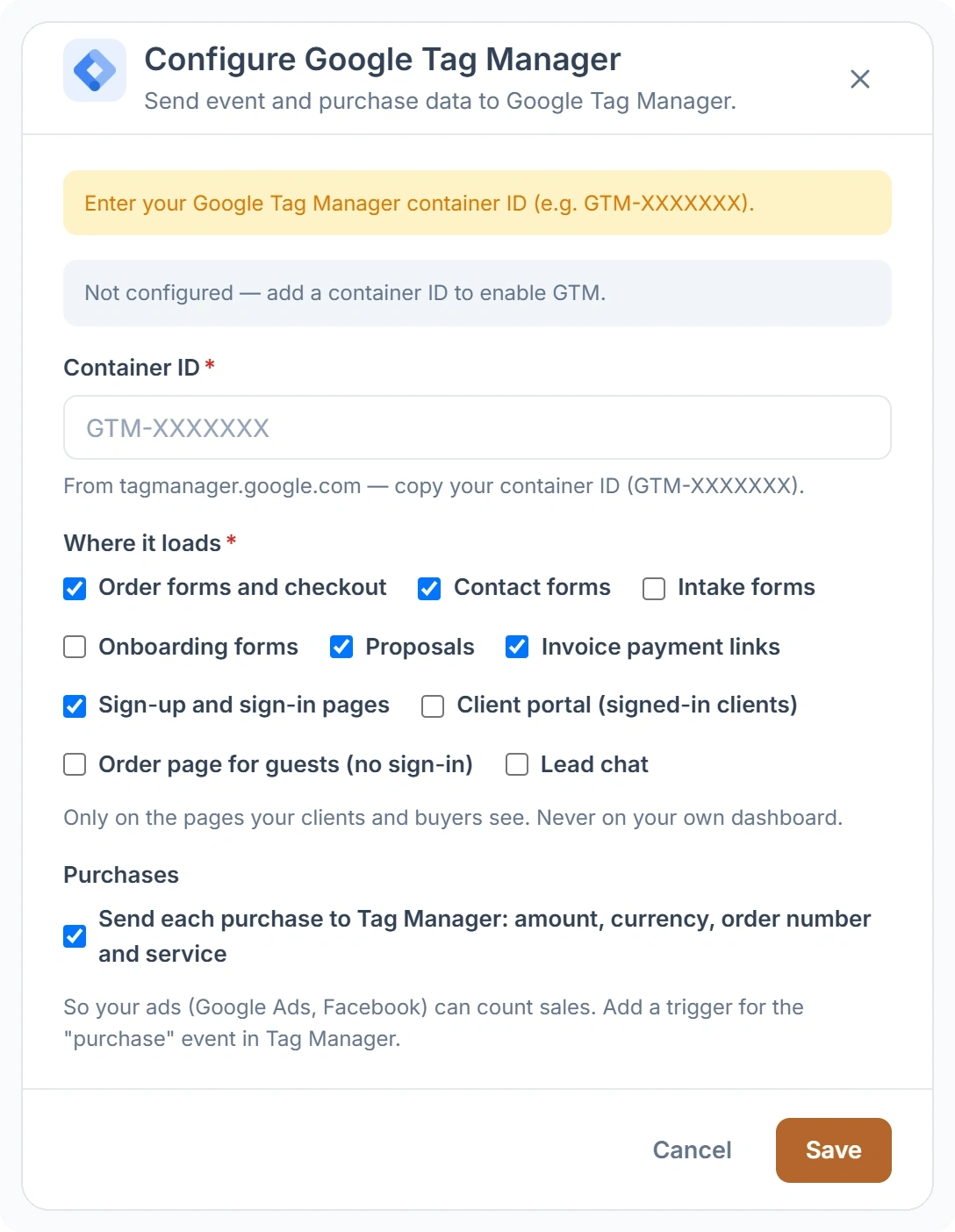
Which Pages Does Google Tag Manager Run On?
Your container runs only on the client-facing pages you check, and never on your own dashboard or your team’s pages. Uncheck a kind of page and the container stops loading there the next time someone opens it.
What Purchase Data Does Clientish Send to Tag Manager?
For each paid purchase, Clientish adds a purchase event to the data layer with the amount, the currency, the order number and the service. It uses the ecommerce layout that the Google Analytics 4, Google Ads and Facebook tag templates in Tag Manager already read.
- In Tag Manager, create a trigger of the type Custom Event with the event name
purchase. - Attach that trigger to your conversion tags, for example a GA4 event tag or a Google Ads conversion tag.
- Publish the container. Nothing is counted until the new version is live in Tag Manager.
How to Use Google Analytics 4 With Clientish
Add Google Analytics 4 through your Tag Manager container. The Google Analytics card on the Integrations page isn’t available yet, so a GA4 Google tag inside your container is how you measure your client pages today.