
Clientish Documents
Step-by-step guides for every module, from your first workspace to proposals, billing, support and automation.
Clientish Delivery Approval: Client Sign-Off, Auto-Approve and Progress
How clients approve a delivered order or ask for a revision, when orders approve themselves, and what the progress timeline shows.
In Clientish, a delivered order waits for your client’s sign-off. The client approves it or asks for a revision from the portal, and if they stay silent the order approves itself after 7 days by default. A progress timeline on every order shows you both where the work stands.
Who can do it: moving an order to Delivered needs Manage Order Status or Edit Orders; the auto-approve setting needs the owner, an admin or Manage Order Statuses. On the client side, the account owner approves, or a member of their team with “Message the agency on orders”.
How Does Delivery Approval Work in Clientish?
You move a finished order to the Delivered status, and your client then approves it or asks for a revision.
- Delivered is a built-in status that sits right before Complete. It is added to your list the first time it is needed.
- Your client gets an email, “Your order … is ready for your review”, with a Review and approve link and the date it will approve itself.
- At the top of the order in their portal they see “Your order has been delivered” with Request revision and Approve delivery.
- Approve delivery moves the order to Complete. The owner and the team members assigned to the order get a bell notification.
- An automation can follow up with the trigger Client approves a delivery, for example to ask for a review.

What Happens When a Client Asks for a Revision on a Delivered Order?
The order stays Delivered and a revision round opens, counted against the order’s revision limit.
- The client writes what should change, and sees how many revisions this uses, such as “This uses 1 of your 3 revisions”.
- Their portal then says “Your revision request is with the team” until you deliver the update.
- When you mark the revision done, the client can approve, and the auto-approve clock starts again from that moment.
- Revision limits and rounds work as described in Order revisions.
How Does Auto-Approve Work for Delivered Orders?
If the client neither approves nor asks for a revision, the order completes automatically after the number of days you set: 7 by default, anything from 1 to 60.
- The days count from the delivery, or from the last finished revision.
- An order with an open revision never approves itself.
- The Progress card then reads “Approved automatically”, and you get a notification that the client did not reply in time.
- Your client gets the same status notice as when you complete an order yourself.
How to Turn Auto-Approve On or Off
Open the order rules
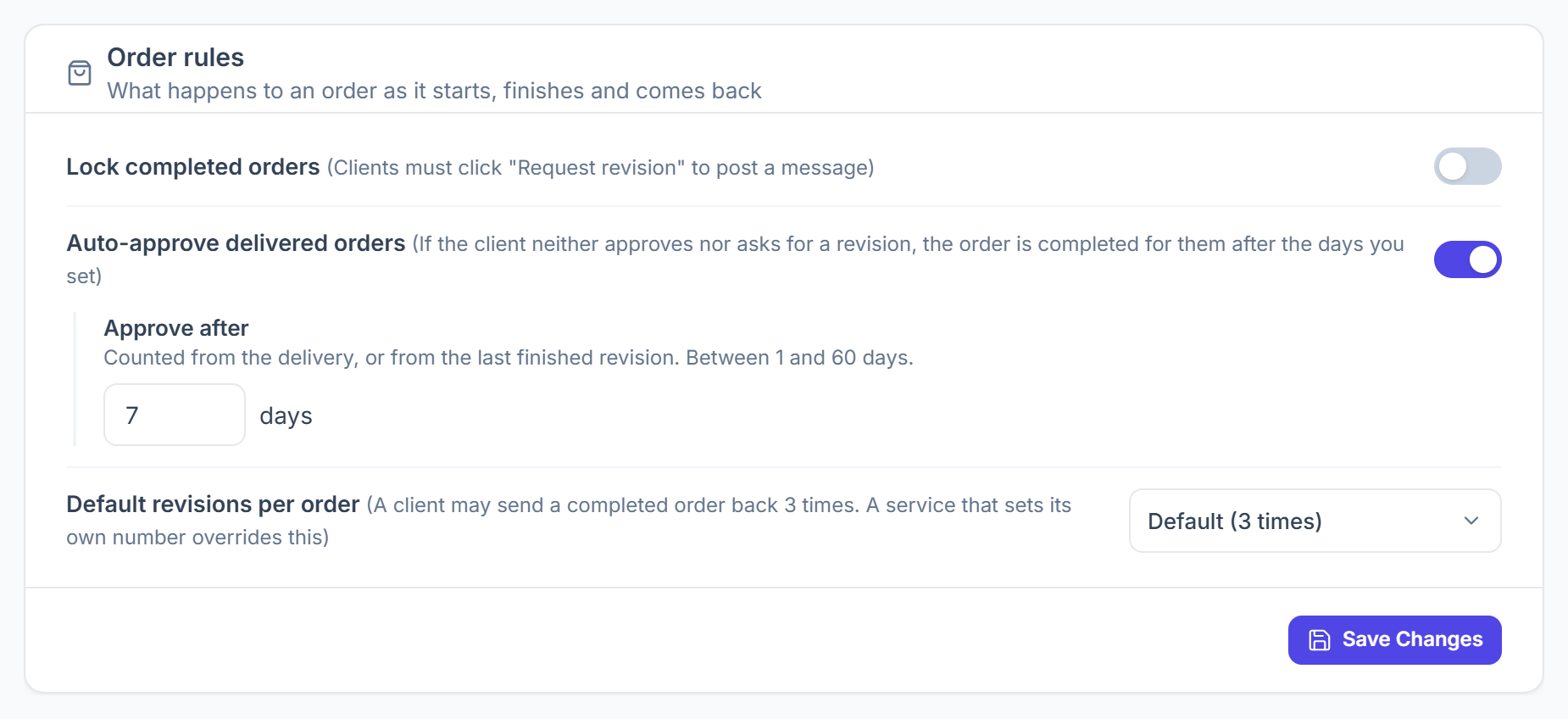
Go to Settings → Order Statuses. The Order rules card is at the top.
Set the days
Switch Auto-approve delivered orders on or off. When it’s on, enter the number of days in Approve after, then click Save Changes.
What Is the Order Progress Timeline in Clientish?
The Progress card on an order lists every stage of the work, from Order placed to Complete, with the date each step happened.
- Steps fill in automatically from the order: payment, the intake form, each of your order statuses in your Settings order, and revision rounds.
- A badge on top says what the order is waiting for, such as “Waiting for Maya to approve · auto-approves in 6 days”.
- Your team can add its own steps, such as a first draft, and choose whether the client sees them. See How to add progress steps.

What Do Clients See in the Progress Timeline?
Your client sees the same Progress card on the order in their portal, read-only, without the steps you kept for your team.
The badge speaks to them directly, for example “Ready for your review”, “Waiting for your payment” or “You approved this on Oct 21, 2026”.