
Clientish Documents
Step-by-step guides for every module, from your first workspace to proposals, billing, support and automation.
Clientish Booking Page: Let Clients and Leads Book a Call
Your own booking link with free times, call lengths and Zoom, Meet or Teams, and every booking lands on the right lead or client.
The booking page gives your agency its own link where new prospects and existing clients pick a time for a call with you. In Clientish, every booking lands on the right record: someone new becomes a lead in your pipeline, and a client’s call goes on their own page.
Who can do it: setting it up: the owner and admins, and team members whose role has the Edit Company Settings permission
What Does the Clientish Booking Page Do?
It shows the times you are free and lets people book one without an account, a password or a second scheduling tool.
- You choose the days, the hours and the call lengths: 15, 30, 45 or 60 minutes. With more than one length, people choose how long they need.
- You choose where the call happens: a new Google Meet link for every booking, or one fixed Zoom, Microsoft Teams or other meeting link.
- Visitors see the free times in their own time zone, so nobody has to convert hours.
- Each booking sends the person a confirmation email from your own mail server, with the link and a calendar file.
- With Google Calendar connected, times you are busy there are not offered, and every booking is added to it.

Where Can People Find Your Booking Page?
At your booking link, which is your workspace address followed by /book. Once your own domain is connected, the link uses your domain instead.
- Put the link on your website, in your email signature or in a message. Shared in WhatsApp, Facebook, LinkedIn or Slack, it shows a preview card with your name, logo and colour, never the Clientish name.
- Paste the embed code into your website to show the booking page inside one of your own pages.
- Turn on Show a Book a call button in the client portal and your clients book from their portal, already signed in.
The page carries your logo and your brand colour, the same as your sign-in pages.
What Happens When Someone Books a Call?
The call is saved at once and the person gets their confirmation email. Someone new becomes a lead with the source Booking page and the status Meeting; an existing client gets the call on their client page.
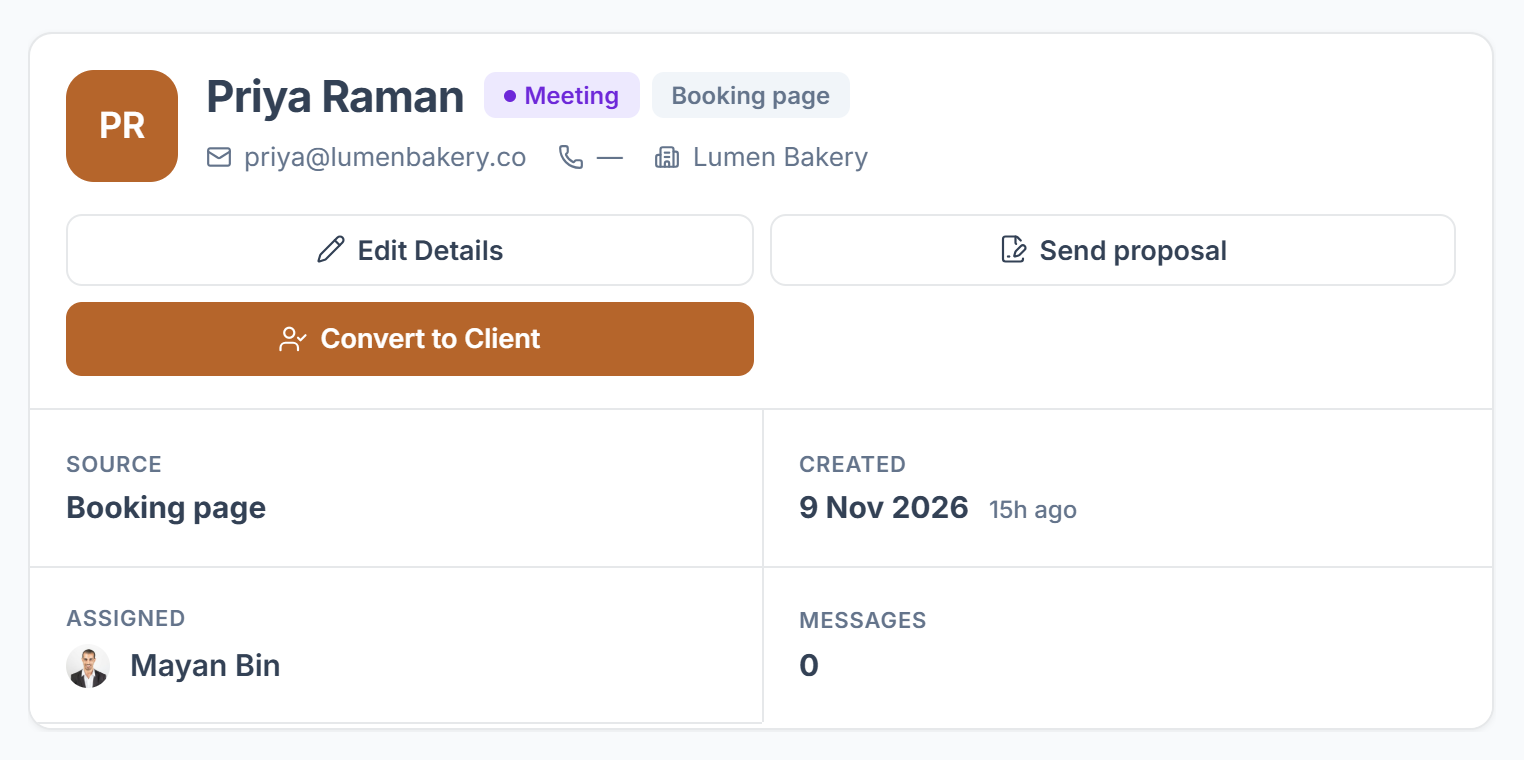
The full list, from the email to the reminder before the call, is in What Happens When Someone Books a Call.
Who Takes the Calls Booked on the Booking Page?
The workspace owner. Free times are worked out from the owner’s calls in Clientish and, when connected, the owner’s Google Calendar, and new leads from the page are assigned to the owner. On Starter and up you can hand a lead to a team member afterwards.
Booking Page or Calendly and Cal.com: Which One Should You Use?
Use the booking page when you want calls booked without paying for another scheduling tool. If your team already books through Calendly or Cal.com, connect them instead: those calls also become leads, each assigned to the team member whose calendar was booked.
Both can run side by side, and calls from either one land on the same leads and client pages.