Clientish Documents
Step-by-step guides for every module, from your first workspace to proposals, billing, support and automation.
How to Install Your Clientish App on iPhone, Android and Desktop
The exact taps for iPhone, Android, and Chrome or Edge on a computer, plus how to switch on push notifications afterwards.
Anyone who signs in to your Clientish workspace, from your team or your clients, can add it to a phone or computer as an app in under a minute. Notifications are then turned on from inside the installed app, with one tap.
Who can do it: any team member or client who can sign in to the workspace
Before You Begin
- You need your normal sign-in for the workspace or the client portal.
- Clients see the install card only while the agency keeps the client toggle on in Settings → General → Mobile app.
- On a computer, the QR code on the dashboard is the fastest way to get the app onto a phone.
How to Install the App on iPhone
Open your workspace on the iPhone
Scan the QR code from the Get the app card on your computer, or open your workspace address on the phone and sign in.
Tap How
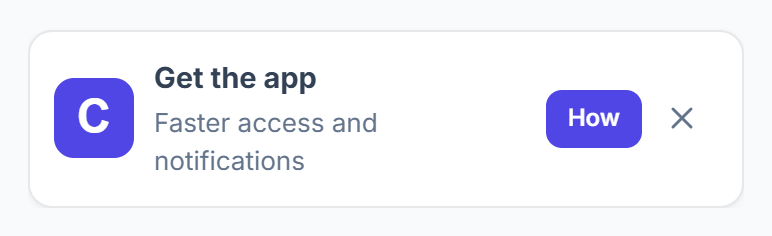
On the dashboard, the Get the app card shows your app icon. Tap How to see the three taps. If you came from the QR code, they open automatically.
Add it to the home screen
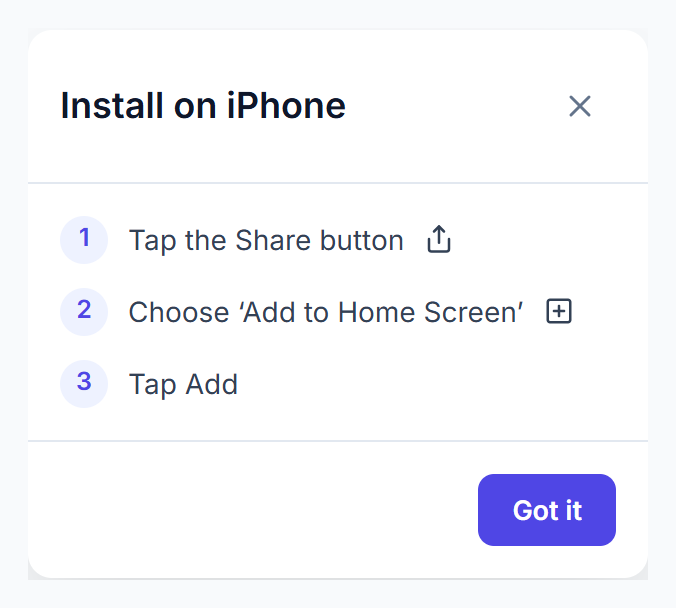
Tap the Share button, choose Add to Home Screen, then tap Add. The app appears on the home screen with your agency’s icon.
How to Install the App on Android
Open your workspace in Chrome
Scan the QR code from your computer, or open your workspace address in Chrome on the phone and sign in.
Tap Install
Tap Install on the Get the app card. If you closed the card, open your profile menu and tap Install app.
Confirm
Chrome asks once more; confirm, and the app is added to your home screen and app list.
How to Install the App on a Computer
In Chrome or Edge, click Install on this computer instead under the QR code on the Get the app card, or choose Install app in your profile menu. The workspace then opens in its own window and can be pinned to the taskbar or dock.
How to Turn On Notifications in the App
Open the installed app
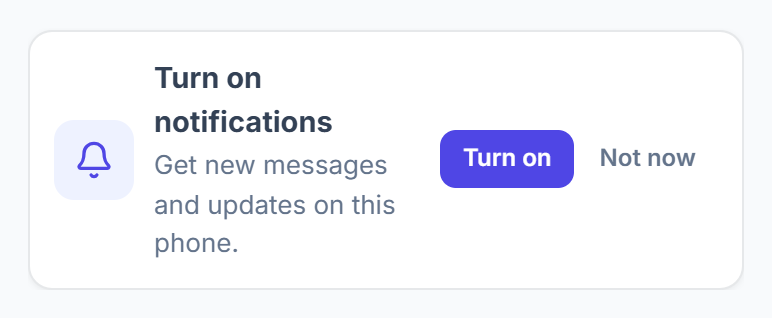
Start it from the home screen, not from the browser. The first time, a Turn on notifications card appears at the top of the dashboard.
Tap Turn on
Tap Turn on and allow notifications when the phone asks. A short “Notifications are on” message arrives to show it works. Not now hides the card; you can turn them on later from the profile menu.