
Clientish Documents
Step-by-step guides for every module, from your first workspace to proposals, billing, support and automation.
Clientish Accounting Sync: QuickBooks and Xero Invoices
What goes across to QuickBooks Online and Xero, when each invoice is sent, what stays out, and how to fix the errors shown on the card.
In Clientish, you can connect QuickBooks Online or Xero so that each new invoice you create is also created in your accounting software. Your books follow your client work without typing invoices twice, and every invoice is sent only once.
Who can do it: the owner and co-admins, and team members whose role has the General Integrations permission
What Does Clientish Send to QuickBooks and Xero?
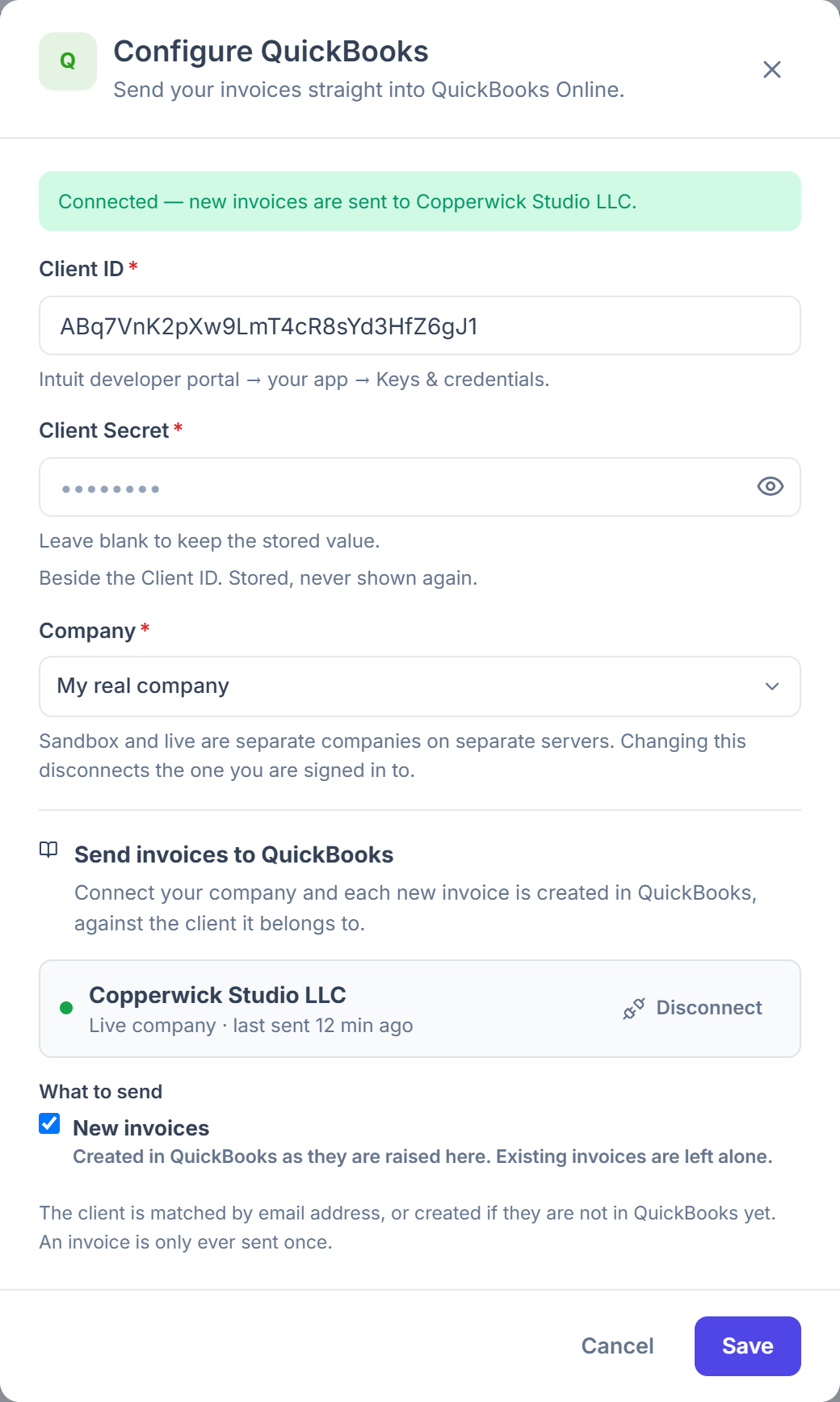
New invoices, one by one, as they’re created in Clientish. Each one arrives with its client, number, dates, currency and lines.
What is not sent:
- Invoices created before you checked New invoices. Existing invoices are left alone.
- Changes made to an invoice after it was sent.
- Payments. Only the invoice is sent; record the payment in your accounting software.
When Does an Invoice Sync to QuickBooks or Xero?
Right after the invoice is created in Clientish, in the background, as long as New invoices is checked and the card is turned on. No one waits for it while saving the invoice.
- New invoices is off when you first connect, so nothing is sent until you check it.
- The card shows when the last invoice was sent, for example “last sent 12 min ago”.
- You can connect both QuickBooks and Xero. Each keeps its own record, so an invoice goes to both.
- If the send fails, Clientish tries once more. The reason for a failure is shown on the card.
Can an Invoice Be Sent to QuickBooks or Xero Twice?
No. Clientish keeps a record of every invoice it has sent, and before creating one it looks for an invoice with the same number in QuickBooks or Xero. If one is already there, for example one you entered manually, it’s linked instead of created again.
How to Connect QuickBooks or Xero in Clientish
You connect through your own developer app at Intuit or Xero. The short version:
Create the app
Make an app on the Intuit or Xero developer site and copy its Client ID and Client Secret.
Add it to the card
Paste both into the QuickBooks or Xero card under Integrations, and add the Redirect URI the card shows to your app.
Sign in and turn it on
Click Connect QuickBooks or Connect Xero, sign in, then check New invoices.
Every screen and field is in How to Connect QuickBooks Online or Xero in Clientish.
QuickBooks and Xero Sync Errors and Fixes
When an invoice can’t be sent, the reason appears in red on the card. These are the ones you’re most likely to see.