Clientish Documents
Step-by-step guides for every module, from your first workspace to proposals, billing, support and automation.
How to Connect WhatsApp to Clientish
Three ways to bring a WhatsApp number into Live Chat: Meta, Twilio or a QR code, and which one to pick.
In Clientish you can connect a WhatsApp number in three ways: through Meta’s WhatsApp Business Platform, through Twilio, or by scanning a QR code with any WhatsApp app. Messages to that number then arrive in Live Chat, and your team replies from there.
Who can do it: the workspace owner, and team members who are allowed into Settings
Which WhatsApp Connection Should You Choose?
Pick Meta for approved templates, Twilio if you already send through Twilio, and the QR code for the quickest start with a number you already use.
How to Connect WhatsApp Through Meta
Open the Meta form
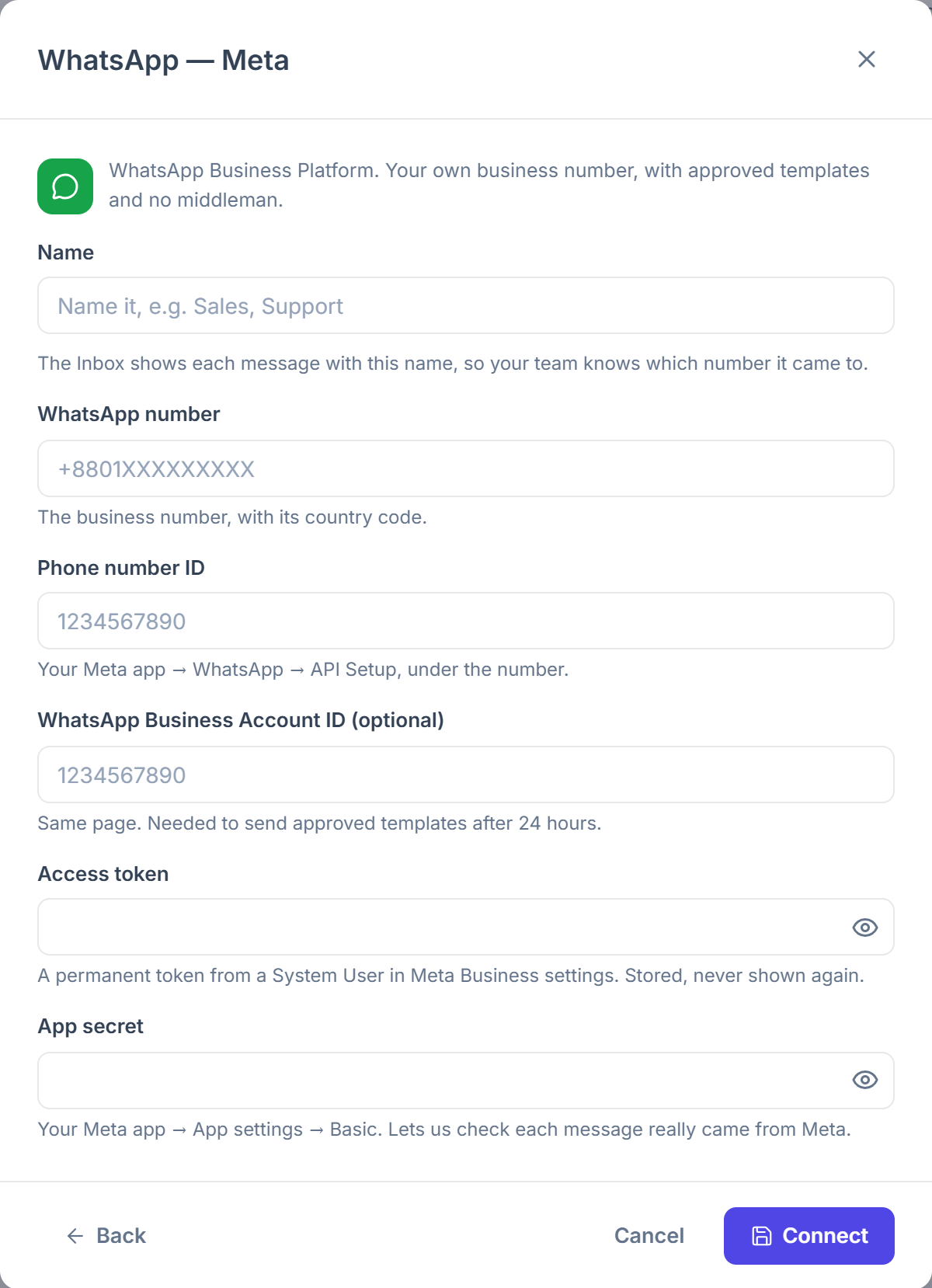
Go to Settings → WhatsApp, SMS, Telegram (under Communication) and click Add channel. Choose WhatsApp — Meta.
Fill out the details
Give the channel a Name, then enter the WhatsApp number with its country code, the Phone number ID, the Access token and the App secret. Add the WhatsApp Business Account ID (optional) if you want to send approved templates. Click Connect; the token is checked with Meta.
Point Meta to Clientish
Copy the Callback URL and Verify token that appear. In your Meta app, open WhatsApp → Configuration, click Edit under Webhook, paste both values, then Verify and save. Under Webhook fields, subscribe to messages.
How to Connect WhatsApp Through Twilio
Open the Twilio form
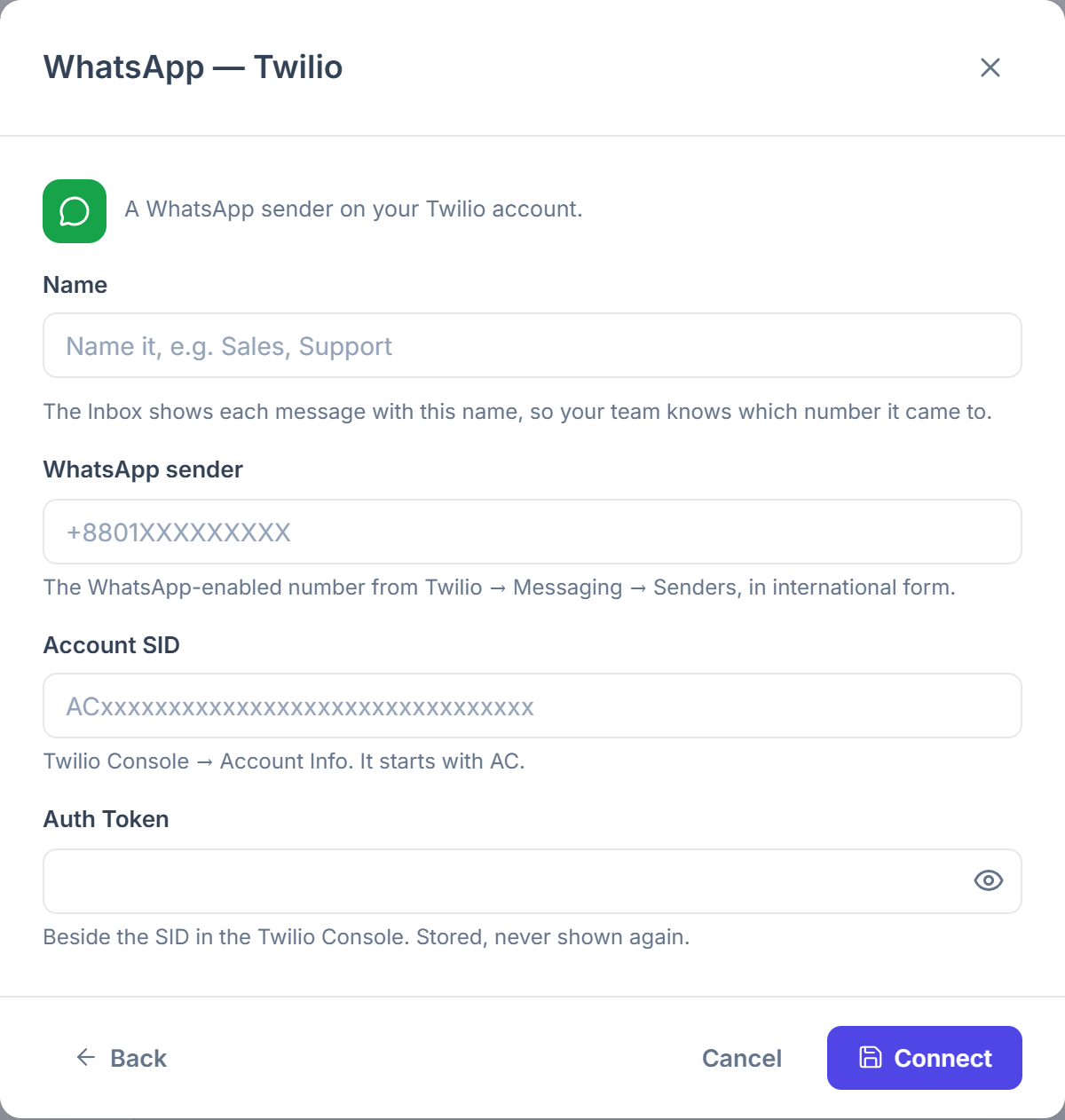
Go to Settings → WhatsApp, SMS, Telegram (under Communication) and click Add channel. Choose WhatsApp — Twilio.
Enter your Twilio details
Enter the WhatsApp sender, the Account SID and the Auth Token. If Twilio is already connected in Integrations, check Use my connected Twilio account and add only the number.
Paste the Callback URL in Twilio
In Twilio, open Messaging → Senders → WhatsApp senders and paste the Callback URL under When a message comes in, with the method POST.
How to Connect WhatsApp With a QR Code
Open the QR option
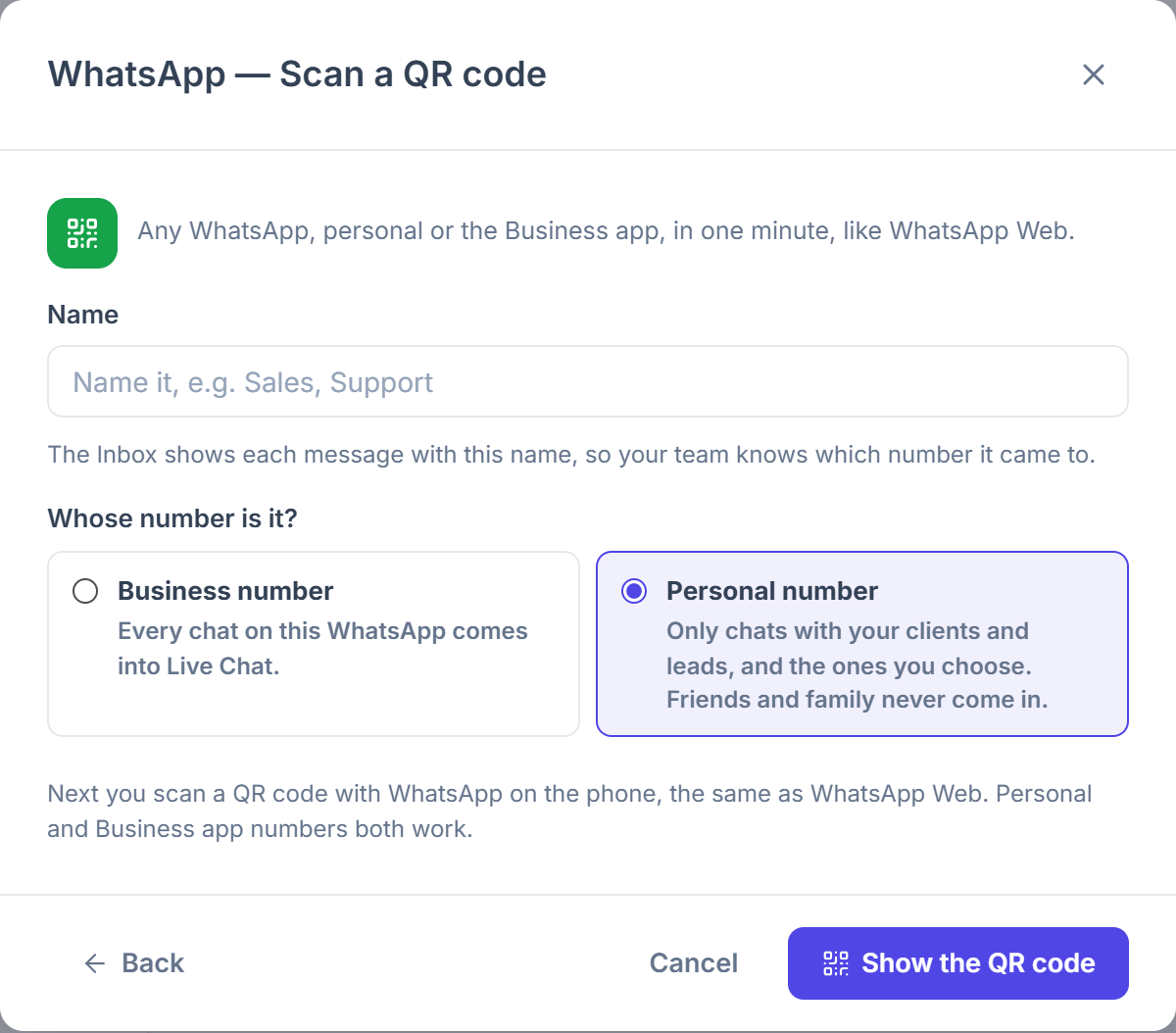
Go to Settings → WhatsApp, SMS, Telegram (under Communication) and click Add channel. Choose WhatsApp — Scan a QR code.
Say whose number it is
Pick Business number to bring in every chat, or Personal number to bring in only chats with your clients and leads, plus chats you pick with Choose chats. Other chats are never stored.
Scan the code
Click Show the QR code. On the phone, open WhatsApp → Settings → Linked devices → Link a device, and scan the code.