
Clientish Documents
Step-by-step guides for every module, from your first workspace to proposals, billing, support and automation.
How to Set Up the AI Assistant in Clientish
Pick a provider, check your API key, choose who gets Ask AI, then allow changes and cap the questions per month.
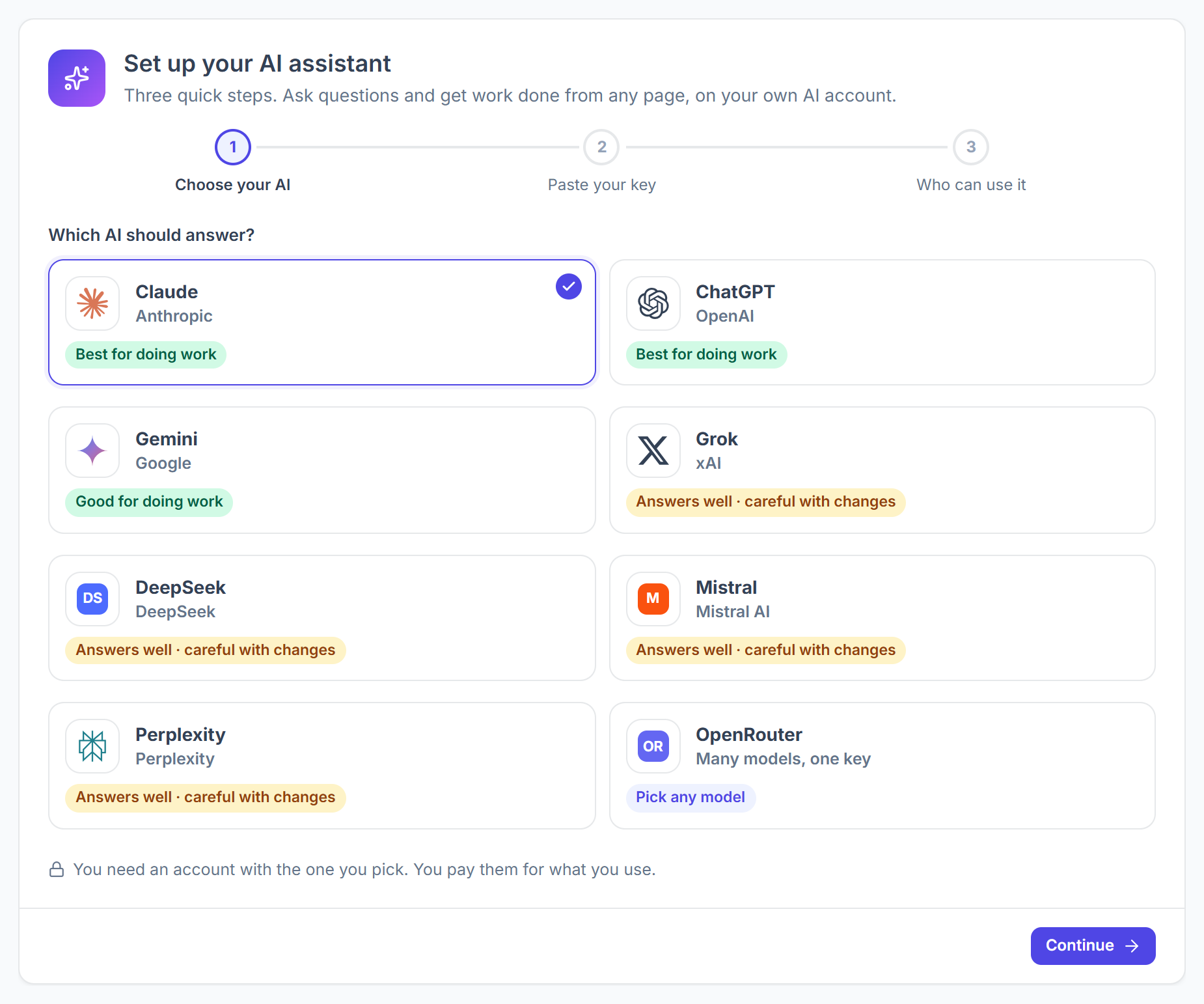
In Clientish, you set up the assistant in three short steps in Settings: choose an AI provider, paste your API key, and choose who on your team may use Ask AI. After that you decide whether it may make changes and how many questions it may answer each month.
Who can do it: the workspace owner only; the AI assistant page does not appear for anyone else
Before You Begin
- An account with API access at one of the 8 supported providers, with some credit on it.
- An API key from that account. The setup screen links to the right page under “Where do I get a key?”.
How to Turn On the AI Assistant
Open the AI assistant settings
Go to Settings → AI assistant (under Communication). Until a key is saved, the page shows the Set up your AI assistant card with three steps.
Choose your AI
Under Which AI should answer?, pick a provider and click Continue. Claude and ChatGPT are marked best for doing work; providers marked “careful with changes” answer well but are less reliable at making changes.
Paste your key
Paste it into API key and click Check and continue. The key is tested with the provider before it is saved, stored encrypted, and from then on only its last 4 characters are shown.
Choose who can use it
Pick Only me, or Me and people I choose and turn on the team members who should get Ask AI. Then click Turn on the assistant, or Save, keep it off to finish later.
How to Let the Assistant Make Changes
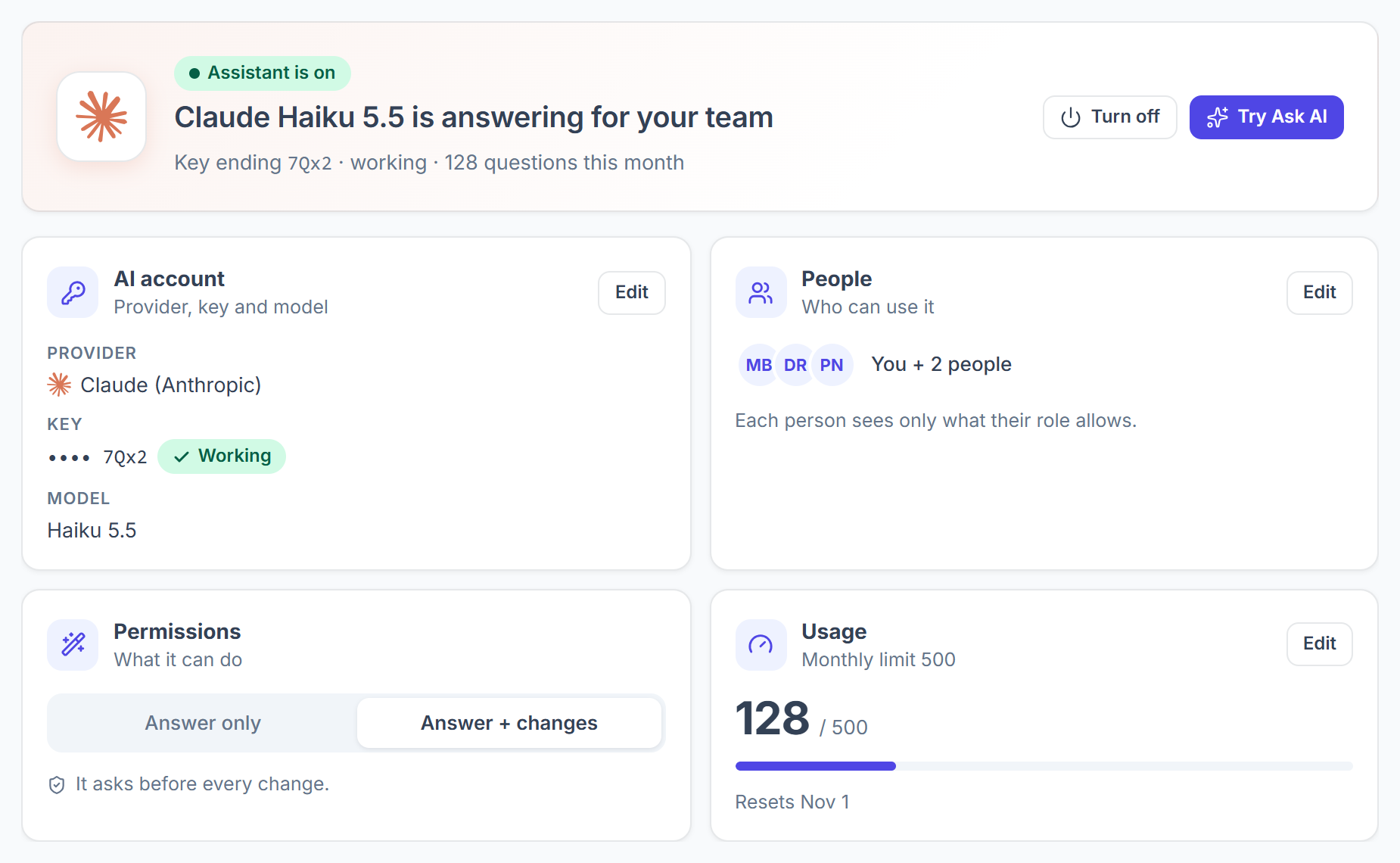
Switch the Permissions card from Answer only to Answer + changes. It starts on Answer only, where the assistant reads your data and never changes it.
With changes allowed, the assistant asks before every single change, and each one can be undone for 7 days.
How to Set a Monthly Question Limit
Open Usage and click Edit. Type a number under Monthly limit or pick 100, 250, 500 or 1,000, or choose No limit. The same window lists who asked the most questions this month.
How to Change the Model or Replace the Key
Click Edit on the AI account card. From there you can:
- pick another model; each one shows its cost from $ to $$$;
- use Replace key to paste a new key, which is checked before it is saved;
- switch to another provider, which removes the old key, so paste one for the new provider;
- Remove the key, which stops the assistant until a new key is added.
Turn off at the top pauses Ask AI for everyone without removing the key, and Try Ask AI opens the panel so you can test it right away.