
Clientish Documents
Step-by-step guides for every module, from your first workspace to proposals, billing, support and automation.
Clientish Mobile App: Your Branded App With Push Notifications
Set the app name and icon, share the install QR code, test push notifications and choose whether clients see the Get the app card.
In Clientish, your workspace installs as an app on phones and computers, under your company name and icon. Your team and your clients add it right from the browser, with no app store, and their notifications then arrive on the phone like any other app’s.
Who can do it: anyone who signs in can install the app; changing the icon and the client card needs the Edit Company Settings permission, which the owner and admins have
What Is the Clientish Mobile App?
It’s your own workspace saved to the home screen, opening full screen with your name and icon instead of a browser tab.
- There’s no app-store app. People install it from the browser on iPhone, Android or a computer.
- Your team signs in to your dashboard; your clients sign in to your client portal. Each sees the same pages they see in the browser.
- If you connected your own domain, the app opens on that domain.
- Push notifications work inside the installed app, so new messages and updates reach the phone even when the app is closed.
Where Are the Mobile App Settings in Clientish?
They sit in Settings → General, in the Mobile app card. The card holds the app icon, a QR code to install the app, a test for notifications and the switch for the clients’ install card.

How Do You Set the App Name and Icon?
The app takes its name from the Company Name in General settings, so changing that name renames the app too. On the home screen, only the first 24 characters show.
- Click Upload app icon and choose a square PNG or JPG of at least 512 × 512 pixels, up to 2 MB.
- Without an icon of its own, the app uses your favicon, then your logo, and as a last resort the first letter of your company name in your brand color.
- Remove takes your uploaded icon away, and your logo is used again.
- Phones that already installed the app pick up a new icon or name automatically after a while.
How Do Clients and Team Members Get the App?
Clients, and everyone who works in your agency dashboard, see a Get the app card at the top of their dashboard. On a computer it shows a QR code; scanning it with the phone camera opens your workspace and goes straight to the install step.
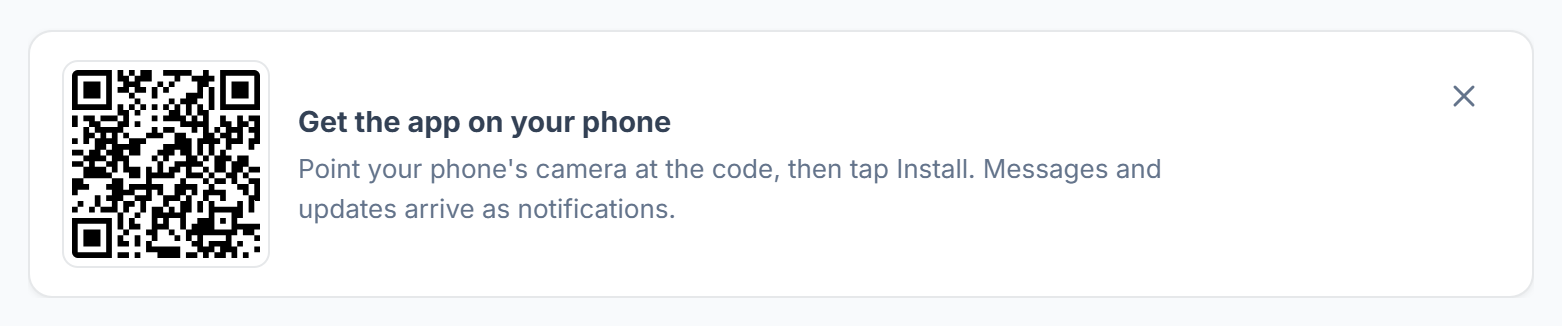
- The QR code in the Mobile app card opens your team dashboard; share it with new team members.
- Clients get their own code on their portal dashboard, which opens the client portal.
- On a phone the card shows an Install button instead, or on iPhone a How button with the three taps.
- How to install the app walks through each device.
Which Notifications Reach the Phone?
Exactly the ones in that person’s bell, with the same title and the same link. A tap on the notification opens the page it’s about.
- Anything muted, or turned off in that person’s notification settings, stays off the phone as well.
- Clients get only what their portal bell shows, such as a new message, an invoice or a new report.
- People whose access is on Hold get no notifications.
How to Send a Test Notification
Click Send a test next to Test notifications. A test goes to every phone or computer where you yourself turned notifications on, and the line under the button says what happened.
How to Turn the Client “Get the App” Card On or Off
Use the Show ‘Get the app’ to clients on their dashboard switch. It’s on by default; turn it off and clients no longer see the install card, while your team still does.
Clients can still install it themselves with Install app in their profile menu.