
Clientish Documents
Step-by-step guides for every module, from your first workspace to proposals, billing, support and automation.
How to Write Meeting Notes With AI in Clientish
Turn a Zoom, Meet or Teams transcript into a summary, decisions and next steps with your own AI, then check and save them.
Writing up a long call takes time you would rather spend on the work. Give Clientish the transcript file from your meeting tool, and your own connected AI turns it into a short summary, the decisions and a list of tasks with owners and dates, as a draft you check before saving.
Who can do it: anyone who can write the notes: Edit Clients for a client’s call, Edit Leads for a lead’s call. Connecting the AI is done by the workspace owner.
Before You Begin
- Connect an AI to your workspace. In the notes window, Connect AI takes you to Integrations. You can use any of 8 AI companies, from Claude and ChatGPT to Gemini, Grok, DeepSeek, Mistral, Perplexity and OpenRouter. See Set up the AI assistant.
- Have the transcript of the call as a file: .vtt, .srt, .txt or .docx, under 5 MB and up to 50,000 words. Clientish does not record or transcribe calls itself; the transcript comes from your meeting tool.
Where Do You Find the Transcript of a Call?
In your meeting tool, after the call. Click Where do I find my transcript? in the notes window for the steps for Google Meet, Zoom and Microsoft Teams:
- Google Meet: transcripts come with Google Workspace Business Standard or above. Start transcription during the call; afterwards download the transcript Doc as .docx.
- Zoom: on paid plans, with cloud recording and the audio transcript turned on. Download the .vtt file from your recordings.
- Microsoft Teams: start transcription during the call; afterwards download the transcript from the meeting chat as .docx or .vtt.

How to Write Meeting Notes With AI From a Transcript
Open the notes for the call
Find the call in the client’s list of meetings and press Write notes. For a lead, use the same button on their Meeting card once you marked the call as held.
Add the transcript file
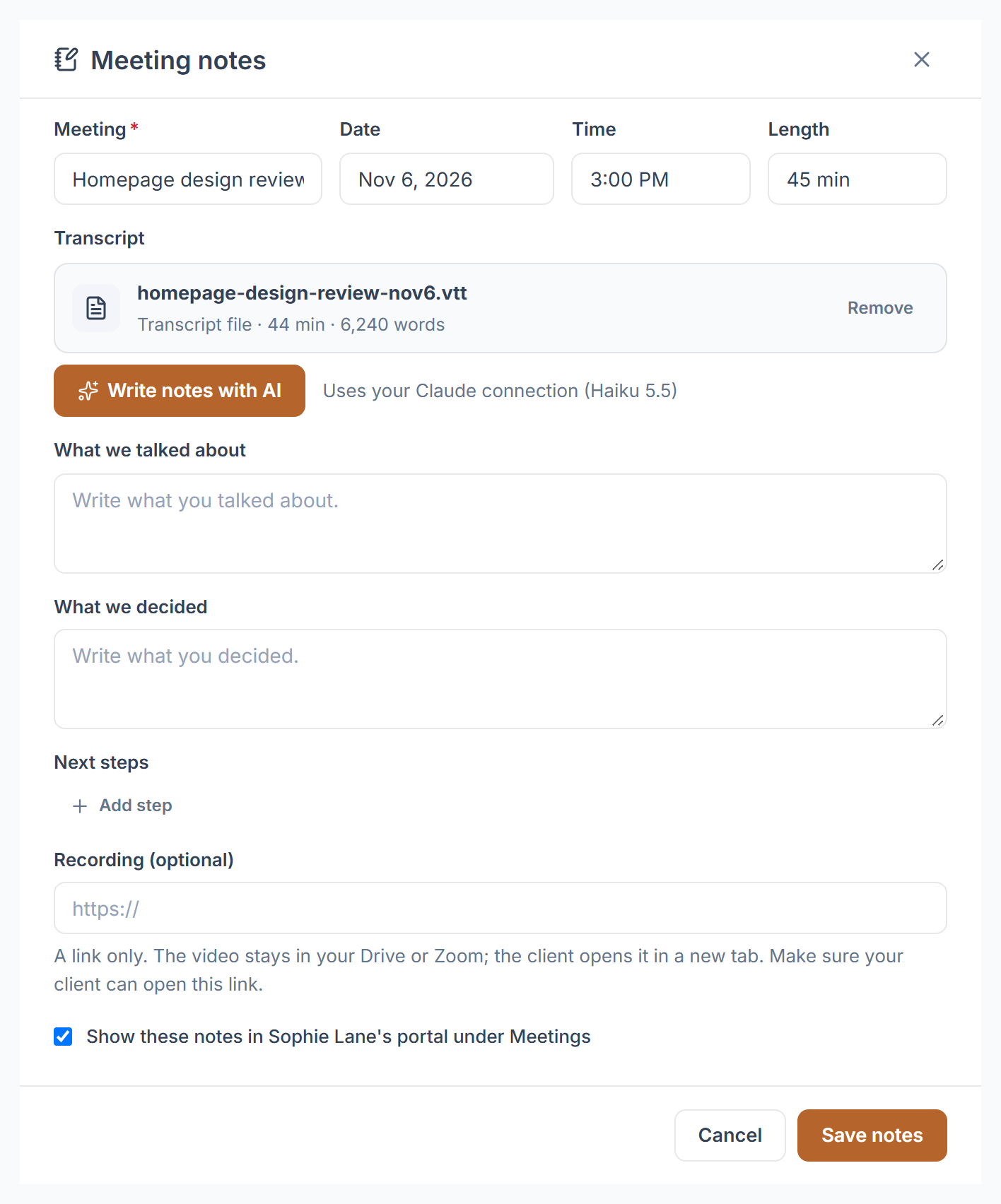
Under Let AI write the notes from, click A transcript file or drop the file on it. The window shows the file name, how many minutes and how many words it holds, and which AI it will use.
Let the AI write
Click Write notes with AI. A long call can take up to a minute.
Read the draft, fix it and save
The fields fill in, under a yellow line: Written by AI from the transcript. Read it and fix anything before you save. Check the summary, the decisions and each next step, its owner and its due date, then click Save notes.

What Does the AI Write in Your Meeting Notes?
- What you talked about, in 1 to 4 plain sentences, including budget, scope and timing when they came up.
- What you decided, or nothing if nothing was agreed.
- Up to 8 next steps, each marked for your agency or for the client. A day said on the call, like “Friday”, becomes a date.
- The notes are in the language the call was held in, and the AI is told to use only what the transcript says.
Is the Call Transcript Stored in Clientish?
No. The transcript is read once, sent to your AI and dropped. Nothing is saved until you press Save notes, and saved notes show Written with AI on the call.
Each draft counts as one question against the monthly limit you set for your AI connection, if you set one.